
Shop Loewe — $749
 vshtun/Shutterstock
We may receive a commission on purchases made from links.
Laptops only contain so many ports, which means you’re limited by what you can plug in, be it extra storage, peripherals, monitors, and beyond. That’s where laptop docking stations come into play. They enable you to connect a myriad of gadgets to your otherwise limited laptop, but in a way that allows you to set up a more static workstation. At the end of the day, you can simply unplug your laptop and leave everything connected to the dock, so when it’s time to come back, you plug it all in through a single, simple interface: the docking station.
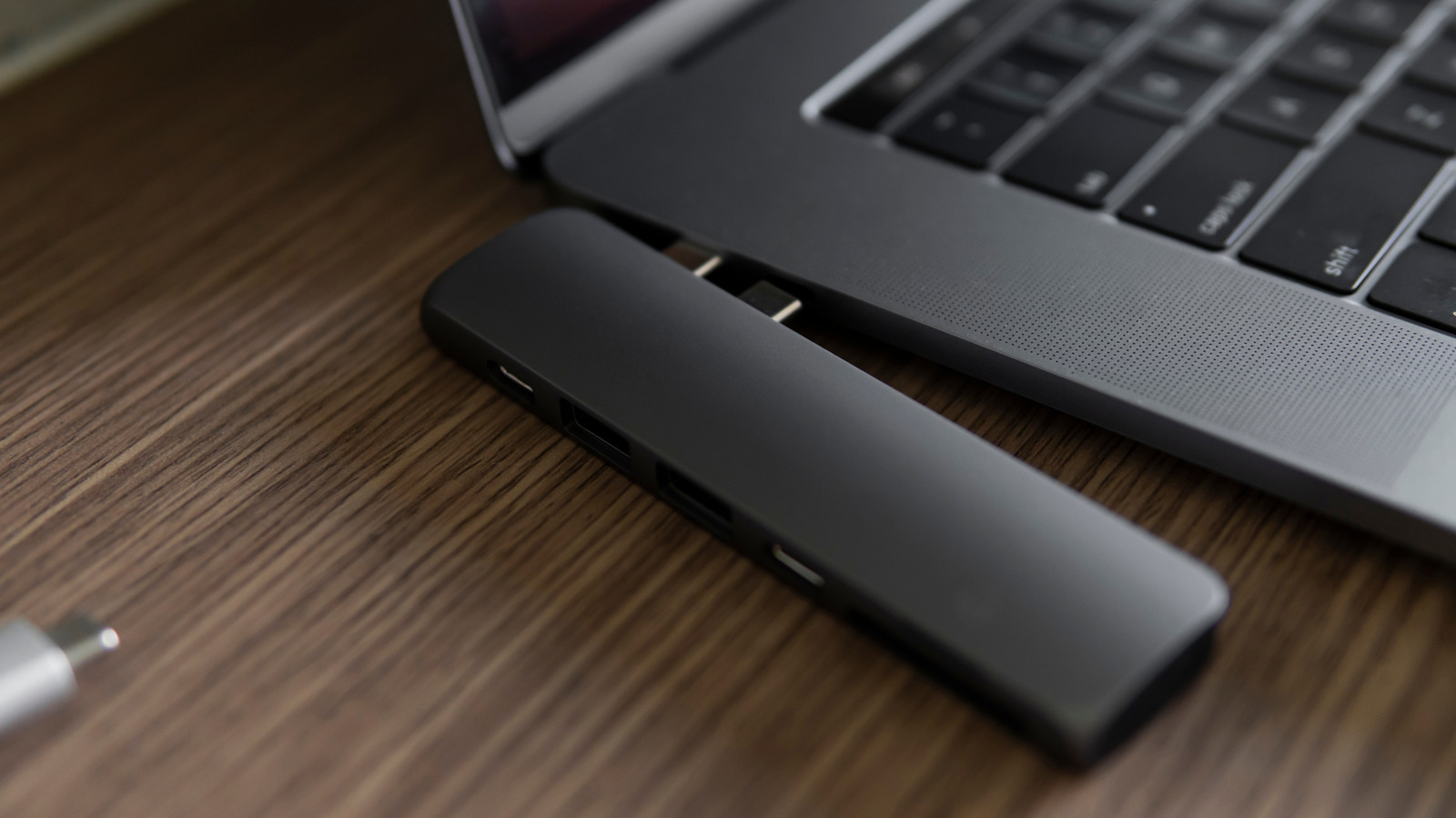
Modern docking stations are less like the Nintendo Switch’s TV and charging dock and more like USB hubs or desktop power stations. For example, the Anker Nano laptop docking station stands upright like a small tower and has 13 total connections to significantly expand your laptop’s functionality. Meanwhile, Anker’s 8-in-1 dual-monitor laptop docking station is more of a USB hub with a lightweight design, so you can easily stow it when you travel. But in both cases, these devices do the same thing: they expand what’s available to your laptop or system.
As you might expect, laptop docking stations come in many forms and with a plethora of functions to choose from. There are a few great docking stations for gaming laptops, specifically MacBook docking stations on Amazon and more. It’s enough that when you’re on the hunt for one, there are some things you need to know first. I’ve outlined those considerations here.
1. Know how many ports you need
Docking stations come with a wide variety of additional ports to expand your laptop’s functionality. Common options you’ll find include standard USB Type-A, USB Type-C, HDMI or DisplayPort for monitors, Ethernet for wired internet, audio jacks like a 3.5mm audio input, SD card readers, and high-wattage USB ports with PD (power delivery) for fast-charging.
Some hubs may include support for multiple displays, meaning two or more HDMI or DisplayPort connections, while others may include more USB and so on. Step one is to figure out which ports you’ll need and which you use most, and go from there. If you’d like to dock your laptop with dual displays, a mouse, a keyboard, external storage, and other devices like a microphone or headset, you need to choose a dock that accommodates all of them. If you want to achieve something like triple external displays so your laptop can plug into a pseudo-battle station, you’ll need to seek out a dock that supports that functionality. It seems straightforward, and sure, it can be, but incompatibility is not something you want to have to figure out after you’ve purchased and installed a dock.
2. How static do you want the station to be?
Next, you need to decide how you’ll install the station and what setup you want for your desk or workstation. Are you okay with something bulkier and more functional that will stay on your desk at all times after you plug it in, or do you want something lightweight you can bring back and forth between home and the office? The comparison between the Anker Nano 13-in-1 docking station and the Anker 8-in-1 docking station in the intro is the perfect example. One is much larger and bulkier, designed to be placed upright on a desk and left there. The other is smaller, more portable, and easy to set up and pack away when needed.
In addition, there are stations that let you actually dock your laptop, like Acer’s docking station for 3 monitors. The laptop essentially rests on top of the dock, which doubles as a stand. That, too, is meant to remain on a desk, so you’re not likely to bring it anywhere. The point is that docking stations are relatively inexpensive, so you could install one at home and another at the office, and even have two separate versions to match your different experiences. You might have a three-monitor docking station at work and a single-monitor docking station at home, for instance.
3. Understand and identify the power requirements
 Nickbeer/Getty Images
Some portable docking stations work more like a USB hub, siphoning power from the laptop, the primary device they’re plugged into. Most static docking stations, especially those with substantial power requirements, have a separate power supply and must be plugged into a nearby outlet. In most cases, a dock that supports multiple displays, high-bandwidth internet connections, high-speed USB ports, and other features will require a dedicated power supply. That, combined with the information about your laptop’s power requirements, can help you determine if the station will charge your laptop and power the extra gear appropriately. The best Steam Deck USB-C hubs and docks are a solid example of this. They provide enough power to charge the Steam Deck while docked, and that works as you’re actively using and gaming on it, too. Otherwise, the battery would drain too fast.
As a general rule, if you’re plugging many devices into the docking station, you want to make sure it has enough power, so it’s best to choose a static station with its own supply. If you’re hoping to charge your laptop while it’s docked, you’ll need to match the power between devices, such as choosing a 100-watt-capable dock for a 100-watt laptop. Another thing to consider: the laptop and dock must have either Thunderbolt 3 or 4 ports, USB4, or USB Type-C with PD to enable fast-charging.
4. Consider cable placement for better organization and management
Something else you might not consider until you have everything plugged in is where the cables and individual connections are located. With a hub-style dock that has ports on both or all sides, you’ll have cables coming from all angles. That will end up making your desk look quite messy and might even make things difficult to work around, depending on how much space you have available. Other docking stations are designed with the ports on a single side, neatly in a row. The latter would make it easier to organize cables coming from underneath the desk or in a single direction and also keep things a little tidier. Ultimately, it depends on your desk or workspace layout, and one configuration may work better than others.
As with deciding how many ports you want, consider how many devices you’ll be plugging in, including monitors, hard drives, peripherals, your laptop, and so on. Try to imagine or map out where those cables will come from, how it will all look on your desk, and how much extra space it will need. You may be better off with an upright dock, one that lies flat or a unique design that moves the ports and cables out of your way.
5. Make sure you understand platform compatibility
 Diy13/Getty Images
While there are a ton of laptop docks that support cross-platform use, like Windows and Mac, some still only support specific platforms. Before choosing a dock, double-check that the station will work with your particular laptop. If you have a MacBook, for example, you’ll want to explicitly make sure the dock supports Mac connections, and you’ll also need to make sure it has Thunderbolt, USB4, or USB-C with PD ports. If you’re looking for a dock for your smartphone or tablet (and yes, they exist), you’ll want to make sure you’re choosing one with the right compatibility. There’s an $80 dock designed for the iPad that turns it into a more productive work setup, and even works with some Android tablets.
If you don’t plan to use some of the extra features of a dock, like the ability to connect to multiple displays, and you’re just looking for extra ports, it may be better to go with a cheaper, just as reliable USB-C hub. Although most people use USB hubs incorrectly by overloading them with too many devices, they’d benefit more from the individual power draw of the docking station.






