
Shop Loewe — $749
 Eza_Nanda/Shutterstock
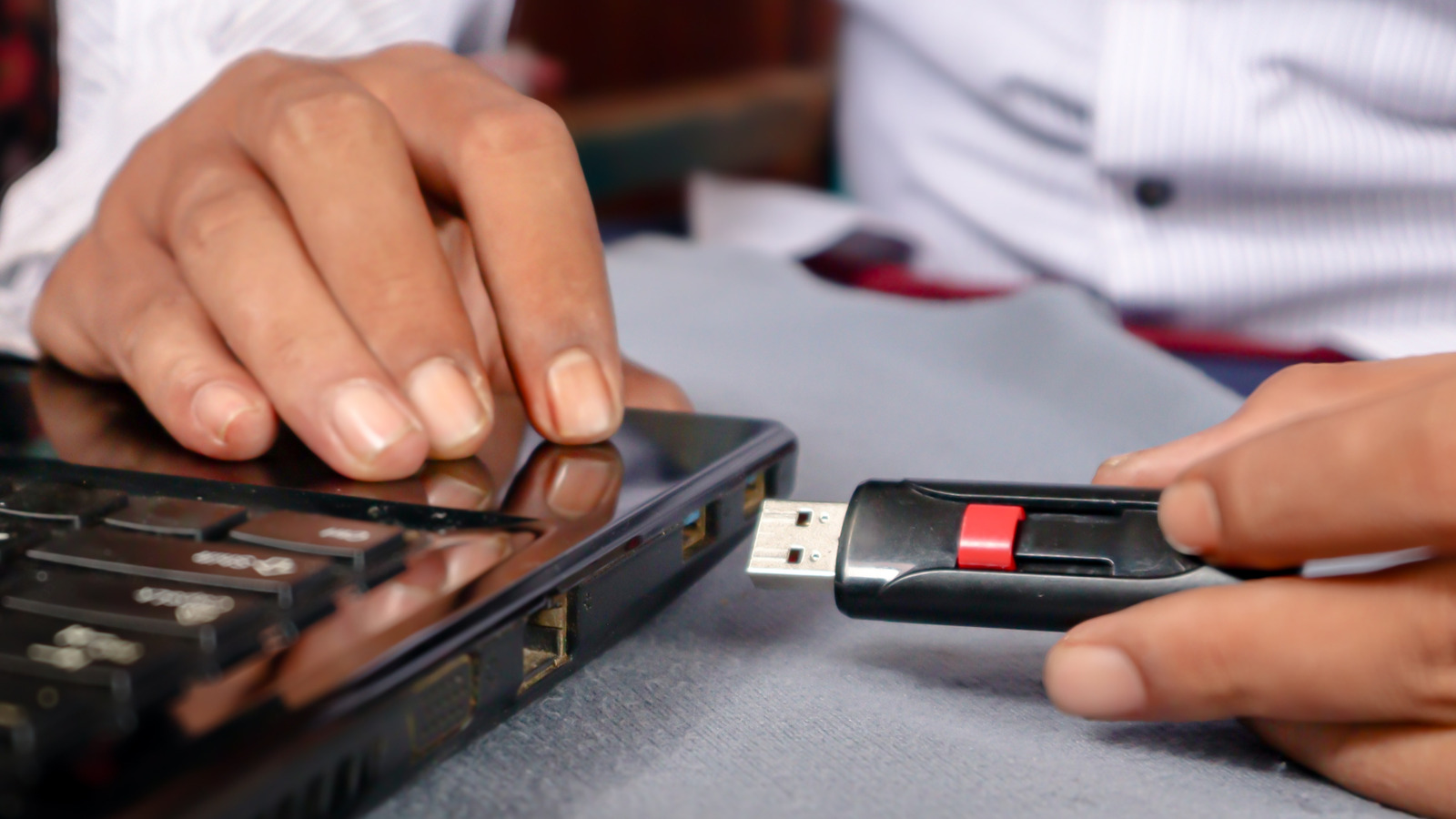
Back in the day, yanking out a flash drive or external hard drive from a Windows computer was seen as careless. That’s because operating systems cached the data they were transferring in RAM before writing it to an external drive for improved system performance. If you removed the USB stick without ejecting it, data could end up corrupted or even permanently lost because it was still cached in memory. By safely removing it, the OS did some housekeeping, such as emptying the cache to clear any pending write operations before detaching the drive.
But this has since become a myth as Windows users don’t need to do so anymore. Since Windows 10 version 1809, which was released in November 2018, Microsoft has included a feature called “Quick removal” and made it the default external storage removal policy. Windows no longer caches disk write operations in memory, generally making the external drives ready to be removed at any time without needing to follow the safe ejection process. However, “Quick removal” didn’t completely eliminate the need for safe removal. There are some instances where you still need to use it.
When you need to safely remove external drives
 Dmytro Duda/Getty Images
While write caching is disabled on Windows by default, macOS and Linux still have it enabled. On these operating systems, you should always safely remove external drives. There’s no official documentation on disabling it on the support pages of Apple or Linux, so it’s it’s the expected workflow. Even with “Quick removal” on Windows, there’s still a small chance of data corruption or loss if you don’t check that all files have finished transferring to the drive. If unsure, follow the safe ejection protocol instead.
Sometimes, you might need to enable write caching on Windows, forcing you to always safely remove USB sticks. This can happen if you notice that file transfers are slowing down your computer. Although having to manually eject drives is annoying, cache writing ensures that the disk writing process doesn’t have a negative impact on system performance by offloading it to RAM. Without it, the operating system will need to finish the data transfer in one go, which can lead to sluggish performance. This is not much of a problem with faster, more reliable storage options like SSDs.
To re-enable cache writing, follow the steps below:
-
Right-click Start and select “Disk Management.”
-
In the lower section of the window, you’ll see drive labels. Right-click the external drive you want and select “Properties.”
-
In the “Removal Policy” section, select “Better Performance.”
-
Click “OK.”






