
Shop Loewe — $749
 Iaroslav Bushuev/Getty Images
I’ll admit, a big part of my motivation for writing this explainer is self-serving. As someone who has been using and reviewing tech for decades, USB color coding is one of those bits of trivia that has flitted in and out of my consciousness multiple times through the years, but never found enough purchase to really stick. It’s not something that sticks like knowing what type of USB port you have. Here’s hoping that a dedicated article to why most USB-A ports are color-coded and why most USB-C ports aren’t will help lodge it in the old grey matter.
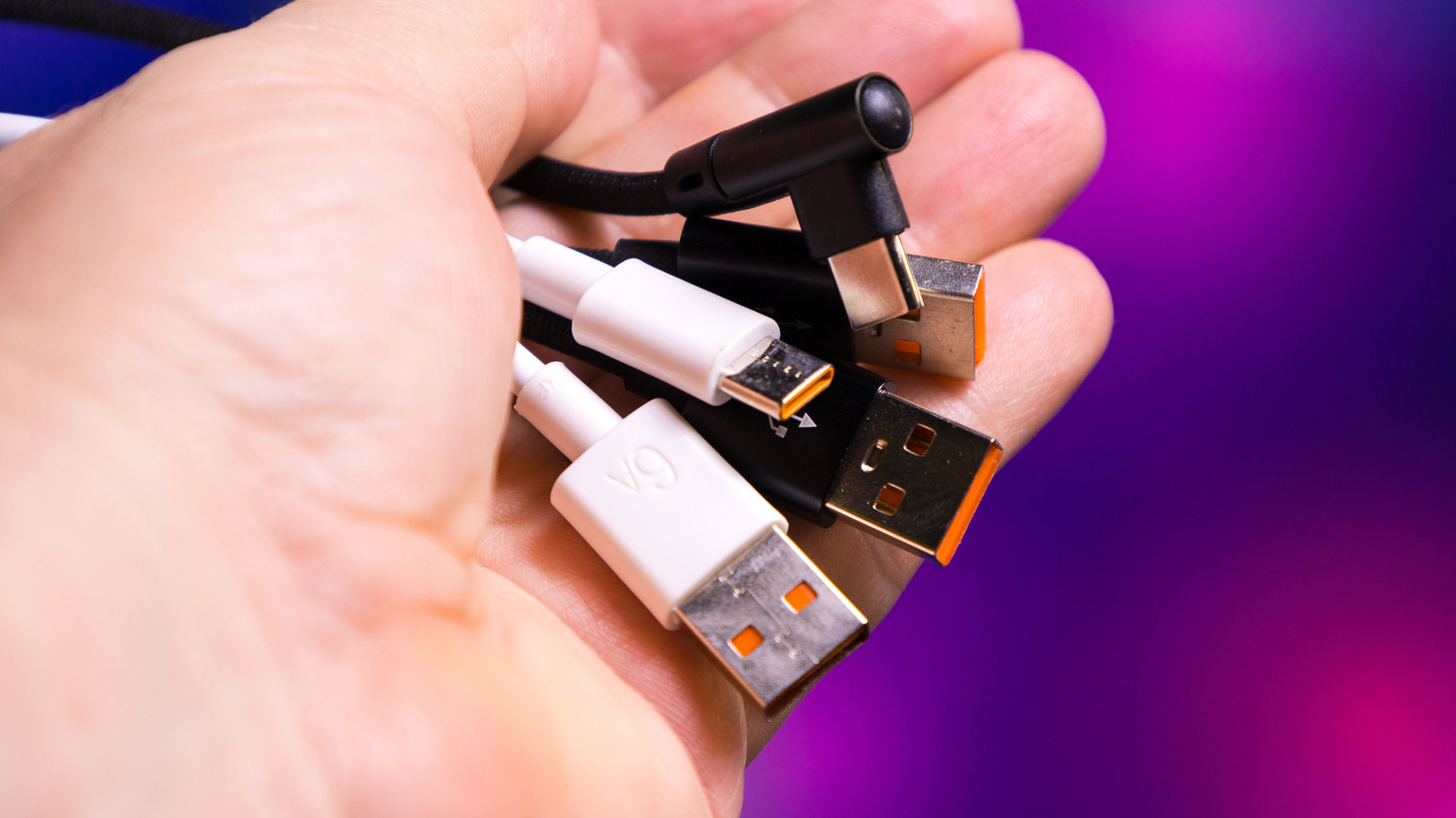
The TL;DR is that USB-A ports are largely color-coded to denote the generation of USB they support. You might then assume, especially considering its simple, reversible form factor, that USB-C doesn’t require color coding because of some universal, standardized capacities. Unfortunately, the exact opposite is actually the case: USB-C lacks color coding because there are too many variables to easily indicate with a single color.
What the colors mean (and why USB-C lacks them)
 ScaniaZ/Shutterstock
Despite the veritable painter’s palette of colors, things are easier on the USB-A side. Here’s what the various colors indicate:
- White is the OG, which, in this case, means original generation. White indicates USB 1.X version devices.
- Black covers the 2.0 generation of USB-A.
- Yellow is the first split color, meaning it can support either 2.0 or the newer 3.0 standard. It also indicates an “always on” port, which can supply power even when the device it belongs to is powered down.
- Orange means a purely 3.0 port or device, and is also “always on.”
- Blue is also a USB 3.0 connection, but without the always on functionality.
- Teal is for USB 3.1.
- Red indicates a USB 3.1 Generation 2 and USB 3.2 port or device, the latest USB-A versions.
USB-C causes trouble for this kind of simple categorization system because a single USB connection can support USB 2.0, 3.x, or USB4 data speeds, DisplayPort or HDMI video output, Thunderbolt 3, 4, or 5, and power delivery ranging anywhere from a few watts up to 240W. You’d need a dizzying rainbow of colors to indicate which amalgam of speed, power, video capability, and protocol support a single USB port or device delivers.
Why it matters
 Eza_Nanda/Shutterstock
On the USB-A side, colors mostly designate generation. This is primarily important because each generation supports different transfer speeds. USB 1.X (white) tops out at 12 Mbps, USB 2.0 (black or yellow) gets up to 480 Mbps, USB 3.0 (yellow, orange, or blue) up to 5 Gbps, USB 3.1 (teal) also maxes out at 5 Gbps, USB 3.1 Gen 2 (red) can get up to 10 Gbps, and USB 3.2 (red) can get a maximum of 20 Gbps. USB-C, on the other hand, is capable of much faster speeds.
The Thunderbolt protocol, which runs over USB-C, for instance, can hit transfer rates of up to 40 Gbps, while the new USB 4.0 reaches even higher, up to 120 Gbps. The issue with the lack of color coding on USB-C can cause downstream confusion. You may plug a brand new external SSD into your laptop and wonder why speeds are pinned at USB 2.0, or wonder why you can’t get a monitor that requires DisplayPort Alt Mode to work on some ports. Luckily, Thunderbolt and USB4 are looking to remedy some of these headaches by unifying capabilities.






