
Shop Loewe — $749
 agencies/Shutterstock
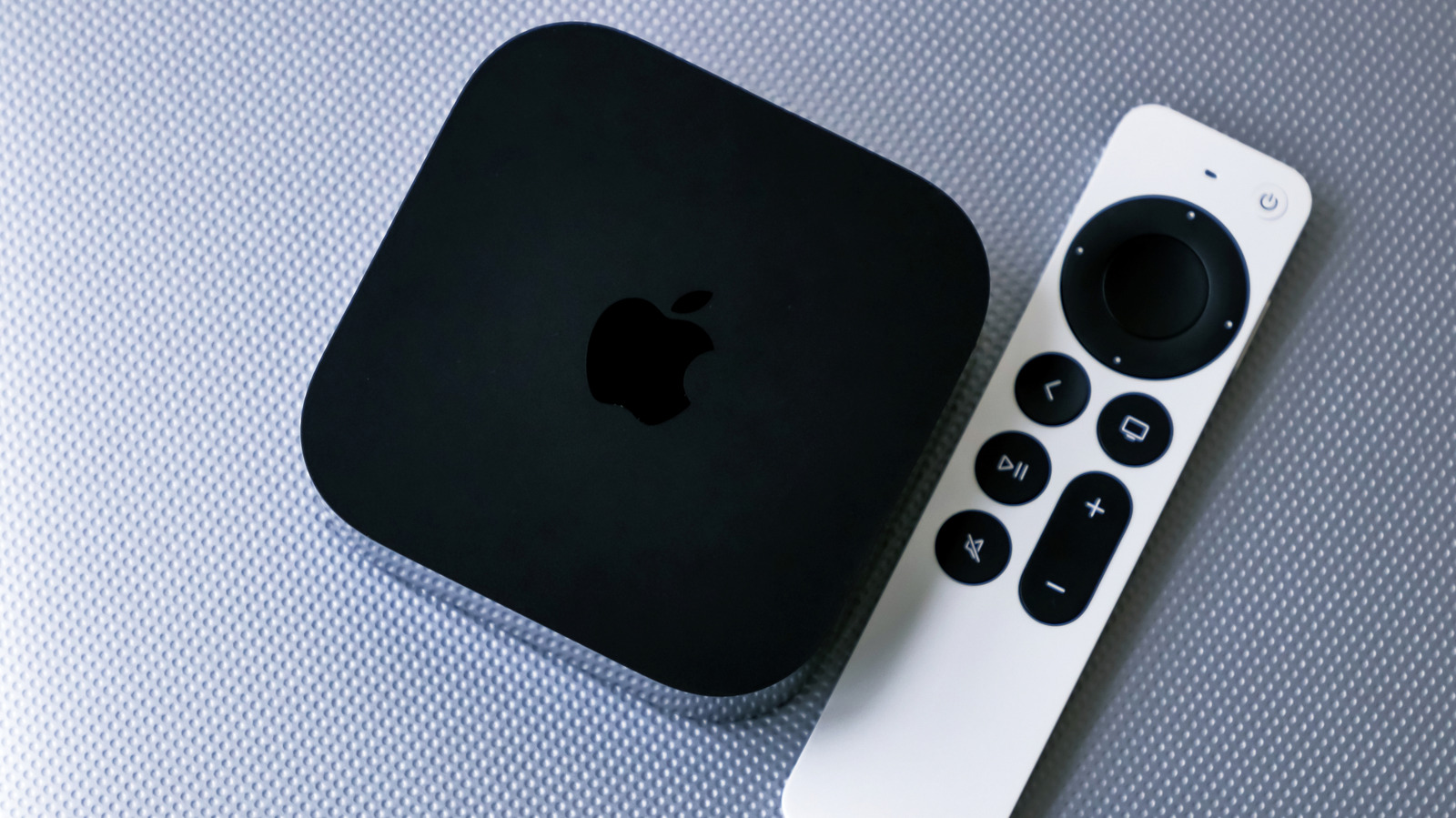
The Apple TV’s Siri Remote is the easiest way to control the multimedia player, but that’s not the only option available to users when the remote control isn’t anywhere in sight. The Apple Watch on your wrist is a good alternative, since many people may already wear the smartwatch while watching TV. The wearable supports the key controls that most users want, including changing apps, playing shows, and managing the volume. The downside is that the Apple Watch has a smaller screen than an iPhone, so it’s not as convenient to use as a remote control for prolonged periods.
The Apple Watch isn’t the only Apple device that can control the Apple TV. The iPhone and iPad also offer remote control support for the Apple TV, assuming they’re close by and not charging in a separate room. The Apple TV also supports third-party remotes, which can be useful if you routinely lose the official remote control or it’s broken. But none of these alternatives can beat the convenience of having remote-control capabilities built into the Apple Watch on your wrist. Also, the Apple Watch Remote app only requires watchOS 6.0, an operating system that was introduced in September 2019. This means you don’t need a brand new Apple Watch to control the Apple TV. Older models that run watchOS 6.0 or higher should still work.
Note that Apple refers to the Apple TV device as “Apple TV 4K” in the support document describing the Apple Watch remote control feature. Apple currently sells only Apple TV 4K models (and they’re the only ones supported by Apple Watch). That may be why Apple lists the full product name rather than referring to the broader product name, Apple TV, which includes the streaming service that can be accessed without an Apple device.
How to control the Apple TV with the Apple Watch
 gece333/Shutterstock
To control Apple TV with a compatible Apple Watch, you’ll first have to ensure the two devices are on the same Wi-Fi network. If you’re doing this at home, it’s likely that both the Apple TV and the Apple Watch (and the iPhone the wearable is connected to) are on the same network. To start the pairing process, you’ll have to look for the Remote app on the Apple Watch and tap the Apple TV model in the list. A “+” sign will let you find the media player if it’s not already listed. Then enter the passcode that appears on your Apple Watch. An icon will appear on the wearable once it’s paired with the Apple TV.
Once the Apple Watch is paired with the Apple TV, you can control the media player using two apps on the watch: the Remote app and the Now Playing app (Tech IRL shows them in action). You can turn on the Apple TV if it’s off, directly from these apps. Also, you can turn off the media player if needed. Both apps will also let you navigate the Apple TV menu and select the movies and TV shows you want to play. The Apple Watch can be used to pause playback when you need to take breaks and adjust the volume.
Interestingly, you can also rotate the Digital Crown to increase or decrease the volume, a useful Apple Watch trick that works when streaming music on your iPhone and controlling the playback with the wearable. The Digital Crown on the Apple Watch can also be used to invoke Siri on the Apple TV. Press and hold the button to talk to Siri.






