
Shop Loewe — $749
 BrandonKleinPhoto/Shutterstock
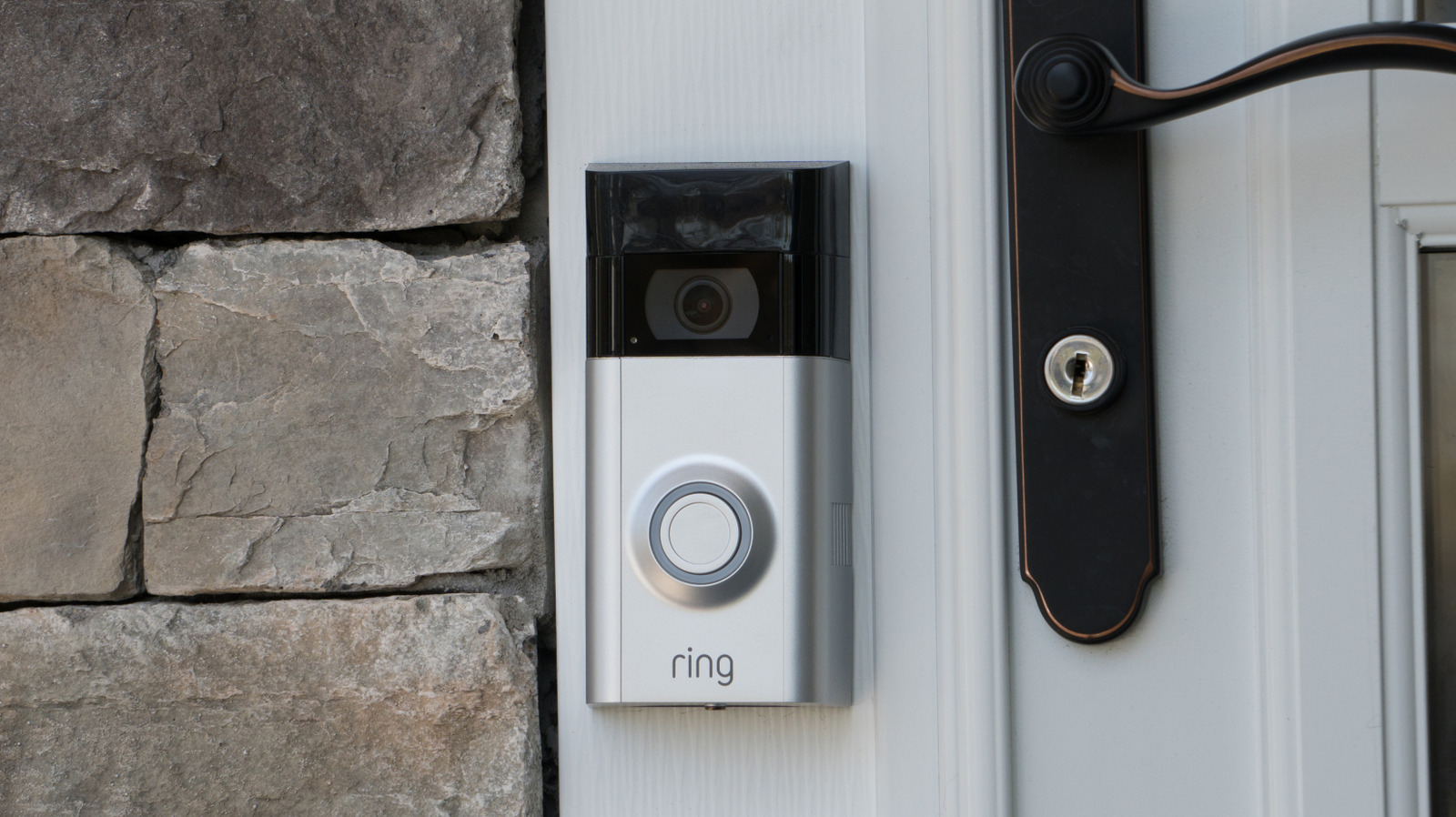
Launched in 2014, Ring cameras can help individuals protect their property by giving them access to live video feeds wherever a device is installed. Acquired by Amazon in 2018, Ring now has 50 different devices available with an assortment of features and specs. There are some uncomfortable truths about using Ring cameras, but there’s one feature in particular that may give you the creeps.
Backed by generative artificial intelligence (AI), Ring’s Video Descriptions are meant to be a way for users to distinguish between normal activity and emergencies when observing camera footage. Available with a subscription, Video Descriptions provide details about what’s going on when motion is detected on a camera. While it can be useful, it can also be disturbing knowing that AI is combing through your video footage. Fortunately, you have options.
Video Descriptions are a part of a suite of AI features from Ring, which also includes Single Event Alert, which reduces notifications by combining alerts, and Active Warnings, which notifies visitors about recording devices being used. While there are plenty of things you didn’t know your Ring camera could do, for now, let’s take a closer look at what Video Descriptions are and how you can control this AI feature.
What Video Descriptions are and how to disable them
 Hadrian/Shutterstock
With Ring Video Descriptions, when the device recognizes motion, you’ll receive a notification containing a text description of the event as well as an animated preview. For example, if your pet is getting up to no good, you might receive a text-based alert to the effect of, “A dog is tearing up paper towels on the rug” along with a brief preview.
Video Descriptions is only available for those who have a Ring Pro subscription and there are some stipulations. English needs to be the primary language on your smartphone and the feature does not work with the Ring Edge, Ring Alarm, Ring Car Cam, or Ring Alarm Pro. Any new devices will need Video Descriptions enabled, and disabling the feature removes all descriptions.
Here are the steps for enabling or disabling Video Descriptions:
-
Open the Ring app and ensure you’re on the main dashboard.
-
Select more (three dots) for the device you’re accessing.
-
Choose Alert Settings.
-
Under Filters, select Video Descriptions and enable/disable it.
You can also access Ring’s other Intelligent Features by selecting menu from the dashboard and tapping Pro Features. You’ll see an option for turning them on or off, and selecting which features to enable. Choosing Manage Devices allows you to select which devices have access to the various features. And on the topic of creepy tech features, you may also want to know if the blue light on a Ring camera means someone is watching.






