Posted on

Do You Have To Unplug Ethernet To Use Wi-Fi?

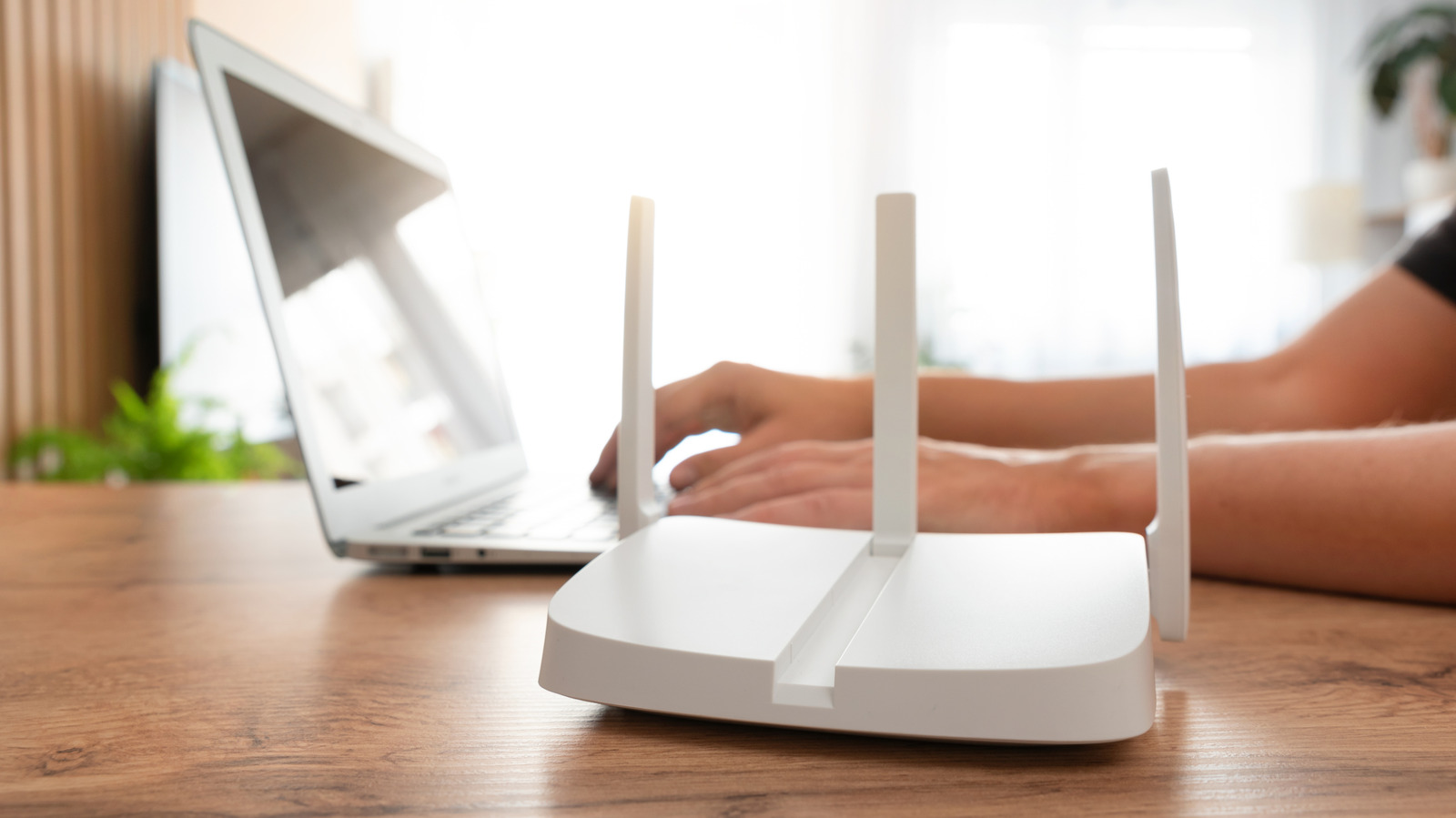
A person sitting next to a laptop near a white router Simpson33/Getty Images

If you have a particularly awkward Ethernet cable setup, as I do, you probably want to know whether you need to physically unplug the cable from your desktop or laptop before using Wi-Fi. The answer is no, but you do have to redirect your computer to understand which connection you are prioritizing, either by manually changing the interface metric values to adjust the priority of each adapter if trying to use both, or by toggling off the wired network adapters if you just want to use Wi-Fi. I tried the second method myself since I normally need to climb under my desk to reach my personal desktop to unplug the Ethernet cable, and I would rather cut that out of my routine, if possible. Plus, my router is in too much of an awkward spot for me to unplug it comfortably by doing it from the other end.

It turns out that Windows 11 is why it isn’t so cut-and-dried on whether you can use your Wi-Fi over your Ethernet connection. This is because Windows prioritizes the most stable and fastest connection if given the choice. By default, being wired via Ethernet should give you better connectivity than Wi-Fi, at least if you’re using a Cat6 cable or better. Luckily, there is a quick workaround, especially if you don’t want to mess with too many settings, to remotely control the adapters so they act as if the Ethernet cable isn’t plugged in, even though it is.

Change your network adapter settings

A desktop PC with a Wi-Fi icon hovering over it Fatido/Getty Images

Windows 11 tries to optimize your connection based on what’s available. For me, though, I had a recent scare when my Ethernet cable was severely damaged, to the point that I was surprised it was even working at all (the wires were exposed and looked almost frayed, likely a consequence of buying a flat cable when I needed a round one). Since this runs for some distance across my wall, I couldn’t just buy another 50-foot cable on a whim to replace it. So, as a bit of an emergency measure, I wanted to switch to Wi-Fi instead of Ethernet without unplugging it. It turns out I needed to make one vital change for it to work properly: disable the Ethernet adapter in my Windows settings.

To disable the adapter, open the Settings app (pressing Windows key + I is the easiest way), then click Network & internet. Scroll down to find Advanced network settings and click to open the adapters page. Under Network adapters, click the Disable button next to Ethernet. If you need to re-enable it, click Enable next to it, and it should restore your wired connection.

You can technically run a quick script instead of going into your settings if you are comfortable doing so and have administrator access. Just note that this method requires using PowerShell or the Windows Command Prompt. Type in ‘netsh interface set interface “Ethernet” disable’ as your prompt and press Enter. If your adapter is not labeled Ethernet, then you will need to replace it with the actual adapter name in the double quotation field. To re-enable, change the command to enable instead of disable.

Source

Posted on

Consumer Reports Recommends You Avoid This Expensive Laptop At All

The gulf between gaming on the go and gaming with a dedicated home setup has never been thinner. The Nintendo Switch and Switch 2 have inspired handheld PC platforms such as the ROG Xbox Ally X and the Steam Deck, but if you’re looking for portable performance, you can’t go wrong with gaming laptops. Unless you buy an Alienware x14 R2, that is.

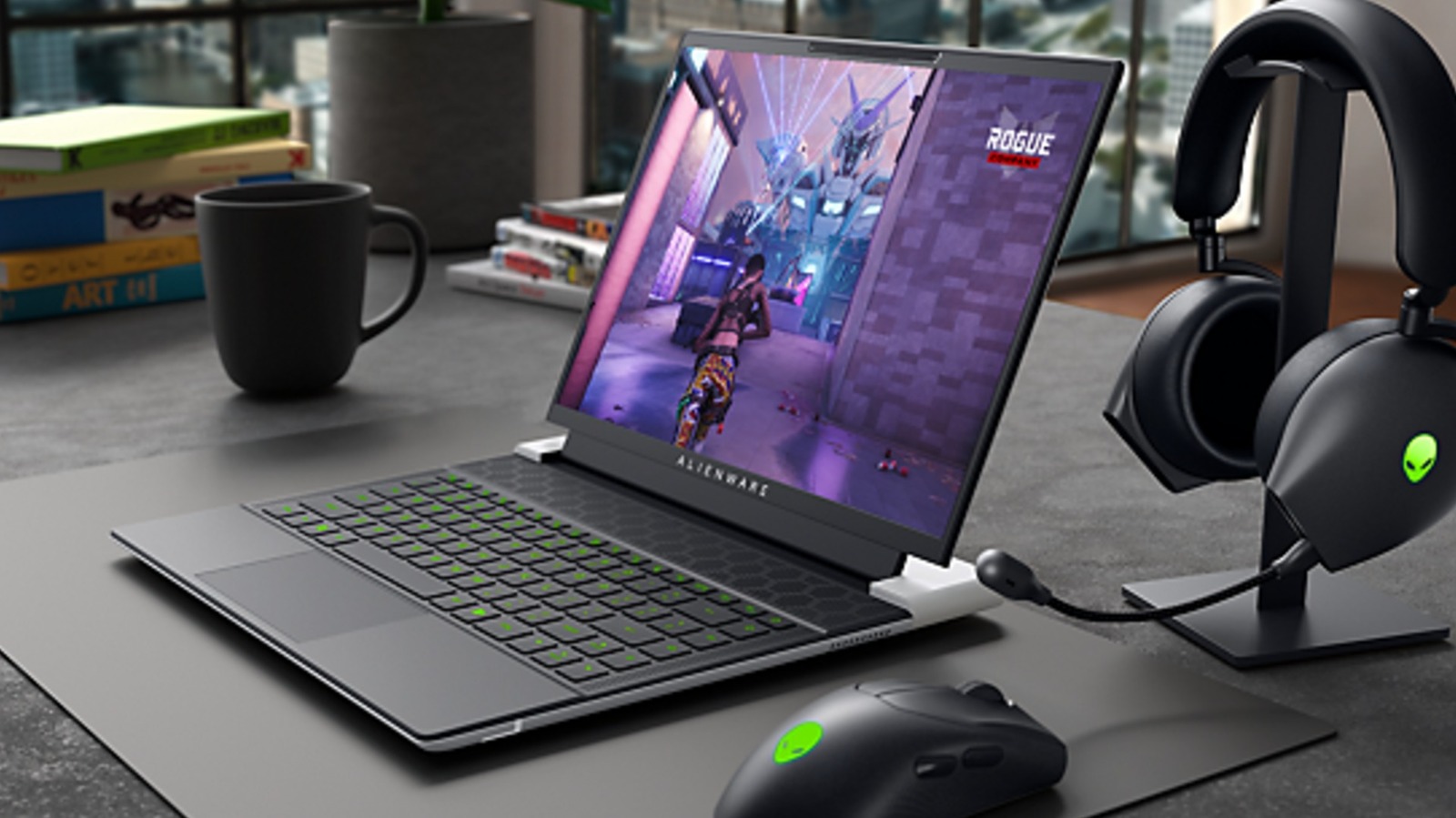
Alienware is Dell’s own line of gaming computers and peripherals — the brand started off independent, but Dell acquired Alienware in 2006. If you ever see someone using a laptop with a glowing alien face on the monitor lid, that’s an Alienware. The Alienware x14 R2 is a 13th generation gaming laptop that runs on Windows 11 Home and utilizes an Intel Core i7 13620H GPU, an Nvidia GeForce RTX 4050 GPU, a 512 GB SSD, and 16 GB of RAM. Since the computer was released in 2024, it doesn’t quite hold up to the latest gaming laptops, but it should still support many modern games. However, Consumer Reports disagrees with this hypothesis.

When Consumer Reports reviewed the x14 R2, the outlet gave the laptop one of if not the lowest score ever handed to a portable PC. While the computer performed admirably while playing games and browsing the web, it lost points due to its cramped keyboard, above-average weight, and paltry battery life. However, the metric that sealed the x14 R2’s fate was the Alienware’s brand’s reputation for poor reliability and customer satisfaction. According to Consumer Reports, Alienware computers encounter more problems than any other computer brand and are thus not worth buying, regardless of performance.

But you don’t have to take Consumer Reports’ word for it

To be fair, Consumer Reports often reviews Alienware computers harshly. When the outlet reviewed laptops such as the Alienware M16 R2 and the Alienware 16 Aura, it also raked them over blazing hot coals. However, these universally low scores aren’t the product of a personal vendetta.

The general consensus on the internet is that Dell’s Alienware is one of the worst gaming laptop brands on the market. While reviews of the Alienware x14 R2 are glowing when they focus on performance (just look at PCMag’s take), when you dive into reliability and support, you start to see customers echo Consumer Reports’ sentiment. You can readily find users complaining about issues such as random FPS drops and heating issues while gaming, but to make matters worse, these customers claim Dell support is borderline useless. Taking their comments at face value, it’s hard to tell if Dell’s repair staff didn’t know what they were doing or were intentionally trying to run out the warranty clock.

These issues are the main reasons Consumer Reports looks down on Dell computers, especially its Alienware brand. On paper, the Alienware x14 R2 sounds like a solid, semi-budget gaming laptop, but only if you luck out and purchase a unit that doesn’t encounter any major issues. Unless you buy your x14 R2 when the planets align during a blood moon, odds are your computer will malfunction, and customer support will be unable (or unwilling) to help. You’re probably better off buying a gaming laptop with higher reliability and customer satisfaction rates, such as the MSI Crosshair 18 HX AI.

Source

Posted on

The Best-Selling Mobile Phone Of All Time Isn’t An iPhone

Close-up of a man's hands as he uses a blue iPhone Dikushin/Getty Images

Mobile phones, particularly smartphones, have been an essential part of daily life for a while now. Nearly two decades after the original iPhone, these devices are about far more than just making calls. They connect us to the wider world, keep us entertained, and can even help with productivity. Cell phones have come a long way, even if those dumb phones from the ’00s are among the retro gadgets making a comeback.

As the brand that ushered in the smartphone, you might assume one of Apple’s iPhone models would be the best-selling mobile phone of all time, but that’s actually not the case. The iPhone 6 and iPhone 6 Plus are the top-selling smartphones at 224 million units, with their long-awaited larger screens contributing to their popularity. However, in terms of overall cellphone sales, these models come in at number three.

The top two spots both belong to Nokia phones, namely the Nokia 1100 (250 million) and Nokia 1110 (248 million). That might be surprising, but there are some pretty simple reasons for Nokia’s dominance here, and they explain why the record is unlikely to be topped any time soon.

Modern smartphones have more competition

A display of mobile phones, mostly older Nokia phones Dimitris_k/Getty Images

The Nokia 1100 and Nokia 1110 were released in 2003 and 2005, respectively, a time when the mobile phone market looked a lot different. There was certainly competition from the likes of Blackberry, Sony, and Motorola, but the 1100 and 1110 had a key advantage: price. The Nokia 1100 sold for around $100, and the 1110 was just $78 — far more affordable than the likes of the Motorola Razr V3, which sold at $449.

At a time when camera phones were gaining popularity in the U.S., the affordability of the Nokia 1100 and 1110 made these phones perfect for emerging markets like India, where the 1110 was still selling until at least 2007. These older phones were still common in Africa well after the release of the iPhone, with 50 million Nokia 1100s in use across the continent in 2011.

While there are more mobile phones out there nowadays, there are also more mobile phone options than ever. As of April 2026, Apple and Samsung have a pretty even global market share, at around 21% each. Outside of the U.S., there’s also competition from Xiaomi and Huawei, meaning there’s no dominant player right now. On top of that, people have been holding onto their smartphones for longer than they used to, so it’s unlikely we’ll see the Nokia 1100 and Nokia 1110’s records broken in the near future.

Source

Posted on

Don’t Leave Your Phone’s Bluetooth On All The Time –

Close up of four sets of hands using smartphones Peopleimages/Getty Images

Being able to wirelessly share data between different devices at a short range over Bluetooth is extremely convenient. The tech is built into consumer electronics ranging from headphones and your smartphone to cool gadgets designed for Bluetooth for utility or entertainment value. For many of us, Bluetooth is a part of our daily lives, helping us listen to music or take phone calls while driving. We use it so frequently that we end up leaving it on all the time. However, leaving your device’s Bluetooth on all the time can be risky.

Though it is a short-range technology that usually requires the user to deliberately pair the devices, it’s not ironclad. According to the Federal Communications Commission (FCC), “Keeping [Bluetooth] active enables hackers to discover what other devices you connected to before, spoof one of those devices, and gain access to your device.” It’s comparable to one of the biggest concerns about using public Wi-Fi networks: Can owners see what you’re doing? 

Your smartphone is especially at risk since it goes everywhere with you and contains lots of personal information. That’s why it’s important to turn off your phone’s Bluetooth when you’re not actively using it.

Hackers could access your data via Bluetooth

A woman standing outside a building holding a smartphone and listening to something through earbuds Peopleimages/Getty Images

To keep your data safe, the FCC recommends turning off Bluetooth when it’s not in use. Other tips include remembering to remove your phone from any rental cars you paired with before returning it and changing your Bluetooth settings to hidden instead of discoverable mode. However, that last one isn’t an option on iPhone, which only lets you turn Bluetooth on and off. 

Android phones have a Fast Pair setting that lets them scan for Bluetooth devices. It’s supposed to only connect to devices associated with your Google Account, but, as Belgian researchers discovered, many Android products have a flaw that leaves them vulnerable to hijacking and location tracking. Since the issue is with how Fast Pair interacts with accessories rather than the smartphone itself, that means even those who have never used an Android or Google product are at risk.

For that reason, it’s best to turn Fast Pair scanning off by going to the Devices menu and disabling Scan for nearby devices. No matter what kind of phone you have, you should get into the habit of turning off Bluetooth when you aren’t using it. After all, it usually doesn’t take long for your devices to reconnect, and it’s a small sacrifice for protecting your data.

Source

Posted on

5 ’80s Inventions That You’re Probably Still Using Today

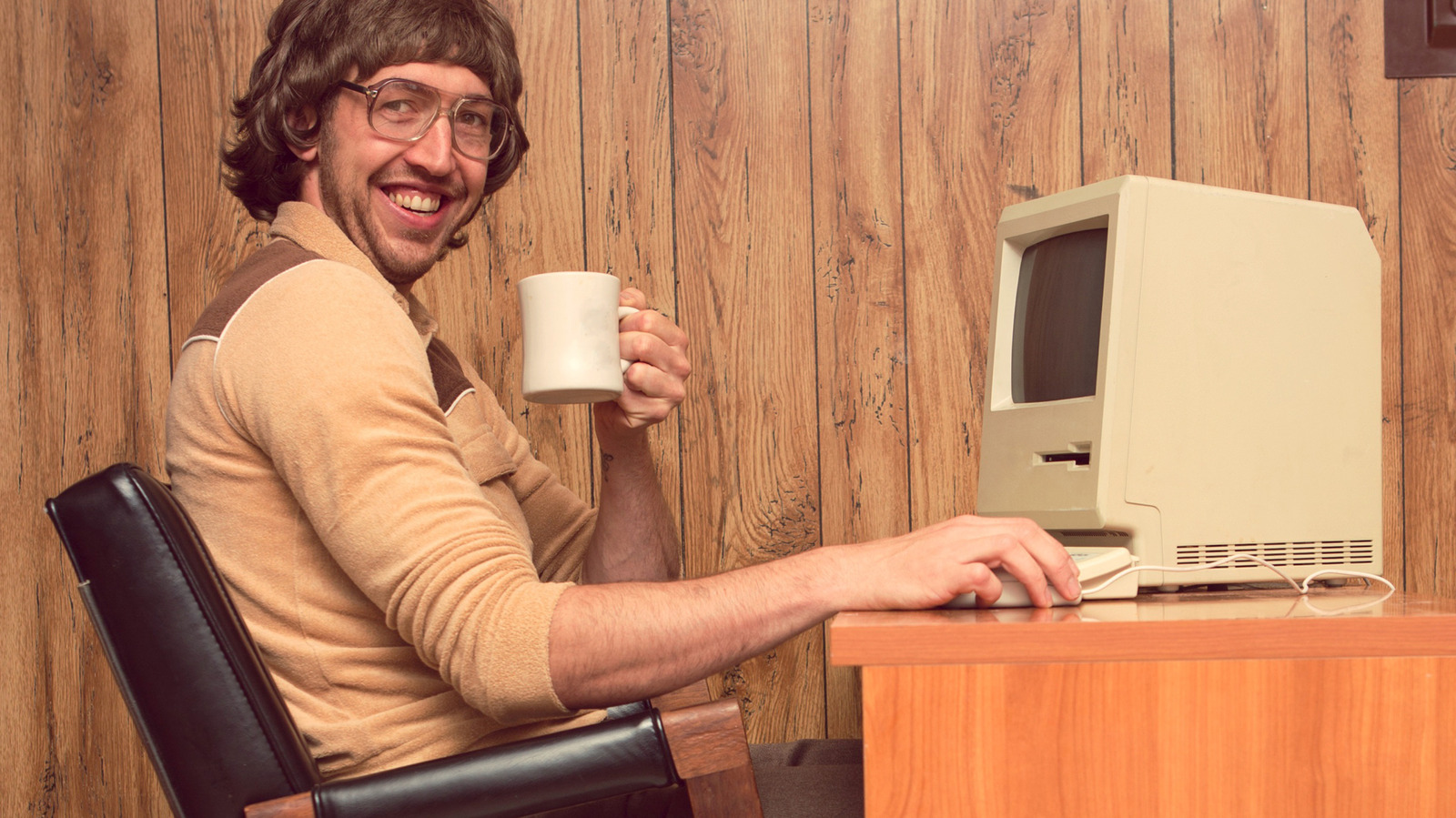
Man in retro '80s clothing and room using original Macintosh computer Sjharmon/Getty Images

With almost half a century separating the present from the 1980s, it’s easy to start thinking of the era of big hair and emerging tech as the distant past. However, it’s worth noting that much of the technology we still use today has its origins in the decade that brought us the Brat Pack, big hair, and MTV. While newer models may look different and perform better, that doesn’t change the fact that the ’80s gave birth to some of the most iconic products in our lives. And hey, cassette tapes are making a comeback in 2026!

That said, developing new technologies is a process, and that process often takes a long time. Some of the items here existed in early prototype forms before the ’80s were in full swing. Nevertheless, they didn’t reach the public in their finalized form until the days of new wave and video games. With that in mind, here are three things that were popular in the 1980s and remain in wide use today — a testament to the tech innovations that occurred during this revolutionary era.

The ’80s gave birth to user-friendly personal computers

Original Macintosh computer Photology1971/Getty Images

The personal computer might not technically have been invented in the 1980s as early versions of the PC existed as far back as the ’50s, but this decade did give life to the first examples that the average consumer might actually be comfortable using — and most familiar with today. Virtually all modern personal computers and related devices, like smartphones, now let users operate them via a graphical user interface (GUI). A GUI lets someone use a device of this type by navigating a visual menu or dashboard with icons representing programs, files, etc. Prior to the integration of GUI with personal computers, someone using a PC would have had to rely on the more cumbersome and confusing text-based interface.

Apple released its first GUI-based personal computers, the Lisa and the Mac, in 1983 and 1984, respectively. Shortly after, in 1985, Windows 1 became available. Although GUI had been in development in the ’70s, combining it with personal computers in the ’80s made what were once intimidating devices accessible to the public. Today, any average PC or smartphone user probably interfaces with a GUI device on a daily basis, even if they don’t realize it.

3D printing dates back to the 1980s

3D printer in the process of creating intricate design Stenko Vlad/Shutterstock

Of all the items on this list, this one will likely be the biggest surprise for most. While 3D printers are still only beginning to hit their stride in terms of mainstream popularity, it’s worth noting that this tech has its roots in the early ’80s. For example, in 1980, the first application for a 3D printing patent was filed. Shortly after, in 1983, engineer and inventor Charles Hull unveiled the world’s first stereolithography machine, the precursor to today’s 3D printers. In 1986, Hull would receive the first patent for a 3D printing process.

These days, 3D printing tech is available to the average consumer, but it’s still looked at as more of a novel device. As the 3D printing technology continues to change, it’s likely to become increasingly affordable and sustainable. That said, getting the hang of 3D printing does involve a bit of a learning curve, so it’s wise to learn about common 3D printing mistakes beginners make if you’re just beginning to experiment with the craft.

The era of handheld gaming began in 1989

Close-up of Nintendo Game Boy with game cartridges Brandon Alms/Shutterstock

Smartphones have made it possible for both casual and committed gamers to indulge in their hobby virtually wherever they go. Long gone are the days when you need a large console or dedicated gaming PC to enjoy genuinely entertaining video games. Although the technology has certainly changed over the years, handheld gaming essentially began with the Nintendo Game Boy.

Nintendo’s first handheld gaming console was released in 1989. While it technically wasn’t the first handheld gaming device ever, those that came before it all had the same limitation: no interchangeable games. The Nintendo Game Boy’s cartridge-based system changed that. Immediately, gamers understood the appeal of the device, resulting in one million units sold in the U.S. alone in just a few weeks of the Game Boy hitting shelves. It may be more of an icon of nostalgia than a piece genuine gaming tech these days, but the Game Boy still deserves credit for paving the way for today’s handheld games.

The GIF is an ’80s technology

Woman holding phone and laughing PeopleImages/Shutterstock

Whether you pronounce it with a hard G or a soft G, the GIF truly is a remarkable little technology that has a surprising tie to the 1980s. Without the GIF, how would we show off our wit and meme-knowledge in text messages, Slack threads, and social media posts? These short, animated, and looping clips are essentially miniature videos, and they are such a common element of how we communicate in the internet age that many don’t realize the format was invented to address a practical issue.

Before widespread internet access, subscription-based companies like CompuServe offered email and related services. However, users found it was difficult to send multiple large color image files as efficiently as they wanted. Thus, CompuServe tasked one of its computer scientists, Stephen Wilhite, to develop a compression technology that would reduce the size of image files without sacrificing color. The result, introduced in 1987, was the GIF, which stands for graphics interchange format. Along with compressing images effectively, it allowed users to arrange them in a sort of mini slideshow. This feature would develop into the animated GIFs we know today. Think about that the next time you send a three-second clip of a cat doing cat things.

The first major mobile phones were released in the 1980s

Image of original DynaTAC mobile phone Md Abdur Rouf/Getty Images

To reiterate an important point, developing a new technology takes time. Technically, the first call on a mobile phone was made back in 1973 when Motorola engineer Martin Cooper demonstrated the technology he and his team had been working on. According to Cooper, he actually used the opportunity to engage in a little competitive sparring — he claims he called a rival at AT&T to show off the fact that his team had developed a working mobile phone first.

However, it would be another decade before Motorola transformed a working prototype into a commercially available product. That product was the Motorola DynaTAC, released in 1983, and a large brick of a device by today’s standards. Its bulky appearance might be a visual punchline now, but back when “Pong” was still considered a technological marvel, it likely made quite a different impression. That device paved the way for our modern smartphones.

These inventions remind us that the past isn’t as far away as we might think. Yes, your MacBook might be a far cry from the Apple Lisa, but at its foundation, it’s the same type of device. The 1980s was a time when technological advances seemed to be cropping up every day, and more than a few of the gadgets from this decade had real staying power.

Source

Posted on

Are Older AirPods Still Worth Buying In 2026?

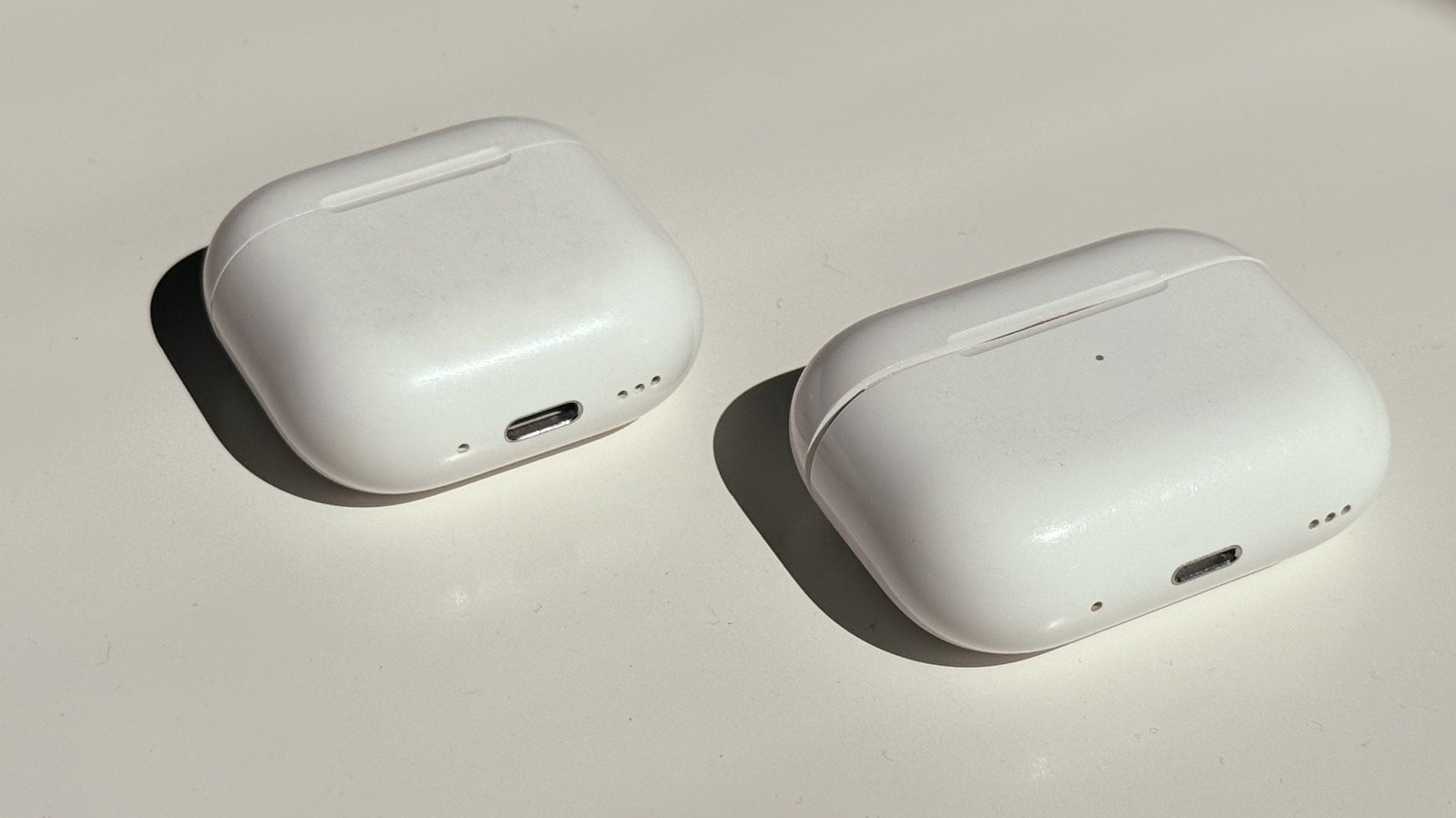
AirPods Pro 2 and AirPods 4 side by side on a desk José Adorno/BGR

We may receive a commission on purchases made from links.

In 2026, older AirPods models aren’t worth buying. Apple currently sells AirPods 4, AirPods Pro 3, and AirPods Max 2 in new condition. These headphones have all been released in the past year and a half and have similar features, thanks to Apple’s H2 chip. The range of prices in the lineup goes from $129 to $549, which means there’s a price for everybody — not to mention how Amazon usually has them discounted by up to $50.

Even if you find an old-but-sealed AirPods model, it’s unlikely that their price will be much lower than that of current models. On Amazon, a pair of renewed AirPods 2 was on sale for $87 at the time of writing, while the new AirPods 4 were available for $99 without ANC — something the older model also lacks. If you really want to save $12 in a similar deal, be aware that outdated earbuds like the AirPods 2 don’t have important features that new ones do, like adaptive EQ, Personalized Spatial Audio, and IP54 water and dust resistance.

The main reason to buy older AirPods is if new ones don’t sit right in your ears. For years, customers have complained about the AirPods’ fit, with problems varying from a simple earbud popping off to the AirPods Pro 3 making users’ ears bleed due to the new ear tip. While Apple says it’s always improving the shape of its tips to make them a better fit for most customers, their shape won’t fit all, so previous models could feel better in your ears.

Experiment with different eartips to avoid buying old AirPods

Apple's AirPods Pro 3 outside the charging case Christian de Looper/BGR

I had all Apple’s wireless earbuds since the original AirPods were released in late 2016. While I have always been fortunate with how AirPods would feel in my ears, I had some issues with the new AirPods Pro 3. Even though I’d used the medium tips with the Pro 2, the large ones are better suited for me with Pro 3. Not only did it take me a while to realize that, but for a few weeks, the discomfort that many users have experienced was also real for me. In the current generation, Apple used a different foam ear tip that should adjust to the user’s ears more naturally — but the first few days of use were still not pleasant.

I’ve always been an advocate for customers having different AirPods depending on what they are doing, but I know it’s impractical to just keep buying all models if you’re not a tech journalist like myself. Still, I can guarantee there’s nothing more comfortable than a regular pair of AirPods during a voice or video call, as they’re so light that it barely feels like you have them in your ears. The Pro lineup, on the other hand, is great for removing background noise, and the Pro 3 is especially useful for workouts thanks to the heart rate sensor. Finally, the AirPods Max are the go-to model for long trips and ultimate ANC support.

If you want an older set of AirPods in 2026, follow these tips

AirPods Pro 2 charging case alongside a book José Adorno/BGR

If AirPods 4, AirPods Pro 3, or AirPods Max 2 aren’t for your taste, there are some things you should keep in mind. For the regular models, AirPods 3 are still great earbuds, despite still featuring a Lightning port and missing the fancy functions introduced recently, like Live Translation. Still, they have six hours of battery life with up to a total of 30 hours of listening time, and have been really comfortable to use. I wouldn’t recommend the previous models, as their battery life won’t be as good and lack force touch gestures.

The AirPods Pro 2 are still a solid deal in 2026, especially if you don’t care about heart rate monitoring. Apple continues to use the same audio chip on the newer generation. To be honest, the Pro 2 are more comfortable and still guarantee great sound quality while letting you save up to $80.

Last but not least, if you’re still in the market for AirPods Max, the USB-C version released in late 2024 is still a solid option. It features the same colors as the current AirPods Max 2, and the improvements on the newer model are basically tied to the new H2 chip, like Live Translation, better ANC and Transparency modes. However, I would tell you to wait until Apple actually releases an all-new AirPods Max instead of paying more than $500 for these overpriced headphones.

Source

Posted on

These Privacy Settings Can Make Windows 11 Far Less Annoying

A Windows 11 logo on a laptop screen Alex Photo Stock/Shutterstock

Out of the box, Windows 11 feels like a bit of a broken mess. In many ways, it feels like a bloated ad for itself and a random selection of other products rather than a functional OS. Luckily, however, just a handful of quick tweaks can completely transform it into a much more streamlined, accessible, and faster version of the default installation. It’s mostly just a matter of stripping away the AI features you never asked for, promotions, and resource-hogging background services.

Between Copilot, Bing search integration, OneDrive prompts, telemetry, and app promotions, the base Windows 11 experience feels more like a marketing platform for Microsoft’s products than a clean desktop environment. To strip it down to fighting trim, you’ll want to disable Copilot (where possible), turn off the ads and lock-screen promotions, slash some unnecessary startup apps, and reduce the aforementioned telemetry. The result is a faster, cleaner Windows desktop that doesn’t feel as much like a desperate cashier trying to upsell you.

Stripping out the AI clutter

An image of the Copilot logo Nwz/Shutterstock

The first problem you’ll likely want to address is the Copilot homunculus that haunts every new Windows installation in the AI era. Copilot isn’t just a drag on performance – it also introduces some privacy issues, due to the way it runs in the background and monitors your activity. Note that while the Copilot app can be uninstalled, some Copilot integrations are burrowed deep into other Windows apps like Notepad.

To remove the Copilot app, the simplest approach is to just type Copilot into the search bar. When it pops up in the results, just right-click on it and then click on the Uninstall option. You’ll also likely see Microsoft 365 Copilot pop up in the same results page, and you can uninstall that simultaneously as well. You can also disable AI features in Notepad by clicking the gear icon, scrolling down and turning off the Writing tools.

Copilot has another invasive feature that collects your usage data across various Microsoft products like Bing, Edge, MSN, and more. The worst part is that it not only affects your Windows PC, but all the devices where you use Microsoft products. To disable it, open Copilot in a browser and sign in to your Microsoft account. Now, go to Settings and disable Microsoft usage data and click Delete all memory.

Turn off background activity and ad personalization

A finger pressing the Windows key on a keyboard tomeqs/Shutterstock

Startup apps are a great place to begin cleaning up background processes. While there are some good free apps that actually improve Windows 11, there’s lots of default bloat. You can view everything launching at startup by typing Task Manager into the search bar. The speedometer-looking icon on the left will display all the apps that launch at startup. Go through and right-click anything that you don’t use or don’t need running every time you turn on your PC, and click Disable. OneDrive, Edge, and Xbox-related stuff are prime targets if you’re not frequently using them.

Another good way to free up resources is to shut down all the tracking and ad personalization software Windows runs by default. Go to Privacy and security (just punch it into the search bar), then Recommendations and offers and disable Personalized offers and any other setting that’s not valuable to you. Next, find your way over to Diagnostics and feedback, also under Privacy and security, and toggle off intrusive settings like Send optional diagnostic data. You can also delete your diagnostic data from here.

Last but not least, hit the Windows key + R and type services.msc. Scroll down to Connected User Experiences and Telemetry, right-click and choose Properties, then switch Startup type to Disabled. This will somewhat prevent Windows from automatically collecting info like device specs, installed apps, error reports, update details, and other system or usage signals, and from sending that data to Microsoft, which further drains resources and bandwidth.

Source

Posted on

5 Original Xbox Features That Were Way Ahead Of Their

Original Xbox console logo bigwa11/Shutterstock

The original Xbox console was a big deal when it released back in 2001 for $299. It showed that Microsoft was serious about the video game market, and marked the return of a third major player in the console space after Sega’s exit that same year. It helped to change the future of consoles being built far more like a computer than a traditional console, a line that has begun to blur with the upcoming Xbox Mode for Windows.

And many of the features of the original Xbox were far ahead of their time, many of which would become incorporated in nearly all future home consoles. Be it the ability to download content for games, play online multiplayer, or rip CDs, the Xbox was doing things that neither Sony nor Nintendo were doing. It placed a focus on online gaming, advanced audio capabilities, and power on a scale not seen before.

The console was so powerful that it still has an active community today. As for myself, the original Xbox is the primary media player in my retro game room hooked up to an old CRT television. I also have another Xbox with two arcade sticks powering a modified arcade cabinet that’s running Coinops for the ultimate arcade experience. If you too want to build a retro gaming setup, you can grab this console from the second-hand market as used original Xbox consoles have gotten pretty affordable.

A built-in hard drive

A pile of hard disk drives on a table Nikolay Chekalin/Getty Images

One of the things that set the Xbox apart was that it came with a hard drive as standard. It was the very first console to have hard disk storage, unlike the PS2 that could support a hard drive as an extra feature and would only work for specific games such as Final Fantasy 11. The inclusion of the hard drive meant that you no longer needed to purchase proprietary memory cards to save game data.

The hard drive also allowed the console to download content from Microsoft’s Xbox Live game service. But beyond simple storage, the hard drive turned the Xbox into a console that is still relevant today, 15 years after Microsoft ended official support for the console in 2009. This is because of how easy the Xbox’s storage is to upgrade (of course, unofficially), a first for a home console.

The console launched with an 8 GB hard drive, but you can upgrade it with much larger modern drives. This made the console the choice of many who wanted to create their own early home media server for hosting and playing back content. Even as late as 2025, new versions of Xbox Media Center (XBMC) were still being released.

CD Ripping functionality

What's The Story Morning Glory audio CD from the band Oasis Jeppe Gustafsson/Shutterstock

One feature that I took advantage of as a teenager was the ability of the Xbox to rip CDs. Thanks to the built-in hard drive, gamers could build their own music library. I can vividly remember setting up the Xbox in the living room whenever we had parties, playing the playlists I created without the need to swap CDs all night long. And with CDs making a comeback, an old upgraded Xbox might just make for the perfect retro audio player. 

The system was easy to use, didn’t require a subscription or any extra accessories to function. For many young gamers, this was their first exposure to ripping CDs and creating a custom media center. The feature would extend to the Xbox 360 before being removed in future consoles in favor of purchasing or streaming music through subscription services.

But the best feature of ripping CDs came from specific games that took advantage of it. There were many titles such as Project Gotham Racing, Tony Hawk’s Underground, and more that would allow you to play music that you ripped in-game. The memories I have of staying up late with friends adding custom entrance music to wrestlers in WW Raw 2 are some of my favorite.

Online gaming through Xbox Live

Two people in an Xbox event with one of them with a console in hand Giulio Marcocchi/Getty Images

Xbox Live changed the way we play video games and became the one feature that an entire industry copied. While PC gamers understood the importance of online gaming thanks to the rise of the MMO genre and competitive shooters like Quake and Tribes, consoles treated online access as mostly an afterthought. The Sega Dreamcast allowed for basic online play, but it was the Xbox that truly popularized it.

The original Xbox came with an Ethernet port as standard, allowing Microsoft to launch the Xbox Live service. This gave players the option to play online with and against others anytime they wanted. Games like Halo helped to establish the service, becoming one of the most popular games on the service and making the Xbox the destination for online shooters.

The service was discontinued back in 2010, but it was so popular that fans continue to keep it alive with Insignia – a substitute online platform for the original Xbox Live that allows players to take their games online. With nearly 200 games supported, it shows how important the original Xbox Live was and continues to be for many players.

Game patching and DLC downloads

A number of original Xbox games in cases SJBright/Shutterstock

There was a time when a game released and that was that. Whatever was on the disc would be the final version of the game, regardless of whether the game had any bugs, glitches, or missing features. You might get lucky and get a Game of the Year edition that might fix some issues, but this was rare. There was simply no way to fix a game post-release.

Thanks to Xbox Live and the online capabilities built into the original Xbox, developers could now patch games with a simple download. This often came in the form of DLC and updates, many of which came alongside multiplayer map additions for games like Halo 2. It also meant that some games on Xbox got updates while their PS2 and Gamecube variants did not.

Titles like Star Wars Battlefront would get an entire map called Jabba’s Palace released for Xbox through a download on Xbox Live. Only the Xbox and PC versions of the game got this DLC/patch, while the PS2 version of the game would never gain access to this battlefield. Today, games often receive huge patches post-release and beyond through their online services, something that the Xbox helped to set the stage for.

It was essentially a gaming PC

Close up shot of original Xbox console Andreas Merchel/Shutterstock

The original Xbox was not only powerful, but it was built differently from its competitors. It was essentially a powerful computer that hooked up to your television. Instead of custom architecture and parts, the Xbox used mostly off-the-shelf components like one would use or see in a standard Windows build. Most notably, the console used a Pentium III CPU and an NVIDIA GPU.

It also featured 64 MiB of DDR SDRAM, something that gave it a massive performance boost over other consoles. The included graphical processing unit ran at 233 MHz and was based on the NVIDIA NV2A graphics processor which supported the then standard DirectX 8.1. This made not only creating games easier, but also made porting PC titles to and from the platform far smoother.

One interesting thing about using traditional computer parts that made the Xbox unique is that upgrades are possible. There exist modifications where users have upgraded the stock Xbox Pentium chip for a desktop or mobile variant. This can help native Xbox games run at a stable 30 FPS and allow for more homebrew options, an upgrade that simply can’t be done on other consoles of the era.

Methodology

Person holding an original Xbox controller Kim Kulish/Getty Images

When looking to find out just what the original Xbox could do, we turned to the experts online. We scoured Reddit for examples of features that owners of the console felt were ahead of their time. We also looked to gaming channels and influencers who have decades of experience with the original Xbox and the stand-out features they used the most, as well as the ones that were often overlooked. The writer’s own experience with the console was also taken into account, as an expert in not only its use since launch, but in various ways of modifying and using the console over the years.

Source

Posted on

Aqara Thermostat Hub W200 Review: The Best Thermostat For HomeKit

The headline feature, and the reason a lot of people will be looking at the W200 in the first place, is native support for Apple’s Adaptive Temperature. Instead of building out a traditional 7-day schedule, Adaptive Temperature leans on your iPhone and Apple Watch location data to figure out when you’re home, away, or asleep, and adjusts the thermostat accordingly. If you turn on Predict Arrival, it’ll start pre-heating or pre-cooling the house before you usually get back from work. Extended Away mode widens the setpoint range when you leave town for a few days.

In practice, this works well, and if your schedule isn’t particularly volatile, it’s arguably a better approach than manual scheduling. It just quietly keeps the house comfortable without you thinking about it. The trade-off is that Apple Home’s scheduling system has some gaps. You can’t, for example, set night mode to kick in later on weekends than on weekdays. That means you’ll probably end up back in the app to fill in the blanks or control the thermostat manually as needed.

Clean Energy Guidance is the other iOS 26 feature, and it’s more regional. It makes small, automatic adjustments when the grid is cleaner or when dynamic pricing is favorable. Rate optimization currently works with PG&E if you connect your utility account, so if you’re in California like I am, this is useful — but again, keep in mind that the adjustments will be small. Elsewhere, it’s more of a carbon-aware nudge than a bill-saving tool, for now.

Compatibility-wise, the W200 supports most 24 VAC systems, including furnaces, ACs, heat pumps up to 2H/2C with 2-stage auxiliary, boilers, and PTACs. It should work with a large portion of HVAC systems. What it doesn’t work with is high-voltage systems (110V, 120V, 240V) or proprietary communicating setups. A C-wire is required, which, again, means you’ll need the $29.99 adapter if your system doesn’t have one.

The integrated mmWave radar is a smart addition. It uses tech that Aqara has built for other devices, like its dedicated presence sensor. It detects extremely precise movements, not just obvious motion, with a range of about three meters and a 120-degree field of view. That means it knows you’re there even if you’re sitting still on the couch, because you’ll at least be moving a little.

Beyond waking the display, you can use that presence data for automations across the rest of your smart home, like turning on lights when you walk by, for example. It’s not as sophisticated as Aqara’s dedicated FP2 sensor, which can distinguish zones within a room, but it’s a nice bonus for a thermostat — and I hope we get more features and sensors in smart home devices like switches and thermostats. It just makes sense.

The core thermostat features work well. Heat, Cool, Auto, and Away modes all behave exactly as you’d expect. There are also some nice advanced touches, like a minimum compressor runtime setting to prevent short-cycling.

There are two notable omissions, though. First, there’s no way to set hardware temperature lock boundaries — meaning you can’t restrict how high or low someone can crank the setpoint. Second, the W200 only supports one external temperature sensor at a time. No multi-room averaging or the ability to select different sensors for different times of day.

Source

Posted on

Never Buy Refurbished Tech Without Asking These 5 Things First

person holding a iPhone inside a box against a white wall Funstock/Shutterstock

In the past decade, the market for refurbished products has grown significantly. One of the main reasons many people now prefer refurbished products over new ones is the cost savings. You can easily save big when buying electronics if you go with refurbished items. And you are generally not compromising on anything, except for a slightly older device in many cases. Refurbished tech products from reputed sellers undergo rigorous testing, which includes cleaning, making repairs, and replacing faulty components, before the device reaches your hands. But not every seller is the same, and not every product is guaranteed to deliver the same experience.

That’s because some sellers actually conduct extensive inspections while others simply clean and repackage the product. The difference between the two might not be noticeable right away, but over time, it becomes apparent, and by then, it’s usually too late. Things like the device’s condition, battery life, available accessories, warranty, and the seller’s credibility are all critical and must be verified beforehand. This applies to every refurbished tech product, whether it is a laptop, desktop, smartphone, or tablet. An early investigation can save you from a lot of trouble down the line.

Keep in mind that refurbished products aren’t inherently subpar. It’s all about finding the right one from a certified or reputed seller. And for that, you need to ask all the right questions.

What’s the actual condition of the device

stack of eight laptops on a wooden table against a grey background Oleksandra Vinogradova/Getty Images

One of the most important questions you need to ask is about the product’s condition. With refurbished products, it can get a little confusing, since there’s no universally adopted grade or ranking for the product’s condition. A seller might label a product “Excellent” or “Good” even when it has visible scratches or worn-out buttons. That’s why it’s important to check the product’s actual condition. If there are photos available, carefully inspect the product’s body for scratches or damage. If you are buying one in person, this becomes a lot easier.

Also, always check the device’s battery health. For smartphones and tablets, look for products with at least 85% battery health. For laptops, you should look for a relatively low cycle count. Since the battery is one of the first components to show signs of aging, you naturally want something that will last you at least a year. Additionally, if you are getting a laptop, inspect the storage drive’s health and RAM’s condition to see if it’s about to fail. With the prices of storage drives and RAM rising in recent times, you need components that are still in relatively good health.

With there being little information about how long the product was initially used, or whether it was returned by the original buyer within a few weeks or after a year, the product’s current condition becomes all the more important. This gives you an idea of how long it may ideally last.

Does it come with a warranty

applecare and warranty screen on a iPhone placed on a woonden table PixieMe/Shutterstock

What happens when the refurbished product you purchased stops working or shows signs of malfunction? You will naturally want to get it repaired or replaced by the seller. That’s where the warranty comes in.

As we have stated earlier, refurbished products from companies like Apple or Dell undergo extensive testing. But this does not eliminate the possibility of issues surfacing down the line. The device may work fine for a week or two, but after a couple of months, issues like battery failure, overheating, or random shutdowns may appear. A warranty protects you against that. Without a warranty, you are left on your own, with no assistance from the seller.

The length of the warranty is just as important, and you should look for sellers offering the maximum coverage. Many offer a 30-day warranty, while for others, it goes up to 6–12 months. Samsung offers a 12-month warranty on refurbished smartphones. Devices that come with a longer warranty are, of course, slightly more expensive, but it’s usually worth paying the premium. You should also confirm who honors the warranty, whether it’s the seller itself or a third-party service. With OEMs, the process to claim warranty is generally seamless. It’s third-party retailers that you need to be careful with.

Who refurbished it, OEM or a third-party

technician inspecting a phone for problems with a multimeter and other tools placed on the desk Zheka-boss/Getty Images

This is possibly one of the most important aspects of buying refurbished products — finding out who actually refurbished it. That’s because not every refurbishment process is the same. Some are excellent, while others involve basic cleaning and testing. And it largely depends on the company handling it. OEMs generally do a better job, while with third-party sellers, it’s often a risky bet.

When a device undergoes refurbishment with an OEM like Apple, Samsung, or Dell, the process involves a wide array of checks, from quality to performance. Even the faulty components are replaced with genuine parts. In most cases, a device refurbished by an OEM should work just fine. But when it comes to third-party sellers, both the refurbishment process and product quality can vary dramatically. Some do a good job, while others may simply clean and factory reset a device before selling it.

That’s why it’s important to stick with OEMs for refurbished products. If you are going with a third-party, make sure to ask them about their refurbishment process and the checks conducted. If a seller doesn’t disclose this information, it’s best to avoid them.

Are the original accessories included

an open smartphone box with cable and adapter with the phone placed next to it Juan Ramón Ramos Rivero/Getty Images

When buying refurbished tech devices, always ask whether the package includes the original accessories. For bigger purchases, this may seem like an avoidable question. But if accessories are not included and have to be purchased separately, you will need to factor that into the total cost. In most cases, the product listing clearly mentions whether or not the accessories are part of the package. If it doesn’t, check that beforehand.

There are also cases where sellers ship the device with replacement accessories that are not manufactured by the OEM. In such cases, you will need to verify their quality. For instance, using a low-quality charger can lead to issues like overheating and battery degradation with use. Remember, photos alone may not tell the full story when it comes to accessories. Some sellers post generic photos, while the actual product you receive is entirely different and might not include the listed accessories.

That said, it’s also important to understand that a refurbished product can be a good deal even without the original accessories. It’s just that you should know that upfront to make an informed decision.

Is there a return policy

brown cardboard box with a yellow tape titled Return Maribel Falcon/Shutterstock

Sometimes, a product may not seem like the right fit after being delivered, even if it looked perfect online. Sometimes, major issues arise after a few weeks of use. In such cases, you will want to return the product, but that’s possible only if the product qualifies for a return, which is dictated by the return policy. For many sellers, this can be a week. For others, it can be a month, and a few may offer no returns at all. It’s important to verify this before making the purchase. A seller offering at least a 1-month return window is usually the safer bet. Dell offers a 30-day window, while Samsung and Apple let you return refurbished devices within 15 and 14 days, respectively.

Apart from the return window, it’s important to read through the fine print for clauses that may disqualify a return request or add to the cost. For instance, some sellers may require you to bear the expense of returns. Others may have stricter clauses when it comes to approving returns, and you may not qualify for one, even when raising a genuine concern. Asking these questions upfront can save you from a lot of inconvenience.

On your part, you should thoroughly evaluate the product within the return window to avoid unnecessary hassle. If you are buying a renewed Android smartphone or tablet, test its display, performance, battery, buttons, microphone, and speakers. For a laptop, focus on the RAM, storage drive, display, battery, keyboard, touchpad, and ports.

Source