Posted on

Not Apple TV, Not Fire TV Stick: This Streaming Device

Many people rely on streaming services for entertainment, so much so that streaming apps are often built into smart TVs. However, don’t count out devices like the Amazon Fire TV Stick just yet, as they generally load apps faster than smart TVs. If you’re looking for the best streaming device on the market though, you might be surprised to learn that it’s not a product from Amazon, or even Apple.

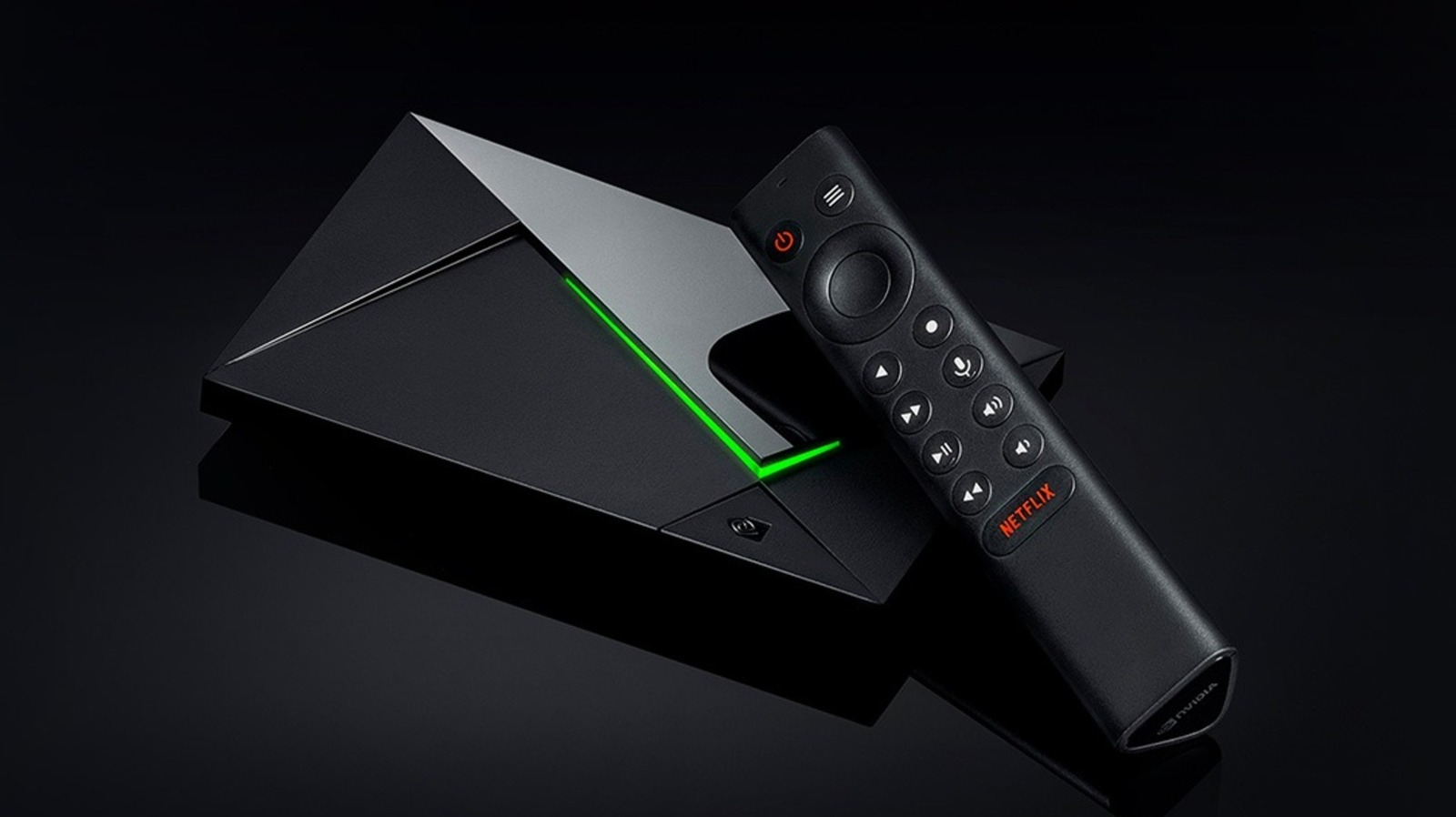
According to Consumer Reports, the best streaming device you can purchase is the Android OS-powered Nvidia Shield TV Pro. This device is frequently marketed as a cloud gaming platform that lets users play PC games on a TV with 4K HDR visuals, Dolby ATMOS audio, and Nvidia GeForce RTX 4080-level performance. Of course, you need your own controller, a library of games on platforms such as Steam or GOG, a solid internet connection, and a GeForce NOW membership. You can join for free, but if you want to play for more than an hour at resolutions above 1080p — and avoid ads — you’ll need to pay a monthly subscription fee.

So what makes the Nvidia Shield TV Pro a great streaming device and not simply a cloud gaming powerhouse? Access to streaming apps such as Netflix, Amazon Prime Video, Disney+, and Apple TV, that’s what. Some of these apps are included with the Shield TV Pro, but you’ll have to download others through the built-in app store. Like game streaming functionalities, you need an active subscription to each service to watch their respective programs. And that’s on top of the Shield TV Pro’s $200 price tag through the official Nvidia store.

What makes the Nvidia Shield TV Pro so special

While Consumer Reports’ top recommendations for “4K streaming media devices” include the Roku Ultra, the Amazon Fire TV Cube, and the Onn 4K Pro, the outlet’s highest rating goes to Nvidia Shield TV Pro. How did that device come out on top despite being more expensive than the competition? What does it have that others don’t, aside from gaming? Nothing; it’s just a tighter package.

In Consumer Reports’ review of the Nvidia Shield TV Pro, the device got top marks in multiple categories, including “Features” and “Picture quality.” The outlet praised the Shield TV Pro’s responsive interface and stunning picture quality, although the latter is dependent on your TV — the device supports HDR10 and Dolby Vision, but you need a TV that outputs pictures in those formats to use them. The same is mostly true for the other highly-rated streaming setups, but the Fire TV Cube and Onn 4K lost points for being more finicky.

The true deciding factors in the contest between streaming devices were “Data privacy” and “Data Security.” These were the only metrics the Nvidia Shield TV Pro didn’t ace, but the others were even less lucky; the Roku Ultra had worse privacy and security across the board, and while the Fire TV Cube matched the Shield TV Pro in privacy and security, the Onn 4K lagged behind in privacy. These issues weren’t huge, but they were enough to let the Nvidia Shield TV Pro emerge as Consumer Reports’ top recommended streaming device.

Source

Posted on

Josh Hartnett’s Horror-Fueled Comic Book Movie Was A Box Office

Eben Oleson (Josh Hartnett) with a frost on his beard in 30 Days of Night Columbia Pictures

Josh Hartnett has had his fair share of run-ins with otherworldly beings, and almost every encounter hasn’t received the attention it deserved. Back in 1998, he appeared alongside “The Pitt’s” Shawn Hatosy in one of the best alien-invasion movies ever made, “The Faculty,” and in 2014, he starred in the grossly overlooked horror series, “Penny Dreadful,” opposite Eva Green. In between those two horror outings, though, he took the lead in an exceptionally bloody and deeply terrifying vampire movie, “30 Days of Night.”

Directed by David Slade and adapted from a comic book of the same name, Hartnett played Eben Oleson, the sheriff of the forgotten town of Barrow, Alaska, which every year is plunged into total darkness when the sun sets and doesn’t rise for another 30 days. Living in such harsh conditions is bad enough, but to make matters worse, an unhinged stranger (Ben Foster) arrives in the town, sending Barrow into disarray just in time for his vampire masters to arrive for a month-long buffet, with all the locals on the menu.

Surprisingly, the film has gained mixed reviews from critics, earning only 50% on Rotten Tomatoes, even though it took an impressive bite out of the box office, earning $75 million against a budget of $30 million. But while the “30 Days of Night” might’ve had a few naysayers in its time, there’s a lot on show from a competent director paying homage to another master of horror who has spent decades giving audiences the chills via more interplanetary means.

30 Days of Night is The Thing and Assault on Precinct 13 with fangs

Marlow (Danny Huston) covered in blood in 30 Days of Night Columbia Pictures

With its chilling atmosphere and grumpy, isolated inhabitants slowly being torn to shreds, it’s hard not to feel “The Thing” lurking in its shadows while watching “30 Days of Night.” John Carpenter’s classic cult movie infects every frame, not just in the town’s growing dread but in the monstrous ways the undead and those soon to be just plain dead are dispatched. Heads don’t necessarily roll, but they take a long, ludicrously grim time to be separated from their bodies, echoing the horrors of Outpost 31.

Also, if the vampires weren’t bad enough, something about their dead-eyed facial features looks incredibly off, which actor Danny Huston relishes as the head fanged fiend, Marlow. Another Carpenter favorite that the movie clearly draws on is his high-pressure thriller, “Assault on Precinct 13.” Hartnett, joined by Melissa George (a scream queen in her own right) and “Sons of Anarchy” star Mark Boone Jr., are a motley crew hiding out against the horrors befalling their town, where no one is safe, just like Carpenter’s 1976 film.

All of them play impressive roles in trying to turn the tide against their intruders, with particular praise going to Boone, who has a great showdown with the suckers while operating a tractor. Honestly, if you’re thirsty for another vampire movie after the success of “Sinners,” swap the sweat-soaked atmosphere of the Smoke Stack twins’ juke joint for the chilling town of Barrow and kiss the sun goodbye.

Source

Posted on

Amazon Users Call This $10 USB Recording Gadget ‘Perfect’

We may receive a commission on purchases made from links.

In the era of the gig economy, streaming video games online has become a fun and, for some, profitable side line. It’s a way to share your passions or build a social platform while potentially generating a little income, but for many, it’s hard to justify the initial investment in gear and software necessary to create a reasonably professional setup. If you don’t already have a reasonably powerful PC, you’ll need to invest in one, or upgrade some components, and you’ll also likely need a camera and a supporting suite of software. Perhaps most importantly of all, you’ll need a capture card to record your screen, especially if you plan to stream console games (or use your laptop as a monitor for your Xbox).

Luckily, there’s a solution on Amazon from a manufacturer called BENFEI that’s not only garnering great reviews from users, but is available for a very reasonable $10 as of this writing (the listing says it’s on sale for 38% off its normal MSRP of $16). It’s an easy-to-use, plug-and-play card capable of capturing source footage from an HDMI input at 4K 30Hz and outputting over USB at 1080p at a 60Hz refresh rate with audio up to 48 kHz.

A tiny card with big utility

One of the BENFEI card’s advantages is how compact it is — it weighs in at a mere 0.03 kilograms and can easily tuck into a pocket or bag if you plan on streaming IRL footage or from an internet cafe or friend’s apartment. It’s flexible enough to handle streaming from Nintendo Switch, PS4, PS5, and Xbox Series consoles, along with Windows, Mac, Linux, and Android devices; anything with an extra HDMI port you’re looking to find a use for. It’ll also work with any camera with an appropriate HDMI output.

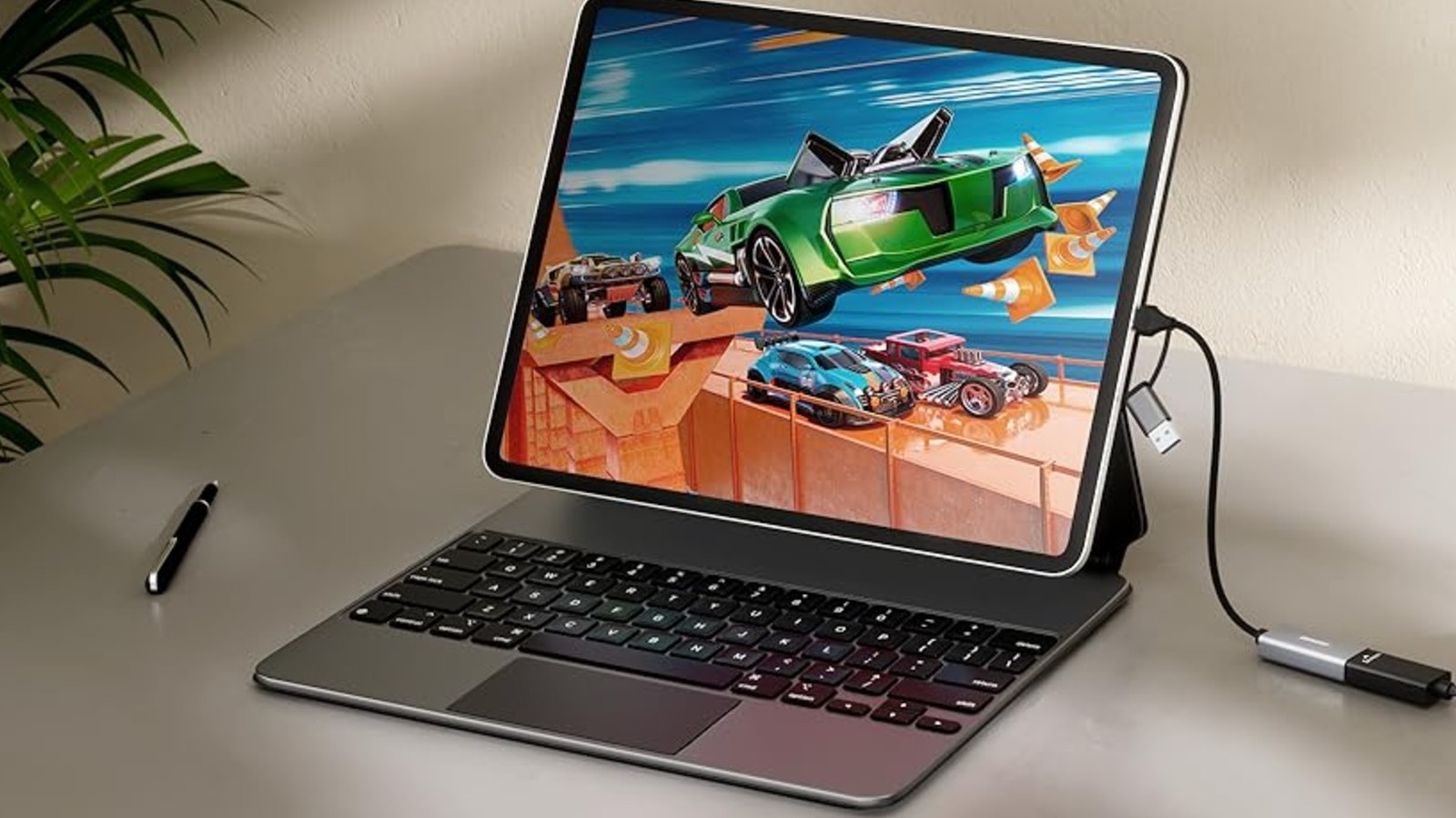
Apple users should take note, however, that the iPhone isn’t supported, which BENFEI says is due to the lack of USB Video Class support for video output. It is compatible with iPadOS devices, but they need to be updated to version 17 before use. With compatible devices, it doesn’t require any tech expertise and can be put to use moments after you unbox it. There’s no driver installation required on the receiving PC, and the card will work with common apps and workflows like OBS and XSplit. The built-in chip ensures extremely low latency, critical for avoiding screen artifacts, tearing, flickering, and other visual issues common with slower streaming pipelines.

Why buyers are impressed

The main reason Amazon shoppers are so impressed with the BENFEI capture card is that it does what it says on the tin while asking for very little in return. At a low entry price, it delivers all the core functionality and quality you need to get streaming right away, and its plug-and-play functionality means it’s suitable even for complete novices, allowing you to get started without navigating a complicated installation process.

According to one Amazon review from a user looking to stream from a Raspberry Pi to a PC via OBS, the card “was perfect for my needs and works flawlessly.” It also worked well for another user who was looking to transfer content on old VHS tapes from a VCR to a PC, which they were able to do without issue (though they note that the converter requires a separate USB power source). The main caveat is that this is still a budget device, so it won’t replace high-end capture gear with advanced features or with wider ecosystem support. That said, it’s one of the rare, cheap Amazon gadgets that delivers on its promised functionality at a fraction of the price of its “premium” competition.

Source

Posted on

Ecovacs GOAT A3000 LiDAR Pro Review: The Even Pricier Whole-Lawn

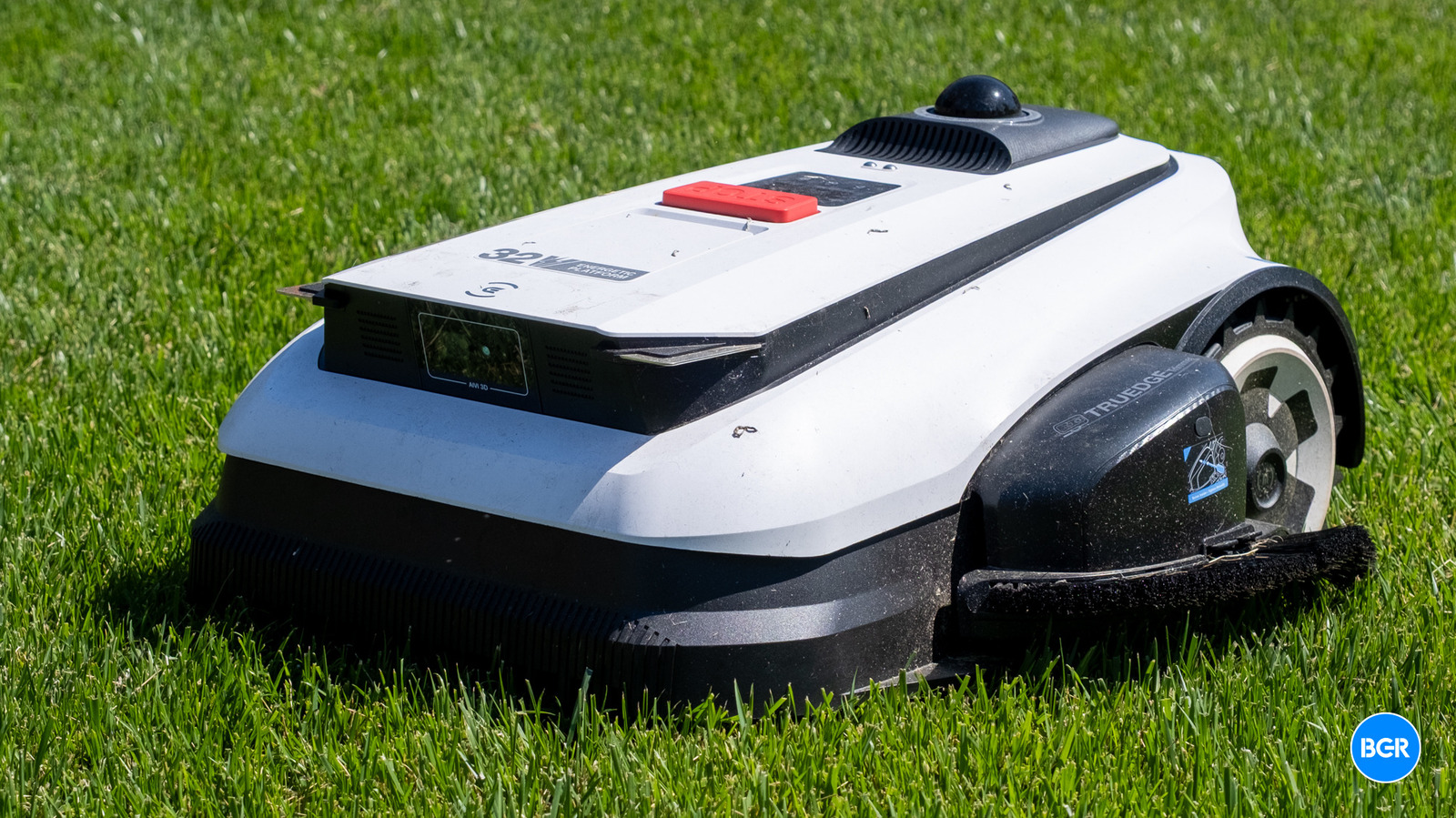
Front of the Ecovacs GOAT A3000 LiDAR Pro Christian de Looper/BGR

Robot vacuums have become commonplace, now available at a range of price ranges and with excellent high-end features. It makes sense that the tech could be put to use elsewhere though. The likes of Ecovacs, for example, are turning to new appliances — the latest of which is the new Ecovacs GOAT A3000 LiDAR Pro. 

I’ve actually been using the last-generation model, the standard GOAT A3000, for around a year now. It’s performed pretty well, but it has one big missing feature — the ability to get all the way to the edge of the grass. The result is that while it dramatically cuts down on mowing time, it doesn’t handle everything. That’s what the new Pro model aims to solve — with a new rotor on its side that spins to trim the edge of your grass, all the way to any walls or sidewalks that border the grass.

That said, there are trade-offs. The price is steep at $2,500. The trimmer is loud. And in yards with complex layouts or tall weeds, the mapping and obstacle detection can trip up in ways that require manual intervention. So, is the Ecovacs GOAT A3000 LiDAR Pro worth that high price?

Design

Rear of the Ecovacs GOAT A3000 LiDAR Pro Christian de Looper/BGR

The Ecovacs GOAT A3000 LiDAR Pro is, as you might assume, built to be in the same family as the standard A3000 — and it looks like it. In fact, the new model looks more or less exactly the same as the old one, except for one thing — it has rotor on its side that uses nylon string to cut the edges of your lawn. It measures 27.8 x 23 x 12.2 inches and weighs roughly 40 pounds, so it’s not small, and it’s not light. It’s built with handles, so you can lift it if you need, but it’s certainly awkward to carry given its size and weight.

The chassis is heavy-duty, injection-molded polymer, and it feels built for years of outdoor abuse. Ecovacs gave it an IPX6 waterproof rating, which means you can hose the whole thing down like you’re washing a car when grass and dirt inevitably build up underneath. That’s exactly what I did after a few weeks of testing, and it held up fine.

The wheel setup is smart. Smooth front casters handle steering and precision, while tread-patterned rear drive wheels do the actual work. The combination gets the mower up inclines as steep as 27 degrees, or a 50% grade. My yard is pretty flat, so this isn’t something that I really needed, but it never struggled to get across my yard. There’s also a carry handle on the back, which can come in handy if the unit gets stuck — sometimes you just need to pick the thing up and move it.

On top of the mower sits a 360-degree rotating LiDAR sensor. Next to it are the physical controls, including a large, prominent emergency stop button that’s easy to hit if anything goes sideways. The other controls can do things like return the mower back to the station and control other aspects as needed, as well as when guided by the app.

The charging dock is included in the box with a base plate and dock structure that you set up in a flat, open area. There’s no separate RTK antenna to position, no wire to bury, and no complicated alignment to fuss over. Just find a flat spot near a power outlet and you’re done. The mower also comes with anchor screws to install the station in grass or soil. I set mine up on concrete, so I didn’t use these.

Features

Controls on the Ecovacs GOAT A3000 LiDAR Pro Christian de Looper/BGR

Navigation is the headline here, and it works the way you wish all robot mowers worked. The 360-degree rotating LiDAR on top pairs with the 3D Time-of-Flight (ToF) sensor on the front to map and navigate without needing a GPS signal. That’s a big deal. If you have big trees, covered patios, or narrow passages between structures, GPS and RTK systems can get lost easily. LiDAR doesn’t care. It just reads the environment.

The AIVI 3D system layers AI object recognition on top of that, using a fisheye camera to identify more than 200 different object types. Honestly, I wasn’t really able to verify this — my lawn is pretty well separated from anything I’d need the mower to avoid, and our cat stays indoors. According to Ecovacs, for static objects like trees, planters, or garden edging, it’ll navigate as close as possible. For unpredictable obstacles like pets or humans, it stops completely. That’s what you’d want, especially if it’s using the more accident-prone edge trimmer.

Where the system stumbles is in distinguishing tall grass from actual obstacles. More than once, I watched the mower treat a patch of taller grass or a weed stem as something it needed to avoid, leaving a small, uncut area behind. I had to manually direct the mower to go back and trim it, which is easy enough to do using the app.

Rain sensing is built in, and it’s effective. If it starts raining, the mower heads back to the dock and waits. It won’t resume until roughly three hours of dry conditions have passed.

For maintenance, the package includes backup multi-blade sets, which is a nice touch. You’ll need to swap blades roughly every four to six weeks depending on how much you’re running it and what you’re cutting. The trimmer line needs replacing on a similar schedule. None of this requires special tools or expertise — it’s a few-minute job.

App and setup

Settings in the app for the Ecovacs GOAT A3000 LiDAR Pro Christian de Looper/BGR

Setup happens entirely through the Ecovacs Home app, available on iOS and Android. It’s as easy as downloading the app, scanning a QR code on the mower, and following the prompts. This is easily the best setup experience I’ve had with a robotic mower.

The auto-mapping is the part that actually impressed me most. You initiate the mapping, and the mower does a perimeter trek of your property on its own, generating a fully interactive 3D holographic map in about five minutes. The result is super cool to look at — you can see trees, boundary features, structures, and even neighboring properties rendered in the visualization. It’s more detail than you strictly need, but it gives you real confidence that the mower actually understands the yard.

From there, the app handles everything else. You can set up schedules, define multiple zones with different parameters, and drop no-go areas right onto the map. There are “mark flush” and “not flush” boundary options that tell the trimmer whether the grass ends exactly at the mapped line or extends beyond it, which controls how aggressively the edge trimmer engages. It’s a smart system once you understand it, but the distinction isn’t obvious at first and took me a minute to wrap my head around.

One annoyance is that you have to schedule mowing and edge trimming as separate tasks. I’d much rather set one schedule and have the mower handle both. Instead, you’re managing two sets of schedules. There’s also a live touchscreen joystick for manual control, which is handy for pushing the mower into tight spots it doesn’t want to tackle on its own.

Mowing performance

Blades on the Ecovacs GOAT A3000 LiDAR Pro Christian de Looper/BGR

The cutting hardware is a dual-disc setup with six independent blades across a 13-inch cutting width. That’s wider than most competing robotic mowers and it shows up in coverage speed. The 32-volt power platform is the other half of the equation — it maintains blade RPMs through dense grass without any issue. Cuts are clean and tear-free, which is the kind of thing you care about if you’ve spent weeks landscaping.

Cutting heights adjust electronically from 1.2 inches up to 3.5 inches, and you can change them remotely from the app. This also means you can set different heights for different zones, which is useful if your front and back yards have different needs.

The TrueEdge side trimmer is the main feature that sets this model apart from its predecessor and, for the most part, it delivers. In my testing, it replaced about 75-90% of the manual trimming I’d otherwise do. That’s significant. But it’s not perfect — I still had to touch up certain spots after the mower was done, particularly around corners. If your yard has a lot of steep vertical edging, you’ll still be spending some quality time with a weed whacker.

At top speed, the mower moves at 0.7 meters per second and processes up to 4,305 square feet of grass per hour. The so-called pathing algorithm tries to emulate how a human would mow, laying down overlapping, systematic stripe patterns. The result looks clean. You can also tell the app to change direction each week, which varies the pattern and is better for the grass.

The limits show up with tall weeds or heavy thatch. The mower can misread those conditions as obstacles and either slow down significantly or leave uncut patches. If you’re using this as your sole mowing solution on a lawn that occasionally gets out of control, you’ll want to plan for a manual pass before the first mow, or expect a second manual cycle to clean things up.

Battery and charging

Docked Ecovacs GOAT A3000 LiDAR Pro Christian de Looper/BGR

The battery is a 32-volt, 7,500 mAh lithium-ion pack, which is a meaningful upgrade over the 5 Ah unit in the previous generation. Rated runtime is up to 160 minutes per charge, and I never got close to hitting the limit. To be fair, my yard is relatively small, so it was more than enough battery to mow and edge-trim both the back and front yards without needing a charge. That said, different terrains and denser grass can impact battery life.

Charging is fast. The included 189-watt system takes the mower from empty to full in roughly 70 minutes, which is quick enough that even on larger properties, you can expect complete coverage within a day without any manual intervention.

Conclusions

The Ecovacs GOAT A3000 LiDAR Pro is easily one of the best robotic lawn mowers out there. The LiDAR navigation is better than the GPS and RTK alternatives in complex yards. The cut quality is very good. The edge trimmer eliminates much of the manual edging that used to be the dealbreaker for robotic mowers. Taken together, this thing eliminates the vast majority of mowing work for most residential properties.

It’s expensive, though. At $2,499, this is a serious investment. But if you’re paying for professional lawn service, it might pay for itself in a few years. If you’re doing the work yourself, the calculation is about how much you value your weekends.

The competition

It outperforms basically every other robot mower I’ve used, and for anything other than edge trimming, it performs identically to the non-Pro A3000 — so if edging isn’t a priority for your yard, you can save some money by going with the standard model.

There are cheaper alternatives worth considering too, especially if you don’t need edge trimming. Where the A3000 Pro is less sensible is on massive, wide-open acreage without meaningful border features. For that kind of property, you’re better off with a less expensive unit or a GPS-focused system designed for open expanses.

Should I buy the Ecovacs GOAT A3000 LiDAR Pro?

Yes, if you want a high-end robotic mower and don’t mind paying a lot for it.

Source

Posted on

Change These 4 Google Chrome Settings To Protect Your Privacy

Google Chrome logo on a smartphone display in person's hands. Alex Photo Stock/Shutterstock

Just like many other tech products, browsers too can be a gateway for companies to collect your data and monitor your online habits. Browser cookies are a common culprit, but those are far from being the only ways you can risk your privacy while browsing online. Take browser fingerprinting, for example, which is a form of data tracking used to identify and quantify behaviors based on browser and device specifications. It essentially allows websites to track you even when cookies are cleared.

Fortunately, there are some ways to better protect yourself, especially if you use Google Chrome. While privacy protection has never been Chrome’s forte — which is why many users have ditched the browser in the past — it still has some privacy settings baked in that can let you take back some semblance of your personal privacy. Some of these settings relate to your Google account and Google’s services as a whole, such as experiences on Android, the Google Play Store, Google Maps, and so on. Nevertheless, here are some Google Chrome settings you’ll want to fiddle with to improve your privacy as much as possible.

1. Turn off Web & App Activity

Google My Activity Web & App Activity page to manage saved data. Briley Kenney/BGR

This one is tied to your Google Account, not just Google Chrome, but it’s a big one. Web & App Activity is a master privacy control of sorts and when it’s enabled it allows Google to track, well, pretty much everything about you, including your search history, Chrome browser usage, Android habits, Google Assistant queries and usage, and much, much more. Personal information is tracked, as well, including your location history, browsing history and websites you’ve visited, apps you use frequently on your phone, and that’s just the start. The good news is you can delete most of this data and turn off this setting.

Open a Google website like Gmail on Chrome browser and click your profile icon in the top right and select Manage Your Google Account. In the menu on the left-hand side, select Data & Privacy and you’ll see the Web & App Activity toggle. Usually, it’s on by default. If you click on it in the list, it will bring you to another page called Activity Controls. Here, you can turn off Web & App Tracking, adjust individual settings, and see what information Google has by selecting Manage All Web & App Activity. Make sure to turn off the Chrome activity tracking. You can also delete any saved data on the management screen and set up an auto-delete schedule.

Google says this activity helps improve your experiences by making searches faster, enabling more helpful apps and personalized recommendations. So, if you turn it off, you may run into some changes when you use Chrome and your devices.

2. Turn off location tracking for good

Google Timeline and location tracking settings in account management. Briley Kenney/BGR

If you weren’t aware, Google knows where you are even if you have GPS off through approximated data. Moreover, reports have shown Google tracks your location even with the setting off. But there is a way to stop that once and for all. It requires two steps, the first is that you need to disable Web & App Activity — which you may have already done. The second is to disable your Timeline or Location Tracking, and it may be under either name in the settings.

To do this, from any Google site or service, click your profile in the top right, then find Manage Your Google Account > Data & Privacy > Timeline. If it’s “on,” click the named option in the list, and it will take you to the Activity Controls screen. Here, you should be able to turn off location tracking, disable data backups, and change sub-settings, like personalizing Google Opinion Rewards surveys with location history. Timeline, too, is an account-wide setting, but disabling it ensures you get fewer localized ads and recommendations when browsing on Chrome.

Google says Timeline is off by default, and you can review the related data at any time. It also explains how Google can estimate your location, using wireless signals like Wi-Fi or cellular, GPS, and sensor information when the setting is turned on.

3. Disable automatic sign-in for Chrome

Google Chrome logo and name in background with magnifying glass in foreground. Mijansk786/Shutterstock

With most browsers, you can log in for a personalized experience, and the same is true of Google Chrome. But when you sign in to a Google site or service, like Gmail, it automatically signs you into the browser as well. This might not seem like a big deal at first, but when you consider how much data is being scooped up and shared as you browse, you might change your mind. Location history, browsing habits, searches and queries, you name it. And when Chrome signs in automatically and associates this data to your account right under your nose, which definitely encroaches on your privacy.

To sign out of Chrome, if you’re already logged in, simply click your profile icon in the top right and choose Sign Out. If you’re logged into more than one account, you can sign out of all of them at once. To disable automatic sign-in, go to menu (three dots in the top right) > Settings > Sync and Google Services > and click the toggle next to Allow Chrome Sign-in to turn it off.

You can still use your browser while logged out normally, you just won’t be presented with personalized experiences, most of all, those pesky personalized ads. Google even recommends doing this when you’re using a public computer or borrowing someone else’s.

4. Enable DNT or Do Not Track for cookies

Image of the Google Chrome data browsing history page. R.Narong/Shutterstock

DNT, which stands for Do Not Track, is a browser-wide setting you can enable that tells websites and apps you visit you do not want your information collected or tracked. The downside is that not every website or service provider adheres to this request, but it still cuts down on the amount of data being collected by third-parties for the sites that do honor it. Google says, “Most websites and web services, including Google’s, don’t change their behavior when they receive a Do Not Track request.”

Nevertheless, to turn it on, click the menu in the top right > Settings > Privacy and Security > Third-Party Cookies and enable the setting Send a “Do not track” request with your browsing traffic.

Moreover, there’s no way to know for sure which websites or services adhere to the request, so it’s still a good idea to clear browsing data whenever available across services, including in Chrome. To do this, go to menu > Delete browsing data, and make sure to select All Time to delete all your browsing history versus a set period. Check the boxes next to the data types you want Chrome to delete — checking everything is a good idea — then select Delete Data. Apart from these settings, carefully accept or reject cookie requests and avoid shady websites to help protect your privacy while browsing online.

Source

Posted on

Why There’s Simply No Need For Dropbox Anymore

The Dropbox logo on a phone Cheng Xin/Getty Images

In November of 2006 at a Boston, Massachusetts bus stop, Drew Houston first coded what would become a cloud storage service, Dropbox. Released just two years later with Houston as the co-founder and CEO, Dropbox was one of the earliest cloud-based platforms available. It allows users to store photos, videos, and files all in one convenient place and download them from another device, Smartphone, tablet, or web browser through the Internet. While it stood out in the early days of cloud-based storage, it’s completely understandable to question if there’s a need for Dropbox anymore as rival services make it look like a dinosaur.

Dropbox is a handy tool for storing and retrieving various documents and files without having to use an external hard drive. In today’s age of remote work, having a place to store just about anything digital in the cloud makes for increased versatility and convenience. The problem is that it feels outdated compared to all-in-one platforms like Google Drive, Apple iCloud, and Microsoft OneDrive. These other cloud-based services function similarly to Dropbox, but offer more integrated features that link them with other apps. Dropbox focuses on storing your data, unlike other platforms that are linked with email, operating systems, and additional documents. For a more in-depth look at other digital storage check out the 5 best cloud storage apps, according to Consumer Reports

How Dropbox is losing to the competition

Apps like Dropbox, Google Drive, and Microsoft OneDrive on a phone Kenneth Cheung/Getty Images

Dropbox is a useful tool for uploading and sharing documents with other people. However, there are some drawbacks to the service when it comes to storage and price. The cost of the service can make a difference in who will use it and how it will be used with Dropbox costing a bit more for the service.

Google Drive offers an individual plan for $1.99 a month or $19.99 a year for the Basic account with 100 GB of storage. The iCloud service is $0.99 a month for 50 GB. Whereas Dropbox’s Plus plan for one person is $11.99 per month or $119.88 a year for 2 TB of storage. Dropbox is the best option if you want more storage per month but is a higher entry point for those with a tighter budget. With all that storage you’ll want to know how to avoid a serious Dropbox bug that could delete your files. If you go the free Dropbox route, you’re only getting 2GB of storage, which is barely anything if you need room for large files.

Alternative storage options

A woman working at a computer Insta_photos/Getty Images

During the service’s launch days, there was little direct competition when it comes to digital storage sites, but today, that is most definitely not the case.  Google Drive, for example, allows multiple users access to documents on a dedicated workstation, such as Google Docs, Google Sheets, and Gmail. These files are stored all in one place and can be shared between anyone or made private. They don’t need to be moved around or transferred to a different platform like Dropbox, as they are all linked to Google Drive.

The problem is that Dropbox isn’t directly built into operating systems like iCloud or Google Drive, which come pre-installed on iPhone and Android phones, respectively. As a third-party app that must be downloaded to a phone, it’s no longer a must-have app, unlike the 14 of the best free apps you should download in 2026. Services like iCloud are connected to the main hub of Mac and iOS as well.

Dropbox may have been a widely used service when it first launched 20 years ago, but technology has come a long way since. Platforms like Google Drive, iCloud, and Microsoft OneDrive offer bundled options that make them a more viable option for team-based access, leaving Dropbox as an app there may no longer be a need for.

Source

Posted on

5 Must-Watch HBO Max Shows That Are Absolute Masterpieces

The must-watch HBO Max shows in the service’s catalog are among the biggest draws for anyone interested in watching the streaming platform. HBO productions are well known for their investment in writing, direction, and cast, which often results in some of the best works ever. In addition, every new year, the platform keeps strengthening its reputation with new releases. In fact, what makes HBO one of the best streaming services out there is its catalog, which includes some of the most iconic TV shows and movies ever made.

That means that with one subscription, you get access to decades of Emmy-awarded productions in one place. Even though the options in the catalog aren’t as varied as Netflix’s, HBO’s originals have some works that few studios in the world can match. That variety also makes it hard to know which series to start with among so many options. That is why we selected some of the best options available on HBO Max, bringing together varied productions for viewers who enjoy not only fantasy shows, but other genres too.

Game of Thrones

Anyone who missed “Game of Thrones” during the hype the series had over the past decade, now is one of the best times to watch it. With new works from the universe created by George R. R. Martin reaching the HBO Max catalog, the franchise keeps expanding. Among them are “A Knight of the Seven Kingdoms” and “House of the Dragon”, which makes the original story look even more interesting.

In “Game of Thrones”, then, we follow the story from the point of view of several characters who fight for power over the Iron Throne and, as a result, all of Westeros. The political dynamic between the families and how each main character develops across the seasons is one of the most interesting parts of the show. In the end, you will almost certainly choose one character to root for to sit on the Iron Throne next.

At the same time, you must remember that “Game of Thrones” is famous for its plot twists and shocking moments. So, before watching, you need to prepare to say goodbye to some characters, even your favorite ones. Finally, even though the show drops in quality in its final seasons, it still stands as a must-watch HBO Max show because of the above average quality of its best moments.

Succession

Few series in television history have portrayed the corporate and family world with as much precision and cruelty as “Succession.” The production follows the Roy family, owner of one of the largest media conglomerates in the world, as its members wage relentless battles for control of patriarch Logan Roy’s empire. The result is a drama that mixes biting comedy and Shakespearean tragedy in a way few television scripts have ever balanced with such skill.

The great strength of “Succession” lies in its cast, delivering performances among the best ever seen on a TV Show. Brian Cox plays Logan Roy with complete mastery, but the children, played by Jeremy Strong, Sarah Snook, and Kieran Culkin, steal the show every season. The dynamic between the characters feels so well built that you can’t help but connect emotionally with every political and family twist the series presents.

With four seasons and a total of 39 episodes, “Succession” is one of the best concluded series of recent years, with an ending that still divides and captivates the audience. Each season deepens the characters and raises the narrative stakes, which makes the binge harder to pause each time. For anyone looking for a dense, smart series packed with memorable moments, “Succession” ranks, without question, among the biggest reasons to subscribe to HBO Max.

The Last of Us

“The Last of Us” is one of the best video game adaptations ever made and a must-watch HBO Max show, mainly because of the way it adapts Naughty Dog’s PlayStation story for TV. The first season succeeds by understanding Joel and Ellie’s relationship, telling their journey while also expanding the universe. The result is an excellent series both for fans of the game and for people experiencing it for the first time. Another major strength of “The Last of Us” lies in the way the production expands the story without moving too far away from the original material.

Some characters gain more space and development throughout the narrative without changing too much of what the game established. In addition, the series also expands on some details related to the origin of the virus, giving the story more context. Even though the games still exist as the original source material, the series offers a great way to experience the story of “The Last of Us” for those who do not have a PlayStation or PC. The second season, on the other hand, avoids condensing everything into just one season, adapting only part of the large narrative from the second game.

The Pitt

For fans of medical dramas, “The Pitt” is one of the must-watch shows on HBO Max. The show follows a different structure from other works in the genre, since each episode represents one hour of a 15-hour shift at Pittsburgh Trauma Medical Center. So, in that short period, the characters always need to deal with new problems that arise while keeping that sense of emergency alive. “The Pitt’s” strength also lies in the way the series manages to portray the hospital environment.

To produce this show for HBO Max, the production consulted several doctors to ensure that the characters’ own behavior felt authentic. This preparation, together with the actors’ performances, especially Noah Wyle’s as Dr. Robby, creates an excellent setting. The second season of “The Pitt” maintained the quality of the first, breaking several audience records on the platform and also establishing itself as one of HBO Max’s best works. So, for fans of the medical drama genre, definitely catch up on “The Pitt.”

The White Lotus

“The White Lotus” is an anthology series created by Mike White that follows guests and employees at a luxury resort of the same name, with each season set in a different country: Hawaii, Sicily, and Thailand so far. The starting point always comes from an unidentified corpse that opens the narrative. From there, the series reveals, with irony and precision, who these people are behind the paradise facade. “The White Lotus” is a sharp social satire that exposes the characters’ dysfunctions as they try to relax in their vacation destinations.

What makes this so effective is Mike White’s writing, which mixes biting comedy and human drama without weakening either one. The series has won 16 Emmys, including Best Limited Series, and that recognition reflects the level of what it delivers on screen. One of the smartest elements of the format is the almost complete cast change each season, allowing each new group of characters to be introduced, and that lets you watch every season as a miniseries on HBO Max. Even so, the series keeps its identity and quality consistent. So, for anyone who liked the premise, “The White Lotus” is one of the best series on HBO Max.

Source

Posted on

This Flipper Zero App Shows How Vulnerable Digital Price Tags

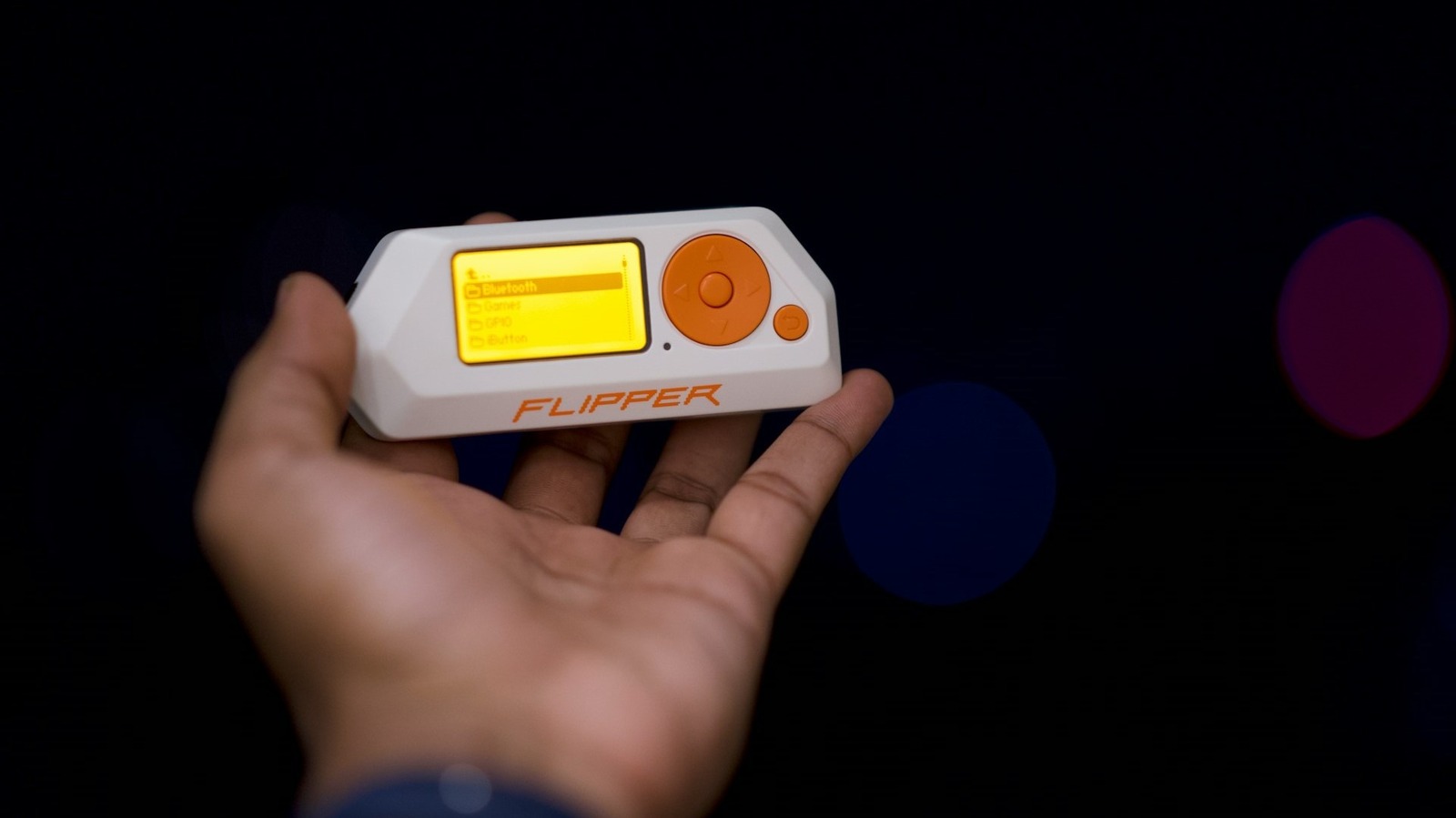
The Flipper Zero is so feature-rich that if you’re wondering what it’s actually used for, well, that’s a tough question to answer. You can run scripts and interact with existing devices, deploy or interact with wireless technologies like NFC, spoof Apple AirTags or even spam iPhones with pop-up notifications. There’s no single use case for it, and that’s the point. You can do whatever you want, based on what the internal components allow. You can even add accessories to expand its capabilities. As some resourceful users have discovered, you can also use it to change the electronic shelf labels in various retail stores. That would allow you, theoretically, to change prices.

It’s all made possible thanks to a Flipper Zero app called TagTinker, developed by i12bp8. The app was created to communicate with infrared electronic shelf labels (ESLs), the standout pricing labels you might find on grocery store or retail store shelves. They receive commands via infrared, which the Flipper Zero can obviously handle, to send images, scan tags via NFC and make some adjustments. Although the developer expressly forbids using the app for anything illegal, you could always upload a bitmap of your favorite silly meme to a device you own. TagTinker is “an independent project intended strictly for educational research, security curiosity, and displaying digital art on hardware that you legally own.”

What’s the big deal with TagTinker and why is it news-worthy?

The key takeaway here is really how vulnerable the e-paper-style price tags are. You can use NFC and infrared transceivers to change or upload data without many roadblocks. There’s nothing inherently headline-grabbing about the application, but those little tag devices with an e-paper-like screen are pretty neat as-is. Not to mention, it’s always cool to see how the Flipper Zero can be used in new ways and how developers are continually expanding its capabilities.

TagTinker allows you to “display text,” show “test patterns,” and, if you have a Wi-Fi dev board for your Flipper Zero, “unlock live, network-rendered tag designs.” You can do some really neat stuff if you have one of those ESLs lying around. It’s also surprising how vulnerable they are. Anyone could change them in the real world. 

Despite how it may seem, neither the Flipper Zero nor this app is necessarily intended for nefarious purposes, and as a whole, it can be quite a handy little setup. What’s more surprising is that you can travel with a Flipper Zero in your carry-on luggage, as the TSA doesn’t explicitly prohibit it. You could take yours all over the world with you, program it to open the garage doors on your rental while visiting, or tinker while you’re away from home. One thing is certain: you should unequivocally not use this tool or this app to do anything untoward, like putting risqué bitmaps on public devices.

Source

Posted on

4 Amazon Echo Devices Worth Buying In 2026

An Amazon Echo Show device placed on a flat surface. Charles-McClintock Wilson/Shutterstock

We may receive a commission on purchases made from links.

When it comes to smart speakers and smart displays, one of the most recognizable brands on the market is the Amazon Echo lineup. These are the kinds of gadgets that put smart home controls in the palm of your hand, with the Alexa software working hard behind the scenes to adjust your smart lights, stream your music, remind you of the day’s events, and so much more.

Many Echo devices have already been through multiple generations, and the Amazon sub-label has expanded beyond speakers and displays to include products like smart glasses. Whether you’re just starting out with smart home tech or you’re in need of a control hub for a guest room or kitchen, you really can’t go wrong with an Echo smart speaker or smart display. Still, there are a ton of devices to choose from, which is why we went ahead and rounded up our four favorite Echo devices worth buying in 2026.

Echo Dot Max

Serving as the official replacement for the multi-generational Amazon Echo speaker, the $100 Echo Dot Max ditched the cylindrical design for an aesthetic more in line with the Echo Dot. Available in Glacier White, Graphite, and Amethyst, the Dot Max is powered by an AZ3 chip and Amazon’s Alexa+ software. Amazon claims the Dot Max delivers three times as much bass as the 2022 Echo Dot, and that the speaker auto-calibrates to best accommodate your listening space.

With Alexa+ on tap, you’ll be able to stream all your favorite tunes across platforms like Amazon Music, Spotify, and Apple Music. You’ll also be able to ask the assistant for news and weather updates, event reminders, and to control various smart home devices. The addition of Omnisense technology even means you’ll be able to start Alexa Routines when motion is detected or a change in temperature occurs.

Not only did the Echo Dot Max earn a 4.4 out of 5-star rating on Amazon (based on over 2,900 reviews), but industry experts have also praised the speaker’s well-balanced sound, as well as its smart home hub compatibility and Alexa+ access.

Echo Spot (2024)

The bite-sized version of Amazon’s tabletop Echo tech is the $80 Echo Spot (2024). “Great for nightstands, offices and kitchens,” is the descriptor Amazon added right after the product name, and we couldn’t agree more. The Spot costs a bit more than a fifth-gen Echo Dot, but adds a 2.83-inch touchscreen that doubles as a clock face. This makes it a perfect alarm clock, and you’ll even be able to choose between six faces and four alarm sounds in the Alexa app.

More than 41,200 users reviewed the Echo Spot, and it earned 4.6 out of 5 stars. The speaker has been professionally hailed for its boost in overall sound quality over the previous Spot, as well as the removal of its built-in camera. While the Echo Spot doesn’t have the same long list of capabilities as the Echo Dot or Echo Show, it can play music, control smart home devices, provide weather updates, and more.

Sold in Black, Glacier White, and Ocean Blue colors, it’s also a bonus that Amazon decided to keep physical buttons around; the newest Spot features volume up and down keys, as well as an on-off toggle for its microphone.

Echo Show 5 (3rd Gen)

It’s not every day that a smart display earns a perfect score for its design, audio, and more, but this is very much the case for the $90 Echo Show 5 (3rd Gen). This is a well-made smart display that serves as a nice gateway into the Alexa ecosystem. It’s available in Charcoal, Cloud Blue, and Glacier White colors, and has volume up and down buttons, a mic mute switch, and a slidable privacy shield for the built-in camera.

Speaking of which, the integrated lens allows you to Drop In on other Echo Show devices, and the cam will also show a live feed when you enable Home Monitoring in the Alexa app. As an upgrade to the previous Show 5 generation, Amazon claims the newest model has deeper bass and clearer vocals, which bodes well for those of us looking to stream our favorite albums and artists on the Show 5. The Show 5 has a number of hidden features you shouldn’t ignore, too.

On Amazon, the Echo Show 5 was reviewed by more than 65,500 users and scored a 4.2 out of 5-star rating. Most folks stand behind the sound quality and overall performance of the latest Show 5, but several users mentioned that the software can occasionally be glitchy. Fortunately, this is usually an issue that a quick reset will fix.

Echo Show 21

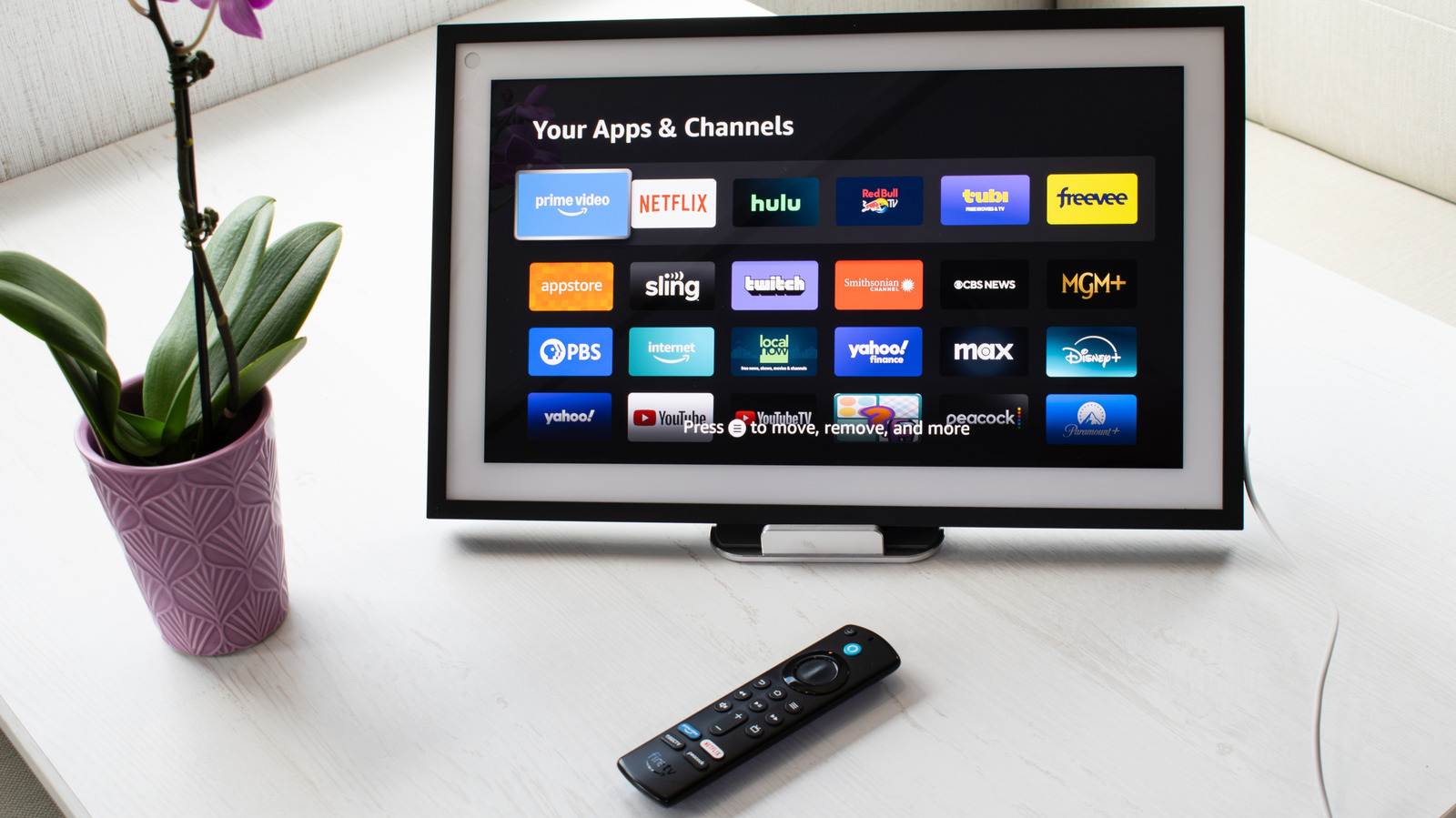
When money is no object, there’s the $400 Amazon Echo Show 21, which is basically a big, souped-up version of the Echo Show 5 featured in this roundup. The Show 21 comes with wall-mounting hardware, as it’s designed to be an interactive bulletin board the whole family can use. It also has Fire TV built in, so you’ll be able to stream movies and shows through Prime Video, Netflix, Hulu, and other platforms.

Compliments have been paid to the Show 21’s large screen, Wi-Fi 6E support, and improved speakers and camera. Similar to the Echo Show 15 (an older, smaller version of the Echo Show 21), widgets are a main part of how you and yours will use the touchscreen, but it also comes with an Alexa Voice Remote that you can use to control the Fire TV app.

The Echo Show 21 earned a 4.4 out of 5-star rating on Amazon, which was based on over 5,200 reviews. It seems that the rollout of Alexa+ has proved troublesome to a handful of users, but the vast majority were pleased with the Show 21, particularly its monstrous screen and wide array of organization tools.

Why we chose these Amazon Echo devices

An Amazon Echo display at a retail outlet, featuring (from left to right): the Echo Dot, Echo Spot, Echo Dot Max, and Echo Show 5. PJ McDonnell/Shutterstock

The Amazon Echo family is a go-to option for new and existing Alexa households. There really isn’t a “bad” device in the lineup, and Amazon continues to update and improve the hardware/software experience. That said, we wanted to select a handful of Echo products that best represented the entire smart speaker-display collection. Each of our choices is backed by a professional, hands-on review from trusted publications like Wired, and we only chose devices that scored four stars or higher on Amazon.

Source

Posted on

White Noise Vs. Brown Noise: Which Is Best For Productivity?

A woman tracking office productivity Studio Romantic/Shutterstock

Colored noise profiles, such as white noise and brown noise, are types of consistent sound that are characterized by their amplitude and frequency ranges. Extensive research has been conducted on white noise in particular, establishing that this type of noise is beneficial for occupational health. White noise machines are gadgets that can reduce stress, which makes them great for helping you sleep or focus on work. However, studies show that brown noise may actually be better for productivity.

Brown noise emphasizes lower frequencies and contains fewer high frequencies. This profile is named after the scientist Robert Brown, who discovered “Brownian motion,” which is the random movement of particles in nature. Similarly, brown noise is generated by the “random movement” of rainfall, crashing waves, or rolling thunder. Many claim that the low, bass-heavy sound of a brown noise track is perfect for stimulating the brain or calming the mind during a grindy work session.

By comparison, white noise is a harsher sound. It contains all sound frequencies across the audible spectrum, including the high-pitched ones. This makes it effective at drowning out other noises that might disturb you as you drift to sleep or lock in on a work task. However, white noise is well-known for its signature static hissing sound that can sometimes be the opposite of helpful. Many people prefer brown noise for productivity because it is not distracting or grating.

How to make the most of colored noise

A man boosts office productivity by wearing headphones Suwatchai Wongaong/Shutterstock

Colored noise works best when you use it to give your brain the stimulation it craves while also preventing it from picking up other forms of stimulation that will distract you from the task at hand. This is exactly why brown noise can be so beneficial for people who struggle with sensory overload, ADHD, or low dopamine levels. 

To make the most of colored noise, consider checking out the best sleep headphones recommended by Consumer Reports. Sleep headphones are designed to block out external sound and sit comfortably in the ear for several straight hours, which makes them equally useful for daytime productivity.

Whether you prefer white noise or brown noise, using a sound machine can be a game-changer for your office workspace. The type of colored noise that will make the most difference for you is a matter of personal preference. Pink noise and green noise can be helpful, too, but health experts are pointing more and more toward brown noise as a solution for focus, work, and overall productivity.

Source