Posted on

Can You Use A Laptop As A Monitor For Xbox?

Many people who play console games want to admire every pixel they can see, so they purchase premium gaming TVs such as the Samsung S90F OLED. However, sometimes you need to share TVs. How do you play Xbox games when someone else is using the television to watch a football game? You turn your laptop into a makeshift monitor, and you don’t even need a dedicated gaming laptop to do it. There are two primary ways to play Xbox games on your laptop: you can either use a remote streaming setup or you can physically connect your console to the computer.

If you decide to stream your games, you only need the Xbox, your laptop, and an appropriate control method. However, you might experience audio and video lag. If you adamantly require snappy gameplay, you need to physically hook up the console to the laptop. This method requires an additional component: a video capture card. Why? While both consoles and computers have HDMI ports, laptops can only send audio and visual data, not receive them — which is admittedly great for adding additional displays to your setup.

You will also need a program that can decipher the signals your Xbox sends. Many gamers swear by OBS Studio as it’s robust, free, and easy to use. Before you pick a method, you should also take compatibility into account. Streaming only works for the Xbox One and Series X/S, so if you want to play Xbox 360 games with a laptop, you will need a capture card.

You can also remotely play on your Xbox

Thanks to advances in streaming technology, you don’t actually need to be in the same room as your Xbox to play its games. You do, however, need the correct apps, a solid internet connection, and an appropriate control setup. If you don’t want to spend additional money, stream the games from your console. To get started:

  1. Select the “Settings” icon (the gear at the top of the screen).
  2. Choose “Devices and connections.”
  3. Then select “Remote features.” You might need to input your password.
  4. Toggle “Enable remote features.”
  5. Return to the Settings menu, and in the “General” tab, select “Power options.”
  6. Ensure “Sleep” is enabled.

Once that’s done, go to the website xbox.com/remoteplay, select “Remote Play” from the dropdown menu, and click on your console. Another option is to open the Xbox app on your computer, select the “Consoles” icon (next to the bell-shaped “Notification” icon), and click on your console to connect. And don’t forget to sync your controller to the computer.

Alternatively, if you have any level of an Xbox Game Pass subscription, you can just stream games. Visit https://www.xbox.com/en-us/play, pick “Cloud Gaming,” then click on the game you want to play. Or you can open the Xbox app, select “Cloud Gaming,” click on a game, and select “Play with Cloud.” While some titles can use a mouse and keyboard, most require a controller, so double-check which games need what. The Xbox app lists all keyboard and mouse-compatible titles in the “Play with mouse and keyboard” category in the “Cloud Gaming” tab.

How to play Xbox games with a capture card

Using a capture card to play your old Xbox through a laptop is a bit old school, as it was how gamers recorded footage to post on YouTube in the early aughts. To get started, plug the Xbox’s HDMI cable into the capture card, then insert its USB cable into the laptop. Match the USB types for the best video resolution and performance. For instance, if your capture card has a USB 3.0 cord, plug it into your laptop’s USB 3.0 slot if it has one — you can determine this by looking at the colors inside the ports.

After you’ve hooked up everything, turn on the console and open OBS Studio. In OBS:

  1. Create a new scene by clicking the “Plus” icon under “Scenes.” 
  2. Give it any name you want.
  3. Press “OK.”
  4. Under “Sources,” click on the “Plus” icon.
  5. Select “Video Capture Device.”
  6. Customize the name and press “OK.” A properties window will pop up.
  7. Change the “Device” to “USB Video” (or the name of the capture card if the program recognizes it).
  8. Press “OK.”

To make sure you can hear the audio, click the button with three vertical dots under “Video Capture Device” (or whatever you named it) in the “Audio Mixer” tab, select “Advanced Audio Properties,” and then change its “Audio Monitoring” to “Monitor and Output.”

Once you’re set up, you can start playing Xbox games. Right-click on the preview screen and select “Fullscreen Projector (Preview).” You might have to select a resolution, but once that’s finished, the gameplay should take up your entire screen.

Source

Posted on

3 Devices You Might Not Have Known You Can Control

Person holding smartphone and speaking into it, with a voice-tech graphic hovering above Thapana_Studio/Shutterstock

We may receive a commission on purchases made from links.

Voice-activated devices have let us live out some of our Tony Stark dreams over the last several years. Superhero ambitions aside, using a voice assistant to control devices throughout your home offers numerous practical benefits. With voice-control devices, you can reduce screen time, multitask, and streamline your daily routine. However, you might not realize there are various devices and gadgets outside of basic home appliances that you can also control with your voice, such as wearables and upgrades for your vehicle.

This technology offers more than a chance to pretend you’re living in “The Jetsons.” For example, voice tech is ideal for people with mobility issues, blindness, or similar conditions that might otherwise prevent them from easily using certain devices and appliances. Although the items here may seem like fun applications of an exciting technology, it’s worth remembering that these innovations have the potential to make a positive difference in many people’s lives. Even if you don’t experience any of the above conditions, these gadgets could still make your day-to-day life a little more convenient.

Voice technology makes smart eyeglasses interactive

Various types of smart glasses are currently available on the market. Although the specific capabilities of these devices vary somewhat from one model to another, they all generally resemble sleek and stylish eyeglass frames that offer tech-enabled features. Several models also let wearers chat directly with voice-activated assistants and bots to take advantage of said features.

For example, depending on the model they have, someone out for a walk wearing a pair of these smart eyeglasses could ask a voice assistant to play their favorite music. Or, they could ask an assistant to set an important reminder. If a pair of smart glasses includes voice access to Meta’s AI assistant, as the Ray-Ban Meta (Gen 1) models do, a user can even ask the device to provide them with more information about what they’re looking at in front of them. This example demonstrates how the combination of wearable tech and voice-activated tech can take an everyday item and turn it into something uniquely helpful.

Voice-controlled dashcams may boost driver safety

A person adjusting a dashcam in a car Jenson/Shutterstock

Equipping your vehicle with a dashcam can offer various benefits (particularly if you know how to avoid certain common mistakes when installing and using a dashcam). For example, a dashcam can provide proof of good driving to show your insurance company. If you’re ever involved in a collision, a dashcam can also ensure there’s video evidence indicating who is at fault.

Those are just two reasons the average driver might want to install one of these devices in their car. However, for obvious reasons, adjusting a dashcam while driving is highly discouraged. This can make it difficult to turn on the dashcams in the middle of a drive, ensure that important video gets saved immediately after it’s recorded, or make other adjustments on the fly.

Companies like Vantrue address this limitation by offering dashcams that let users operate them through voice commands. With this feature, a driver can turn the screen on or off, turn audio on or off, save video, take photos, and more, all without having to divert their attention from the road. This adds a degree of safety to using a dashcam that models without voice tech might lack.

A voice-activated ring is a covert wearable with unique tech features

If you’re not a glasses wearer and you don’t want to wear non-prescription lenses, you can still enjoy the perks of voice-enabled wearable tech. Just as multiple companies offer voice-activated smart glasses, there are also several rings on the market that let wearers interact with them through voice commands.

For example, the ORII ring gives users the option to check messages, make short phone calls, and navigate their digital music library or streaming service just by talking to a voice assistant via a ring worn on the finger. This might be ideal for someone who doesn’t want to constantly take out their phone to complete these tasks.

These rings and the other products on this list aren’t just novelties. Because they offer practical value, there’s reason to believe voice tech will become increasingly common across more and more gadgets as more users get comfortable with interfacing with their devices this way. In the meantime, if you’re just getting started experimenting with these types of tools in your life, familiarize yourself with some of the more helpful voice assistant commands you might not be using yet. The more you learn about this technology, the easier it is to determine what types of voice-controlled devices are right for your needs and lifestyle.

Source

Posted on

The Danger With Trying To Retrieve A Phone That Falls

People using phones and electronic devices while seated in a plane. Imgorthand/Getty Images

Most airlines will warn passengers not to attempt to retrieve their phone if it falls between seats, or any other battery-powered gadget travelers can bring on board, well before take-off. The carrier’s infotainment system or the flight attendants will advise passengers to inform a member of the crew in the event a gadget like an iPhone 17 Pro falls between seats. Trying to grab the handset might not seem like a big deal, especially if you’ve witnessed the fall and know exactly where it is. However, airlines have good reasons to instruct passengers to avoid picking up a lost device themselves, and one of them is related to the safety of everyone on board: Fire.

Phones wedged between seats can be damaged by the complex machinery that powers the seat, which can lead to the battery catching fire following a thermal runaway event. If a phone drops between the cushions of your couch, you’d be tempted to reach for it. You may move the cushions to make more room. The same reflex may kick in once the phone falls between the seats of the airplane. You may want to move the seat to extract the device. But the seat is more complex than a living room couch. Its components may break the handset or other small electronic devices powered by batteries, and cause a fire on board.

That’s the main reason airlines will instruct passengers to refrain from retrieving the device on their own. There’s a secondary motive to consider here. A person trying to dislodge their phone may accidentally hurt themselves while doing so.

Why are thermal runaway events dangerous?

A thermal runaway event and fire involving a smartphone battery. Ivan Marjanovic/Getty Images

The term “thermal runaway” is often used to describe a fire involving a battery, whether it’s powering a smartphone or an electric vehicle (EV). When a battery malfunctions, whether due to internal or external factors, it overheats. In turn, that heat further damages the battery, which generates additional heat. A thermal runaway event can cause a fire and the ejection of chemicals from the battery. Put differently, thermal runaways are self-sustaining, high-energy events that can lead to prolonged fires. For example, an electric car battery fire may require thousands of gallons of water to be extinguished. The EV battery can reignite even after the firefighters manage to control the chemical reaction.

A smartphone battery isn’t as large as an electric vehicle battery pack, but the chemistry of lithium-ion batteries is similar. If the battery is damaged, either because of an internal fault or physical damage, like an airplane seat bending and potentially cracking the phone and the battery in it, a thermal runaway event can occur during the flight and lead to a fire that can have fatal consequences. It’s not just smartphones blocked between seats that passengers should avoid retrieving on their own. Other small electronics, including tablets, gaming consoles, laptops, and power banks, can also lead to thermal runaway events in case of accidental damage.

Thermal runaways are also the reason why the Federal Aviation Administration (FAA) and airlines advise travelers to pack battery-powered devices in carry-on bags. Electronics put into checked bags are not supervised, and a fire in the cargo hold of an airline is even riskier.

What should you do?

Cabin crew members between the rows of an airplane. Michael Derrer Fuchs/Getty Images

To reduce the risk of having your handset drop between seats, you should consider keeping it in a bag or a zipped pocket. You may also want to use a lanyard so the phone is always attached to you. Even so, accidents can happen. You may drop the handset between seats despite your best efforts. If you saw the handset fall between seats (or lost it), you should inform a cabin crew member.

You may advise other people not to start digging through the seat for their lost phone. According to FAA data cited by Afar, 106 events have occurred in nearly 20 years, between March 2006 and February 2026, where phone batteries experienced thermal runaway events. This included either becoming extremely hot, releasing smoke, or catching fire. However, 21 of those happened in 2025. As most people boarding flights own iPhones or Android devices, the risk of handsets becoming stuck increases.

IATA warns users not to move their seats once they determine a phone has fallen. In addition to being trained to retrieve a phone lost between seats, the crew members are also trained to inspect a device and determine whether its integrity has been compromised. They’ll look for signs of thermal runaway. The phone may start to swell and release smoke. It may be hot to the touch. They have cabin procedures in place to reduce the risk of fire, like cooling the handset and placing it in containers, including watertight bags to cool down the phone and prevent a fire. If the situation demands it, the pilot may advise an emergency landing. According to Reader’s Digest, a United Express flight had to divert to San Antonio from its original trip to Houston as a lithium-ion battery began to smoke.

Source

Posted on

3 Refurbished iPads Under $500 That Are Actually Worth Buying

A person using an Apple iPad on a wooden table Peter Dazeley/Getty Images

We may receive a commission on purchases made from links.

Apple’s iPads are great devices for everything from media consumption to productivity, with Pro models capable of handling some serious work. However, a new iPad can be pretty expensive, with only the regular iPad model selling for less than $500, which is something that not everyone can afford, particularly when smartphones and computers are already getting expensive. So, one good way to save on your purchase is to buy a used iPad or even a refurbished iPad. Apple’s certified refurbished products are backed by the standard one-year warranty, have a brand-new battery and outer shell, are thoroughly inspected, and are eligible for AppleCare extended support.

However, you can also get a good deal from other refurbished stores like Amazon Renewed and Back Market. Remember, the refurbished products from non-Apple sources don’t get the same treatment, which is one of the reasons why they are often cheaper to buy. We have rounded up three different iPad models that are still worth buying in 2026 and can be purchased for less than $500. We picked these models after considering expert reviews of their new versions, how long they are going to receive iPadOS updates, and whether they can still fulfill everyday needs without hitting a bottleneck — based on user feedback.

iPad Air (5th generation, M1)

Blue Apple iPad Air (2022) with a box against a dark background Margirita_Puma/Shutterstock

Apple’s 5th-generation iPad Air is a solid iPad to buy refurbished in 2026 to save a decent chunk of change on your purchase. The company is offering the Wi-Fi + cellular version of this iPad on its official store, with prices starting at $408. Although it’s four years old now, the presence of the M1 chip makes it capable of handling everyday tasks and some multitasking with ease. You should have no trouble with media consumption, web browsing, casual gaming, most office suite tasks, and even basic video editing. As Apple typically offers software updates for its mobile devices for up to six to seven years, you have at least three more iPadOS updates to look forward to.

In terms of other features, the iPad Air features a 10.9-inch IPS display, and while it lacks the 120Hz screen of some more expensive models, most folks will have no issue with its 60Hz display. It also supports second-gen Apple Pencil and USB-C Apple Pencil, which can come in handy if you’re into drawing, doodling, and handwriting. Moreover, you get Wi-Fi 6 connectivity, Touch ID, and a USB-C port that supports up to 10Gbps speeds. Finally, as we mentioned in our iPad Air (2022) review, it delivers solid battery life, with over a day of relatively heavy use.

Outside of Apple’s online store, the same iPad Air can be grabbed for under $400 via Amazon Renewed and Back Market. However, as mentioned previously, the warranty conditions and the actual condition of the iPad will depend on the marketplace and seller, and you won’t get the Apple warranty. That said, Apple Renewed and Back Market have their own coverage and inspection processes.

iPad (10th Generation, A14 Bionic)

Apple's 2022 iPad placed next to its packaging Framesira/Shutterstock

The 10th generation of Apple’s base iPad is the cheapest refurbished model offered by Apple on its online store. You can grab its 256 GB version for $339 from Apple, or cheaper from Amazon Renewed or Back Market, with exact pricing depending on the condition. It was introduced the same year as the M1 version of the iPad Air, meaning it also has a good three years of iPadOS updates waiting for it. Of course, it’s not the most powerful iPad; it packs the company’s A14 Bionic chip. However, if you just need a responsive iPad for watching Netflix or HBO Max, scrolling Instagram’s iPad app, responding to your emails, and other basic tasks, you won’t have any trouble. However, don’t expect it to help you edit 4K videos or play graphic-intensive games at high refresh rates.

In other features, it has a 10.86-inch IPS display that’s compatible with the first-gen Apple Pencil and the USB-C Apple Pencil. It also packs Touch ID and Wi-Fi 6 connectivity. However, it has a slow USB-C port that’s rated for USB 2.0 speeds. Fortunately, it can still handle an external display of 4K resolution at 30Hz refresh rate or a 1080p display at 60Hz. Apple also offers the A16 version of the base iPad, which was released in 2025, and is more futureproof in terms of software updates. You can consider that if you’re willing to shell out at least $40 more for slightly better performance because of the newer chip and 2 GB of extra RAM. Otherwise, there are hardly any differences.

iPad mini 6 (A15 Bionic)

The Apple iPad mini 6 propped up using the folio case on a table Framesira/Shutterstock

Apple’s iPad mini 6, which was originally introduced in 2021, is another model that you can consider refurbished if you only want an iPad for basics, including multimedia consumption, reading e-books, and light image editing; no processor-intensive tasks. While you can find its 64 GB version for $379 on the Apple Store, the 256 GB variant costs $450, and at that price tag, you’re better off spending a bit more and getting the 128 GB iPad mini 7. The mini 7 is more powerful, has a faster USB-C port, and Wi-Fi 6E connectivity. So, we will recommend sticking with the 64 GB model of the iPad mini 6 and getting a cheaper external storage drive if the need arises.

The iPad mini 6 packs a reasonably compact 8.3-inch screen, Wi-Fi 6 support, and a USB 3.0 Type-C port, capable of up to 5Gbps speeds and handling an external 4K display at 30Hz. While its 2021 release date means it has been around for over four years and has already received four iPadOS updates, it will still very likely get two more major iPadOS updates, if not more.

How we selected these iPad models

The 2024 iPad Air placed on its packaging next to an Apple Pencil Pro Dontree_M/Shutterstock

While selecting the refurbished iPad models that are worth buying in 2026, we focused on models sold as officially certified by Apple, as its refurbished program is excellent, and it replaces the battery and shell of all refurbished models to provide you with a product that looks and feels essentially new. We considered models that still have a few years of software support window, so that your iPad doesn’t get obsolete within months of purchase. We also took into account the iPad reviews from experts as well as regular buyers to get an idea of how well these iPads are performing in 2026. All our recommendations can be purchased refurbished from the Apple online store as well as other refurbished platforms.

Source

Posted on

Stephen King’s First Cameo Role Was In A Little-Seen George

Hoagie man eating his sandwich with an open mouth United Film Distribution Company

Horror maestro Stephen King is well-known for making cameos in various movies and TV shows that were based on his novels and short stories, but there were a few instances where he appeared in projects that didn’t draw on his work whatsoever. In fact, one of his best roles by far is playing the creepy Harley veteran and “cleaner” named Bachman, in the third season of Kurt Sutter’s “Sons of Anarchy,” who’s contacted to come and dispose of a dead body. But King’s first-ever cameo happened decades before the FX series, in the late George A. Romero’s (who’s also responsible for one of the essential zombie movies that every fan should watch at least once) underseen 1981 action drama, “Knightriders.”

“Knightriders” follows a modern-day troupe re-enacting medieval customs, using altered motorcycles instead of horses to joust, and living by the proverbial sword in the ’80s of Pennsylvania. Led by Ed Harris’ Billy (the actor’s first leading role), who models himself after the principles of King William, the group faces troubles with local authorities, talent agents, and other outside factors as reality seems to break the veil of their grand fantasy more and more. Besides Harris, the “Knightriders” cast also includes legendary make-up artist and actor Tom Savini, Gary Lathi, Martin Ferrero, Ken Foree, and Patricia Tallman — and of course, Stephen King as the Hoagie Man.

King’s cameo was the first in a line of several collaborations with Romero

Jordy Verrill sitting in his armchair covered in dirt Warner Bros.

Stephen King only appears in “Knightriders” for a few seconds as one of the spectators — a gross man eating voraciously and uttering lines at the same time while big chunks of food and crumbs are falling out of his mouth — watching Billy’s troupe joust. His brief performance is pitch-perfect as the type of fool he often describes in his novels with the same accuracy. It’s really just a fun moment that Romero likely included in the movie because the two were great friends. Perhaps that’s why this became sort of a thing between them in the years to come.

Just a year after “Knightriders,” Romero directed the classic horror anthology “Creepshow” (written by King), and cast the author in his one and only leading role as Jordy Verrill in the segment, “The Lonesome Death of Jordy Verrill.” In the 1987 sequel, “Creepshow 2,” King returned for a short cameo in “The Hitchhiker” segment, too. The two also collaborated in the “Tales From the Darkside” series, as well as its 1990 feature, “Tales From the Darkside: The Movie.”

Yet their most significant work together might be the 1993 horror flick, “The Dark Half,” that Romero adapted from King’s 1989 novel of the same name, starring Timothy Hutton as a writer whose vicious and violent alter ego comes to life. In retrospect, it’s funny that it all started with a young King eating as a bad-mannered schmuck in front of a camera.

Source

Posted on

Power Off Vs Restart: Which Is Better For Your Android

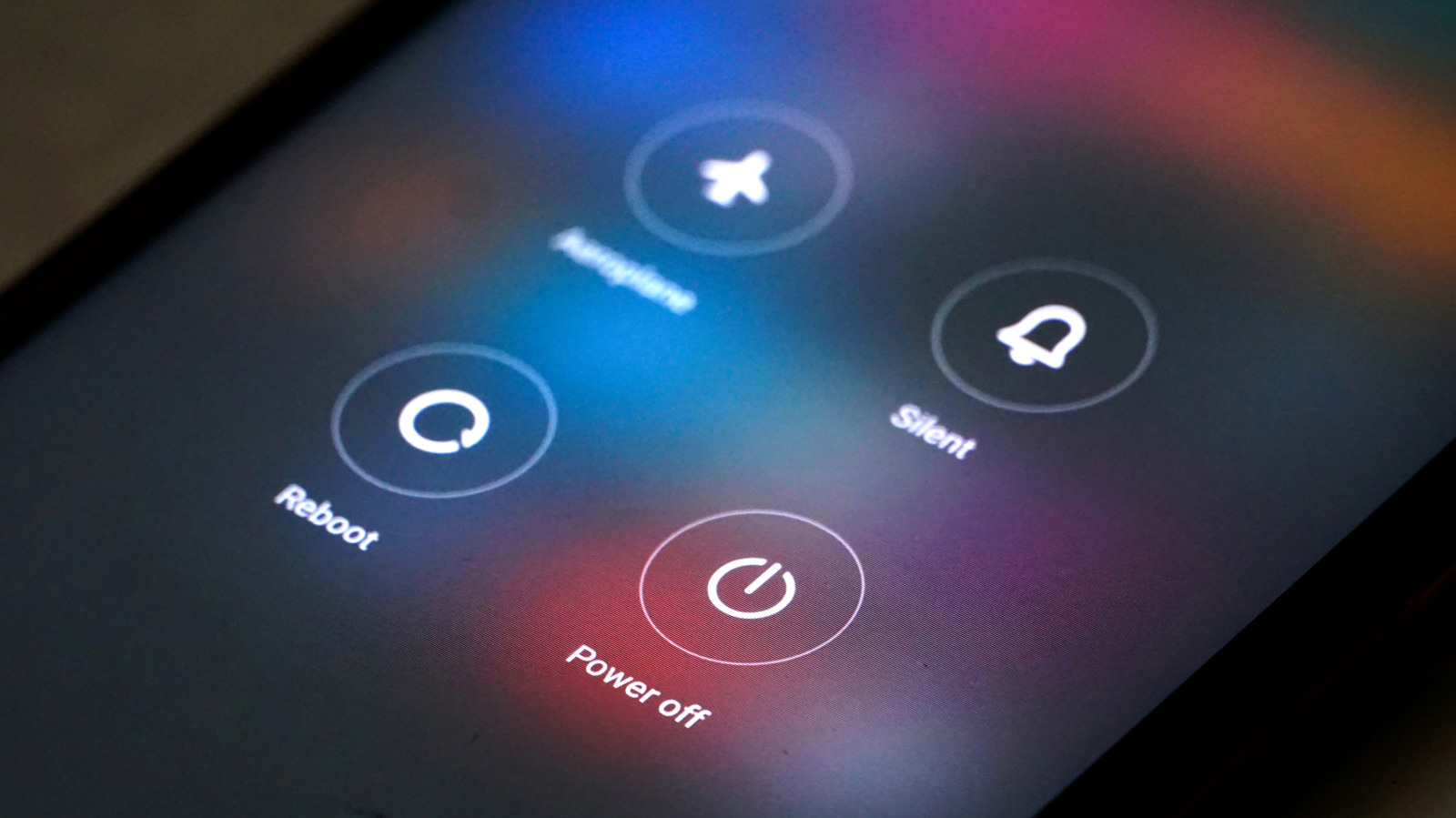
A phone's power menu displaying the Reboot, Power Off, Silent, and Airplane mode options Redstallion/Getty Images

When your phone turns off, it shuts down all background processes. Upon turning back on, it initializes everything from scratch, including the operating system, the hardware configurations, and apps that may run in the background on your phone. This happens regardless of whether you choose a restart or power your phone off, and both methods can result in a faster, smoother experience afterward.

The only difference between rebooting your phone and shutting it down is the amount of time it stays powered off. A restart means that it turns on immediately after it stops all processes and starts initialization, whereas when you power it off, you choose when to boot it back up. There is no evidence that powering your phone off offers any real system benefits over simply restarting or rebooting your phone — it doesn’t “deep clean” your phone’s memory, nor does it deal with processes any better than restarting it would. Since a reboot takes significantly less time than turning the power off and turning it back on, restarting your phone is almost always the better option.

 Just like how often you should clean your phone depends on your specific needs, how often you need to reboot a smartphone differs from person to person. Most experts recommend that you at least do it every once in a while if you want to continue using your phone for a long time or are dealing with a laggy phone.

When should you power off your phone?

A woman holding a phone in her hands, about to swipe the power button to power it off Weerayut Chaiwanna/Getty Images

When it comes to the technology and how the system behaves, there’s no advantage to powering your phone off compared to restarting or rebooting it. However, there are cases where controlling how much time your phone stays powered off can be better than a quick and immediate reboot.

For example, if you need to conserve your phone battery, keeping it powered off can be a good idea. Do note that the battery saved is minimal, since the difference in battery percentages will generally be single digits if you shut your phone down versus letting it stay on in sleep mode. Additionally, your phone eats up a small burst of battery when booting up, so unless you’ll have your phone off for 8-plus hours — such as when you’re asleep — we don’t recommend powering your phone off just for the battery advantages.

Another scenario where fully turning off your phone’s power can help is if it’s overheating badly. If your phone is throttling performance due to graphic-intensive work or using the device outside in the sun, then closing all system operations is the best way to cool it down. If you restart your phone in this case, even if the background process shut down once, they’ll simply restart — compared to shutting it off, where all stress on the phone will cease until you turn it back on. You may also need to turn the power off when you’re fixing your phone at home, such as when you’re replacing a battery or before entering the Android recovery menu.

Source

Posted on

11 Ways To Get The Most Out Of Your New

A person typing on their laptop PeopleImages/Shutterstock

We may receive a commission on purchases made from links.

Given the sheer amount of money required to set up a computer nowadays due to the AI boom, it’s easy to see why any new member of the PC family would be salivating at the prospect of using either the best state-of-the-art laptop from a reliable brand or a desktop setup they spent hours on. As enticing as this proposition may be, people who are adamant about unlocking the best possible performance from a new PC need to make some optimizations on their end to ensure the device is working as intended, without software or any missing hardware holding them back.

Some ways to squeeze even more performance out of a brand-new PC are fairly simple and can be done by the average user, while others require a bit more technical know-how. Either way, people who are serious about turning their computer into a powerhouse that can handle multitasking and intensive gaming with ease should try any course of action that prevents their PC from being bogged down by unwanted software and questionable settings.

Remove any bloatware

Literal trash inside a computer Paul Tessier/Shutterstock

Bloatware is a word that irritates anyone even remotely familiar with this concept. Many PC manufacturers follow the annoying practice of loading devices with proprietary software meant to make life easier for the average user, only for these programs to be so poorly optimized and devoid of value that they end up consuming valuable system resources for unnecessary tasks. You’ll be surprised at the sheer amount of bloatware that plagues systems, with common culprits being trial versions of programs that are useful but end up taking space on your system if you don’t want them. 

The simplest way to remove this bloatware is by going to Programs and Features in the Control Panel, selecting the option that pops up, and checking the names of programs that are constantly bugging you. Usually, a simple uninstall process will take out this bloatware for good. However, if you want to take things a step further, using Windows PowerShell and accessing Windows Package Manager — also known as Winget — can help you get rid of the apps that come preloaded with Windows 11. The “winget list” command will display a list of all installed programs on your system. From here, the “winget uninstall *app name*” command does as stated and immediately uninstalls any common Windows apps that qualify as unwanted bloatware, including Microsoft Solitaire Collection, Cortana, Microsoft Edge, Skype, and Microsoft Teams, to name a few.

Download the latest Windows and driver updates

Visual representation of a software update on a laptop mayam_studio/Shutterstock

While Microsoft has made software updates optional when setting up a new PC, we still recommend getting on this pronto and downloading the latest Windows updates as soon as possible. After all, the alternative is being saddled with poor optimization and security protocols. In fact, this should be your first priority before you even think of adding your personal information on this device, since it’s possible that a nefarious cyberattack can target your new, at-risk system and gather all your data before you finally decide to get around to these updates. Going to Windows Update in Settings is all it takes for you to set this up.

However, Windows updates aren’t the only thing to keep in mind here. Drivers that help other hardware communicate with your PC also need updates from time to time to work properly. If your camera or wireless connections are a bit wonky on your new PC, there could be a driver that needs an update to restore proper functionality. Again, this is usually carried out automatically, but there’s nothing wrong with opening Device Manager and checking all the drivers on your PC to see if any of them need an update.

Install a web browser that’s aligned with your needs

Close-up of a browser address bar in dark mode R.Narong/Shutterstock

A good web browser can go a long way in making your activities on the World Wide Web that much more palatable. Windows comes pre-equipped with Microsoft Edge, while Safari is the default browser on macOS. However, as useful as these browsers are in their own right, there’s a reason many people prefer third-party browsers that satisfy their needs. Brave is a great choice for people who want an in-built AdBlock and prefer safeguarding their privacy, although the push for an unwanted VPN and crypto services can be a bit grating for some. Firefox is another browser for people concerned about companies tracking their data.

Of course, it’ll be impossible to talk about quality third-party web browsers without talking about the most dominant browser on the market. Google Chrome definitely has its issues, with its infamous reputation for hogging system RAM being well-documented. However, what people get in return is a fast, efficient browser with the massive Chrome Web Store, which had more than 130,000 extensions in 2020 alone. If privacy is your utmost priority, then you can opt for the open-source Chromium browser instead. It’s slightly less stable and can only be updated manually, but people who used to use Chrome OS and don’t want to give Google their data can settle for this alternative instead.

Use a gaming router or a wired internet connection

The ASUS TUF Gaming AX4200 gaming router on a beige surface tinhkhuong/Shutterstock

It’s only natural for gaming fanatics who have assembled state-of-the-art PCs to expect the best performance possible. However, even after managing to run games at 240Hz to minimize input lag, it can be frustrating to deal with slow internet connections and high ping during intense competitive multiplayer sessions. The PC is not to blame here — rather, it’s your reliance on wireless internet that needs to be given the boot. A stable, wired Ethernet connection will improve speeds considerably and ensure that connection dropouts aren’t the reason your K/D ratio is abysmally low.

However, if you don’t want to compromise on wireless internet, why not opt for a gaming router? Unlike regular routers, these special devices are tailor-made to eliminate your online gaming headaches. Features like Quality of Service (QoS) help prioritize gaming network traffic over everything else. MU-MIMO (Multi-User, Multiple-Input, Multiple-Output) technology reduces network congestion by letting multiple devices interact with the router simultaneously rather than one at a time. Finally, most gaming routers also have support for beamforming, which projects signals directly to connected devices instead of being transmitted haphazardly all over your house.

Configure the PC’s settings for the best performance possible

A person typing on their laptop with multiple icons floating over it Tadamichi/Getty Images

As obvious as this may sound, you’ll be surprised to know just how many people miss the basic step of checking their PC settings to optimize the system to their liking. Most people serious about gaming endeavors should change the power settings. To access this, go to the Power & Battery tab in the System section of Settings. Even if you own a gaming laptop more powerful than the PlayStation 5, trying to game when it isn’t plugged in will be a frustrating affair, so make sure that you choose “Best performance” when the device is plugged in. Following this, it’s time to take a gander at the Windows Security tab in Privacy & Security. Double-check that Windows Defender and all firewall settings are properly set up to safeguard your new PC from viruses and malware.

Another obvious area that most people ignore is Display settings. While Brightness is usually configurable using the keyboard hotkeys, advanced settings like HDR and Refresh Rate require a deeper touch. The mere fact that people with high-refresh-rate monitors have no idea that their display runs at a paltry 60Hz by default makes it clear that Display settings should be a priority for any PC power user. 

Finally, either your NVIDIA or AMD graphics card also has settings of its own that shouldn’t be ignored. From anti-aliasing to VSync, configuring these settings is a must for anyone who wants to unlock the best possible performance in their favorite video games. This final tip is reserved for the most dedicated power users, who can go so far as to edit the Windows registry to disable the lock screen, remove any Bing links from the search bar, and restore the old right-click drop-down menu.

Set up keyboard macros for greater efficiency

A mechanical backlit gaming keyboard on a white background Roman Arbuzov/Getty Images

Macros are common in many advanced keyboards and powerful laptops, letting users carry out complex actions in the blink of an eye. This is very useful in competitive gaming scenarios, with MMORPGs, first-person shooters, MOBAs, and fighting games being perfect for macros that let you execute complex combos with the push of a button.

The judicious use of macros can also be of great value in a person’s regular workflow, allowing them to carry out repetitive, frequent tasks without having to press the same combination of buttons repeatedly. Whether it’s automated data entry in Excel or improving your speed while using Docs, you’ll be pleased to find that your daily routine becomes that much faster once you get used to these convenient shortcuts.

Even if your keyboard doesn’t have dedicated macro keys, you can always configure custom button combinations to get the job done for you in their stead. If you’re lucky, your PC will come with pre-installed software that makes setting up macros easier than ever. If you’re unlucky, then get ready to learn some Visual Basic, since that’s what you’ll need to program to code in macros of your own.

Secure your online activities with relevant programs

A vector of a VPN logo on a laptop Viktor Gl/Getty Images

If there’s one thing the Facebook-Cambridge Analytica scandal brought to light, it’s that your internet privacy is more at risk than ever before. There’s no guarantee that a site you’re browsing isn’t storing your data to sell to the highest bidder, which can make you very paranoid when browsing the internet. This is why VPNs have become such a popular service in modern times. ProtonVPN, ExpressVPN, Surfshark, and NordVPN are some of the major VPN services on the market that provide you with the anonymity you want while browsing online. Aside from this, you can also watch geo-blocked content and avoid data throttling from your ISP, making a VPN even more desirable for people on the fence about paying a subscription fee.

Of course, this is far from the only way you can improve the safety of your online activities. Instead of relying on the same password for all your accounts, you should diversify and utilize complicated, unique passwords to make it a nightmare for hackers to log into your account. However, it can be a challenge to remember all these complex phrases, which is where using one of the best password managers users swear by can be a godsend. Programs like Bitwarden and 1Password are well-regarded in this regard, unlocking a level of security that prevents their database from being hacked into. Rest assured that all your unique, lengthy passwords with multiple character types you’ve generated via a reliable password manager will be safeguarded at all times.

Buy accessories to personalize your PC however you see fit

A person using a wired mouse and keyboard on their desk, both of which are backlit relesio/Shutterstock

It doesn’t matter whether you’re using a desktop or a laptop — if you want to personalize your PC experience, a few accessories can be very useful. The obvious mentions here are a separate mouse, a good chair, or a controller for all your gaming needs. However, people can take this a step further and purchase a wealth of cool USB accessories that can turn them into a gaming powerhouse, productivity machine, or both. Laptops are notorious for heating issues, which is why you should be using a cooling pad to safeguard your hardware and ensure that the latest AAA game won’t lead to the laptop’s temperature reaching boiling levels. A simple pair of speakers can go a long way in improving the audio quality of your PC as well.

Meanwhile, other less-popular accessories can be perfect if your setup accommodates them. If you’re using a desktop with multiple displays, then a monitor arm can be perfect for organization purposes. A good mechanical keyboard can be very satisfying for people who want proper feedback when pressing keys and typing out documents. External mics and webcams are perfect for content creators who want the best audio and video quality possible while streaming and recording footage. Even something as simple as a headphone stand, a cable management tray, or a high-quality desk pad can go a long way toward improving your productivity, especially if your work desk is so cluttered that it’s hard to focus.

See whether overclocking is up your alley or not

The BIOS settings of a computer, which shows overclocking as an option aileenchik/Shutterstock

If you’re a heavy-duty editor or a hardcore gamer, then chances are that you’ve already heard about overclocking and what it does. Both your CPU and GPU have maximum clock speeds as set by the manufacturer, which usually toe the line between performance and hardware preservation. These limitations are set in place for a reason, but people who have set proper cooling solutions in place for their new PC and can provide the additional voltage required to facilitate overclocking can improve hardware performance considerably.

CPU overclocking is typically handled by navigating to your computer’s BIOS/UEFI settings and tweaking the multiplier for this processing unit, while GPU overclocking is handled by software that is either installed on your PC or can be downloaded, such as MSI Afterburner or EVGA Precision X1. While video rendering and gaming performance will become better than ever with a bit of overclocking, we strongly urge you to err on the side of caution if you don’t want your hardware fried and irreparably damaged in the process.

Optimize the BIOS/UEFI settings

BIOS settings open on a laptop aileenchik/Shutterstock

Speaking of your system’s BIOS, there’s a whole lot more you can do here — and the more advanced UEFI counterpart — other than just overclocking your hardware. Firstly, you need to press F1, F2, F10, F11, F12, Esc, or Delete to bring up these settings. From here, you can customize numerous settings to improve your new PC’s performance just enough to make it more satisfying to use. For starters, most motherboards let you customize your fan speed curve however you want, helping it run very quietly at low loads and ensuring the maximum level of cooling possible when pushing the hardware to its limit. Auto-boosting technology is also available for Intel and AMD CPUs, called Turbo Boost in the former and Precision Boost for the latter.

If Hyper-Threading on Intel hardware or Simultaneous Multi-Threading (SMT) for AMD CPUs isn’t turned on, make sure to rectify this mistake so you can double the output of a single processor core. On the GPU side of things, set the PCIe configuration to the highest possible generation if it isn’t optimized by default. Resizable Base Address Register (BAR) — called Smart Access Memory (SAM) on AMD hardware — should be enabled, since it helps the system access the GPU’s entire memory buffer in one go instead of using it one-by-one in chunks of 256MB.

Stress-test your hardware to see if it’s up to the task

A person typing on a keyboard, with multiple icons floating over it wee dezign/Shutterstock

Once you’re done perfecting all possible hardware and software settings, it’s time to put it to the test — a stress test, to be more precise. Not only is this a great way to see the exact performance metrics of your newly configured PC at peak operating levels, but it also gauges hardware stability and lets you know if you’re pushing your CPU, RAM, or GPU to the point of causing permanent harm. It’s a great way to figure out whether you’ve gone overboard with your settings or if you have room to spare for more overclocking shenanigans. Either way, you’ll need to figure out exactly how to conduct a stress test on your hardware.

The simplest way to do this is to run a processor-intensive program, such as a graphics-intensive game or advanced video-rendering software, and open Task Manager. In the Performance tab, you can see how much load your CPU, Memory, and GPU are handling while running such demanding software. If temperatures are too high or hardware utilization is reaching critical levels, you need to reduce the load on the problem area to safeguard your brand-new PC from harm. Third-party tools can also help you here and provide more comprehensive results, with applications like OCCT, AIDA64, and Prime95 being reliable stress-testing tools that give you the data you need to gauge your PC’s overall stability and performance.

Source

Posted on

4 USB-C Adapters That Will Make Your Ports Way More

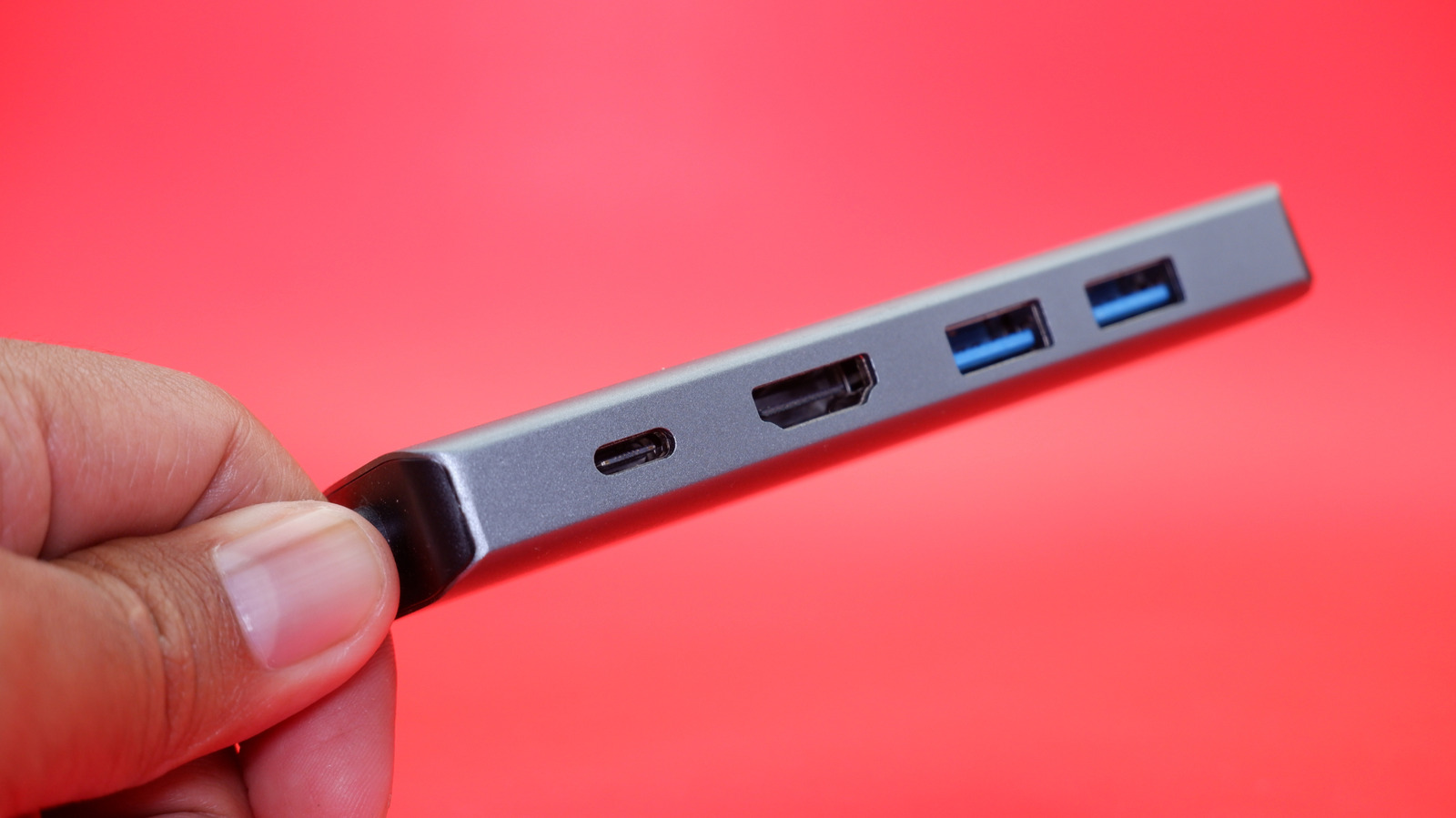
Hand holding USB hub with multiple ports on red background aji farid widiyatmono/Shutterstock

We may receive a commission on purchases made from links.

The USB platform changed the computing world after it debuted back in 1996. Take a look at the back of a vintage personal computer from the late ’80s and early ’90s, and you’ll find a veritable wild west of ports. From serial to parallel, PS/2, and game ports, things were a bit messy before the advent of USB.

Today, USB-C has become the industry standard, even managing to solve the biggest problem one of the creators of USB had with connectors. We’re at the point where basically all of our devices use USB-C now, making connecting and powering gadgets easier than ever. And while there are a number of common myths about USB-C, it can do a lot more than simply charge or transfer data. With an adapter, a USB-C port’s capabilities can be greatly expanded.

Where once you may have needed to buy a proprietary cable or card in order to benefit from an accessory, a simple adapter can now help make your ports way more useful. From adding wired Ethernet functionality to a laptop to upgrading your audio or even adding compatibility to older cables, the following are just a few of the USB-C adapters you may want to keep in your travel bag.

USB-C to HDMI adapter

Laptops are getting slimmer and smaller. One of the ways they are accomplishing this is by removing all the ports that used to be found on most machines, with many now relying solely on USB-C. Where a variety of laptops once had HDMI ports for sending video out to a television or monitor, they now rely on USB-C for the same purpose.

But you don’t have to buy a specialty cable to connect your USB-C laptop to an HDMI display. Since you probably already have a couple of HDMI cables lying around, the Anker USB-C to HDMI Adapter is a more economical choice. This little device plugs into the USB-C port of a laptop and gives you a full-sized HDMI port for connecting to a display. It works with most devices, and it’s compatible with Thunderbolt 3 ports.

The adapter supports a number of resolutions all the way up to 4K at 60 Hz, depending on your device. You’ll be able to easily share or mirror your display without having to bring a dedicated cable with you at all times. You can simply take any HDMI cable, plug it into the adapter, and you’ll be ready to work on your project, give your presentation, or just share video content with friends and family.

USB-C to Lightning adapter

Apple stuck with its Lightning connector for over a decade, even though the company played a role in the creation of USB-C. This means that there are numerous iPhones and iPads that still use the Lightning standard — and with Apple known for creating products that last, Lightning cables should stick around for years to come.

But a problem arose when Apple started making the transition to USB-C, making it harder for many users to charge or transfer data to an iPhone or iPad from newer MacBook laptops. That’s where a USB-C to Lightning adapter can become your most useful accessory. No need to buy a new cable just to connect your iPhone or iPad to your new laptop — simply attach an adapter and you’re good to go.

The USB-C to Lightning Adapter 4-pack from Lertosen is a good choice here. With over a thousand reviews and a 4.4-star rating on Amazon, these MFi-certified adapters come highly rated. They also feature an anti-loss lanyard, meaning you can keep them connected to all your Lightning cables and simply pop them on and off when needed. No worrying about losing them in a bag when you need them most.

USB-C to 3.5 mm headphone jack adapter

Wireless earbuds and headphones are great, but a lot of people out there still swear by their wired headphones. Whether that’s due to battery life and latency being non-issues with a wired connection, or because people prefer the overall sound quality, wired headphones are still very popular. But with the humble headphone jack disappearing from phones and tablets, it’s getting harder to use them with many devices.

The USB-C to 3.5 mm Headphone Jack Adapter from JSAUX looks to address this issue. With this little dongle, you’ll be able to connect your favorite pair of wired headphones to almost any device that has a USB-C port. Featuring a smart DAC chip for crisp, clear audio, this adapter is an easy way to add 3.5 mm mini-jack compatibility back to devices that it was removed from.

At just under $10, this little adapter is a great way to continue using your favorite pair of wired headphones that you can’t live without on modern devices. It’s also a lot cheaper than going out and buying all-new headsets, especially when the ones you already have work great.

USB-C docking station

We love ports around here. We’re the sort of people who fondly remember the days when computers and laptops had every port under the sun. Give us a laptop with a card reader, Ethernet port, tons of USB ports, and a headphone jack, and we’ll fill them up faster than Phil Schiller could say “Courage.” We’ll concede that many people are fine with a couple of USB-C ports and the odd adapter here and there, but we certainly don’t want to neglect our fellow port aficionados with this list.

The Ugreen USB-C Docking Station is for those types of people. This nifty hub features just about every port that has been removed over the years as devices have become smaller and slimmer. You get two HDMI ports (one 8K at 30 Hz and the other 4K at 60 Hz), allowing for multi-monitor support. Included are three USB-A data ports alongside an extra USB-C port for the one you lose when plugged in.

You also get a 1,000 Mbps Ethernet port as well as support for both SD cards and Micro SD cards. This 10-in-1 USB-C docking station from Ugreen is like having nearly every USB-C adapter rolled into a single device. If you’re serious about expandability and don’t want a bunch of adapters in your bag, a USB-C docking station like this one might be for you.

Methodology

Two USB-C ports on the side of a laptop Akmeena777/Shutterstock

When selecting the USB-C adapters for this list, we looked to the Amazon user community. We highlighted adapters with high user ratings and numerous published reviews. Each item also had to have at least 1,000 user ratings, with many boasting 10,000 or more to help validate their ranking. 

Each featured adapter was also required to hold at least a 4-star rating, and we gave preference to those that have earned an “Amazon’s Choice” badge. This badge indicates that a device comes highly rated, is considered well-priced, and can be ready to ship out immediately. 

Source

Posted on

Why Do Rockets Curve Instead Of Shooting Straight Up At

At some point in your life, you’ve probably watched a rocket launch straight up into the sky. You may have even watched Artemis II’s Orion spacecraft quickly reach space, kicking off NASA’s most important mission in decades. However, you may have also noticed that, after lift off, the rocket doesn’t stay vertical. As the spacecraft gets higher, it begins to curve, even appearing to fly horizontally, parallel to the Earth. That may seem counterproductive for something headed out of the atmosphere and into outer space, but it’s actually an essential part of a rocket’s journey. And it involves fuel.

Rockets, like other flying machines, are working against gravity. It needs as much thrust as possible for its initial liftoff, which is why they start out vertical. However, that also consumes a massive amount of fuel. Staying that way for too long would burn through its supply and send it plunging back down to Earth. That would be disastrous for both the crew and anyone unfortunate enough to be at the crash site, so rockets need to curve to save fuel, resist gravity, and reach orbit.

Rockets use a gravity turn to reach orbit

A rocket launching curved Rawpixel.com/Shutterstock

Once they get through the thickest layers of the atmosphere where gravity is at its strongest, rockets curve so they can use it in their favor. This is known as a gravity turn. It’s important to remember that the Earth’s gravity pulls objects towards its center, not just down. By rotating until the heavier side is facing the ground, rockets are able to increase their acceleration using gravity instead of fuel to reach orbit.

Technically, orbit is when the spacecraft’s horizontal acceleration and the pull of gravity balance out, essentially falling without reaching the ground. For many missions, that’s the goal. But in the case of Artemis II, which took astronauts to the moon for the first time in over 50 years, Orion needed another maneuver called the translunar injection burn to leave Earth’s gravity and reach deep space. From there, the spacecraft later used the moon’s gravity to shift its trajectory back towards Earth, allowing the four Artemis II crew members to safely return home with colorful new discoveries.

Source

Posted on

4 Major Brands And Apps You Might Not Realize Are

sony logo in blue lettering on the side of a building Sundry Photography/Getty Images

Sony is a massive corporation, and easily one of the most recognizable in the world. While it started as a small company in the mid-1940s, over the years, Sony has become almost synonymous with the entertainment industry thanks to the company’s various brands such as PlayStation, Sony Music Entertainment, and the variety of media studios that it has brought under its far-reaching umbrella. On top of being active in the content creation side of the industry, Sony has gone on to offer an assortment of entertainment-related items, including televisions and even the Sony Walkman, which revolutionized how we listen to music on-the-go.

But like many big conglomerates, Sony has its hands in a lot of places, and that means that there are inevitably going to be some brands and apps you might not realize fall under the company’s extensive list of ownings. Here, we’re going to bypass some of the more notable acquisitions — like Sony’s purchase of Bungie, the original developers of “Halo” — and take a look at some brands and apps that slipped in under the radar.

Audeze

One of the first brands you might not realize belongs to Sony is Audeze, a popular audio technology company known for its high-end gaming headphones. The company originally began out of a garage back in 2008, with a goal to bring NASA technology to high-end audio products. Since then, the company has grown and expanded its offerings, all while focusing on providing U.S.-built headphones to its customers.

The company was purchased by Sony Interactive Entertainment LLC in 2023, with it set to continue operating independently of Sony despite being under its umbrella. Audeze has continued to offer high-end music products in the form of premium gaming and professional-grade headsets. The brand is rated highly among audiophiles who still miss some of its discontinued headphones like the Audeze Sine.

While Audeze doesn’t hide its connection to Sony as a whole, it continues to operate as its own entity, so it’s easy to miss the connection, even if you own a pair of these headphones yourself. Following the acquisition in 2023, Sony released a pair of its own branded headphones using Audeze’s magnetic planar driver technology, the PlayStation Pulse Elite.

Gaikai

This next brand is probably one you’re not going to recognize right off the bat, especially since it has mostly been in the background since Sony purchased the service back in 2012. However, Gaikai was one of the original big contenders for cloud gaming back in the late 2000s to early 2010s. Gaikai tried its best to convince gamers that playing video games over the internet without owning them physically was the future.

Gaikai served as the developer for the tech behind PlayStation’s Remote Play functionality, which allowed users to stream their games from the PlayStation 4 to the PlayStation Vita. When it was acquired by Sony in 2012, a lot of people had high hopes for what Sony and PlayStation might be able to accomplish with Gaikai onboard, especially since it had proven to be a fairly successful cloud-based gaming service on its own. However, several years later, many argue that the potential was wasted and that Sony squandered the opportunity that owning Gaikai gave it in the early 2010s by not utilizing the technology enough. That said, Gaikai continues to be a company that Sony relies on even now, over 10 years later, as Sony now offers cloud gaming on its PlayStation Portal remote console. Sony also purchased OnLive in 2015, scooping up the biggest competitor that Gaikai had when it was a standalone company.

Audiokinetic and Wwise

If you’ve spent any amount of time in video games within the last several years, then you may have noticed the Wwise logo appearing on the splash screens that pop up as you load into the game. Wwise is an audio mixing technology that is developed by a company called Audiokinetic. The name stands for Wave Works Interactive Sound Engine, and it appears in thousands of games that ship each year. As for the company that owns Audiokinetic, it is none other than Sony itself.

That’s right. Even if a game you’re playing isn’t a PlayStation title, it might have some part of Sony’s technology in it if it utilizes Wwise. The technology is essentially an audio mixing system that allows for more dynamic soundscapes. Some recent titles that have utilized the system include Pearl Abyss’s latest title, “Crimson Desert”, Bungie’s extraction shooter, “Marathon”, and Capcom’s survival horror game, “Resident Evil Requiem.”

Crunchyroll

crunchyroll app pulled up on a smartphone Funstock/Shutterstock

Streaming services are a dime a dozen these days, with some of the best streaming options like Netflix, Hulu, and Disney+ often headlining some of the biggest shows on television. But for at least 15 million subscribed anime fans around the world, Crunchyroll remains one of the best options for catching up on some of your favorite anime shows. What you might not know about Crunchyroll, though, is that it’s actually owned by Sony, and has been since 2021, when Funimation Global Group (another company that Sony had purchased) completed its acquisition of the service from AT&T’s WarnerMedia for $1.175 billion.

Crunchyroll was originally founded in 2006, as a hub for anime fans to share and watch clips. In 2008, it moved from allowing the sharing of unauthorized content and began picking up licenses to distribute some of the top anime around the world. Now, Crunchyroll offers over 1,000 titles across its streaming service and has become a household name for anime fans. While the service offered a free tier until recently, Crunchyroll has now ended its free plan and moved to paid subscriptions only.

While technically under the Sony umbrella, the company says it still works independently as a joint venture between Sony Pictures Entertainment and Aniplex to unite creators and fans all around the world.

Source