Posted on

One Of Steven Spielberg’s First Sci-Fi Hits Inspired A Top

E.T. slightly smiling and holding his finger up Universal Pictures

Steven Spielberg’s classic sci-fi fantasy “E.T. the Extra-Terrestrial” (which was banned in Scandinavia), has served as inspiration for many movies and TV shows that came after, from “Stand by Me” to “The Iron Giant” to “Super 8,” and of course, “Stranger Things.” It was a major influence on the genre, but fans may not be aware that pop-rock legend Neil Diamond was so moved by the film that he actually based an entire song on it.

According to Rolling Stones Magazine, after attending a screening in New York in 1982 with fellow songwriter Carol Bayer Sager and her then-husband Burt Bacharach, the trio headed straight to Diamond’s apartment to write the song, “Heartlight,” directly inspired by the movie’s plot. Although Diamond’s lyrics don’t mention any character by name and stay rather vague about the story, it’s blatantly obvious to anyone who’s seen the film that it’s about the relationship between Henry Thomas’ Elliott and E.T. Verses like, “I just made a friend, A friend is someone you need, But now that he had to go away, I still feel the words that he might say” and “Turn on your heartlight, In the middle of a young boy’s dream, Don’t wake me up too soon, Gonna take a ride across the moon” couldn’t be more on the nose.

Still, credit where it’s due, it’s a pretty neat tune that even climbed into the top 10 of Billboard’s Top 100 list in 1982, peaking at fifth place. However, Diamonds and his songwriter peers had a literal price to pay for the hit.

Heartlight got Neil Diamond sued by MCA/Universal Pictures

As much as Diamond and his collaborators tried to avoid mentioning anything specific in the movie, they still found themselves facing a lawsuit by MCA/Universal Pictures for copyright infringement. Rather than fighting it, however, the musicians opted to settle with the production company to avoid litigation, paying them $ 25,000 (equivalent to about $85,500 today). Given that the song quickly became a success (Diamond even titled the album on which “Heartlight” was later released after the song), Diamond, Sager, and Bacharach had gotten off rather easily from the legal debacle.

Songs based on, referencing, or being loosely inspired by great movies have hardly been a rarity since “Heartlight.” Famous examples include Nine Inch Nails’ “Only”, which is believed to have been based on “Fight Club” (David Fincher even directed its music video), The White Stripes’ “The Union Forever,” which lifted entire lines from the screenplay for “Citizen Kane” (one of the most beautiful movies ever made, according to CineFix), or Regina Spektor’s “Fidelity,” which was heavily inspired by Stephen Frears’ banger rom-com, “High Fidelity,” with John Cusack (the TV version with Zoe Kravitz is among those miniseries that you can finish in one weekend). But unlike Diamond and his friends, these artists never had to pay for their inspiration from a beloved movie.

Source

Posted on

5 Cool Kindle Accessories You Can 3D Print

We may receive a commission on purchases made from links.

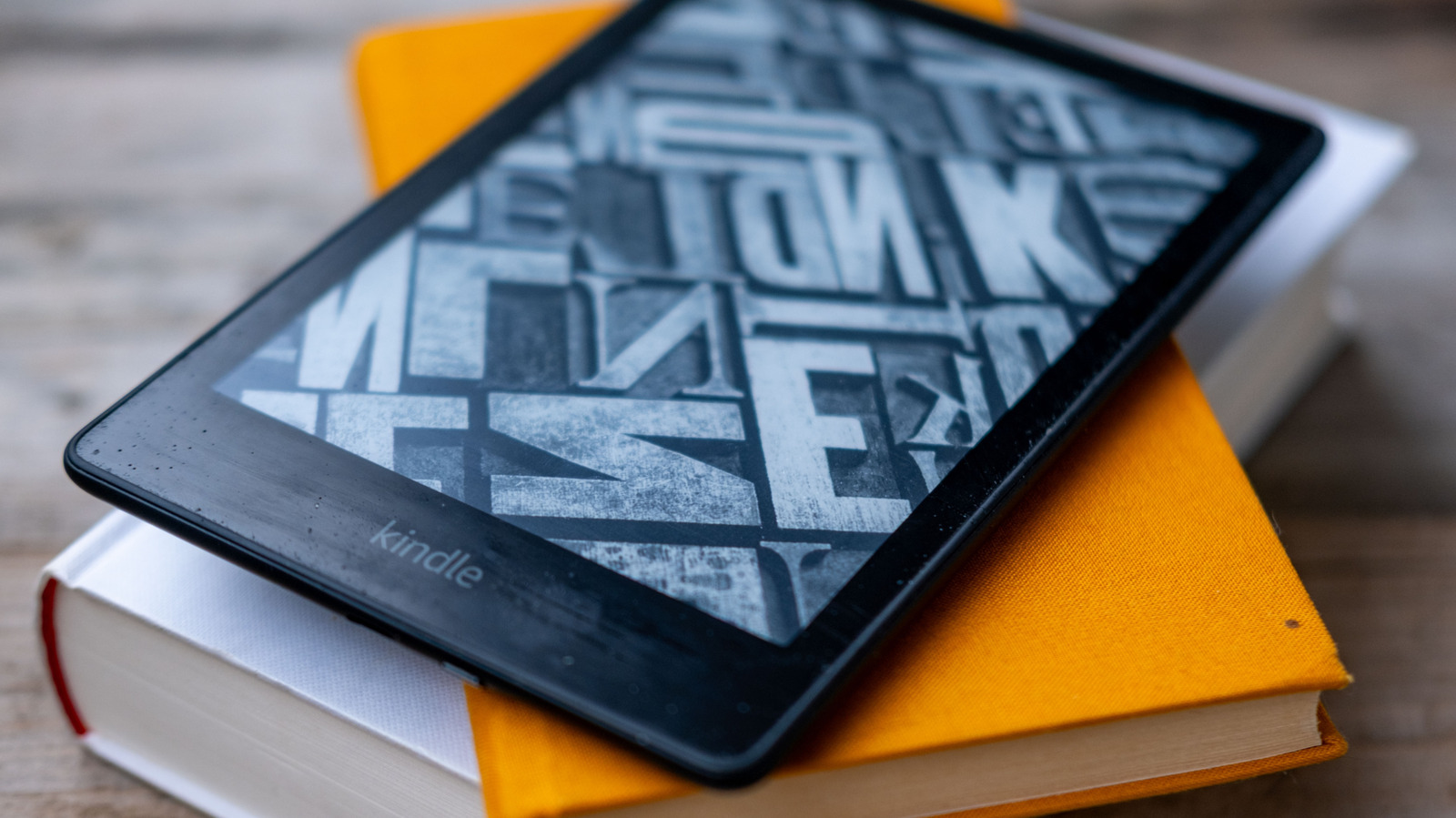
Most people already know that the Amazon Kindle is one of the most convenient ways to read, even if you prefer physical books, but the general reading experience can feel a bit generic when limited to basic accessories found in stores or when just holding the tablet for long periods. Instead of settling for overpriced, mass-produced plastic covers, makers can use their 3D printers to craft custom 3D-printed gear they’ll use every day.

We’ve found free STL files uploaded to Printables that cover everything from reading comfortably in bed to specialized grips to reduce hand fatigue. If you’ve got the materials and know-how, you can even choose your own colors and materials and tweak designs to your liking. Commercial products simply can’t match this kind of custom approach to Kindle accessories. Plus, it’s fun to make mechanical stands that use magnets or slim cases that protect a Kindle’s screen when not in use. All that’s needed is a roll of filament and a few hours of print time to completely upgrade your reading habit. 

Hands-free bed mount

The Hands-Free Bed Mount by Rauwman is a modular system designed for anyone who finds holding an e-reader like the Kindle Paperwhite in bed uncomfortable for extended periods. It uses a ball joint system to let users position their Kindle at the exact angle needed for a late-night reading marathon. Thanks to its modular design, users can swap out the base for a clamp system that fits bed frames between 10mm and 27mm thick or use a mattress insert that slides underneath to use the mattress weight for a stable, non-permanent mounting option.

Users can print the extension rods in four different sizes, ranging from 50mm to 346mm, which gives users total control over how far the screen sits from their face. Designer Rauwman optimized the parts for printing without supports, saving time and reducing filament waste. Makers with a large-format printer like the Prusa XL can print several sets of rods in a single batch. It’s recommended to use PETG for the clamp so it retains its tension over time and doesn’t warp under pressure. 

Kindle folding stand

For makers who prefer to read at a desk or a kitchen table, the Kindle Folding Stand by omerk83 is a perfect mechanical solution. This isn’t just a single piece of plastic; it requires some light assembly with six M4 heat inserts and six M6 screws. The result is a heavy-duty stand that feels far more premium than a cheap, generic plastic fold-out stand you can find online. Another highlight of this design is the use of 8x3mm magnets to create magnetic “stops” for different viewing angles. When folding the stand, the magnets pull the arms into place with a crisp, tactile snap. 

It’s a great project for a printer like the Elegoo Centauri Carbon 2, which provides the speed and precision needed for mechanical parts that need to fit together perfectly. Just make sure to print in super-fine detail at a slow speed, with solid parts, so it’s as strong and accurate as possible. Once makers glue the magnet into their designated slots and press the heat inserts in, they’ll have a portable stand that keeps a Kindle Paperwhite stable even on uneven surfaces. This stand is also strong enough to handle larger tablets like a Samsung Galaxy Tab S9 or similar, so it’s well worth making and having around.

Kindle Paperwhite protective case

Cases can add extra bulk and can end up being more of a clumsy addition than a useful one, but the Kindle Paperwhite Protective Case by JanS keeps things slim while adding a personalized touch to a user’s Kindle. This rigid shell is designed to slide Kindles in from any direction, making this 3D printing project perfect for left and right-handed readers. Just printing in standard PLA will be fine, although some might want to use a stronger filament for extra protection and heat resistance over time. 

Creator JanS has optimized the STL file to print best with a 0.5mm nozzle with a 1.05mm wall thickness, though a version for standard 0.4mm nozzles is also available as they more or less come as standard for most 3D printers from Elegoo to Prusa. The bottom surface area is small, so makers should consider adding a brim during the slicing process to ensure the case stays adhered to the build plate during the printing process. Some prints may feel slightly loose around the Kindle due to different printer tolerances, so just add a strip of masking tape to the inside of the sleeve to keep the device from sliding out unexpectedly.

Kindle Paperwhite banded grips

Holding a Kindle Paperwhite can lead to hand cramps thanks to how thin it is, but the Kindle Paperwhite Banded Grips by Lanc3d solves this issue with an ergonomic, low-filament design. Instead of a full case that covers the entire back and bulks up the Kindle, these are two separate grips that are attached to either side of the Kindle. They’re held in place by two silicone elastic hair bands to stay in place, which also means zero issues with scratches from or buffs near the edges of the Kindle Paperwhite.

These grips provide a wider, more secure point of contact for your thumb, which is incredibly helpful for reading while commuting or standing on a train. Because they’re disconnected from each other, they take up very little space in a users bag and use significantly less filament than a traditional 3D-printed case. Users can quickly snap them off when they want to use the devices without any extra weight or when it’s time to pack it away into a travel bag. This is an excellent project for a machine like the Elegoo Centauri Carbon 2, as makers can make a set in under an hour without sacrificing the structural integrity of the grips.

Booklet case for Kindle Paperwhite

For makers who want to give their Kindle Paperwhite a classic book look while keeping it protected, the Booklet Case by Jeroen is the ultimate DIY project for a Kindle. This case is specifically built for the 2021 edition Kindle Paperwhite and features a fully functional hinge system. Instead of using metal pins or specialized hardware, this specific design uses a piece of 1.75mm filament threaded through the hinge links to hold the cover and shell together. It’s rare to find a hinged case for anything that can be 3D printed and put to use without any extra fixtures or fittings.

To complete the build, makers will need to print the bottom shell, the top cover, and seven individual hinge links. If the filament pin feels a little loose, you can use a heated knife to flatten the ends, creating a permanent rivet that keeps everything secure. For a more professional finish, makers can use super glue to fix small magnets into the designated slots to keep the cover closed when not in use. The Prusa XL is a great choice for this print thanks to its reliable first layer that ensures its large flat surfaces of the booklet bottom shell and top cover come out perfectly smooth and free of defects.

Source

Posted on

The Reason Why Nintendo Switch 2 SD Cards Are So

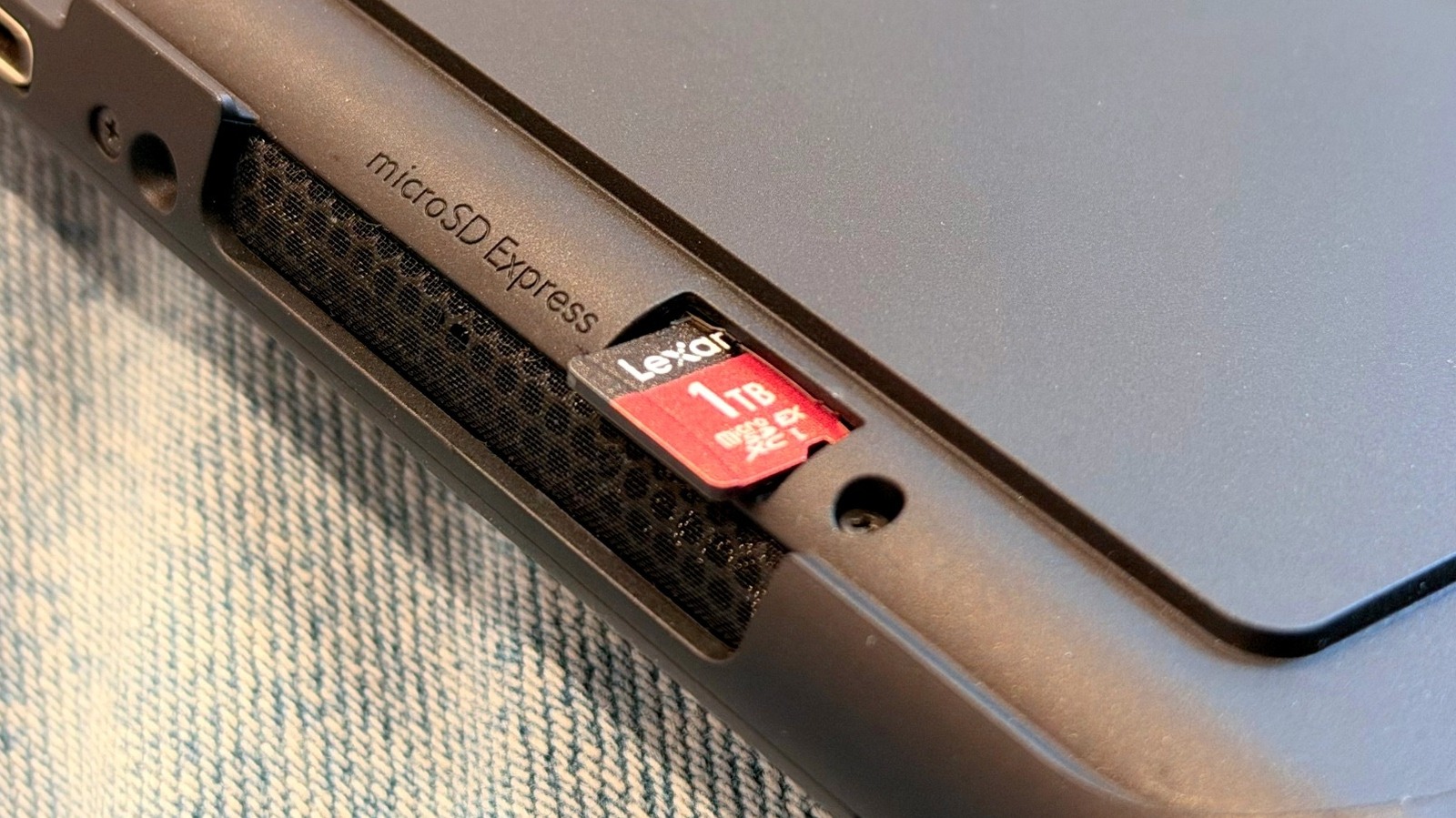
Lexar's microSD Express card on a Nintendo Switch 2 José Adorno/BGR

If you’re in the market for a Nintendo Switch 2 or just got one, you probably realize that the microSD card you’ve been using on your original Nintendo Switch is no use in the Switch 2. This is because Nintendo requires users to buy a microSD Express, a faster SD card that uses PCIe and NVMe interfaces, which are also found in the latest SSD cards. However, when you compare prices for regular microSD cards with microSD Express cards, you quickly see that they’re much more expensive; this is because they use new technologies that achieve faster speeds and there still aren’t many companies that sell them.

For example, if you look across brands like Samsung, SanDisk, and Lexar, you’ll see that a 256GB microSD card costs around $75, while a microSD Express card runs about $100. The values just get higher as you increase the storage, as a 1TB version costs around $240 for microSD, while the microSD Express equivalent can run up to $350.

While prices for regular SD cards are at an all-time high due to the ongoing memory shortage, the industry is also pushing this new microSD Express technology, which delivers fast reading and writing speeds. While not everybody needs it, if you want or have a Nintendo Switch 2, then you have no way out of investing in microSD Express. And from personal experience, you should definitely get something with at least 512GB of storage.

microSD Express cards on Nintendo Switch 2 explained

A Nintendo Switch 2 in tabletop mode José Adorno/BGR

microSD cards have long been a popular technology for cameras and to increase storage in Android phones. Currently, users can expect speeds up to 104Mb/s for UHS-I cards, 312MB/s for UHS-II options, and 624MB/s for UHS-III versions. However, when you go with a microSD Express card, you can get reading and writing speeds of up to 985MB/s. For a console like the Nintendo Switch 2, which has faster SSD storage than the original Switch, using a faster microSD card ensures the gameplay experience will be as fast and reliable as if you’re storing all your games locally.

While Nintendo upgraded the internal storage from the original Switch from 32GB to 256GB on the Nintendo Switch 2, this is not enough for those with big game libraries. Additionally, games on Switch 2 occupy more space, and can now output at up to 4K resolution and 120 fps. With that, the Switch 2 requires better technology.

Otherwise, everything on a slow microSD card would take forever to load on your Switch 2, and you’d be frustrated by the poor experience. That said, microSD Express cards are responsible for making downloads faster, gameplay smoother, and it feel like everything is running from your Switch 2 storage. I have Lexar’s 1TB Play Pro microSD Express, and after a few months of use, I’ve never had any issues.

Will microSD Express cards ever get cheaper?

A person holding dollar bills in one hand and a calculator in the other Virojt Changyencham/Getty Images

Usually, when companies introduce new technologies, the current one gets cheaper, which is what’s happening with regular microSD cards. The same is true with different display technologies, processors, cellular connectivity, and so on. Lexar tells BGR that the price trajectory for microSD Express depends on two factors: mainstream device adoption and NAND flash market conditions.

According to Lexar, if more devices like Nintendo Switch 2 and cameras start to support the spec, scale will drive costs down as more people need the technology, and new players will join the market. However, with raw material pricing in the storage industry being volatile due to RAM shortages and a focus on business consumers instead of regular ones, this also can impact the prices users are paying.

Lexar says it doesn’t have a specific timeline as to when microSD Express cards will start to get cheaper, as it depends on other players and also how the industry will respond to the current crisis; still, since this is a recent technology, users will have to pay a lot more for it in the coming months than when the Nintendo Switch 2 and other products have been available for longer. This is why you should be smart about what you store on your console. Meanwhile, Nintendo recently made a big change to its digital and physical game pricing.

Source

Posted on

4 Of The Best Minimalist Phone Cases You Can Buy

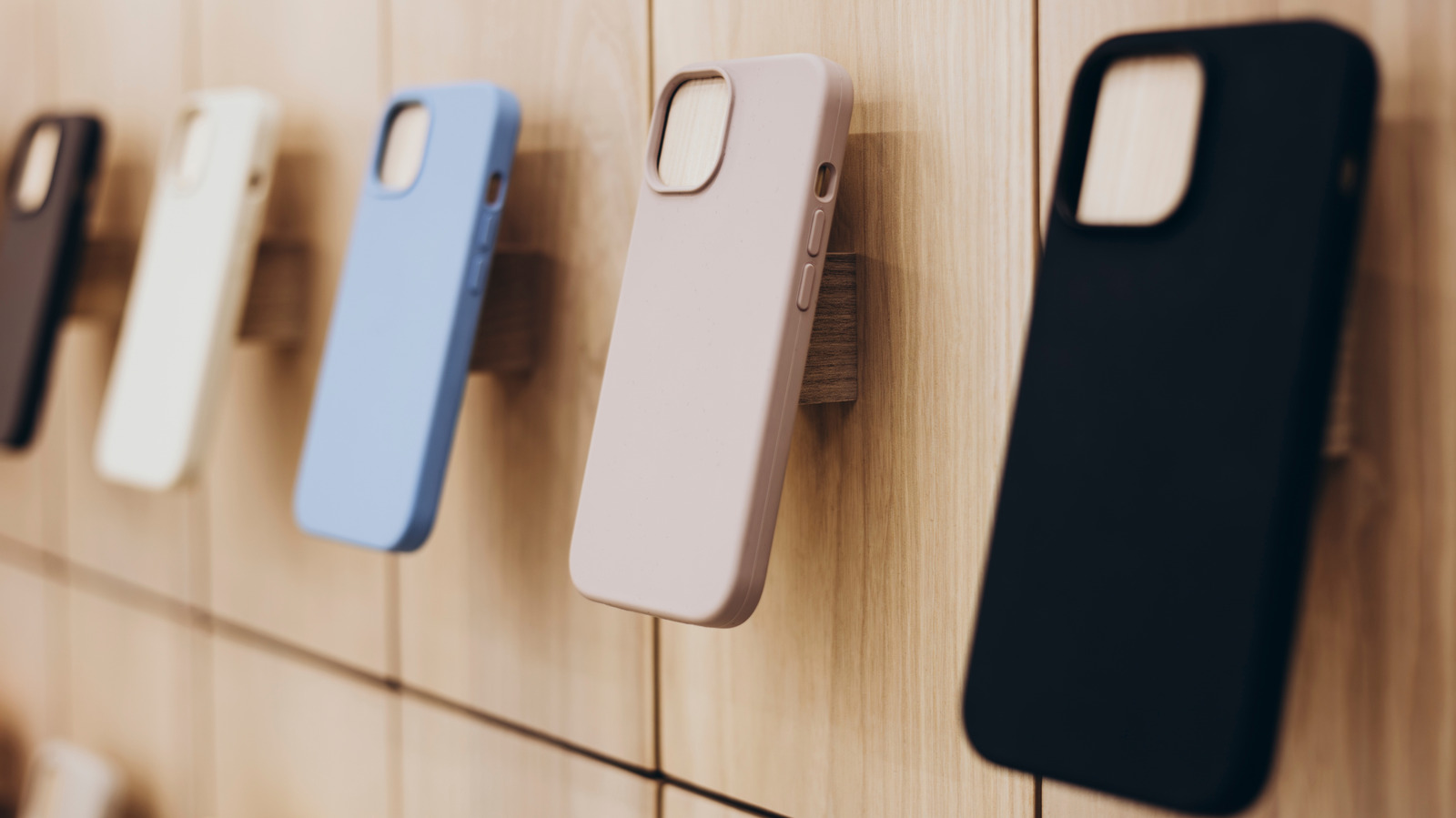
Assortment of phone cases in an electronics shop sav_an_dreas/Shutterstock

We may receive a commission on purchases made from links.

While a thick, rugged cover from a durable phone case brand is likely to offer good protection for your phone, it can also make your phone bulkier and harder to carry around compactly. This is why some people prefer opting for minimalist phone cases that add a bit of protection without compromising too much on the overall aesthetic or weight of the device. More importantly, however, minimalist phone cases have come a long way, and being minimal isn’t only about being thin.

The best minimalist cases often use advanced materials, like aramid fiber, to provide superior protection, offer a quiet visual aesthetic that doesn’t scream look at me, present a slim profile, and feel lightweight enough to keep the native feel of a phone. So, if you are in the market for a solid minimalist case, here are some of the best options for popular smartphone models. We chose these cases after going through expert reviews and user feedback for some of the most common options on the market. Keep in mind that minimalist cases are most suitable for minor scratches and basic impact protection.

Pitaka Edge

Also referred to as Pitaka Ultra Slim, the Pitaka Edge case lineup is a solid choice for anyone looking for a minimalist case. As mentioned in our review of the Pitaka cases for the iPhone 17, the Edge preserves the feeling of your phone’s slimness. While it does add some thickness at 1.4mm, it’s significantly better than rugged and even regular cases, and it keeps your phone relatively thin. As it’s made from aramid fiber, it offers reasonable protection against everyday scratches and minor impacts. It also includes raised edges to keep the rear cameras and the display safe from typical surface scratches.

More importantly, all versions of this case, including those for Google and Samsung, have a built-in magnetic ring to support MagSafe gadgets. Overall, the Pitaka Edge strikes a good balance between features, protection, and keeping your phone thin and light. Depending on your phone, it comes in different designs and colors, with prices ranging from $50 to $70. It has solid reviews from both buyers and experts, with folks liking its grippy design and durability. The only notable concerns are about the high pricing and lack of serious drop protection, the latter of which is to be expected from a minimal case. 

Totallee Scarf

Marketed as the world’s thinnest phone case, the Scarf from Totallee is more than just a 0.5mm-thick case. It claims to offer three-foot drop protection, meaning it can handle a minor drop. But it also maintains your phone’s native aesthetic with a frosted design that doesn’t completely hide how an uncovered phone looks. Moreover, the case is available in up to seven colors, allowing you to pick the one that best matches your own sensibilities. It has a list price of $35.

There is no branding to add unnecessary visual noise, and it’s made from polypropylene to offer a good balance of protection and flexibility. You can also use your wireless chargers without any trouble, and there are MagSafe-specific variants if you like to use MagSafe gadgets with your phone. Another good thing about Totallee cases is that they come with a two-year warranty, and if anything happens to your case, including you breaking it accidentally, the company will ship you a replacement for free, provided you bear the shipping cost. While the case is generally liked by shoppers and experts, there are some concerns about its grip, and the clear version being translucent. Moreover, the Scarf is only available for iPhones, but you can get it for pretty much any recent iPhone.

Benks ArmorAir

Benks ArmorAir is another excellent case lineup that leverages the strength of aramid fiber to deliver a lightweight feel with reasonable protection. The company says it’s only 1mm thick but can handle a drop from as high as four feet. It also includes MagSafe compatibility, thanks to the built-in magnetic ring, and has a slim profile, a clean design, and raised edges around the cameras. Available in multiple designs, the ArmorAir cases can be purchased for Google Pixel, Samsung Galaxy, and iPhone models. The pricing varies based on the phone model, between $40 and $60.

The company is also serious about the case’s minimalist appeal and largely stayed away from slapping a big logo on the back. Instead, it has a tiny “Designed by Benks” mark on the side of the edge that protects the rear cameras. Thanks to these features, the case has garnered a lot of praise from buyers and experts. Folks like its ultra-slim design, camera protection, and reasonable grip. The only recorded downside is the limited screen protection.

Bare Naked

Although perhaps not as recognizable as some of our other recommendations, the Bare Naked case, as the name suggests, is designed to keep the natural look and feel of your phone and still offer some protection. At 0.35mm, it’s ultra-thin and weighs less than 10 grams, depending on the phone. It also skips any kind of branding to keep its minimal aesthetic. Moreover, it has covered buttons and raised edges to ensure your phone doesn’t get scratched up.

You can buy it in Classic and MagSafe variants, and it’s available for Apple iPhones, Google Pixels, and Samsung Galaxy phones. Prices range from $35 to $65. It has generally received good feedback from buyers, who say it feels “unobtrusive” and does a good job of protecting against scratches and bumps. The one problem some folks have faced is the delay in getting their Bare Naked cases, as they seem to ship from China.

How we chose these minimalist cases

An assortment of colorful cases on a white background Jaromir Ondra/Getty Images

In looking for the best minimalist cases, we found for smartphone covers that have a clean and minimal design, add very little bulk to the phone, and have basic scratch and impact protection. We considered various options based on feedback on shopping platforms, reviews on Reddit, and expert recommendations, and then we chose the best-rated options that are available for a variety of smartphones. This list also includes options with different materials and features to cater to different needs and tastes.

Source

Posted on

Is It Safe To Charge Your iPad Overnight?

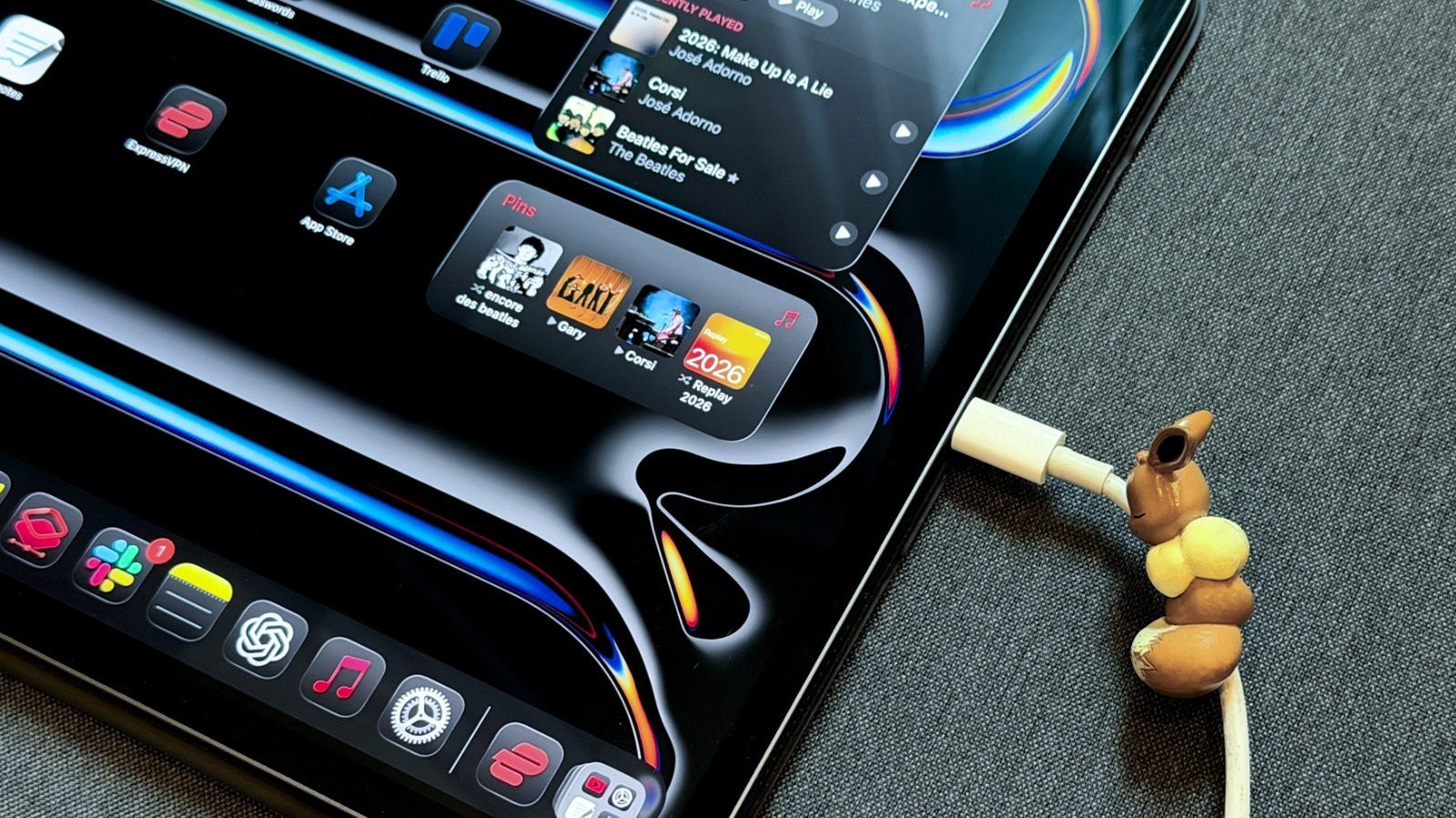
An iPad Pro charging via USB-C José Adorno/BGR

Charging your iPad overnight is safe, but there are a few things you should know if you want to optimize charging. Every battery ages, but there are a lot of misconceptions online about how lithium-ion batteries age. This is because a few decades ago, products came with alerts saying you should use them until they reach a minimal battery level and then recharge them completely. Since electronics are usually expensive, and we don’t want to mess up a new product, it makes sense why, to this day, some people still treat batteries with extra care. While there are new battery technologies being developed, like the ones used by some Android smartphone makers to deliver huge battery cells to their devices, lithium-ion is still the industry standard, and it’s what’s available on your iPad.

While charging your iPad overnight is perfectly safe, there are a few things you should know about your battery’s lifespan, how to prolong it, and even how to protect your device. We’ve got advice on using certified power bricks and cables, keeping your iPad up to date, and avoiding overheating it by not putting it under a pillow or charging it under extreme conditions.

Misconceptions about charging overnight, Bluetooth and Wi-Fi functions, and more

An iPad Pro attached to a Magic Keyboard on a white table José Adorno/BGR

In a support article, Apple explains that for most customers, an iPad battery should last for the whole day. Charging it overnight (and every night) is not an issue, even if you still have some power left at the end of the day. Not only does your iPad stop charging after it’s fully charged, but it slowly receives less power as it gets closer to 100%. Still, Apple says that whenever possible, you should unplug your iPad after it finishes charging.

The tech giant explains that the temperature is one of the main issues of battery degradation. The iPad is designed to perform well in ambient temperatures around 62 degrees Fahrenheit to 72 degrees Fahrenheit. Apple warns that you should avoid using your tablet in ambient temperatures higher than 95 degrees Fahrenheit, as this can reduce battery lifespan. Your iPad intelligently stops charging when it reaches 80% if the battery temperature is higher than it usually is.

One thing that you might think can drain battery life is leaving Wi-Fi and Bluetooth on. However, Apple clarifies that these technologies are designed to barely draw power from the battery. In fact, the company encourages you to keep Wi-Fi and Bluetooth turned on so they experience their iPad to the fullest. That said, as long as you have an ideal temperature, you don’t need to worry about your iPad’s battery degrading faster.

Here’s what you need to know about your iPad’s battery health

A screenshot highlighting the Battery settings of the iPad Pro M4 José Adorno/BGR

Apple says that iPads are designed to keep up to 80% of their original capacity at 1,000 complete charge cycles. After that, your iPad will continue to work, but Apple might eventually let you know that it might need a service repair. Apps can slow down to open, you can experience lower frame rates, reduced wireless-data speeds, lower speaker volume, and so on.

Apple makes it easier to check your iPad’s battery health in the tablet’s Settings app. You just need to find the battery section, and your device will show its Battery Health, Maximum Capacity, Cycle Count, when the battery was manufactured, and when it was first used.

With the latest iPad models, like iPad Pro (M4), iPad Air (M2), iPad mini (A17 Pro), or iPad (A16) or later, Apple added a feature that lets you limit the amount of charge to 80%. By doing that, Apple says you can prolong the battery lifespan of your tablet, even though it means you’ll have 20% less battery to use. While the iPad has a few technologies to improve battery life, it doesn’t have the same battery-saving settings as the iPhone, or the Mac. For example, a new feature in macOS 26.4 gives you more granular control of how much users want to charge the Mac.

Source

Posted on

5 Of The Best PlayStation 5 Accessories You Can Buy

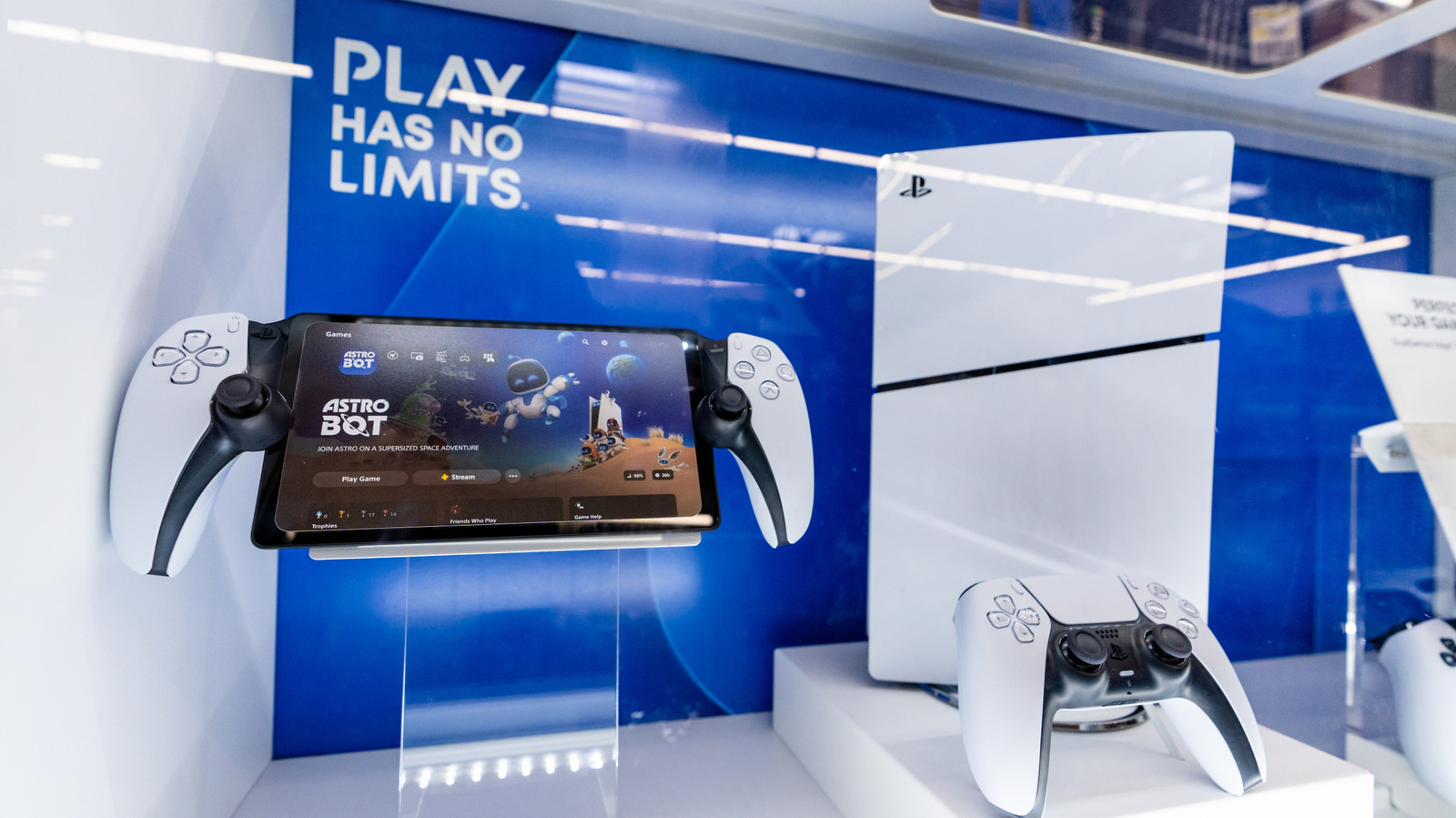
A PlayStation 5 console and accessories on display. PJ McDonnell/Shutterstock

We may receive a commission on purchases made from links.

The PlayStation 5 is already a fairly high-end game console, from its powerful components to its comfortable DualSense controllers. That said, there’s always a little more you can do with your consoles thanks to the wonderful world of accessories. Third-party accessories, in particular, may add features Sony didn’t think to include, like a controller emulator or a capture card. If you’re on the hunt for accessories for a high-end console, you could certainly do worse than checking a high-end retailer like Best Buy.

While Best Buy’s selection may not be as broad as Amazon’s for accessories to upgrade your PS5, it does offer a quality catalog of products from multiple major third-party brands, each backed by recommendations from Best Buy shoppers. You can find plenty of simple upgrades for your PS5, like replacement DualSense controllers or a charging stand for them, but if you’re looking to get more engaged with your gaming, you can also grab more elaborate add-ons, like an emulation device that lets you use other consoles’ controllers. All of these products are backed up by scores of at least 4 out of 5 stars from Best Buy shoppers to help ensure consistent quality.

PowerA Twin Charging Station for DualSense Controllers

The PlayStation 5 has several USB ports for, among other things, charging DualSense controllers. There’s nothing inherently wrong with charging your controllers like this, but it can be a bit messy and cluttered, and annoying if you have more controllers than you have viable charging ports. For some extra charging potential and a cleaner presentation, try the PowerA Twin Charging Station, available at Best Buy for $21.99.

Rather than the PS5 itself, this compact cradle plugs into your wall via a typical AC adapter. Once it’s set up, just place up to two DualSense controllers on the mounts, and they’ll start charging right away. Once they’re done charging, just pick them right up, and they’re ready to go, no fussing with wires required. Besides adding extra charging potential to your setup, it makes a nice gaming-themed decoration for your living room and a convenient nexus for your controllers next to your couch, rather than having to walk all the way over to the console to pick them up.

Best Buy shoppers have given this handy stand a confident 4.8 out of 5-star rating, with users generally appreciating the organizational improvement and compact design. One user likes to keep it on their desk, where it doesn’t take up too much space and doesn’t get in the way of anything else.

Collective Minds Cronus Zen Controller Emulator

As nice as DualSense controllers are for all-purpose gaming, it is a fact that, at $80 a pop, name-brand DualSense controllers are prohibitively expensive to purchase piecemeal. Unlike playing games on a PC, which can accept controllers from pretty much any source, the PS5 doesn’t really play nice with controllers outside its ecosystem, forcing you to replace a DualSense if it breaks. However, if you want to use a cheaper pad from a different console, there is a way to trick the system: the Collective Minds Cronus Zen Controller Emulator, available at Best Buy for $109.99.

This sneaky gadget lets you use just about any controller on any console, including your PlayStation 5. Whether it’s an Xbox controller, a Switch controller, or some random off-brand PC pad, all you have to do is sync it up with your PS5, either wired or wirelessly, and you can plug or sync any other controller to it. The Cronus Zen will automatically convert inputs from whatever controller you’re using into readable signals for the console, which means you can use whatever controller you want, no matter the brand or ecosystem. Besides saving you some cash on replacement DualSenses, the Cronus Zen lets you fine-tune your controller’s performance by adding various tweaks to reach your ideal playstyle.

This interesting device has earned a 4.3 out of 5 rating from Best Buy shoppers. Some users note that it has a bit of a learning curve to its initial setup, but once you know how to use it, it’s easy to sync up whatever controllers you want, with several users particularly appreciating the free files for PC setup and the helpful community codes.

Razer BlackShark V2 X Wired Headset

If you’re playing online multiplayer on your PS5, and especially if you’re playing competitively, a good headset is an absolute must. You want something that’s comfortable to wear for long periods while still providing optimal audio quality for both sending and receiving. For an accessible headset that can serve both purposes, try the Razer BlackShark V2 X Wired Headset, available at Best Buy for $39.99.

This headset’s 3.5mm audio jack plugs into the port at the bottom of your DualSense controller (or whatever other controller you have), immediately getting you onto voice chat right out of the box. It’s equipped with 50mm drivers for high-quality audio and a cardioid mic for clear voice capture. The closed memory foam earcups ensure a comfortable fit with passive noise cancellation, while the dial on the side allows you to quickly adjust your volume to your comfort.

Best Buy shoppers have found this headset to be both a high-quality choice overall and competitively priced compared to other gaming headsets, giving it a cumulative 4.6 out of 5-star rating. One user was pleasantly surprised by the quality of both the audio and mic, with their friends even asking them if they had purchased a standalone streaming mic given its quality.

Hori Fighting Stick Mini

Gaming controllers are not one-size-fits-all. Certain types of controllers are better for certain types of games than others. For example, if you’re using your PS5 to play fighting games like “Street Fighter 6,” it may be more to your benefit to have a dedicated arcade-style fight stick. For a compact and affordable choice, there’s the Hori Fighting Stick Mini, available at Best Buy for $53.99.

As the name implies, this peripheral is an arcade-style controller, featuring a large joystick and eight pleasantly chunky buttons, each corresponding to the face buttons and shoulder triggers on a DualSense controller. It’s smaller than the average fight stick, making it easier to store or display next to your PS5, though the stick and buttons are still more than thick enough to ensure a firm grip, aided by a rubberized bottom that keeps it grounded on your lap or table. For extra convenience, it has function buttons at the top, including the menu, capture, and L3 and R3 buttons.

For both retro games and fighting games, Best Buy shoppers have found the Hori Fighting Stick Mini to be a fair-priced, reliable option, giving it a 4.5 out of 5 score. Several users say it’s a great introductory stick for those just getting into competitive fighting games, though one user in particular noted that they needed to connect a regular controller to it to use the DualSense touchpad.

Elgato 4K S Capture Card

Gaming is a major avenue of content creation today, and while the PS5 has dedicated functions for capturing quick clips and screenshots, it can’t handle the rigors of something like professional streaming on its own. If you’re looking to stream, you’ll need a passthrough device to capture footage for a studio program like OBS Studio. If you want a PS5-ready capture card, try the Elgato 4K S, available at Best Buy for $159.99.

This capture card is ready to capture every aspect of your PS5 gameplay in the highest possible fidelity, from zero-latency 4K60 footage to clear analog audio. You can plug it into your PS5 and either a PC, Mac, or iPad right out of the box, with no additional drivers necessary for any platform and native support for streaming and chatting apps like OBS, Streamlabs, and Discord. It also works with other major gaming consoles, including the Xbox Series X and the Nintendo Switch 2.

This capture card has amassed a 4.8 out of 5 rating from Best Buy shoppers, who appreciate its easy connection and high-quality footage and audio capture. Some users feel it’s missing some of the higher-level functions of more expensive capture cards, but for most streamers, and especially those on a budget, it’s invaluable.

Better accessories, better PlayStation

The front of a Best Buy storefront. Robert Way/Getty Images

Owning a PS5 is already a rather hefty investment, so if you’re going to shop for accessories for it at Best Buy, it certainly wouldn’t hurt to know you’re getting quality products before you throw down the cash. To ensure a degree of quality and reliability in our recommendations, we focused on PS5 accessories available at Best Buy with a user score of at least 4 out of 5 stars.

Source

Posted on

Your Wi-Fi Adapter Might Be Plugged Into The Wrong USB

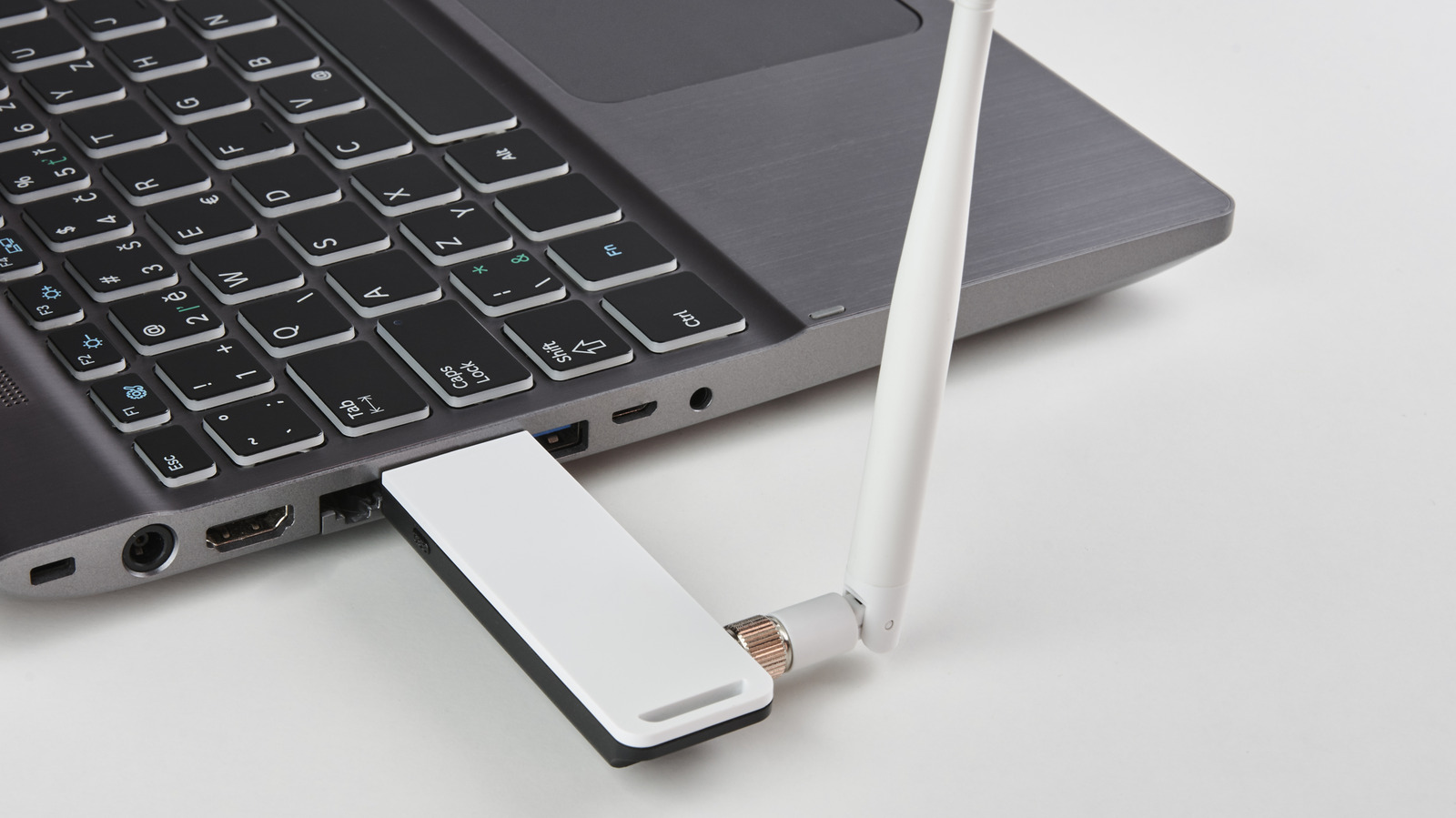
wi-fi adapter plugged into usb port on laptop side Forgem/Getty Images

When we experience Wi-Fi problems, our first response is often to start troubleshooting our routers. And while there are a slew of Wi-Fi mistakes everyone can make, the solution isn’t always as simple as adjusting where the router’s antennas point or using an outdated router. In fact, if you use a USB adapter to connect to your Wi-Fi, the problem might actually come down to which USB port you plug it into.

Whenever you plug something into your PC, it can be easy to just grab the first USB port that you find and throw the device into it. However, not all USB ports are the same, and knowing the differences between USB port types is actually really important for making sure you get the most out of the devices that you’re using. And, as it turns out, this even applies to using USB Wi-Fi adapters, too.

According to a whitepaper published by Intel, not only can the type of USB port you plug your adapter into affect speed, but also being too close to devices on certain ports can hinder your adapter’s performance.

How a USB port can affect your Wi-Fi adapter

hand plugging in a USB cable to a computer KirillovIgor/Shutterstock

Depending on what type of computer you’re running — and how old the motherboard is — you might find yourself with both USB 2.0 and USB 3.0 ports. And while USB 3.0 is technically faster, it isn’t always better for your Wi-Fi adapter. According to Intel’s findings, the USB port you choose should ultimately be determined by the frequency you use to connect to your wireless internet.

If you’re connecting with an adapter that uses the 2.4GHz network frequency, you could see problems if you don’t connect using a USB 2.0 port, or if you have it connected near a device that uses a USB 3.0 connection. Intel says the reason is that possible interference from USB 3.0 devices tends to increase noise, especially in the 2.4 – 2.5GHz range. What’s especially interesting, too, is that the noise can radiate from the USB port, the device connected to it, or even the USB cable that runs between the port and the device. Further, the data shows that any wireless receiver whose antenna is placed near a USB 3.0 device will be affected by this additional noise.

As for how it affects the wireless signal, Intel’s research shows that it affects the signal-to-noise ratio (SNR), which is a concept that directly corresponds to the strength of the wireless signal.

You can limit the interference, though

Wi-fi adapter plugged into an expanded USB cable Dolgikh Dmitry/Shutterstock

While it might seem like you’re at the whim of your USB ports and their locations, there are actually some things you can do to help limit overall interference. For starters, you’ll want to make sure you plug into the correct type of USB port. For devices that use 2.4GHz connections, look for black USB ports, as these are usually USB 2.0. If you’re connecting to a 5GHz network, then using a USB 3.0 port is more useful. Not only does it allow for greater data bandwidth sharing between your PC and your Wi-Fi adapter, but it also means you shouldn’t see as much interference with your wireless signal when using that particular port, as the noise expansion isn’t as pronounced in the 5GHz range.

Additionally, Intel recommends not placing your wireless device near an active USB 3.0 port you’re using, as interference can radiate from multiple directions. You can, of course, use shielding, such as shielded USB cables, to reduce interference, but in most cases, it might be easier to just move your Wi-Fi adapter to a port farther from the active USB 3.0 connection. While Intel did most of its testing using a USB 3.0 hard drive and a USB wireless receiver, it says the results will affect Wi-Fi and Bluetooth adapters, too.

Source

Posted on

3 Kindle Alternatives That Still Have Buttons To Turn Pages

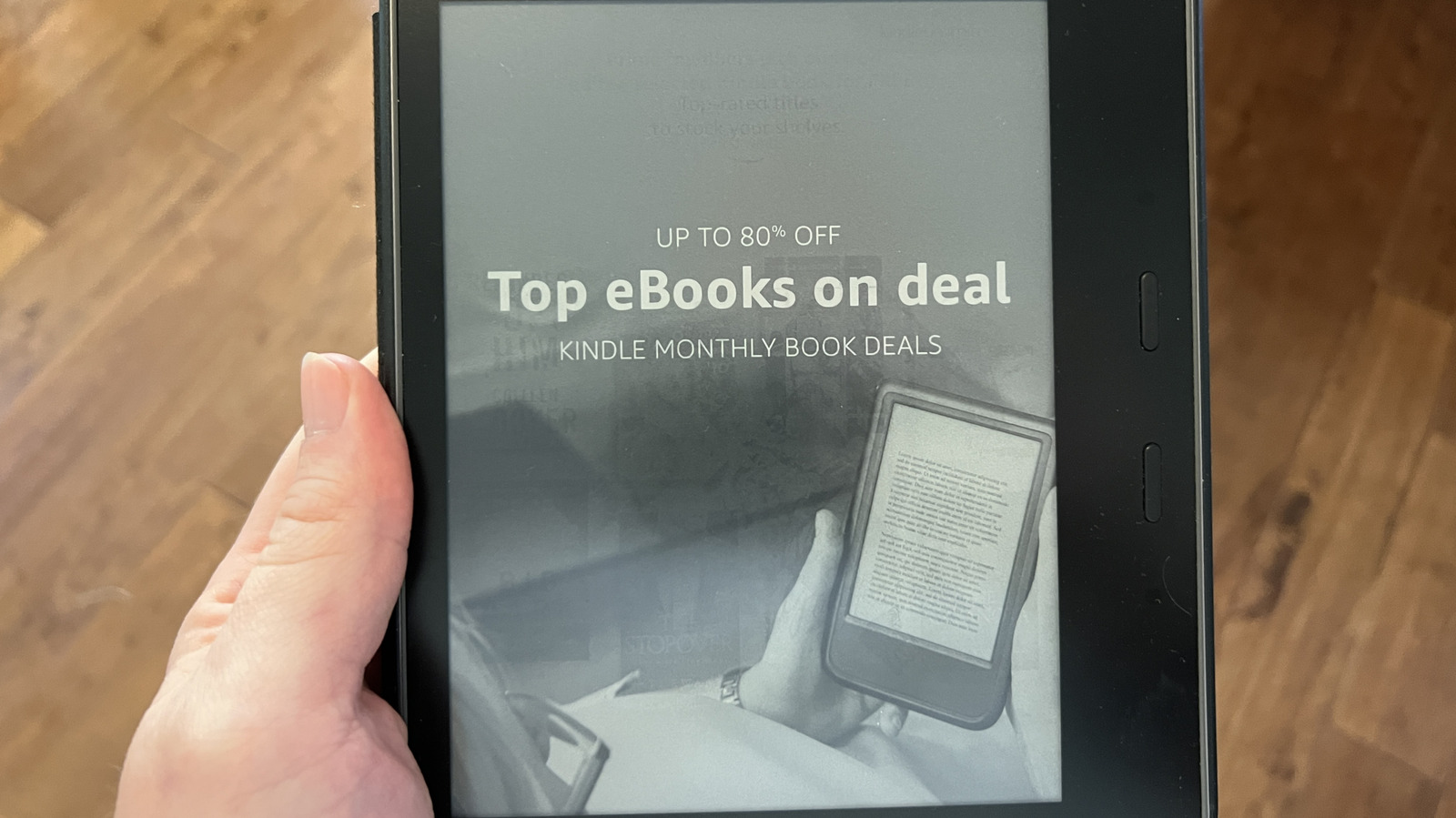
A hand holding an older Kindle eReader advertising a promotion with a wooden floor in the background Gado/Getty Images

We may receive a commission on purchases made from links.

Amazon’s Kindle lineup is popular, but since the discontinuation of the Kindle Oasis, there’s no Kindle on offer with physical page-turn buttons. This leaves you at the mercy of the touchscreen, which isn’t always ideal or as convenient as a physical button. Fortunately, Amazon’s Kindle isn’t the only e-reader in town. Several manufacturers, including Barnes & Noble, Rakuten’s Kobo, and Boox, offer a range of B&W and color Kindle alternatives in different form factors and with different features.

If you’re looking to move to a more digital book-reading experience or just want an e-reader for your beach trip, but prefer the convenience of physical buttons, you still have a few options if you’re willing to go beyond the Kindle-branded experience. However, as not all e-readers are made equal, we have picked some of the best on the market after carefully considering expert reviews and buyer feedback. All our recommendations can be officially purchased in the U.S.

Kobo Libra Colour

Kobo’s Libra Colour, which is one of our gadget recommendations for frequent flyers, is a widely appreciated e-reader that is popular among both experts and shoppers thanks to its color e-ink screen and an impressive feature set. At a list price of $230, it’s cheaper than Amazon’s top color e-readers, the Kindle Colorsoft and the Kindle Scribe Colorsoft. The Libra Colour features a 7-inch display that not only shows visuals and text in crisp, vibrant colors but also supports a stylus for marking up and highlighting e-books.

The e-reader can also function as your journal with built-in notebooks and supports cloud backup to Kobo Cloud, Dropbox, or Google Drive. But more importantly, it has built-in physical page-turn buttons, making it more ergonomic to hold for longer periods. It can carry more than 20,000 e-books thanks to its 32 GB storage capacity, plus it supports audiobooks, which you can listen to using Bluetooth headphones. As for the e-books themselves, you can download or purchase them from Kobo’s own store or borrow them from your local library using Overdrive. The Kobo Libra Colour is also water-resistant, making it great for beach trips.

Experts appreciate the e-reader’s responsive experience and long battery life. It can last for weeks with around one hour of reading every day. Unfortunately, the stylus is an added cost, and the availability of books on the Kobo Store isn’t at the same level as Kindle’s e-book store.

Boox Go Color 7 (Gen II)

The Boox Go Color 7 (Gen II) is another solid e-reader with physical page-turn buttons to consider. Like the Kobo Libra Colour, it has a thick bezel on one side that houses the page-turn buttons and supports a stylus. However, you can customize the buttons to control volume or scroll web pages. Page turns can also be performed using the built-in 7-inch touchscreen display, which uses the same E Ink Kaleido 3 tech as most other color e-readers on the market. Colors look natural, as they would look on a color print, but can’t be compared to an iPad or an Android tablet. 

One major highlight of the Boox Go Color 7 is its ability to run apps from the Google Play Store, since it runs on Android 13. This significantly increases its versatility, making it more than a simple e-reader. While it can technically play games and videos, the e-ink technology isn’t quite suitable for that, and you’ll be better off using a tablet or your smartphone for such tasks. 

The Boox also features a water-repellent design to handle splashes and a microSD card for more storage. Experts find the Boox Go Color 7 to be responsive thanks to its octa-core processor, capable of delivering a good battery life, and offering an enjoyable e-reading experience. Notable complaints about the e-reader include the cheap back plastic and a lack of e-ink optimized Android apps, while some Amazon shoppers were particularly unhappy with how Android runs on the device and its multitasking experience. It’s also pretty expensive at $290.

PocketBook Era

Although the PocketBook Era is one of the oldest e-readers on this list, having launched back in 2022, it’s certainly worth considering for anyone who wants physical page-turn buttons. The model remains available in the U.S. and carries a price tag of $249. It features a 7-inch monochrome e-ink display and is IPX8-rated for water resistance. The software experience is decent, with clear tabs for your e-books, audiobooks, notes, and other available apps. However, experts and buyers say the user interface can feel a bit sluggish; fortunately, page turns are relatively snappy.

There is also support for Overdrive (Libby) to read e-books from your local library. However, the integrated e-book store doesn’t officially support the U.S.; as a result, you’ll have to buy e-books from elsewhere or download free e-books to enjoy them on the Era. That said, there is support for 23 formats so that you can enjoy e-books in pretty much any format. 

The one notable drawback of the PocketBook Era is its relatively poor contrast ratio, which lags behind competitors like the Amazon Kindle Paperwhite that lack physical page-turn buttons. One possible reason for the reduced contrast is the additional screen protection for scratch resistance included in the e-reader.

How we selected these Kindle alternatives

An e-reader placed on a set of books next to a cup of coffee, pencil, and pair of headphones Pixel-Shot/Shutterstock

Although the selection of e-readers that come with physical page-turn buttons isn’t massive, there are a number of options that you can consider. So, while picking out Kindle alternatives with page-turning buttons, we looked at e-readers that have received solid feedback from buyers and experts alike. We also considered e-readers with both color and B&W screens, their feature sets, availability in the U.S., and overall performance.

Source

Posted on

Can A Magic Eraser Actually Remove Scratches From Your Phone’s

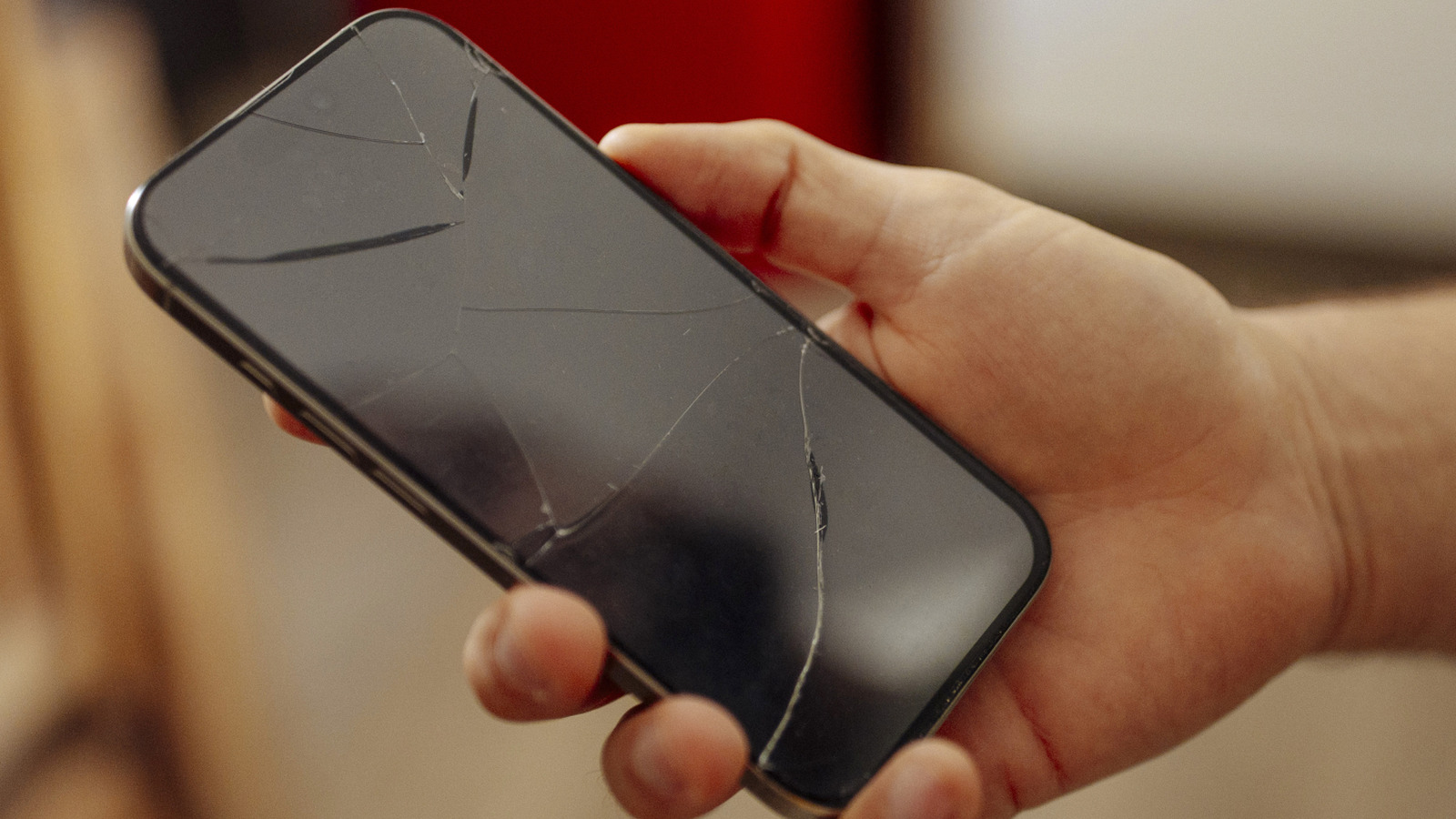
Man holding a phone with a cracked screen Mihailomilovanovic/Getty Images

We may receive a commission on purchases made from links.

Dings and scratches are an inevitable part of owning a phone. It doesn’t matter how careful you are, because an accident will occur one way or another. While you don’t need a screen protector for your phone, it can serve as an extra layer of security. Some people say using a Magic Eraser can remove a scratch from a phone screen, and that’s kinda true. We still don’t advise it, though.

Outlets such as CNet claim that Magic Erasers (e.g., those Mr. Clean Magic Erasers you can buy on Amazon for $5.49) are the “key to screen scratches.” However, the dirty secret behind magic erasers is that they might look like sponges, but they actually have more in common with sandpaper. All magic erasers are made of a super-abrasive material known as melamine foam — they grind away at everything they touch, and when wet, they absorb the particulates left behind. This design is great for removing dirt and grime from more durable surfaces, but it is also known to take the finish off many items. Items such as phone screens.

Magic erasers technically do wipe scratches off phone screens, but only because they grind the entire surface down. This process takes the sharp edge off scratches, but use it too much, and you will wear down the phone screen to nothing. For this reason alone, you should avoid using a magic eraser to remove scratches from a phone display. If a magic eraser can ruin the finish of your Xbox, why would you use it on a glass screen?

Separate the facts from fiction before fixing scratched phone screens

Person wiping down phone screen using soft cloth Tatjana Meininger/Shutterstock

While it is true that you don’t need screen protectors, they still serve a valuable purpose. If they get scratched, you can replace them, but if the phone’s own screen becomes scratched, you still have several bona fide repair options.

If you want to get rid of the scratch without spending too much money, use an eraser. Not a magic eraser; a regular rubber eraser, the kind you might find on the end of a pencil. Rub the eraser over the scratch for a minute or two (depending on the size of the scratch), and eraser filings should fill the gouged glass. Even if it never looks the same, it will at least feel smoother to the touch (which is probably the biggest issue). Many people also say you can buff out scratches with materials such as the headlight lens creams you use on cars. Just dab a bit on a soft cloth and wipe down the entire surface.

Unfortunately, these solutions only fix surface-level scratches. If the damage is more than skin-deep, you might need to send the phone to a repair center. Here’s hoping your phone’s warranty will cover the damage.

Source

Posted on

5 Hidden Pixel Camera Settings That Can Make Your Videos

Buyers go for the Google Pixel thanks to its reputation for taking some of the best photos across the Android smartphone landscape. It’s easy to get comfortable with default settings and assume it’s doing everything straight out of the box, especially with it running a Google Tensor G5 chip found in the latest Pixel 10 line. However, for videos to really stand out on social media and digital family albums, users need to look past “point-and-shoot” basics. The Pixel 10’s camera array can transform a grainy, shaky clip into something that looks professionally edited.

By adjusting a few settings, users can unlock features like cloud-based lighting enhancements and cinematic stabilization that most users didn’t realize were there. With the Google Pixel 10 series being one of the best Android smartphone lines, these tips help the software and hardware work together more efficiently, unlocking the best performance and results. For example, did you know that the latest Pixel handsets can record at 4K resolutions at 60 frames per second? If not, a whole world of content creation is about to open up, even if it’s just capturing that special moment to keep safe for years to come. Don’t panic about needing better equipment or spending money on professional photography apps; the following features will maximize video quality on the Google Pixel with no cheeky hidden fees.

Use Video Boost for professional lighting and stability

For those lucky enough to have a Google Pixel 10 Pro or Pro XL, there’s a new feature that essentially puts a film editing suite in a user’s pocket without the headaches. Video Boost is a setting located within the video mode menu that changes how the Pixel 10 handles footage. Instead of just relying solely on the device’s local processor to render video, it uploads clips to Google’s cloud servers to be reprocessed. This is particularly useful in low-light settings where standard mobile sensors struggle to combat “noise” or graininess in shadows.

When users enable Video Boost, Google’s cloud infrastructure analyzes every frame to improve color accuracy, lighting balance, and stabilization. For Google Pixel 10 Pro users, this also enables super steady videos in 8K resolution. The Pixel 10 saves a temporary preview file for immediate viewing, with the fully boosted version appearing in Google Photos once processing is complete. It goes without saying that this single setting should optimize dark or dimly lit environments, making them look vibrant and clear rather than muddy and dark. It takes the hard work away from Pixel 10 and uses the cloud and Google’s massive AI models to make sure videos look their best.

Switch to 4K 60 FPS for lifelike smoothness

The standard for smartphone video today is at least 1080p resolution, capturing at 30 frames per second (FPS). While it saves storage space, the Pixel 10 series can do far more with its triple-rear camera system. To get the best detail possible from video capture, users should tap the settings icon in the camera app and change the resolution to 4K and the frame rate to 60 FPS. This combination produces footage that is significantly sharper and more lifelike.

Jumping up to 60 FPS is the most noticeable change as it doubles the number of frames captured every second. This makes motion in a user’s video appear much smoother to the human eye, eliminating choppy footage that 30 FPS can produce, especially in fast-moving scenarios. Situations like filming the kids’ soccer game or the family dog having “zoomies” make this setting essential. The trade-off here is file size, so a cloud storage solution like Google Drive or the 1TB storage option available on Google Pixel 10 Pro XL is a wise move for those planning to record a lot of 4K 60 FPS content. The fluidity and extra detail with 4K60 are well worth the trade-off in file size. 

Clear up clutter with Speech Enhancement and Audio Zoom

While high-quality video is important, it’s only half the battle. Low-volume speech and loud environmental noises like traffic or wind can ruin a moment, but Google has addressed this with a feature called Speech Enhancement. When toggled on through the settings menu, Pixel uses its microphones and AI to isolate voice and reduce background noise. This is a lifesaver while trying to film an interview or sending over a quick birthday message in a crowded restaurant. It focuses the camera on the subject, making dialogue crisp and easy to understand without the need for an external microphone.

Another Pixel feature, Audio Zoom, uses Pixel hardware to sync sound with visual focus. As users use their 20x Super Res Zoom on Pixel 10 or 100x Pro Zoom on Pixel 10 Pro, handset microphones narrow down their field of audio capture. As users zoom in on a distant subject, the phone literally listens to that specific area while dampening sounds coming from both sides and behind them. Combining Speech Enhancement and Audio Zoom ensures videos sound as professional as they look, making sure that professional videos and special moments have the sound they deserve. 

Choose the right stabilization for your movement

Shaky footage is a quick and easy way to ruin a good video, but Google Pixel offers several “hidden” stabilization modes that go beyond the camera app’s standard settings. Users can tap the stabilization icon (the hand with wavy lines on either side) to choose between standard, active, or locked stabilization modes. When running or walking around a subject that’s being filmed, users should go for the active option. This option uses a slightly cropped sensor to create a buffer that absorbs the shock of footsteps, which results in a smooth, gimbal-like effect without any extra equipment needed.

When standing still filming a distant object, locked stabilization is the way forward. It’s designed to keep shots steady during cinematic pans or when significantly zoomed in. This mode essentially tags the subject being filmed to prevent micro-jitters that naturally occur when holding a camera phone in human hands. On the Pixel 10 Pro Fold, these modes are even more versatile as users can use the folded base as a stand in tabletop mode for perfectly still astrophotography or long-range shots. The idea overall here is having a stabilization mode that matches every kind of user situation.

Enable 10-bit HDR for a billion colors

HDR is becoming a household name when it comes to living room entertainment, so why not make videos recorded on Google Pixel compatible, too? For those looking for the same pop and dynamic range as high-end HDR TVs, simply enable 10-bit HDR in Pixel 10’s camera settings. Standard video already captures millions of colors, but activating 10-bit HDR allows users to capture over a billion. This feature creates a much wider range of brightness levels, which means highlights won’t look blown out, and shadows will retain details rather than bleeding into the video detail. Ever scrolled past beautiful sunsets and rich, detailed landscapes that look oddly real on social media? This is the big secret. 

When considering playback on the go, the Pixel 10 Pro’s Super Actua Display can reach a peak brightness of 3,300 nits. Playing back 10-bit HDR footage on such a bright screen makes colors vivid and puts out stunning contrast. Just bear in mind that HDR content is best viewed on compatible panels, so if the videos look a bit off on older smartphones and screens that aren’t HDR-enabled, powered by OLED, or Mini-LED technology, this is most likely why.

Source