Posted on

Apple App Store Subscriptions Just Got Cheaper, But There’s A

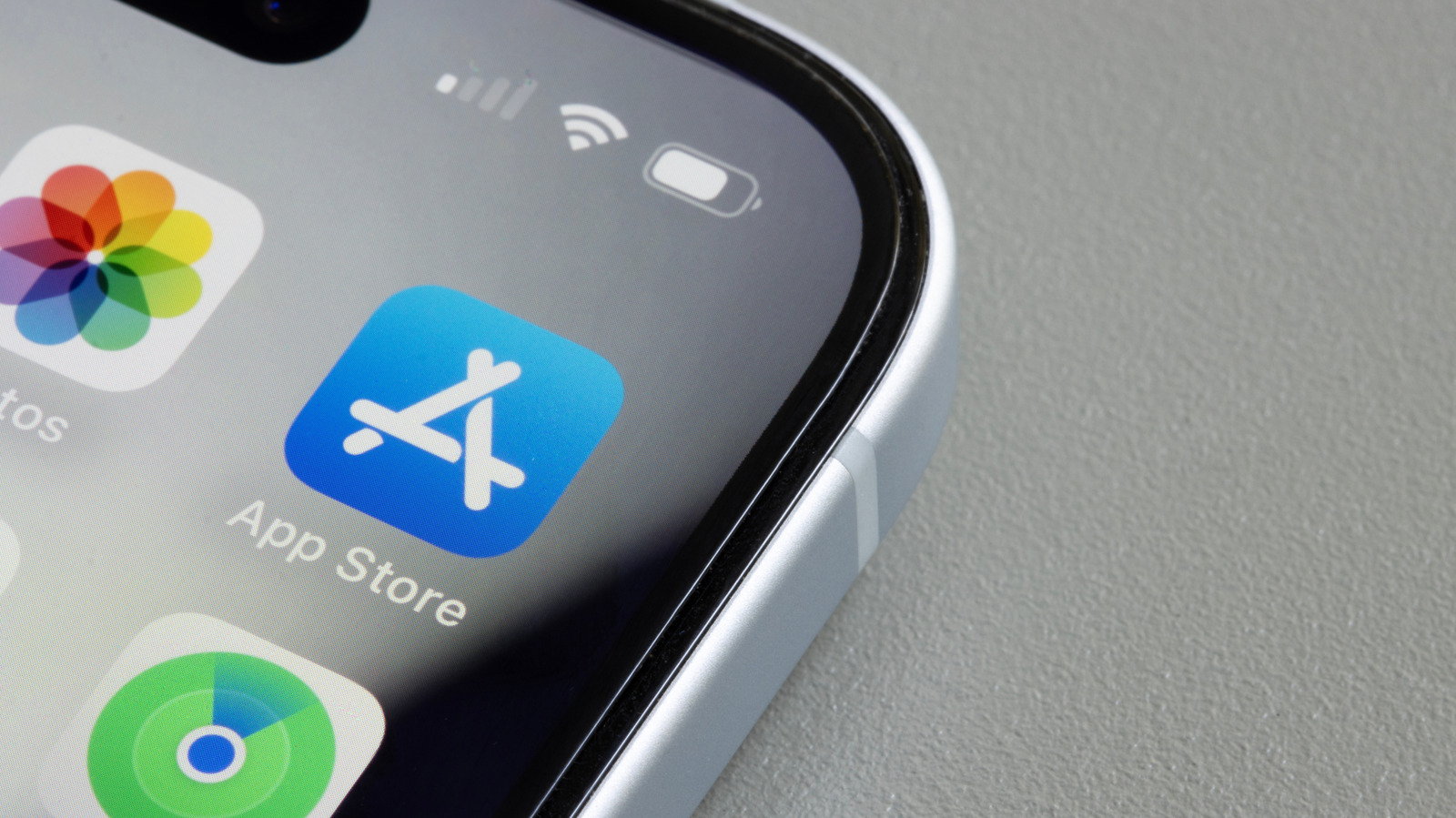
A close-up of the App Store app on an iPhone. Tada Images/Shutterstock

Some of the premium apps and services that require a monthly subscription may offer yearly discounts if the consumer is willing to pay for a longer period. Those are typically 12-month plans, though some subscriptions may also offer 24-month deals. The downside is that the consumer will have to pay an upfront lump sum when subscribing to that yearly plan. To make such discounts easier to pay, while still allowing developers to offer the deals, Apple rolled out a new payment plan in the App Store in late April that allows developers to offer cheaper 12-month subscriptions to consumers, but bill them monthly for the annual commitment. That way, consumers get the cheaper yearly price without having to pay the entire sum at once. For developers, they get a more predictable revenue stream that’s better than month-to-month options. The consumer still has to pay for the 12-month period, even if they pay an installment each month. Also, U.S. consumers can’t take advantage of the payment plan, as of this writing.

The new App Store payment plan comes after years of protests from developers and some consumers about Apple’s high fees for iPhone app purchases, but it’s not necessarily a direct response to those complaints. Apple has had to make changes to the App Store experience following regulatory pressure and lawsuits, including introducing support for third-party iPhone app marketplaces in the European Union and Japan and allowing developers to link to cheaper offers outside the App Store in the United States. The new subscription payment plan doesn’t impact Apple’s fee, as the company will still take its cut out of the annual amount the customer agrees to pay. It’s the developer offering the deal, not Apple.

What if you cancel early?

A concept of a consumer choosing between different subscriptions for a product purchased on a tablet. Dragonimages/Getty Images

The new subscription payment feature doesn’t force developers to offer any discounts. Not all subscriptions available in the App Store come with cheaper yearly prices. Also, developers have to choose to offer this payment plan with discounted yearly subscriptions promoted through their apps. Developers can still decide to charge subscribers one-time upfront payments in exchange for the discount for a 12-month subscription purchase.

Subscribers can cancel at any time during the 12 months to prevent the App Store from charging them for another cycle at the end of the period. However, agreeing to purchase the 12-month subscription via the “monthly subscriptions with a 12-month commitment” option, which is what Apple calls the payment plan, means paying the 12 installments. For example, canceling a subscription after four months would not mean the customer stops paying the remaining eight installments. These will be due each month and will still appear in the Apple Account details.

Apple explains in a support document that consumers who can’t be charged for the remaining installments may lose service access until the installments are paid. That may mean access to paid features can be suspended. A user whose payment method fails will not be able to purchase other content in the App Store until the payment method is updated. Separately, users will be able to upgrade to a different plan during the 12-month period. In this scenario, users will receive a prorated refund for the unused time in the current billing period.

What about U.S. iPhone users?

Apple’s announcement notes that consumers in the U.S. and Singapore will not be able to take advantage of the new payment plan for 12-month subscriptions. Developers can’t offer this payment option to consumers in these two markets, but they can use it everywhere else. Apple hasn’t explained why these two particular markets are excluded, or how long the exclusion will last. TechCrunch believes that Apple’s decision concerning the United States may be tied to the Epic Games lawsuit, parts of which relate to subscriptions. Apple doesn’t have a similar legal battle in Singapore, but the outlet speculates stronger consumer rules in the country may be why Apple has excluded Singapore.

While Apple offered the iPhone screenshots above as an example of how the new payment plan will appear in the Apple Account, the payment option is also available to developers and companies who sell subscriptions for iPad, Mac, Apple TV, and Vision Pro App Stores. The new payment option can appear on devices running iOS 26.4, iPadOS 26.4, macOS 26.4, tvOS 26.4, and visionOS 26.4, or later versions of these operating systems.
Source

Posted on

4 Things The PlayStation 5 Can Do That An Xbox

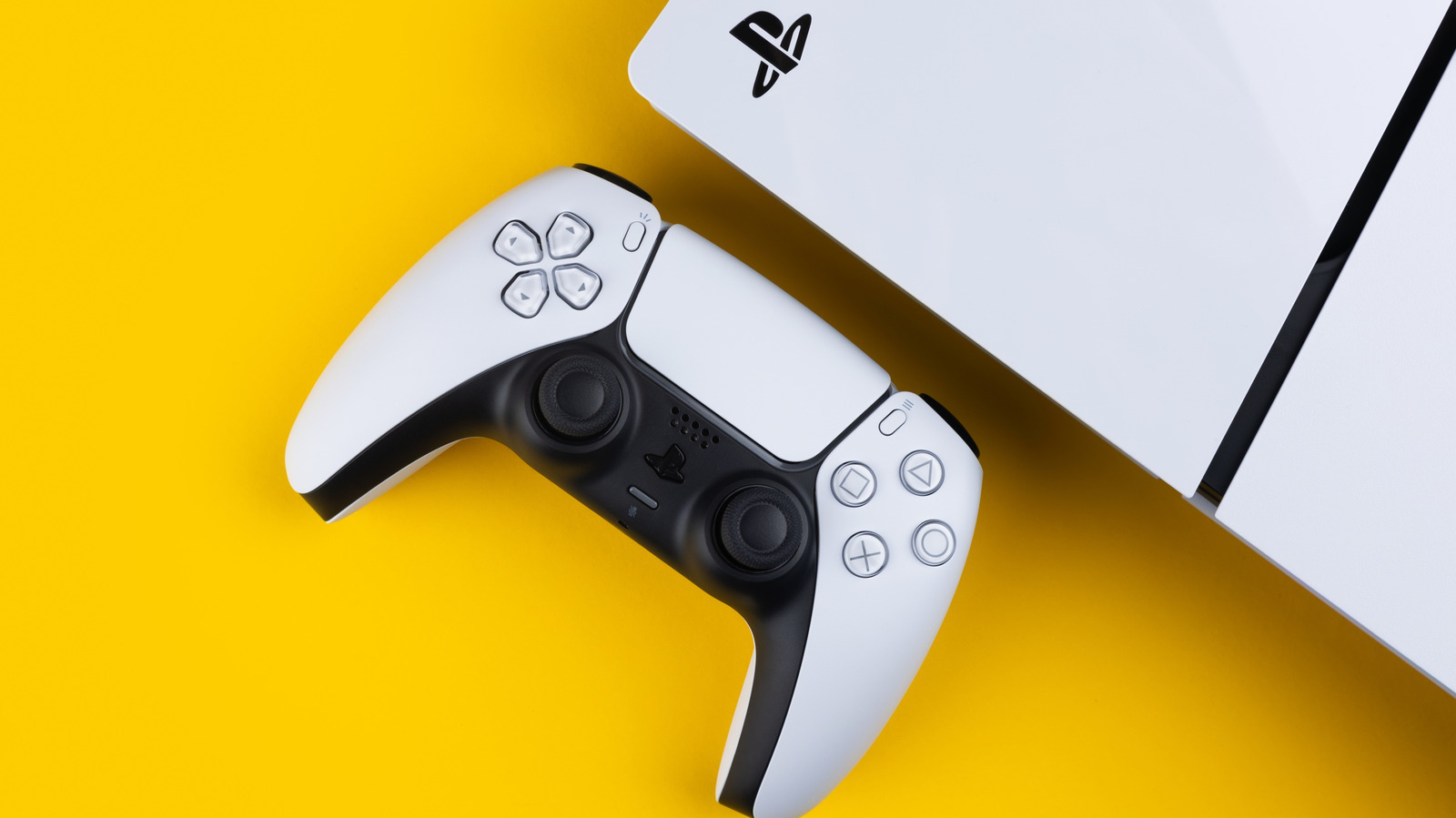
A DualSense and PS5 on a solid yellow background Skrypnykov Dmytro/Shutterstock

It’s been almost six years since the PlayStation 5 released, ushering in a new generation of gaming. The PS5 is powerful and provides access to great first-party games like “Marvel’s Spider-Man 2” and “Ghost of Yōtei.” Even some former Xbox exclusives like “Indiana Jones and the Great Circle” and “Starfield” have made their way to Sony’s console, which is a major reason why those looking to purchase a console should get a PlayStation 5 over an Xbox Series X despite the two having comparable specs.

That’s not to say Microsoft’s console is by any means bad. There are things you probably didn’t know the Xbox Series X could do and several features the PS5 doesn’t have, like Quick Resume, Dolby Vision, and backward compatibility going all the way back to the original Xbox. Likewise, the PlayStation 5 has some exclusive features, including a truly next-generation controller and colorful customization options for the PS5 hardware itself.

Better gameplay immersion with the DualSense controller

Close up of hands holding a PlayStation 5 controller Girts Ragelis/Getty Images

The PlayStation 5 controller can do some cool things that make it really feel like a step forward for gaming hardware. In contrast, the Xbox Wireless Controller that comes with the Series X or S doesn’t change all that much from what its predecessor brought to the table, prioritizing backward compatibility over innovation.

The DualSense has haptic feedback, adaptive triggers, and a built-in speaker to make gameplay feel more immersive. Hearing audio messages through your controller and feeling rainfall or the difference between different guns are novelties that drop you into the action. These features do drain the controller’s battery and can impact gameplay, but you can easily turn them off if you’d prefer a more classic experience.

Additionally, the DualSense’s integrated speaker and microphone are great for communication, allowing players to chat even if they don’t have headphones that fit in the controller’s audio jack. Some players may prefer the simplicity of the Xbox controller, but it’s undeniable that the DualSense is designed to be a true next-gen upgrade.

Spoiler-free help when you’re stuck

There are plenty of resources out there for gamers stuck on that challenging level or looking for a sneaky collectible, from written guides to let’s plays, but those often put you at risk of seeing spoilers. That’s why the PlayStation 5’s Game Help feature is so useful. The PlayStation Plus perk provides easy and guaranteed spoiler-free hints for many first- and third-party titles like “Astro Bot” and “Hogwarts Legacy.”

To access it in an applicable game, all you need to do is open the control center and find the Game Help card. That will open up a list of objectives based on where you are in the game. Selecting one brings up hints, sometimes in the form of a video, which you can pin to the screen to make it easy to follow along with. Game Help has also expanded with the introduction of community features that allow users to upload their own hints and vote on those posted by others.

Easy customization with swappable console covers

The PlayStation 5’s hardware design has been a hot topic since it was first revealed. In addition to being significantly taller than the Xbox Series X, the console’s odd shape had many wondering where they were going to put it and how it would fit in (or not) with their setup. Those large panels actually do serve a purpose, supporting the main part of the console. They’re also removable for easy cleaning and customization.

PlayStation makes console covers in a variety of colors for the PS5, PS5 Digital Edition, and their revised Slim versions. So far, the only official option for the PS5 Pro is a sold-out cover based on “Ghost of Yōtei,” but there are also third-party faceplates available for all PS5 models that are cheaper than the first-party ones, which range from $54 to $74. There are, of course, console skins and other customization options for Xbox Series X and S, but the PS5’s console covers are far easier to snap on and swap than stickers you need to precisely apply.

More flexible storage expansion

A PS5 opened up with a M.2 SSD installed agencies/Shutterstock

If you have a lot of different games you swap between, you’ll want to add extra storage to your console. The PlayStation 5 does make adding internal storage expansion a little harder than the Xbox. Since it uses M.2 SSDs, you’ll need to open up the console and screw the drive in yourself. Far simpler are the Xbox Series X’s Storage Expansion Cards, which only have to be plugged into a slot on the back of the console.

However, the PS5 has one major advantage where storage is concerned. Xbox’s Storage Expansion Cards are proprietary technology, limiting your options to official cards made for Series X by Seagate and Sandisk. In contrast, any M.2 SSD that fits the PS5’s requirements will work with the console, allowing you to shop around for a good deal. Xbox’s approach to internal storage makes installation easier, but PlayStation 5’s way is far more consumer friendly.

Source

Posted on

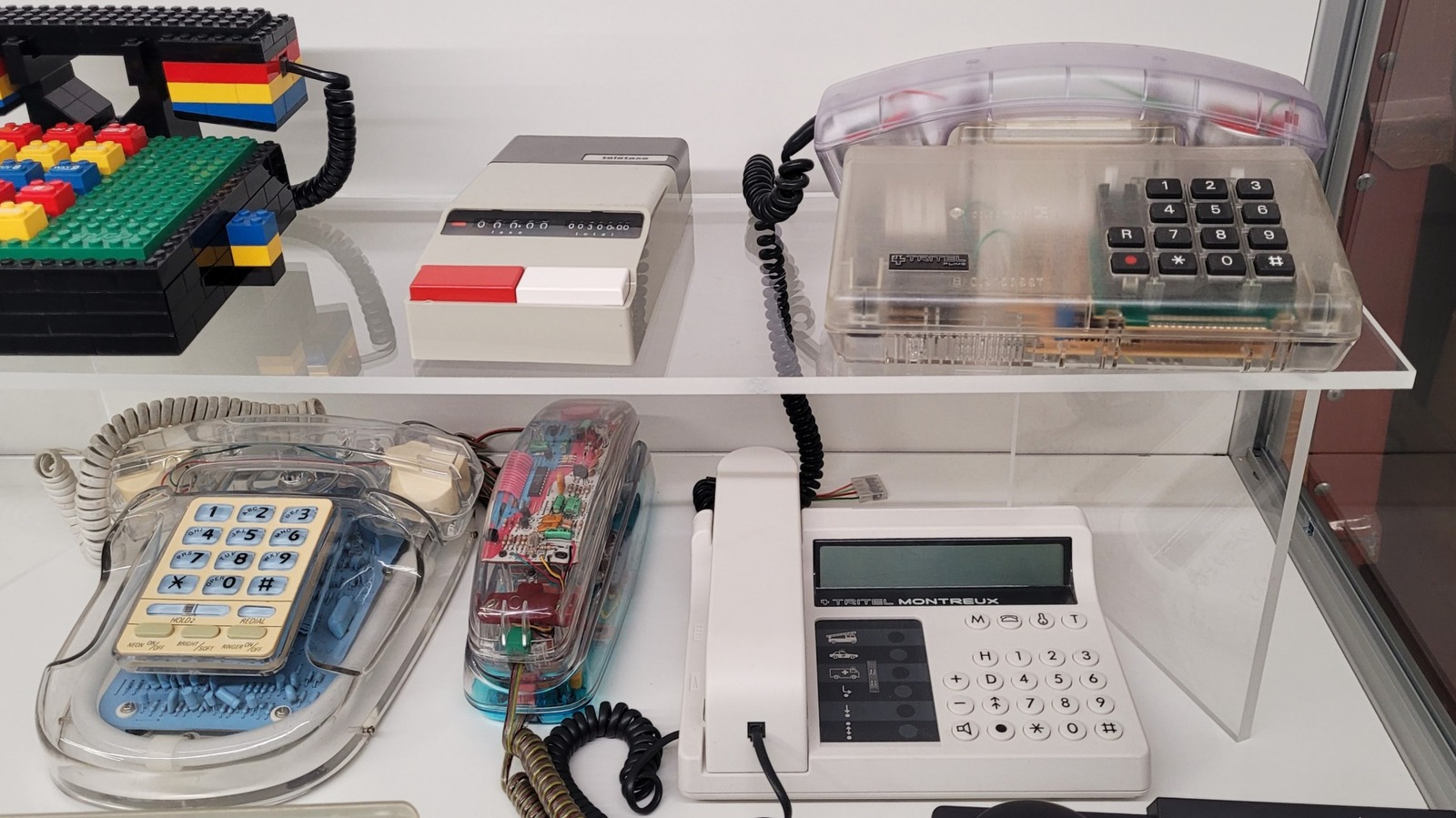
The ’90s See-Through Tech Trend Is Making A Comeback –

My earliest memories of technology are of big, beige behemoths. The old-school essential computers and accessories of my youth were chunky and utilitarian, like brutalist monuments to technical progression, meant to be used, not perceived. At some point in the ’90s, however, as computers and other tech moved into the mainstream, fashion and aesthetics began to intersect with what had previously been pure function. As tech became fashionable, in other words, fashion penetrated tech, and nowhere was this trend more evident than in the rise of translucent gadgets.

Part of it was Hollywood’s fault. Movies played a huge role in making tech cool, and manufacturers picked up on the trend, making tech more colorful and, ultimately, less opaque. See-through tech gives builders a broader canvas to paint on, with more surfaces, textures, and even moving pieces. Now, in an era when everyone is saturated by information but everything feels arguably more opaque than ever, and as retro gadgets are making a comeback, the return of transparent devices feels almost inevitable.

There are a number of reasons driving the transparent Renaissance, but at the heart of it is likely a feeling of alienation. As the media and entertainment become increasingly more digital and ephemeral, and as people feel further divorced from it, the desire to not only hold something tangible but to see within it, to see physical structures and how they function, has become increasingly palpable. This is especially true in gaming, where physical media continue to disappear, and so many social interactions are mediated by screens.

The beauty of internals

A gaming PC opened up for a GPU installation Dikushin Dmitry/Shutterstock

“We see transparent tech as both nostalgic and futuristic,” Chris Thorne, chief marketing officer at Beats, told Gear Patrol. “It’s iconic to the Y2K era, yet shows off the technological chips and components that continue to develop and be more powerful than ever.”

That dichotomy is key to the resurgence in transparent tech. While modern devices aren’t full of the whirling cogs and gears of antique gadgets, they are vast landscapes of fine detail that often combine into compelling mosaics resembling modern art. Today’s systems on a chip (SoCs) are wildernesses of fine copper wires connecting sleek, black processors and ridges of mountainous RAM. Properly arrayed and lit, they become less functional tech and more museum pieces.

It’s a trend that’s infected the gaming PC space for many years, with glass panels replacing opaque metal. The pulsing neon of RGB lighting combines with brilliantly painted components and flashing peripherals to transform desktop computers into psychedelic immersive art. Now that trend is expanding to include retro gaming accessories, handhelds, and even laptops.

Some of the best transparent tech in the pipeline

If you want some slick transparent gaming gear but don’t want to commit to an entire desktop PC setup (or mod an iPhone X to make it transparent), maybe one of Xbox’s new Ghost Cipher line of Elite controllers is more up your alley. It combines a gorgeous, clear chassis with sleek silver internals, with golden highlights on the triggers and D-pads. If you’re looking for a more colorful transparent look, consider the rest of the Cipher series, which offers a similar transparent case but tinged in shades of red, blue, purple, or pink.

If you prefer a full gaming handheld with a similar aesthetic, Anbernic has you covered with its RG 35XXPro. It’s a retro handheld with a 3.5-inch screen, and comes in a transparent teal version that lets you see all the electronics toiling away under the hood. Perhaps most impressive of all is Lenovo’s ThinkBook Transparent Display Laptop. Though it’s sadly only in the proof-of-concept stage, it features a stunning, fully transparent Micro-LED panel that displays content in a pane of glass, recalling the hologram future tech that previously only existed in science fiction.

Source

Posted on

These Built-In iPhone Features Can Help You Sleep

A woman sleeping soundly in a bed Hananeko_Studio/Shutterstock

You already know how many health benefits you get from a good night’s sleep. But sometimes, no matter how hard you try, you just can’t seem to drift off to dreamland. If tossing and turning and counting sheep don’t do the trick, there’s one other way you can sleep better, according to experts: playing relaxing music or nature sounds.

One study from the University of New South Wales reports that music with slow musical notes successfully encourages sleep faster and improves the sleep quality at the same time. Meanwhile, a study published in the journal Urban Forestry & Urban Greening observed that participants who listened to a mix of valley water and forest birds were more relaxed, with their heart rate lower than when hearing road traffic sounds.

So if you’ve ever needed help falling asleep, try pulling up some soft music or nature sounds. You won’t have to go digging on Spotify or YouTube, though. If you own an iPhone, these natural sleep aids are actually built into the device. Ambient Music plays soft music for you, while Background Sounds lets you play different kinds of nature sounds, from rain on a roof to fire crackles. Here’s how to turn these features on.

How to toggle on Background Sounds on your iPhone

An iPhone showing the Background Sounds panel from the Control Center Marinel Sigue/BGR

The Background Sounds on your iPhone is accessible from either the Settings app or your Control Center. In the Settings app, follow these steps:

  1. Navigate to Accessibility.
  2. Under Hearing, choose Audio & Visual.
  3. Tap on Background Sounds.
  4. Enable Background Sounds.
  5. Select Sound.
  6. Choose your preferred sound from the list. You’ll hear a preview of the sound when you tap on it.
  7. Press the back button.
  8. Adjust the volume to your liking.
  9. (Optional) To automatically turn off Background Sounds at a certain time, go to Stop Sounds with a Timer. Toggle on Timer and select either a specific time or a set period for when the sound will stop.
  10. (Optional) To personalize the Background Sounds profile, go to Equalizer. Switch on the Equalizer and play around with the Tone and Balance until you find the most comfortable output.

If you’d rather not go into the Settings to enable Background Sounds, you can simply customize your iPhone Control Center and add it as a control. Just search for Background Sounds (three notes icon) under the Hearing Accessibility section. When you tap on this icon in the Control Center, it will automatically play the last sound you selected. To change it, touch and hold the control, tap on Sound, and pick a new one. When you long-press on the control, you can also see a volume slider to tweak the volume whenever you need to.

How to enable Ambient Music on your iPhone

An iPhone showing the Ambient Music widget Marinel Sigue/BGR

If you prefer listening to Ambient Music instead of a specific Background Sound, you can launch the Sleep Ambient Music playlist by going to your Home Screen. You first need to customize your iPhone Home Screen, though, as Ambient Music isn’t available there by default. Here’s how to do so:

  1. Touch and hold on any empty space on the Home Screen.
  2. Press Edit in the top-left corner.
  3. Go to Add Widget.
  4. Tap on Ambient Music.
  5. Select which widget size you want to add to the Home Screen. If you’ll mainly use Ambient Music for sleeping, the smallest widget should do.
  6. Hit Add Widget.
  7. Tap Done.
  8. To start playing, simply tap the play button on the widget. If you’re not a fan of the current playlist, you can switch to one of the three other options. Long-press on the Ambient Music widget, go to Edit Widget, and change the Playlist.

Aside from the Home Screen, you can also access Ambient Music from your Lock Screen or anywhere else on your device if you add it to the Control Center. Go to your Control Center and edit it. Then, under the Ambient Music section, choose Sleep. A single press on the Ambient Music control will automatically play the previously set playlist. If you need to switch it out, touch and hold an empty space in the Control Center, select the Ambient Music control, and choose a different playlist.

Source

Posted on

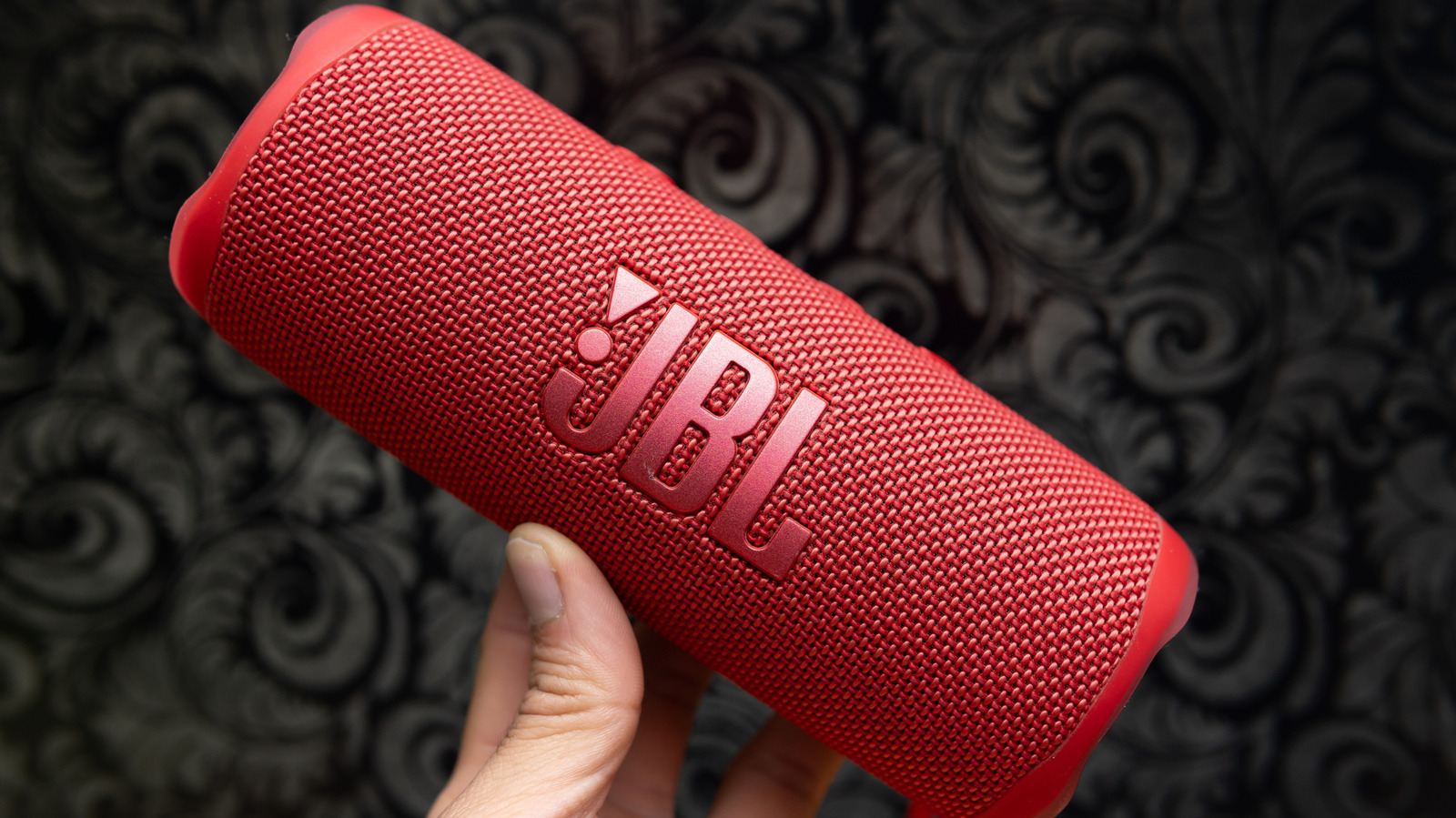
5 Underrated Bluetooth Speaker Brands That Can Compete With JBL

A person holding a JBL speaker. Nara_money/Shutterstock

We may receive a commission on purchases made from links.

It’s great when a specific manufacturer becomes nearly synonymous with its most popular products. Examples like the Roomba robot vacuum (made by iRobot) immediately come to mind for automated cleaning tech, and one of the first brands that you might think of when someone says a “Bluetooth speaker” is JBL. Over the last several years, JBL has released a ton of speakers that customers love.

Still, the underdogs deserve their shot at glory. While there’s an unfathomable number of Bluetooth speakers to choose from in stores and online, there are a handful of underrated Bluetooth speaker makers that we’d like to stack up against JBL. We’re not aiming for a spec-by-spec comparison; we just want to spotlight the lesser-heard names in Bluetooth audio, such as Tribit and Brane, and did our best to find products that could be directly matched to one (or a few) competitive JBL speaker(s). We’ve also listed some otherwise popular brands like Marshall and Bang & Olufsen that aren’t as well known for their Bluetooth speakers.

Marshall

Marshall is no stranger to the world of high-gain audio — but that’s speaking in electric guitar terms. Over the last few years, the company has been putting out a lineup of Bluetooth speakers that borrow from the brand’s amp cosmetics. Models like the $130 Marshall Emberton III offer good sound quality and a bass-forward signature.

The Emberton III has an IP67 rating, which makes the Bluetooth speaker safe for outdoor and indoor use, and can withstand being submerged in three feet of water for up to 30 minutes. Marshall claims 32 hours of battery life with the speaker on a full charge. The Emberton III comes in multiple colors, all featuring the classic Marshall amp grille. Additionally, the speaker comes with a built-in mic for taking calls and Bluetooth LE support.

While JBL may have the upper hand when it comes to overall variety, the Emberton III isn’t the only Bluetooth speaker in Marshall’s arsenal. There’s also the smaller Marshall Willen II ($90), the larger Marshall Middleton II ($330), and the Marshall Bromley 750 party speaker ($1,300).

Bang & Olufsen

While portable Bluetooth speakers (in multiple colors) are one of JBL’s main calling cards, if you’re looking for cosmetic sophistication and good sound quality, you’ll probably like Bang & Olufsen’s speakers. B&O has been around since 1925, and it positions itself as a high-end audio brand. The brand offers a variety of portable Bluetooth speakers like the Beosound A1 3rd Gen, Beosound Explore, and Beolit 20.

According to B&O, the $399 Beosound A1 can deliver up to 24 hours of playback on a full charge, and push up to 60 watts via Class D amplification. While the speaker may look small, users say it offers great sound quality. You can expect a balance of highs, mids, and lows, along with the ability to customize audio using the B&O app.

Compared to a speaker like the JBL Flip 7, the Beosound A1 definitely costs more ($400 versus $100), but if you prioritize audio quality over price, the A1 is a better option. The $268 Beosound Explore is another portable speaker from the brand that is more suited for outdoor use due to its anodized aluminum shell and IP67 rating.

Tribit

Not all small Bluetooth speakers should be cursed to sound tinny. From one year to the next, audio engineers are getting better and better at delivering wider, more immersive soundstages, even when dealing with a reduced chassis. While JBL has numerous tiny speakers to choose from, we’d like to direct your attention to Tribit — an audio manufacturer that offers budget-friendly tech.

At first glance, a device like the Tribit Stormbox Micro 3 may not look all that impressive. But according to users, it actually delivers powerful, clear sound, and should last up to 24 hours on a full charge. Its IP68 rating also makes it suitable to strap to a backpack or bike handle. Compared to a product like the similarly priced JBL Go 4, the Stormbox Micro 3 has more features, and offers more in the way of EQ customization than the Go 4.

Tribit makes a few other Bluetooth speakers, too, including smaller devices like the Stormbox Mini+, and larger systems like the Stormbox Lava and Stormbox Blast. Apart from that, the brand also deals in earbuds.

Brane

Who doesn’t want to own a powerful Bluetooth speaker with amazing battery life? Products like the JBL Boombox 4 fit this description, but if you’re not put off by its $550 price, we think you should consider a Brane speaker. Fortunately, it won’t be hard to pick a model, because the company only makes one device: the $500 Brane X. It also looks as though designers took inspiration from the Sonos Era lineup.

The Brane X comes with audio features like Brane’s patented Repel-Attract Driver (RAD) – a low-frequency feature that uses custom magnets to reduce the speaker’s internal air pressure. This, according to Brane, results in deeper bass. The X also includes two midrange drivers, two 0.75-inch tweeters, and pushes up to 200 watts via its four Class D amps.

As far as battery life, the Brane X doesn’t get close to the Boombox 4’s 34-hour runtime, and falls behind in water and dust protection (IP57 versus IP68), but the latter loses out on Wi-Fi connectivity. Once networked, the X lets you stream tunes from services like Spotify, Pandora, and Deezer, and it can also be controlled by Alexa.

Klipsch

Our final JBL alternative is Klipsch. For our list, we decided to highlight the company’s City Series Bluetooth speakers: the Detroit, Nashville, and Austin. These three devices make up the brand’s City lineup, which competes with JBL speakers like the Clip 5, Flip 5, and Charge 6.

All three speakers come in enclosures that vaguely resemble Marshall’s aesthetic. All City speakers are bass-heavy, and users praise the leading Detroit model for its “punchy bass.” Detroit also has an IP67 rating, a removable carrying strap, and should last up to 20 hours on a full charge.

The Nashville and Austin speakers are good speakers for their price, too, and all three models can be controlled and customized using the Klipsch Connect app. Klipsch and JBL may be fairly neck and neck when it comes to power, performance, and variety, but sometimes it’s just nice to try a brand that’s less off the beaten path.

How we chose these underrated Bluetooth speaker brands

A person holding a JBL speaker. Nara_money/Shutterstock

JBL is one of the most popular Bluetooth speaker brands on the market, so we knew it’d be challenging to land on four or five alternatives. To that end, we decided to focus on reliable and (somewhat) recognizable audio companies with proven track records. When possible, we tried to directly compare alternative brand speakers with similar JBL products in terms of features, sound quality, and pricing.

Source

Posted on

Why Do Submarines Use Red Lights At Night?

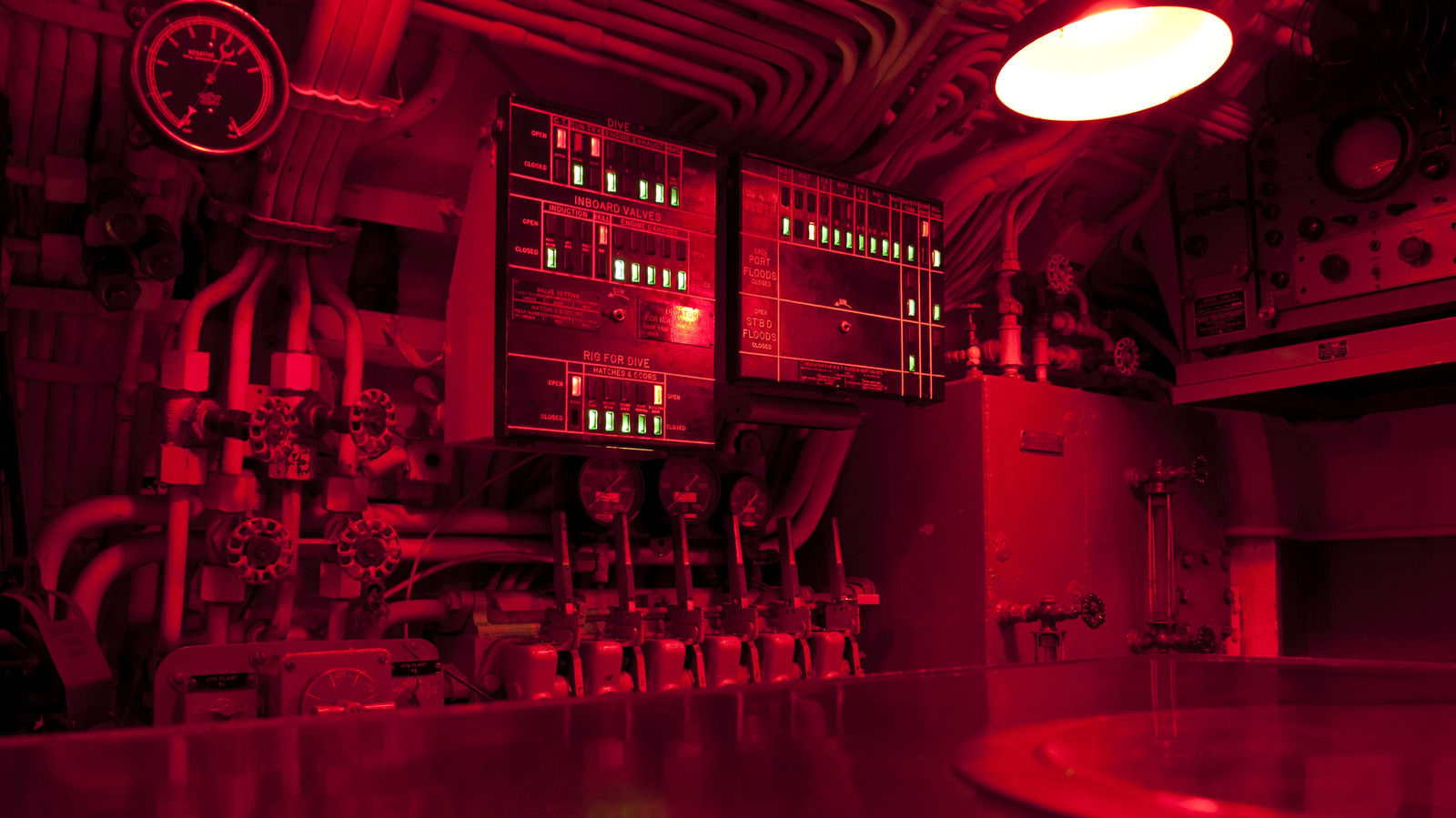
The interior of a submarine in red light Searagen/Getty Images

Submarines are fascinating pieces of military technology that play a major role in national defense, with nuclear submarines able to stay underwater for months and navigate without GPS as they carry out stealth missions. If you’ve watched any TV shows or movies featuring submarines, you’ve probably noticed that intense scenes are often bathed in red light. These aren’t just for dramatic effect; submarines actually do use red light, as it’s easier on the eyes.

To understand why submarines use red lights at night, it’s important to know how the eyes work and how light and color impact night vision. Eyes are made up of cones and rods. Cones are located in the center and are used for daytime and color vision, while rods are meant to detect peripheral movement and threats, seeing in black and white. Human eyes can see light with wavelengths between 400 and 700 nanometers, interpreting that as colors ranging from violet to red. Since red light has the longest wavelength, the eye is less sensitive to and has an easier time adjusting to it than traditional white light.

As such, red light is also useful for maximizing your night vision. After around 20 minutes in low light, the eyes begin to produce a chemical called rhodopsin that activates the rods. It takes another 20 to 40 minutes for night vision to really set in, but even a small amount of bright light causes the rhodopsin to break down, which restarts the entire process. Dim red light doesn’t have the same impact, allowing your night vision to kick in (and persist) as intended.

Red light is more useful than you may think

A pattern of swirling red light Andreonegin/Getty Images

Since red light is less harsh on the eyes and doesn’t disturb night vision activation, its a great fit for submarines. It still illuminates the space enough for the crew to see what they’re doing while also helping those on board distinguish between day and night while underwater without daylight. That’s important for maintaining healthy sleep patterns and avoiding interruptions in the body’s natural circadian rhythm; different colors of light impact the circadian rhythm, and red has little to no impact. Studies have shown positive signs that red light could help improve sleep quality, though far more research needs to be done. At the very least, it doesn’t have the same negative impact blue and white light have, making it healthier to use before bed.

Red light has plenty of other applications beyond submarines, too. You may have also heard about red light therapy from the many influencers and celebrities on social media who swear by it for everything from anti-aging to hair growth. There’s science and history to back up these claims, though the results are generally less dramatic than users expect.

Additionally, red light has environmental benefits. Places like Denmark have installed red street lights that are less harsh on local bat species, as traditional street lights have been shown to impact their behavior, sometimes leading them into danger. Other places have installed red lights to lessen the impact of traditional white street lights on turtles. These creative, science-backed solutions are a great use of red light that helps the local ecosystem while still providing visibility for drivers.

Source

Posted on

Scientists Are Using Internet Cables For Something They Weren’t Built

A close of illuminated fiber optic wiring Flashmovie/Getty Images

Internet cables are becoming seismic sensors on land, under the sea, and possibly on the moon. Millions of miles of fiber-optic cable already cover the Earth, including about 920,000 miles of undersea cables on the ocean floor. As some of the oldest cables are being pulled from the ocean and new cables are laid, scientists are increasingly tracking natural hazards like earthquakes, volcanoes, and floods along this global network.

Distributed acoustic sensing (DAS) uses laser pulses to read minute changes in vibration, strain, ground movement, and water movement. Traditional seismometers measure ground motion at an isolated point. A fiber-optic cable can act as a continuous sensor over a larger area, collecting real-time, high-resolution data, and Iceland’s volcanic Grindavík eruption showed how the technology can help track hazards beyond earthquakes. The U.S. National Science Foundation reported that the system supported a warning 26 minutes before the eruption, giving nearby residents time to evacuate.

Caltech researchers also proved how powerful the monitoring system can be. They tapped into a roughly 62-mile fiber-optic cable section, collecting data equivalent to 10,000 traditional seismometers. Their findings could have a sizable impact on seismic monitoring at a much lower cost than traditional systems. There are more than 700 seismometers in California, each costing up to $50,000. A DAS system needs one $200,000 interrogator to send laser light pulses down miles of cable. The same approach could help with underwater seismic monitoring, which gets even more expensive and difficult. In the Canary Islands, researchers turned a submarine telecommunications cable into 11,968 strain sensors across about 75 miles. The DAS system detected local and regional earthquakes along with seismic waves from oceanic earthquakes thousands of miles away.

How the same technology could detect moonquakes

Moon's surface image taken by a high-powered camera shows meteor impacts and shadowed craters Naim uddin Id 6667907/Shutterstock

The same technology could be headed to space, as Los Alamos National Laboratory researchers propose using fiber-optic cables to detect moonquakes. Cables could be unspooled across miles of the moon’s surface. Researchers suggest cables may not need to be buried after testing signal clarity in a lab using crushed basalt to simulate the moon’s surface. The same cables deployed as seismic sensors could one day support communications for lunar missions.

The moon doesn’t have the kind of tectonic plates that shake the Earth’s fault lines, causing most earthquakes. Moonquakes are instead triggered by forces such as Earth’s gravitational pull and meteorite impacts. Also, scientists say the surface of the moon is even colder than we originally thought, dropping lower than -410 degrees Fahrenheit at night and heating up to 250 degrees Fahrenheit during the day. These temperature fluctuations make the surface expand and contract, adding to the moon’s seismic activity.

Scientists believe understanding seismic waves caused by this activity will help them learn more about what’s inside the moon, such as its density, composition, and whether it contains liquid. 
If scientists discover faults, it could indicate the moon is more geologically active than previously believed. In 2019, researchers used moonquake data to infer that the natural satellite’s size was shrinking. However, additional moonquake data could reveal new insights into how the moon formed. 

Source

Posted on

What’s The Average Lifespan Of An Apple Pencil Tip?

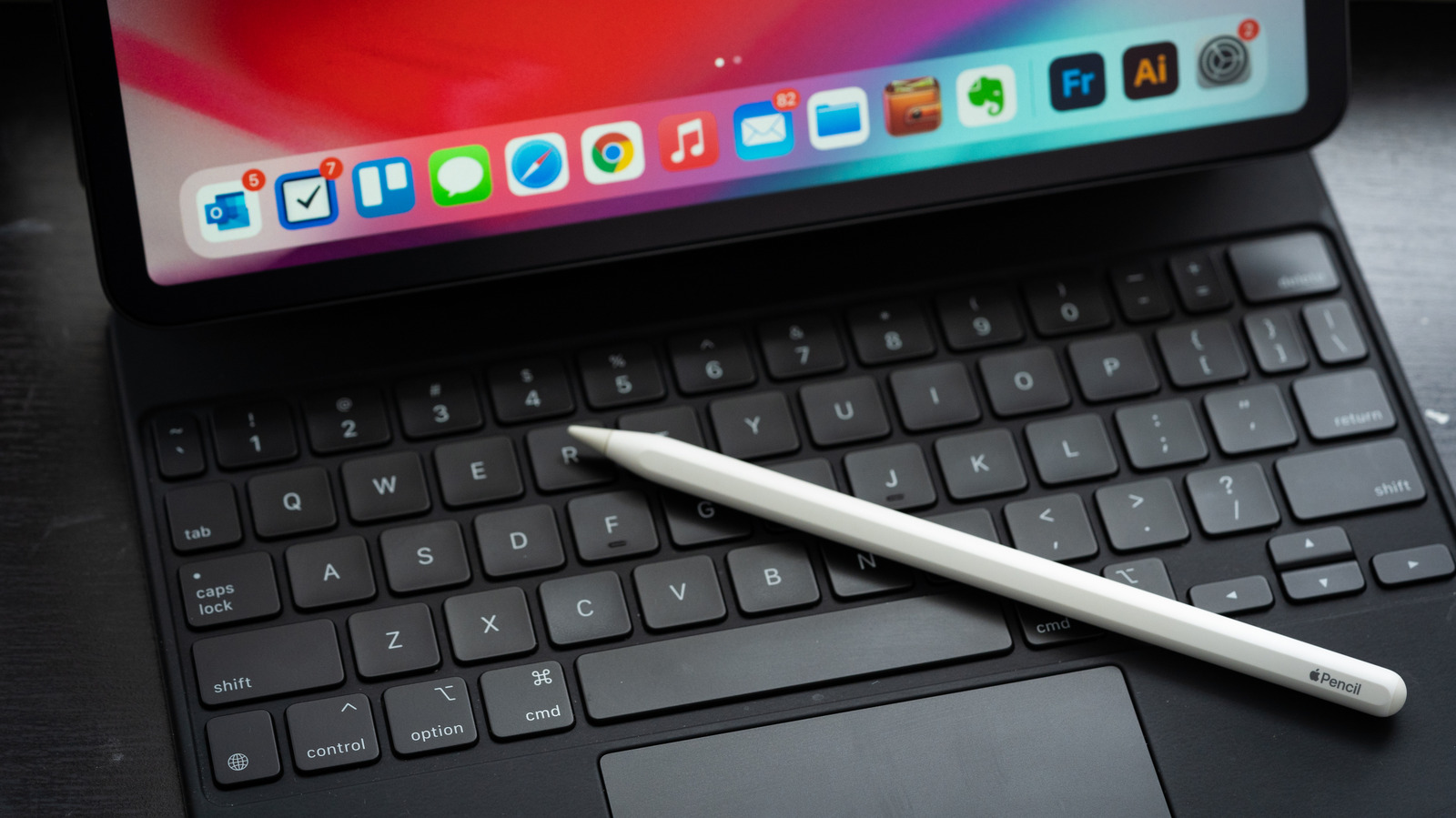
An Apple Pencil sitting on top of a iPad Magic Keyboard Avid Photographer. Travel The World To Capture Moments And Beautiful Photos. Sony Alpha User/Getty Images

The Apple Pencil is one of the best iPad accessories, being essential for any artists who use their tablet for digital projects. While the Apple Pencil is expensive and there are smart money alternative iPad styluses that accomplish the basics for free, the device’s pressure sensitivity is unmatched, emulating the feeling of writing on paper better than any other digital pen. However, a worn out Apple Pencil tip will impact your experience, which is why it’s important to replace them when necessary.

The lifespan of an Apple Pencil tip varies greatly based on how frequently you’re using it and how hard you press down. Those who use their Pencil hours a day for art or notetaking shouldn’t have to replace theirs super often, though, with tips generally lasting at least six months or a year even with heavy usage. Keep in mind that screen protectors can cause your Apple Pencil tip to wear out much faster, especially if you’re using a rough matte one. One user reported their Pencil tip wore out after just a month of using it with a paper-like protector, so that’s something to keep in mind when choosing a screen protector.

When to replace your Apple Pencil tip

Close up of a hand writing Avid Photographer. Travel The World To Capture Moments And Beautiful Photos. Sony Alpha User/Getty Images
If you’re not sure whether or not it’s time to replace your Apple Pencil tip, there are some things to consider. First, if you can see the metal poking out, it’s definitely time for a replacement. You’ll likely notice it visibly wearing out before it gets that far, and while a little wear is probably fine, continued use will eventually impact the user experience. In addition to not feeling smooth on the screen, your Apple Pencil may lag or not respond as well, which is a clear sign that it’s time for a new tip.

Fortunately, Apple Pencil tips are incredibly easy to replace, taking just seconds. All you need to do is unscrew the current tip counter-clockwise to remove it, then screw the new one in until it’s secure. While the first-generation Apple Pencil came with a replacement tip, newer ones don’t, so you’ll need to purchase them separately. Apple sells a four-pack for $19, but you can get third-party ones that work just as well for much cheaper.

Source

Posted on

4 Signs Your Laptop Battery Might Be Dying

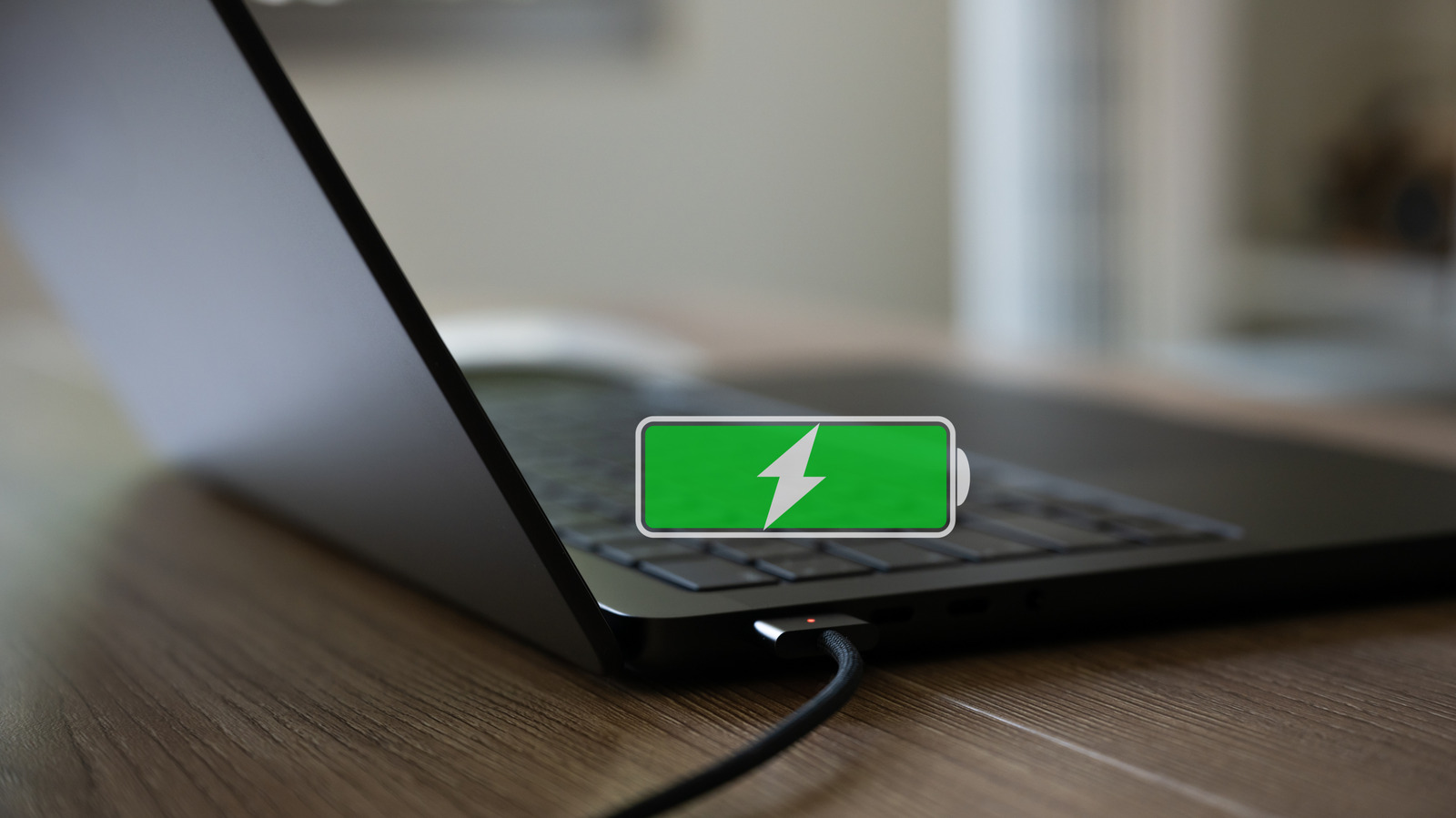
Laptop with icon indicating battery is fully charged Shirophoto/Getty Images

No laptop battery lasts forever. While there are ways to optimize its lifespan, such as ditching harmful habits that may be killing your laptop battery, it’s likely you’ll eventually need to replace this essential component. However, the signs of a failing battery aren’t always as obvious as your device sending you an alert letting you know it’s time for a replacement. That’s why it’s helpful to familiarize yourself with some of the less obvious signs that a laptop battery might be dying.

Several of the red flags here could potentially indicate a range of technical issues. It’s true, of course, that a failing battery isn’t always to blame for these types of laptop problems. That said, battery trouble is often the culprit in these instances. While you should take steps to confirm the root of any of these problems, which may involve bringing your device to a professional, these are often signs that a laptop’s battery is on its last legs.

Your laptop shuts down for seemingly no reason

Laptop user resting head on device in frustration Siphotography/Getty Images

Has your device begun shutting down with no apparent warning when it’s running on battery power? There are several potential causes of this issue. If it occurs when your battery nevertheless indicates it has sufficient charge to keep the laptop running, you might understandably assume that another factor is to blame. It’s certainly not a bad idea to run a virus scan and confirm that a piece of malware isn’t the issue.

If your scan indicates no viruses or malware, a laptop crashing without warning could be a sign of a failing battery. This may be the case even if the battery supposedly still has a charge. A functioning laptop battery should provide the device with a consistent flow of power. The laptop may shut down unexpectedly if the battery fails to do so effectively. A battery that doesn’t supply consistent power is likely faulty, damaged, or dying, and it will probably need to be replaced.

You face a range of charging (or charge-related) issues

Person inserting charging cord into laptop ANDRANIK HAKOBYAN/Shutterstock

The amount of time it takes for your laptop to charge usually shouldn’t vary all that much. If it takes your laptop longer to charge than normal, this might be a sign of a dying battery. Be aware that taking a long time to bring it back to full isn’t the only charging issue that could be linked to battery trouble.

For example, you might notice that charging is inconsistent. Sometimes, the laptop charges reliably, while in other instances it may not. Even if the device charges up, its battery power may nevertheless drain more quickly than expected. A battery that doesn’t retain its charge for as long as it used to is probably in need of a replacement.

A similar problem that can be easy to overlook if you’re not actively paying attention to it is fast, seemingly random, or unexpected changes in a battery’s charge. For example, maybe your battery is at 80%, then within a few minutes, it depletes to 50%, only to shoot back up suddenly after. This is yet another red flag that you should install a new battery. It’s worth noting that, although it’s technically possible to run a laptop without a battery by relying solely on AC power, doing so isn’t recommended. For instance, a sudden cut to the power could result in the device crashing, resulting in any unsaved work being lost.

Your laptop battery is over 2 years old

Person replacing laptop battery Nongasimo/Getty Images

You’ll find various estimates for how long a laptop battery is supposed to last before it needs to be replaced. Some will claim a laptop battery is typically only reliable for 2 to 3 years, while others will suggest 2 to 5 years is more of a reasonable lifespan. In reality, a laptop battery can essentially be charged only a finite number of times. What this number is varies from one laptop battery model to another, but it’s typically somewhere between 300 and 1000.

In any case, a laptop battery that’s over 2 years of age definitely isn’t getting any healthier. This doesn’t necessarily mean you need to replace the battery as soon as it hits its second birthday. However, it does mean that you should start monitoring for the warning signs listed here. Be prepared to replace the battery if you notice any other issues developing.

The battery is swelling

Stethoscope on top of laptop indicating need for repairs Brianajackson/Getty Images

Most of the issues here should prompt you to start looking into replacement batteries sooner rather than later. However, this particular sign of a failing battery tells you it’s time to avoid using your laptop entirely until a professional has addressed the problem. You could risk injury if you continue using your device when the battery is damaged in this capacity.

Do you notice the battery seems to be swelling? Similarly, you might notice that its housing is cracked, or the laptop looks swollen around the trackpad or keyboard areas. This could be the result of chemical processes causing the battery to release gases internally. If you continue using the device with a battery in this condition, it could theoretically catch fire or even explode. See a professional repair tech right away to fix the issue.

Keep in mind that there are certain steps you can take to prevent your battery from dying prematurely. For example, you should try not to let your battery’s charge dip below 20% before hooking the laptop back up to AC power. Just remember that any laptop battery will die eventually. Monitoring for these warning signs can help you anticipate when this may be happening, giving you the chance to replace the unit before the battery fails for good.

Source

Posted on

8 Of The Worst Places To Put Home Security Cameras

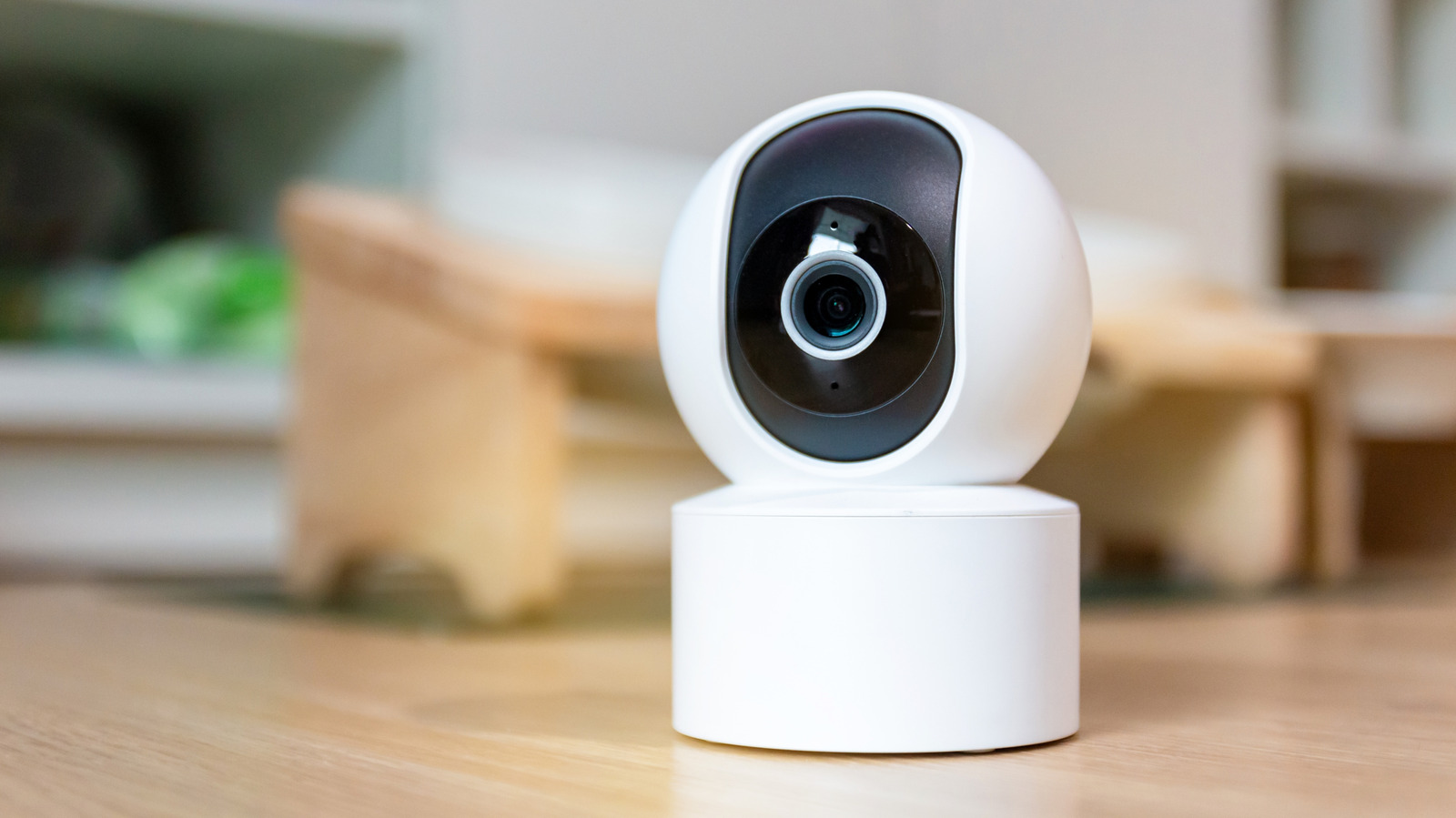
A home security camera on a wooden surface. Sombat Muycheen/Shutterstock

Installing security cameras are among the simple ways to help make your home more secure. Modern smart models have companion apps that will let you look through their lenses in real time, and they have different storage options for the videos that they record. However, even premium, feature-packed security cameras can only do their job if they’re positioned well.

There are clever ways to hide indoor security cameras at home, and the best outdoor security cameras can monitor a wide area, but proper surveillance starts with understanding the limitations of these devices. If they’re set up in the wrong place, they won’t be able to protect your family, and worse, they can compromise their safety and privacy.

If you’re thinking of setting up security cameras around the house, or if you want to check if you’ve made mistakes in your decisions on where to install them, you should consult this roundup of the worst places to put home security cameras. We’ve also provided alternatives to help you identify better areas for these devices.

Private areas like bedrooms and bathrooms

A woman sleeping on a bed in the bedroom, with a lamp turned on. KinoMasterskaya/Shutterstock

First and foremost, security cameras shouldn’t be placed in areas where your family members expect privacy, such as in their bedrooms and the bathrooms. They’re supposed to provide a sense of safety, not make them uncomfortable in their own home. Additionally, it would be very troublesome if hackers find a way to break into your cloud storage and access sensitive recordings from your bedroom, as they can use the videos for blackmail.

To keep an eye on your loved ones while they’re at home, security cameras should be placed in shared spaces such as in the living room or the kitchen. If you really want to make sure that there are no thieves sneaking into the rooms of your house, you could instead install contact sensors that trigger an alarm whenever your doors or windows are opened, and arm them whenever you and your family are away.

Facing outside through windows

A woman peeking through blinds that are covering a window. D-keine/Getty Images

You may think you’re being clever by placing an indoor security camera in a spot that will let you pan it to look outside through your window. It’s not going to work as you intend though, as the glare from the glass won’t give you a good look of your yard. An awkward position may also get you accused of looking into your neighbor’s property, which could be seen as an invasion of privacy and lead to a lawsuit.

If you want solid surveillance of your backyard, you have to buy an outdoor security camera. These devices are designed to withstand the elements, and you can set them at an angle that won’t make your neighbors uncomfortable. It’s going to be an additional cost, but fortunately, security cameras are among the tech products you should never pay full price for. You can take advantage of discounts on bundles with multiple units of an outdoor security camera, or a package that also includes other smart home devices such as video doorbells.

At the end of narrow passages

A narrow corridor with a few doors on either side. Pavel Adashkevich/Getty Images

When you buy a security camera today, you can expect a wide field of view and the possibility of pan and tilt controls while you’re checking the livestream through its companion app. However, these features are negated if you place it at the end of a narrow passage, as you’ll mostly see walls even if you adjust the camera’s angles.

If it’s important for you to monitor passages and hallways, for purposes like checking where your pets are hanging out, you should consider placing a security camera at the corner instead. This will allow you to maximize the coverage of the device, especially if it has a panning and tilting option as you can swivel it from looking at one passage to another. In fact, if the security camera has a very wide field of view, you may be able to see both hallways at once.

Under bright lights

A hanging lamp turned on, beside hanging plants. Ratchat/Shutterstock

While security cameras will benefit from proper lighting, too much will result in glare that could block its sight or make it difficult to see details in the videos that they take. This could happen to indoor security cameras when they’re placed right below lamps and other lighting fixtures, and to outdoor security cameras if the sky takes up too much of their field of view.

To avoid these issues, you have to be mindful of light sources and the sun when you’re installing security cameras. For indoor security cameras, you should turn on the lights after you temporarily affix them to a spot to check if there are any visibility issues. Meanwhile, for outdoor security cameras, you have to place them at an angle that doesn’t look towards the direction of the sun. While some of these devices may come with features that automatically adjust exposure and white balance to bypass this problem, it’s not a good idea to rely on them as you never know when a crucial piece of footage can be lost because the sun is shining too bright.

Too low or too high

A security camera installed on a wall outdoors. Takayib/Getty Images

Particularly for outdoor security cameras, you shouldn’t place them too high or too low. If they’re too high, you may get a wider look at your driveway or your backyard, but this often negatively affects video quality. The camera may catch a suspicious person, but if it’s too high up, it would be hard to discern their facial features. On the other hand, if the device is placed too low and easily spotted, it becomes open to sabotage.

A good position for an outdoor security camera is anywhere between 8 to 10 feet from the ground. At this height, it will be able to capture details such as faces and license plates, and it’s just out of arm’s reach to avoid vandalism. This is less of an issue with indoor security cameras, but installing them higher would give you more coverage with fewer cameras compared to more cameras at eye-level places.

Outdoors with too much exposure

A security camera installed outdoors, covered in snow. Stanislav71/Shutterstock

Outdoor security cameras are designed to endure harsh weather, and their IP ratings show how much punishment they can take. However, it’s still not a good idea to place them where they would be entirely exposed, particularly to snow. This is because even if security cameras are weatherproof, they may still be affected by the buildup of moisture, which can result in lower image quality and reliability issues in the long run.

If possible, outdoor security cameras should be placed underneath the eaves of a roof, or anywhere with similar protection, to prevent them from being covered in snow during winter and submerged in torrential rain. If this isn’t ideal as it wouldn’t allow for the angle that you want for surveillance, and you really have to place it on a wall where it would be fully exposed, you should invest in a security camera with an IP67 or IP68 rating for the durability needed to survive harsh conditions.

Above the fireplace or near any heat source

A fireplace in a modern home. Image Source/Getty Images

The fireplace is usually at the center of the living room, so you might think that placing a security camera above it would provide good coverage. While that’s true, there are other issues with positioning the device there, or near any other heat source such as exhaust vents and space heaters. Dust and debris may collect on the security camera’s lens and block its sight, and the prolonged exposure to heightened temperatures may damage the electronics or its battery.

For optimum coverage of your living room, you can consider placing it in an elevated position at a corner. You should also be mindful of windows in the same sense as avoiding heat sources, as the glass may have a magnifying glass effect on the security camera and raise it to dangerous temperatures during extremely sunny days.

Anywhere with a chance of obstruction

An outdoor security camera slightly obstructed by leaves. Jpreat/Getty Images

You may think that you found the perfect spot for your security camera, but you need to consider possible obstructions. There may not be anything along the device’s line of sight upon installation, but for outdoor cameras, trees and their branches may eventually grow and cover them, and for indoor cameras, opening doors may conceal faces of potential intruders.

When you’re installing a security camera, you should ask yourself if there’s any chance that its view will be blocked. You need to carefully analyze where you plan to position the device before pushing through with it, or else you may find yourself having to move it to another spot, or regretting that an obstruction made what would otherwise be crucial footage useless. Select a place with no elements around it that move or grow so that it would be a permanent location for your security camera.

Source