Posted on

G.I. Joe’s ’80s Relaunch Involved A Special Arrangement With The

A G.I. Joe toy in box Erman Gunes/Shutterstock

Look back far enough into the history of Hasbro’s G.I. Joe toys, and odds are they’ll eventually become almost unrecognizable, at least if you came up during the ’80s era of the iconic action figures, when the toy line was anchored by Marvel’s eponymous comic book and the television series. Back in the 1960s, when the toy line was first introduced, there was very little of the character, color, and imagination that later came to define the series (and a far cry from the wild novelty recently seen at the 2026 Toy Fair or the recent crop of sophisticated fidget toys on Amazon).

The figures launched in the ’60s were much more traditional U.S. soldiers, recalling the infantrymen of World War II. The brand underwent a number of transformations through the years, but its most significant was the relaunch in the early ’80s. A new line of much smaller toys (3.75-inch figures replacing the 12-inch and 8-inch versions available in the ’60s and ’70s) appeared alongside the Marvel comic, later accompanied by a five-part TV movie.

While the relaunched toys were wildly different from the ’60s original, representing individual characters locked in an epic conflict with an evil organization called Cobra, they did hearken back to the originals in one important way: an agreement with the Rhode Island National Guard to create realistic vehicles and uniforms.

A history of cooperation with the U.S. military

The original toy line was developed as a product to appeal to boys, in answer to the popularity of girls’ dolls, an evolution of the rigid plastic and lead soldier figures that predated it. Positioned originally as a “Movable Fighting Man,” the original G.I. Joe was the first action figure ever developed, and its poseability opened play opportunities that rigid figures missed.

When Don Levine, who headed the G.I. Joe development team in the ’60s, and Hasbro president Merrill Hassenfield first developed the toy line, they reached out to the National Guard to ensure verisimilitude. According to a report on the U.S. Army’s website, the two reached out to an old friend, National Guard Major General Leonard Holland, who offered up a selection of authentic military equipment as research for the toy line. According to Bill Ratner, when the time came to relaunch the line in the 80s, Hasbro took the same tack.

The U.S. military was suffering greatly in terms of public perception because of the travails of the war in Vietnam, Ratner told The Hollywood Reporter, and Hasbro capitalized. The company “made a deal with the Rhode Island National Guard in order to get perfectly accurate attack vehicles and uniforms,” Ratner said. “When Hasbro approached the director of the National Guard in Rhode Island, they said yes, and it was a quid pro quo. It was, ‘You’re doing a military show. We want the military to look good.'”

A successful collaboration

The G.I. Joe toy line has sold hundreds of millions of figures across its history, and has been described as the world’s most successful boys’ toy. Despite not launching until the summer of 1964, the line racked up an impressive 16 million units sold in its first year alone. Within two years, Joe accounted for almost 66% of Hasbro’s total profits.

The toys have since spawned countless spin-offs beyond the 1982 comic and original television series, and now span media, including video games and feature films. A trio of live-action films released in 2009, 2013, and 2021 have grossed more than $700 million worldwide at the box office, and the toys remain one of the most recognizable brands in the world. Despite toy makers’ fears that kids are increasingly turning to high-tech toys, the enduring popularity of classics like G.I. Joe is showcased by the success of recent inclusions like the G.I. Joe Classified Series.

Launched in 2020, it’s since expanded into multiple waves, premium exclusives, and retail partnerships. The HasLab H.I.S.S. Tank crowdfunding campaign, which offered a $299.99 version of the iconic Cobra vehicle, reached its funding goal of 8,000 backers in just half a day, eventually more than doubling that number.
Source

Posted on

Regular Kindles Are Great, But The Smart Money Buys The

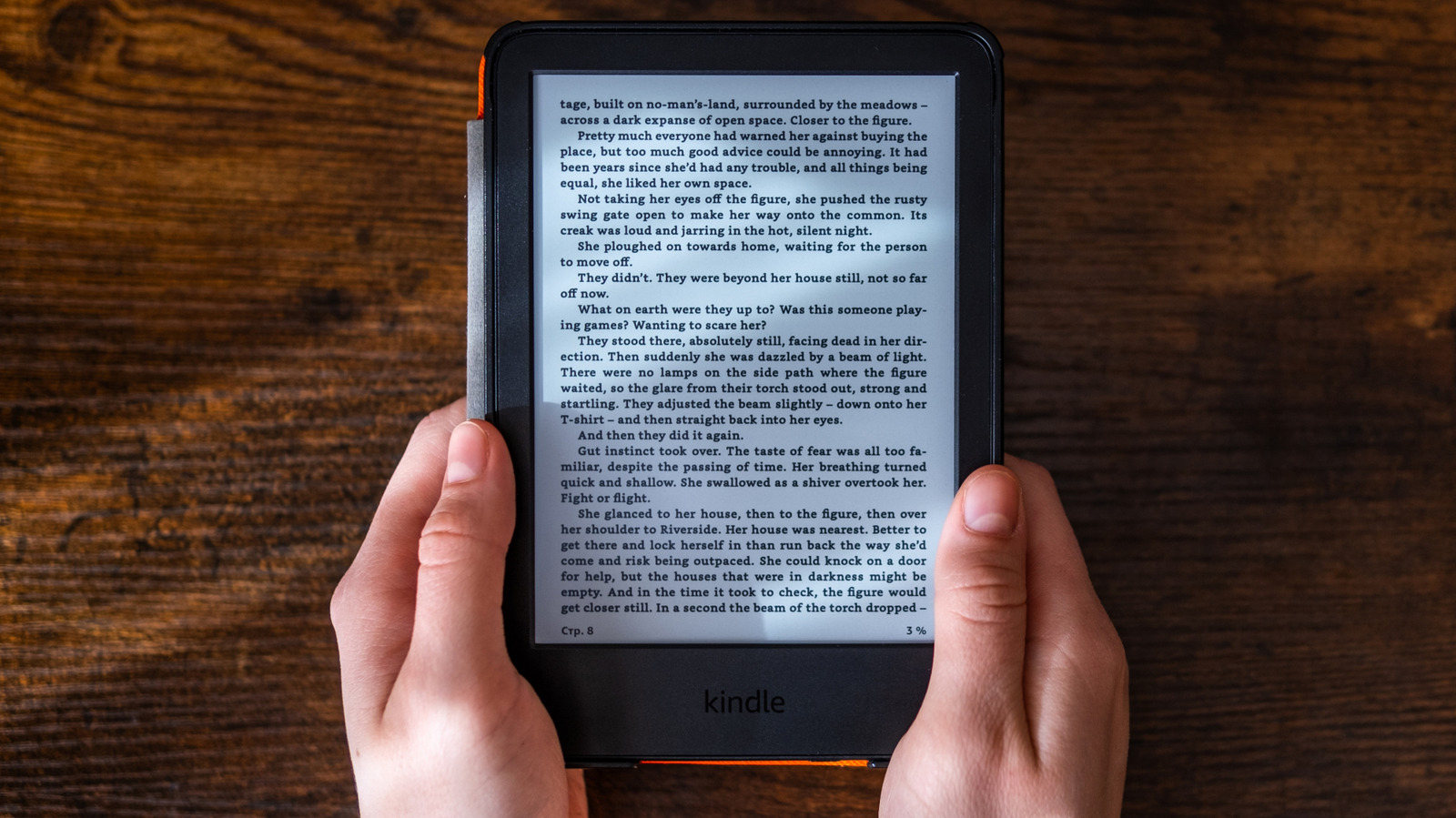
Hands holding Kindle e-reader displaying ebook page on wooden surface bigwa11/Shutterstock

We may receive a commission on purchases made from links.

If you’re looking to buy a new e-reader on Amazon, you may have noticed that the online retailer offers a kids edition of its Kindle. Even though its name indicates a different edition and is $20 more expensive than the base Kindle, both devices have the exact same hardware. Their price difference exists because of the Kindle Kids’ extra services — which include a protective case, an extended warranty, and a free content subscription.

It sounds strange to pay an extra $20 for the Kindle Kids if both devices come with the same hardware, but the decision makes more sense when you drill into its details. For instance, the bundle includes a two-year warranty — which is one year longer than its standard counterpart. This extended warranty is complemented by a protective case included in the box. If you search the retailer, cases with similar quality can run anywhere between $8 and $30-plus on average.

What else makes the Kindle Kids worth the extra $20

While some adults may be hesitant to purchase a Kindle Kids over a desire to avoid content restrictions, this edition carries no reading or purchase constraints, unless the device is in “Kids Mode.” Adults just need to log in with their regular account and adjust profile settings accordingly. However, if you do have children, Amazon adds six months of Amazon Kids+ for free, which includes an ad-free, age-appropriate library with thousands of books. The subscription also boasts a plethora of shows, podcasts, games, and more.

Adults should note that in the past, you could skip ads for free on a Kindle Kids, but now, you need to pay $20 for ad removal unless browsing under a kids profile. If you’re interested in getting more out of your Kindle beyond ad removal, check out our guide highlighting ways to optimize usage of your device. 

Source

Posted on

8 Cool New iOS 27 Accessibility Features You Can Look

Apple logo on front of store Tang90246/Getty Images

Following the pattern of the past few years, Apple decided to announce upcoming software features ahead of its WWDC keynote. This time, the company is officially unveiling a handful of new accessibility functions for iOS 27, which is expected to be previewed during the WWDC 2026 keynote on June 8, and released to all users by fall. While the star of this keynote should be new Apple Intelligence features and an all-new Siri powered by Google Gemini models, the company already teased a bit of that by revealing that Apple Intelligence will power VoiceOver and Magnifier, natural language will come to Voice Controls, and a few other perks that will make the iPhone, but also the iPad, Mac, Apple TV, and Apple Vision Pro more accessible to users.

What’s more interesting about Apple’s accessibility features is that everybody can take advantage of them, as one of the most popular features have been Vehicle Motion Cues, which helps improve motion sickness when the person is using a gadget in a vehicle. For example, this functionality will expand to visionOS 27, as many Apple Vision Pro users take advantage of that headset in airplanes, trains, and other moving vehicles.

Despite rumors regarding upcoming iOS 27 features, these are the first batch of officially announced functions, and here’s how they might make your iPhone experience better once iOS 27 becomes available to everyone.

VoiceOver and Magnifier get Apple Intelligence

VoiceOver and Magnifier are accessibility features focused on blind people or those with low vision. What they have in common is that they can describe what’s on the iPhone screen so users can quickly navigate through apps, reply to messages, or get a description of a photo. Now, Apple is expanding this feature with Apple Intelligence. While it’s unclear how much the company might rely on the new models in partnership with Google, the company says VoiceOver is getting Image Explorer, which gives better descriptions of photos, bills, personal records, and visual content in general.

Live Recognition works similarly to Visual Intelligence for blind people and those with low vision, as you can press the Action Button to ask a question about what your camera is pointing to. Besides a detailed response, Apple says that users can ask follow-up questions to get a better understanding of what’s going on.

Magnifier, which is focused on helping people with low vision to navigate their iPhones, is adding Apple Intelligence to this high-contrast interface to make it easier for users to understand what’s onscreen. Apple explains that users can use the Action Button, or do spoken requests so they can get more details about a bill, article, or image, while also giving commands to control the iPhone.

Natural language comes to Voice Controls

The same way Apple CarPlay users can control the infotainment system with voice commands, including very specific ones like “Open the second app in the first row,” “Zoom in” for Apple Maps routes, and even control music playback, Voice Control will get more natural with Apple Intelligence’s updated natural language. This is something the company has been rolling out over the past few years on its apps, including Apple Music, App Store, Apple TV, and other search boxes, but it’s now expanding system-wide to make it easier for more people to enjoy their iPhones.

Basically, iPhone and iPad users will be able to control their smartphones and tablets without having to touch the display. From the “Say what you see” command, Apple Intelligence will guide users through their own devices and help them get what they want, whether it’s finding a document in the Files app, getting a guide about restaurants in the area with Apple Maps, or getting access to parts of an app which aren’t very accessible.

This way, Apple Intelligence can describe the page, give you information about the buttons it can tap, and you can decide what you want to do. This feature joins a handful of other accessibility features, including the ability to control the iPhone through eye gestures. While these functions might sound cool for everyone to try, they’re especially useful for users with disabilities or restricted movements.

Accessibility Reader gets really accessible

Apple is also improving its Accessibility Reader feature by powering it with a more inclusive AI. While users can already ask Siri to read a document, zoom it in, or even use Apple Intelligence to summarize an article, iOS 27 will make it easier for iPhone users to read more complex materials.

Apple says that users will benefit the most when trying to peruse scientific articles, text with multiple columns, images, and tables. After all, these documents don’t necessarily follow a very straightforward reading, which could be challenging for the current Reader to give a proper continuity for the user. Now, Apple says iOS 27 and Apple Intelligence will be better to handle that.

Another very interesting upgrade for the Accessibility Reader is that Apple Intelligence can translate documents to make them readable in your native language but also maintain the formatting, font, and colors of the original file, meaning you can comfortably read a paper, story, scientific article, and more, the way the author intended. This way, Apple ensures that users can take advantage of more types of files and documents all by themselves.

Auto-generated subtitles

Over the years, Apple has added several nice-to-have features related to video and subtitles. With iOS and tvOS, if you don’t understand what’s been said on an Apple TV show (or other supported streamers), you can ask “What was that they said?” and Siri would rewind a few seconds and automatically add subtitles to make it easier for you to understand what’s onscreen. The company also made it easier to customize the font and color of subtitles. However, this upcoming iOS 27 accessibility feature could be even more interesting, as Apple says it’ll now auto-generate subtitles for videos.

However, the company isn’t talking specifically about adding an auto-generated subtitle to your Netflix show. As a matter of fact, it’s going to create auto-generated subtitles for personal videos, images that family members and friends share, and even spoken audio. With that, Apple wants to make it easier for deaf or hard of hearing users to have the same experience of sharing and understanding content as anyone else.

Apple says that, at first, this feature will be available in English in the U.S. and Canada. While the company didn’t share plans as to when it might expand this feature to additional countries, it says that everything is processed on-device, meaning that an auto-generated subtitle will never send your personal videos or memories shared by your family to a server, as everything will be handled by your iPhone, iPad, Mac, Apple TV, and Apple Vision Pro.

Name Recognition, new API for FaceTime, and game controllers

An iPhone on a table. On the display, some apps on the Home Screen and a weather widget. José Adorno/BGR

The sixth cool accessibility feature coming to iOS 27 is an improvement to Name Recognition. While this feature has already been available, and it can give several cues that someone called you by flashing your iPhone flashlight, getting a notification, and so on, it can now be enjoyed by people across more than 50 languages worldwide, helping make deaf or hard of hearing people more aware when someone calls their names.

Besides that, following the introduction of Live Translation for FaceTime calls, which can automatically transcribe or generate what someone is saying from one language to the other, Apple is now releasing a new API that can let developers add a human interpreter to an ongoing FaceTime video call for people who use sign language. This way, if you, a friend, a family member, or even a business is having a hard time communicating, apps can now offer the ability to add a human interpreter into the mix.

Last but not least, Apple is expanding support for traditional game controllers with iOS, iPadOS, and macOS to more inclusive options, like Sony Access controller. With this accessory, users can make the controller more accessible for them, as it’s possible to tweak the thumbstick, built-in buttons, external ones, or improve the specialty switches to a layout that works for your needs. Apple says that users can even combine two controllers, making the experience truly inclusive for any gamer.

Source

Posted on

4 Cool Things You Didn’t Know Your iPhone’s Weather App

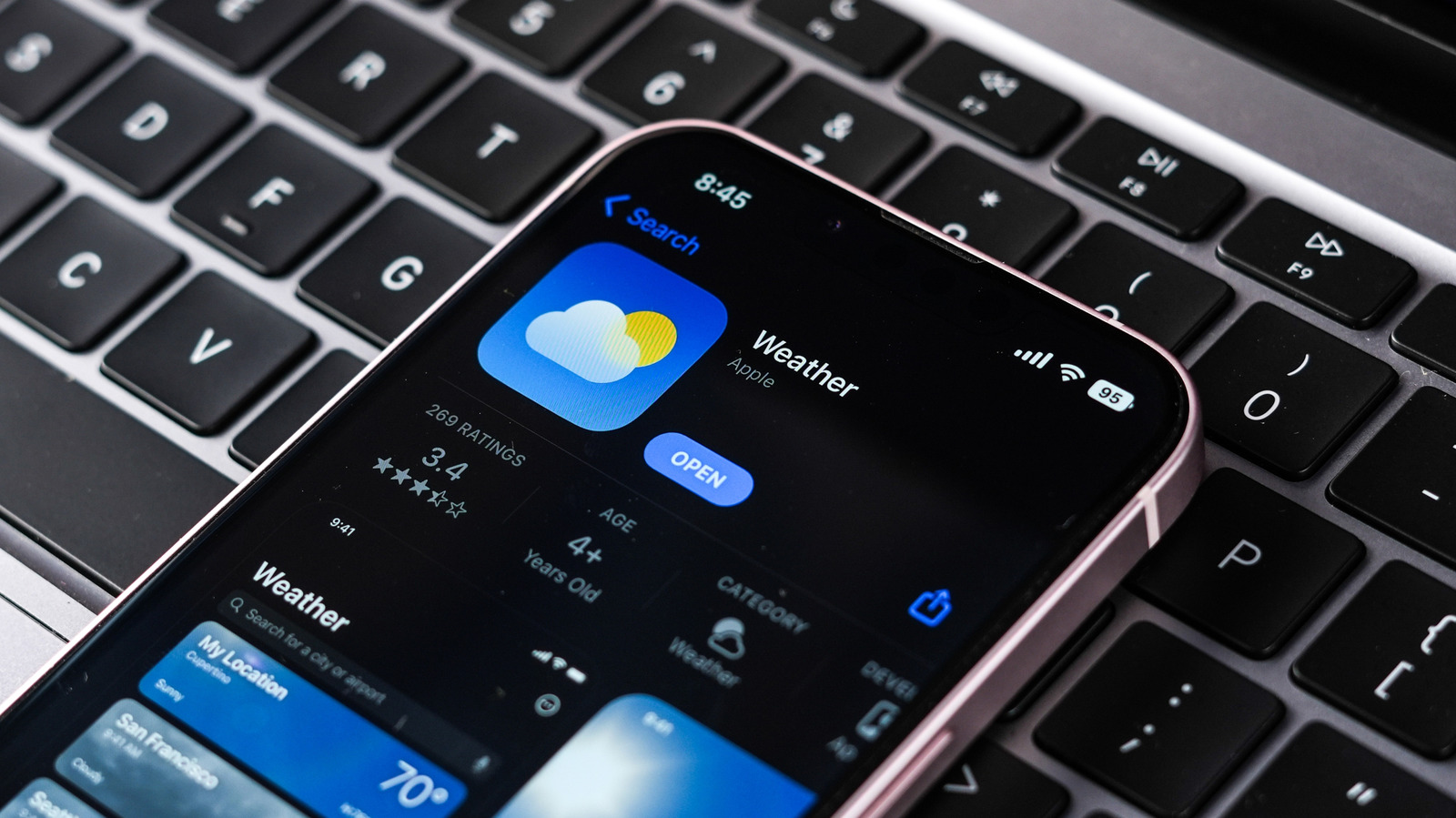
The iPhone Weather app as shown in App Store, displayed on an iPhone resting on a computer keyboard sdx15/Shutterstock

No list of essential iPhone apps would be complete without the iPhone Weather app, and for good reason. It’s one of the few apps that’s useful whether you’re at home or out and about. Without its temperature and rain forecasts, it becomes much harder to plan what to wear, what chores to finish, what to bring outdoors, and where to go for the weekend.

But if you thought that the iPhone Weather app is designed only for telling you the temperature and current weather conditions in your area, you might want to think again. It’s actually a treasure trove of weather information, offering much more than just the standard details. In fact, it includes at least ten different data points, such as air quality, wind speed, UV index, humidity, and even visibility level. Under the hood, it has several other nifty functionalities you might not have realized even existed. We’ll show you four of these hidden features to help you make the most out of the iPhone Weather app.

Monitor the lunar phases

The iPhone Weather app showing the moon phase calendar Marinel Sigue/BGR

If you often enjoy fishing, boating, skywatching, or taking astrophotos, then you probably monitor the phase of the moon all the time. Normally, you’d just hop on your browser to check, but with the iPhone Weather app, you really won’t need to. You can simply open the app and view the moon conditions from there. These conditions include details like what the current moon phase is, how much it is illuminated by the sun, and how far the moon is from Earth. It will also tell you the times for the moonrise and moonset for that day and the number of days until the next full moon arrives.

For convenience, the iPhone Weather app also comes complete with a moon phase calendar. Here, you’ll see what the phase of the moon is for certain days and which days the new and full moons fall on. This allows you to plan your coastal or skywatching activity more efficiently. You can also select any day on the calendar to check the moon details for that day. If you need to reference the previous month or plan ahead for next month, the iPhone Weather app features a moon phase calendar for those months, too.

To view all this information, go to the Home screen on the Weather app and scroll to the bottom until you see an image of the moon. This image represents the current moon phase. Tap on the tile to see the lunar details and calendar.

Check the weather conditions from your Home Screen and Lock Screen

The iPhone Weather app widgets on the phone's Home Screen Marinel Sigue/BGR

There are instances when you want to quickly see the weather conditions in your area but don’t want to go through the hassle of unlocking your phone or opening the app. Thankfully, the iPhone Weather app offers some nifty widgets for both the Home Screen and Lock Screen. All you need to do is customize your iPhone’s Home Screen and Lock Screen and add your Weather widget of choice. Here’s how to do so on your Lock Screen first:

  1. Go to your Lock Screen.
  2. Touch and hold an empty space.
  3. Press Customize.
  4. Tap on Add Widgets.
  5. Go to Weather.
  6. Choose which widget to put on your Lock Screen. Options include Temperature, Conditions, UV Index, Sunrise and Sunset, Moon, Precipitation, Wind, and Air Quality. Depending on which widgets you picked, you can add up to three or four.
  7. Tap outside the widget panel.
  8. Hit Done in the upper right corner.

You should then see the widgets whenever you wake your screen. If you have Always On Display enabled, the widgets will also show up there. To pin Weather widgets on your Home Screen, just long-press on the Home Screen, press Edit, and select Add Widget. Open Weather from the menu to view all the available widgets. Compared to the Lock Screen widgets, though, the Home Screen widgets for the Weather app are more limited. You only have the current forecast, current weather details (UV index, wind, precipitation, temperature), hourly forecast, daily forecast, detailed multi-day forecast, and sunrise and sunset times.

Get rain alerts for the next hour

The iPhone Weather app displaying rain notifications Marinel Sigue/BGR

The weather can be so unpredictable in some locations that you might still feel unprepared even after checking your weather app. To make sure you don’t get caught in a rain shower while on the go, it’s a good idea to turn to one of iPhone Weather’s hidden features: Next-Hour Precipitation notifications. Once enabled, you’ll get forecasted rain alerts to help you prepare. These alerts tell you what time the rain is expected to start, how heavy it will be (light, moderate, heavy, or extreme), and how long it will last. This feature isn’t switched on by default, though, so you need to manually enable it. Here’s how:

  1. On the Weather app Home page, tap the list icon in the bottom-right corner. 
  2. Select the more icon (three dots) at the top-right. 
  3. Go to Notifications. 
  4. When prompted, press Continue to give the Weather app the necessary permissions. 
  5. Tap on your location. 
  6. Toggle on Next-Hour Precipitation. 
  7. Press the checkmark to go back to the locations list.

If you don’t see your location or the Next-Hour Precipitation option, your location likely doesn’t support it. As of May 2026, this feature is only available in select countries, including the United States, the United Kingdom, Australia, Japan, and Ireland. In some locations, you can make your iPhone warn you about severe weather instead. Other than the notifications, the Weather app also shows you a minute-by-minute rain forecast for the next hour for a specific location. For instance, you might get a message saying, “Rain is expected to stop in 3 min and start again 11 min later,” or “Chance of light rain in the next hour.”

Interact with a global map of weather conditions

The iPhone Weather app showing an interactive weather map Marinel Sigue/BGR

The iPhone Weather features a host of data to help you prepare for today and the upcoming days. But with all the different charts and figures, it can get quite overwhelming to make sense of the forecast. If you’re a visual person, you might better understand the data with a weather map instead. The iPhone Weather app has one right on the Home page, and it lets you track four key data points: precipitation, temperature, air quality, and wind.

To open this map, navigate to the Home screen on the Weather app and press the map icon in the bottom-left corner. You’ll then see an interactive map of the world with the specific forecast data layered on top. To read the map, refer to the color legend on the left of the screen. It shows you what color corresponds to a specific value. For instance, on the Temperature map, -40 degrees Fahrenheit shows up as violet, 30 degrees Fahrenheit as blue, 90 degrees Fahrenheit as red-orange, and 130 degrees Fahrenheit as deep red. Keep in mind that some data, like air quality, aren’t available everywhere in the world, so certain locations will appear colorless.

You can easily switch between weather data types by tapping on the layers icon in the upper right corner of the screen and choosing an option from the menu. For the Precipitation and Wind maps, a forecast timeline will pop up at the bottom. You can scrub the timeline manually or let it play out automatically.

Source

Posted on

How Much Phone Data Do You Actually Need?

a woman interacting with her smartphone in an office insta_photos/Shutterstock

Knowing how much data you actually use or intend to use can be quite important for saving money down the line. For example, mobile hotspots might not be as reliable as you think, so you may prefer to stick to your network. Others using less data may benefit from one of many cheaper plans. Most people are fine using only 15 to 20GB, which can cover a mix of video streaming, gaming, listening to music, and general browsing. 

If you’re someone who regularly travels away from a trusted Wi-Fi source and uses one of many popular smartphone apps chewing up data, you’ll probably need a larger plan. Homebodies who stay connected to Wi-Fi 24/7 might only require a handful of GB in edge cases. Since the right amount of data for you depends on your individual needs, you should check your phone’s data usage and set restrictions or a cap if necessary. This planning can prevent surprise overages. 

How to check your data usage on iPhone and Android

a phone with the 3D graphic data on it Allanswart/Getty Images

Despite often being similar, the steps for checking your monthly data usage vary by brand and OS version, primarily Android and iOS. On iPhone, navigate to Settings > Cellular. Under Cellular Data, you will see it broken down into Current Period and Current Period Roaming (data used on other networks). If you want to see it broken down by app, simply scroll down. On Android, the specific UI will depend heavily on the model and branding, as some manufacturers install a custom skin that’s very different from the near-stock one, such as One UI versus Pixel UI. But for a near-stock Android OS example, Pixel devices can find this data in Settings > Network & internet > SIMs > App data usage. In this menu, you can also select the date range to view the monthly billing cycle you want.

If you’re feeling anxious about going over your data cap, you can always select a limit to help you keep on top of your usage. On iPhone, you can’t do this directly. Still, you can restrict data usage for apps by going to Settings > Cellular Data and toggling them off. You can also reduce your background app data usage by going to Settings > Cellular > Cellular Data Options, selecting Data Mode, and choosing Low Data Mode. Some versions have you go straight to Low Data Mode after selecting Cellular Data Options. On Android, it’s more straightforward: on a Pixel, navigate to Settings > Network & internet > SIMs, then choose Data warning & limit > Data limit, then select Set data limit to specify a value and choose Set to confirm. 

Source

Posted on

5 New Features Added To Apple Home In iOS 26

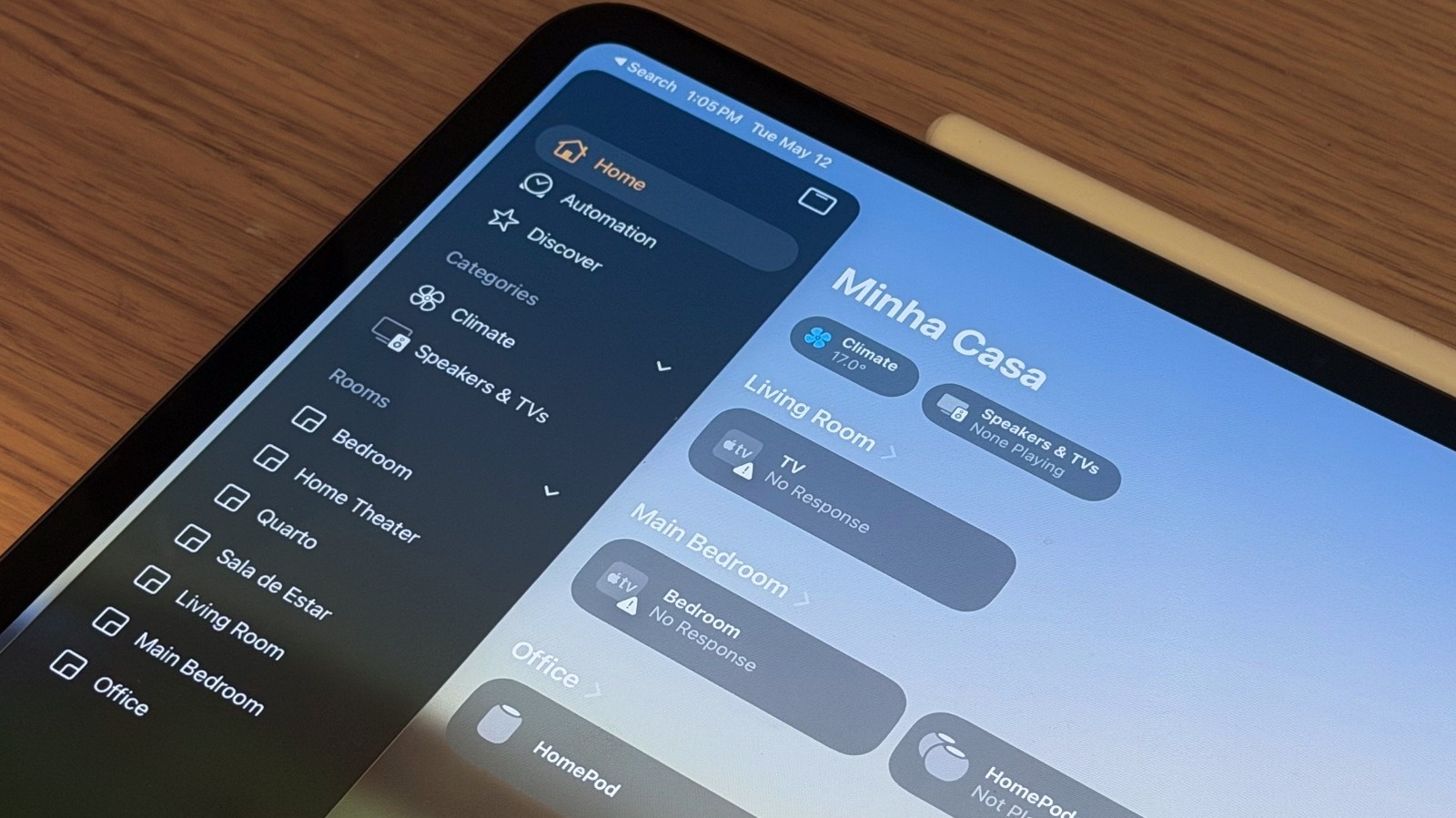
Close-Up shot of the Home app on an iPad Pro running iPadOS 26.5 José Adorno/BGR

In 2026, Apple is expected to unveil several new smart home devices. While they’ve allegedly been postponed because Apple Intelligence is bad and the current iteration of Siri can’t even keep up with basic conversations, the company continues to improve what will be the hub of the experience, the Apple Home app. With iOS 26, released in September 2025, Apple added an all-new Liquid Glass design, Adaptive Temperature for compatible thermostats, and a few other perks that make this software more useful.

Even though Apple recently released iOS 26.5, the company hasn’t focused too much on its Home app since the launch of iOS 26 last fall. Still, those who rely on the Home app to control their home and smart devices got a few improvements, including one that directly affects HomePod speakers.

According to rumors, Apple is currently preparing to release an all-new Apple TV 4K, new HomePod models, a HomePad, which will be a combo of a HomePod with an iPad display, security cameras, and even a locker with Face ID. Since we might have to wait for the iOS 27 announcement or even later to learn more about these upcoming products, these are some of the notable changes Apple added to the Home app in iOS 26.

Adaptive Temperature

Close-Up of woman setting digital smart heating thermostat at home Monkey Business Images/Shutterstock

One of the main features with iOS 26 regarding the Home app is Adaptive Temperature. After all, thermostats are only useful if you don’t have to think about them all the time. With the latest software update, you can let your iPhone do the hard work to predict when you’re getting home and then offer you the perfect temperature. So whenever you get home from work, take your kids to school, or you’re just experiencing a terribly hot or cold day, the temperature in your house will be exactly how you enjoy it.

More than just adjusting the temperature for your likes, this functionality is also great to help you save energy when you’re away from home, as the house doesn’t need to be as warm or cold if there’s nobody there. Using on-device intelligence, Apple says that this feature gets information from your routine by understanding your sleep schedule created on the iPhone, and it leaves the perfect temperature for whenever you’re hitting the bed or waking up.

To take advantage of that functionality, Apple says that users need to have an Apple TV or HomePod, in addition to a compatible Matter thermostat. Users also need to follow a few requirements, including having the latest software update on their smart home device and activating location services for Home app and Home Accessories.

A new Liquid Glass experience

Close-Up shot of the Home app on an iPad Pro running iPadOS 26.5

The second biggest change available on the Apple Home app with iOS 26 is the introduction of the Liquid Glass design language. When the company unveiled iOS 26, it said that Liquid Glass “makes apps and system experiences more expressive and delightful, while keeping iOS instantly familiar.” With this change, Apple says it wants content to be what users are always looking at when interacting with their phone, so app icons, widgets, and how people navigate with their devices will just be more seamless as everything blends in.

Despite a revamped app icon for the Home app, Apple also offers a new Clear icon and updated Default, Dark, and Tinted options. Once users open the Home app in iOS 26, for example, they’ll utilize the new Liquid Glass UI for navigation, as the bottom tabs are now in a hover bar.

By sliding their finger through the “Home,” “Automation,” and “Discover” tabs, users can understand a bit more of the Liquid Glass experience on the app, and how Apple focused on prioritizing content. Finally, the company also updated the toggles and how the interaction happens when you tap the products paired in the Home app.

AirPlay enhancements and enroll multiple accessories

Close-Up shot of Apple's HomePod on a table José Adorno/BGR

Also related to the Home app, the third feature introduced with iOS 26 has been AirPlay improvements. AirPlay is Apple’s proprietary technology of how users can stream video and audio on speakers, TVs, soundbars, and more.

With the latest software update, when you have your HomePod playing songs using AirPlay, everyone added to the Home app can see what’s playing, control the music, and even control which HomePod speakers are playing the song. This gives more freedom for everyone to enjoy a collaborative sound experience. Apple also improved AirPlay with Siri on AirPlay, as you can ask Siri to play to other HomePod speakers in your home.

The fourth change came a little later with iOS 26.2. With this update, Apple added muli-ipack accessory pairing. Basically, if you need to enroll several accessories from the same manufacturer, like light bulbs, light strips, or anything else that support the latest Matter standard, you can use the same setup code, making it a more straightforward experience to pair them all to your Home app and then control them with your iPhone, iPad, or smart home hub. Previously, you would have to pair one by one, making the entire process take a lot longer than it should.

Aqara Smart Lock integration

Ahead of Apple’s secretive smart lock with Face ID support, Aqara released during CES 2026 possibly the best smart lock available on the market currently. With the Aqara U400 smart lock, it’s the first device of its kind to support Apple’s ultra-wideband (UWB) chip, meaning that you don’t need to hold your iPhone or Apple Watch to unlock your door. By approaching the door, Apple’s ultra-wideband tech will unlock the door for you, which is especially useful if you have your hands full.

The ultrawide-band technology has been recently improved with a second-generation chip in the iPhone 16 or newer, but all main iPhone models since the iPhone 11 and Apple Watch Series 6 feature ultra-wideband technology. What’s most interesting about this smart lock is that you can also share access with guests, so even if you’re not at home, you can send a temporary digital key to a friend or family member. Other authentication methods include a password or fingerprint.

Unlike other smart lockers that use Bluetooth, the ultra-wideband chip is a lot more precise, enabling it to identify your device even if it’s in your pocket or on your wrist, so you don’t have to worry about picking it up or approaching your door with your device in hand.

Source

Posted on

Scientists Show That Routers Can Be Used To Track Your

A Wi-Fi router sitting on a table SOLDATOOFF/Shutterstock

Researchers from Carnegie Mellon University have developed a unique Wi-Fi configuration that allows them to estimate human movements through walls and dense objects. What’s interesting is they don’t need expensive equipment, like specialized LiDAR devices or cameras, to make it work. They were able to achieve this with low-cost $30 Wi-Fi routers and receivers, which raises a few privacy concerns.

Leveraging a tool called DensePose from Facebook’s AI lab, the system scans the invisible Wi-Fi radio signals that permeate throughout a space and builds a visual model. Radio signals broadcast by a Wi-Fi router naturally bounce off objects and people, and the reflected signals carry information that can be filtered through AI to reconstruct body posture and movements. Similar to how LiDAR or echolocation can be used to build a crude three-dimensional representation of rooms or an area, DensePose can produce images of humans and, over time, could be extrapolated to track and understand someone’s movements. 

This has been done before. Years ago, MIT researchers built a similar system, using RF-Capture technology, but the presented models were not as high-quality as what you get with the CMU team and DensePose recreations. The key to DensePose is what the researchers describe as a “deep neural network that maps the phase and amplitude of Wi-Fi signals to UV coordinates within 24 human regions.” With the Wi-Fi signals as the sole input, that AI model can estimate the pose of multiple subjects.

Could this be used to spy on a family or track private movements?

A Wi-Fi router and extenders sitting on a table shine.graphics/Shutterstock

Although, the CMU study has not been peer-reviewed yet, the scientists demonstrate that their DensePose-driven system can be used to monitor human movements inside a building. But there are a couple of things to keep in mind. For starters, they’re using a developed neural network model to make the estimations and empower the data. That includes training the model on room and space layouts. While the DensePose Github is available to anyone, the trained model is not. Bad actors would need to access or develop their own for active monitoring, and extensively train using known spatial layouts.

Additionally, the study doesn’t address how effective the technology would be within your average residential home. The researchers used relatively inexpensive devices, but they needed multiple access points — the radio waves came from three routers and three receivers. Without a mesh router system, people might only have a single router and an extender or two placed throughout their home. It’s not clear how that would impact the models. Moreover, in the average household, many things might interfere with Wi-Fi signal strength, and that could also be a factor for a system so reliant on reliable readings.

However, larger facilities with multiple networking devices (like hospitals, offices, or commercial buildings) and access to higher quality signals may be able to feed enough information. The study also points out that challenges increased when trying to track multiple subjects, so it may be harder to track a whole family or groups of people using something like this.

How might this technology be used?

Representation of available Wi-Fi networks in residential homes and neighborhoods. Crovik Media/Getty Images

Regardless, the research demonstrates it’s possible to locate and track subjects using only Wi-Fi as an input. In the study, the CMU researchers imagine the technology could be used to monitor the “well-being” of a home’s residents or “identify suspicious behaviors.” Then question arise such as who is monitoring, what would be considered “suspicious,” and what action should be taken when strange behaviors are detected?

Taking that a step further, if the technology were commercialized in some way and used for market research or data harvesting, it doesn’t take much to see how many privacy concerns there are. Reports show 80% of U.S. households have a home network router, which means open access to Wi-Fi signals in their homes. Wi-Fi imaging could allow for passive surveillance both in homes and other buildings, without physical access, and without consent. Furthermore, a general difference between Wi-Fi and wireless internet is that Wi-Fi is used to distribute network in a limited space. That’s how Wi-Fi networks stay active when the internet is down, and, in this case, such a system could be retooled to work locally without internet access.

For now, the limitations may hold it back until someone comes up with alternative solutions. Though, there’s no telling how long that would take. Future network technologies, which are already here and fixing the previous Wi-Fi generations biggest problems, could make consumer-grade routers more powerful and viable for something like this.

Source

Posted on

What George Lucas’ Former Star Wars Partner, Gary Kurtz, Thought

A young Gary Kurtz chats with George Lucas Michael Ochs Archives/Getty Images

If you’re a fan of the first “Star Wars” trilogy but have serious reservations about its prequels, you’re not alone. In fact, you’re in excellent company with the late Gary Kurtz, producer of “A New Hope” and “The Empire Strikes Back”. In fact, Kurtz and “Star Wars” creator George Lucas were already at odds with the creation of “Return of the Jedi,” which at one point was titled “Revenge of the Jedi” (Lucas changed the title before release, saying that reJedi Knights shouldn’t focus on revenge).

The problem started when Lucas and Kurtz disagreed about changes Lucas had made to “Return of the Jedi.” While Lucas, famously, ended the first trilogy with a happily-ever-after celebration among the film’s heroes and the Ewoks, the original outline the duo conceived had called for an ending Kurtz described as “bittersweet and poignant,” and more “emotionally nuanced.”

By the time “Return of the Jedi” came out in theaters, Kurtz was no longer involved with the franchise. Kurtz’s replacement, Howard Kazanjian, claimed in an episode of “Icons Unleashed” that Kurtz had gone over budget and wasn’t told that he had been replaced until after he’d already started working on “Return of the Jedi.” However, Kurtz told The LA Times in 2010 that he and Lucas parted ways amicably over creative differences, freeing up Kurtz to produce “The Dark Crystal.”

Lightweight content, merchandising, and worse

Large collection of Star Wars figurines Ideabug/Getty Images

When Kurtz was interviewed for the documentary “The People vs. George Lucas,” he was very clear that he wasn’t a fan of the prequels. He called the storyline lacking and said the films did not fit well with the first trilogy. He compared them to “Raiders of the Lost Ark,” saying that both are “a lot of action and held together by story threads that work on the surface.”

Kurtz believed this was largely driven by a desire for merchandising. For example, in an early outline of “Return of the Jedi,” Han Solo was supposed to die during a raid on an Imperial base, which Kurtz felt would add depth to the story. But, he told the LA Times that Lucas overruled this, saying, “George then decided he didn’t want any of the principals killed. By that time, there were really big toy sales, and that was a reason.” Kurtz reiterated this in a 2002 interview with IGN, calling “The Phantom Menace” “a merchandise-driven project.” 

“They knew that the money from the merchandising would make a lot more money than the money from the film,” Kurtz said, “It’s a tired film, in the sense that there’s no passion or energy there, and that comes from that kind of slightly cynical attitude, I think.” Kurtz may have been proven right on the money, as that marketing drive continues to push “Star Wars” even today, after Lucas sold the franchise to Disney in 2012. 

Source

Posted on

3 New Features Added To The Disney+ App In May

Disney has been steadily working toward creating a unified experience for Hulu and Disney+ subscribers, and some newly arriving features continue this journey. While the Hulu app isn’t going anywhere just yet, the mouse company continues merging the two apps together, and the eventual goal seems to be having the two apps combined behind the scenes. It’s a process that began for the apps back in 2024 when Hulu was added to Disney+.

Announced in a press release (per Variety), Disney+ is adding some features that will help unify itself with the Hulu app, including ways that will help subscribers sync their Hulu profiles to Disney+ and provide a new way to access said content. Some new aesthetics are also arriving, and Disney says more features are on the way, including live TV options. Hulu subscribers will also be able to access some additional content, which may be the company’s way of coercing users toward a bundled subscription.

Though it seems the plan is to ultimately merge the two experiences into one, Variety does note that standalone Hulu subscriptions are still available in the U.S. Of course, Hulu users will still be able to access some of their favorite content, such as gripping miniseries options you can finish in one weekend. Keep reading to see what changes are being made.

What’s coming to the Disney+ app

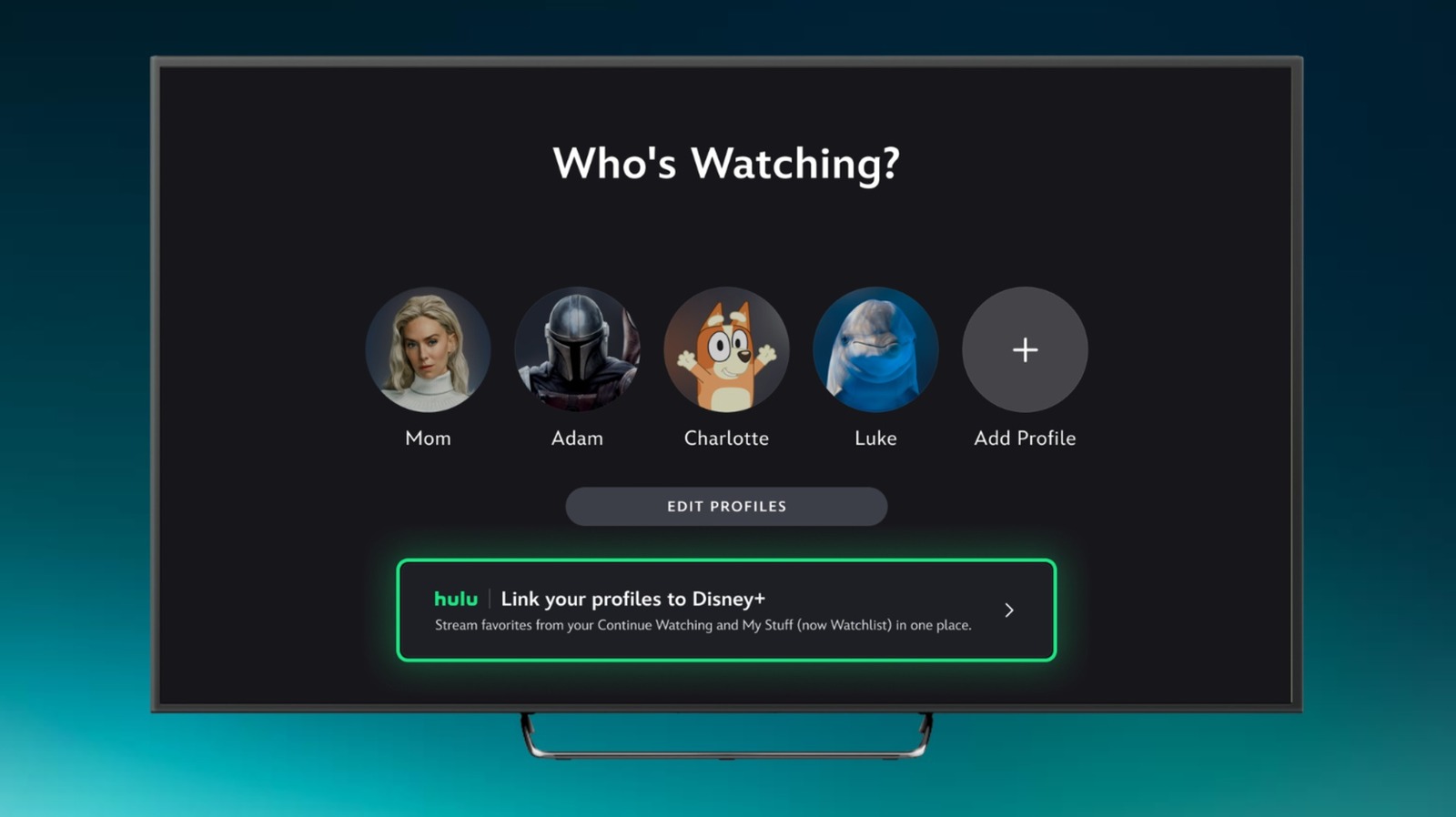
Beginning on May 19, 2026, certain Hulu subscribers will be able to link their profile to Disney+, allowing them to sync watch lists, recommendations, and watch history to the app. It’s only good for adult accounts, and eligible Disney+, Hulu, ESPN Bundle, and Hulu Bundle and Disney+ subscribers should be seeing this one “in the coming days.” All other bundle accounts will be able to sync “later this year.”

Additionally, Hulu subscribers with an active account will also be able to sign into Disney+ through their MyDisney login to access Hulu media through the Disney+ app, even if they don’t have a Disney+ account. This new change will not impact a Hulu subscription, and Hulu users will get “a small sampling” of ESPN and Disney+ content. For those who may have forgotten, ESPN came to Disney+ back in December, 2024.

Lastly, in terms of new features arriving soon, Hulu avatar icons are now available in the Disney+ app, giving users even more options for how they want to personalize their profile. While these features should begin rolling out soon, the Disney+ app should have more on the way, as Hulu Live TV and add-ons will come to the platform “at a later date”. Disney is also testing a new Live Guide that allows Disney+ and certain ESPN subscribers to search for live content, including things like ABC News Live and Disney+ Playtime. Subscribers should keep their eyes peeled as more news develops.

Source

Posted on

4 Disadvantages To Soundbar Audio You Need To Know About

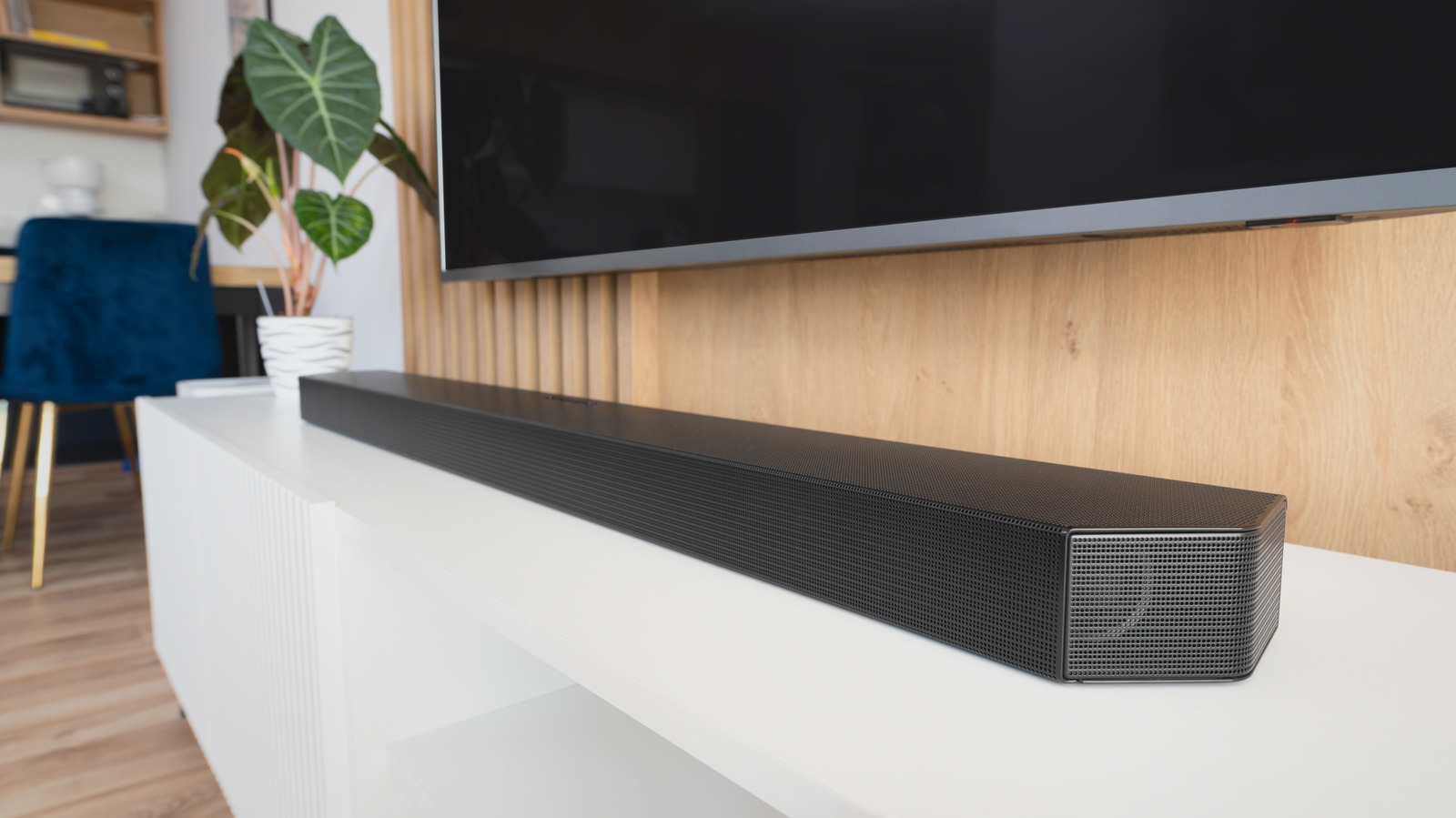
A home theater soundbar connected to a wall-mounted TV. Proxima Studio/Shutterstock

If you’re sick and tired of the soulless audio your TV speakers produce, a simple solution is adding a soundbar. Requiring little in the way of setup, you can have one of the best soundbars you can buy up and running in just a few minutes — and we’re willing to bet the first movie or show you test will sound far better than what your TV could ever deliver on its own. 

That said, a soundbar isn’t an end-all, be-all solution for lackluster audio. While easy to connect, most systems won’t deliver the same level of immersion and channel separation as a proper surround sound setup with an AV receiver. There’s also the risk of buying a soundbar that’s too large or small for the listening space you’re trying to fill, a common soundbar shopping mistake you won’t find out you’ve made until your new bar is out of the box. 

We don’t want anyone to be dissatisfied with their soundbar purchase. Research and reviews are critical when selecting one of these TV speaker replacements, and it’s also worth digging into this list of four disadvantages to soundbar audio you should know about. Buyer’s remorse can hit especially hard when an audio product isn’t up to snuff — not to mention that re-packing a soundbar can be a massive pain.

The space-saving design will impact the width of your soundstage

A typical soundbar enclosure contains several speakers positioned close to each other, with tweeters and bass radiators thrown in occasionally, too. While this all-in-one approach is great for freeing up space in your living room, housing left and right audio channels so closely together can impact the spaciousness of your audio.

Front channels (left, right, center) are among the most important parts of any speaker system, but you’ll want a decent bit of distance between each bookshelf or floor-stander for proper stereo imaging. Traditional speakers can be spaced throughout a room however you see fit, so you won’t have to worry as much about a narrow soundstage; if something doesn’t sound good, you can simply move a speaker.

Soundbar manufacturers may attempt to compensate for a narrow stage with cinematic presets or a loudness boost function, but you can only do so much when all your speakers are shoved into a plastic chassis that’s half the width of your 65-inch TV. Even the widest soundbars may struggle to create enough left-right separation to make audio feel naturally driven and spaced.

Surround virtualization doesn’t mean you should expect true surround sound

Many midrange and premium soundbars (and even some entry-level models) tout the ability to “virtualize” beefy surround formats, including Dolby Atmos and DTS:X. Generally speaking, this often means that the soundbar itself contains up- and/or side-firing speakers, or that it comes with a set of wireless rears. It also means that the bar likely uses psychoacoustics and digital processing to sound bigger than it actually is. Whatever the case may be, “virtualization” isn’t the same as “you own a complete surround sound system.” 

Depending on the model you’re working with, surround virtualization may end up being nothing more than a slightly wider soundstage in the front, or nothing at all. Good virtualization is best achieved in small to medium-sized rooms, so if you’re working with a cavernous theater space, a soundbar may not have the power or directivity required to drive decibels into every square inch of the room.

Surround virtualization also necessitates proper connectivity. If you’re aiming for Atmos height effects, hooking your bar up via digital optical isn’t going to work. Instead, you’ll want to be using HDMI ARC/eARC to give your bar system and TV the bandwidth both devices need to ensnare your space in sound.

Upgrading your audio hardware over time usually isn’t an option

A modern living room with a soundbar-based audio system. Gladiathor/Getty Images

One of the best parts of owning an AV receiver with connected surround sound speakers is the modular approach you can take to building an audio system. Let’s say you’ve invested in the entire 5.1 portion of a surround configuration, but you’re not thrilled with your subwoofer’s low-impact performance. No worries — once funds free up, you can just purchase a larger, more powerful sub. The same goes for any other speaker you’re not satisfied with.

We’d be lying if we said that no soundbar system is modular, but upgradeability is far more limited than what you can expect with a traditional speaker system. Unfortunately, that often means that if you don’t like the way your bar’s wireless sub or rear speakers sound (if it came with them), you’re stuck — unless you decide to upgrade the entire soundbar rig.

Again, though, this isn’t a hard ruling for all soundbars. For instance, there are a handful of products on the market that have an LFE output to connect an active subwoofer. So, even if the soundbar didn’t come with a bass bringer, you may still be able to add one down the line. But speaking of subwoofers, there’s one last soundbar audio disadvantage you should know about before you go.

Wireless soundbar-subwoofer combos may leave a lot to be desired

A subwoofer speaker shown in front of a curved wall. ikhsanmuliadi16/Shutterstock

Many new soundbars come bundled with a standalone subwoofer that pairs with the bar wirelessly. On paper, this is a godsend, because it means you’ll be able to place the woofer in just about any part of your room that’s near an AC outlet. In reality, though, the A to B pairing between bar and woofer can be a lot more irksome. There’s also not much rhyme or reason as to why one soundbar bundle might link up more reliably than another (r/soundbars has some interesting theories, though).

I can even provide a personal example: A few years ago, I bought a Samsung soundbar combo that I connected to a Samsung TV. My living room is only 12 feet long, and even when the woofer was placed directly next to the soundbar, it wouldn’t connect. At all. I also tried hard resetting everything to no avail. But months later, I hooked up a new bar-woofer system (one I was testing for a review), and wireless pairing went smoothly.

It’s probably safe to assume that the larger the footprint you’re working with, the better the chance that a wireless bar-woofer connection may drop out or fail entirely. And trust me: Once the sub disconnects, you’ll likely notice a dip in overall sound quality and immersion.

Source