Posted on

Are Smartwatches Making The Traditional Watch Obsolete?

a person wearing a traditional wrist watch Towfiqu ahamed barbhuiya/Shutterstock

Smartwatches allow users to do more than just check the time. They can track workouts, set timers, and check messages. Some users even try to use Apple Watches in lieu of a smartphone to take calls and respond to texts or emails. A traditional watch is able to tell time and makes a great statement piece. One would think smartwatches are going to replace traditional timepieces, but it’s not quite as simple as that. When it comes to owning a smartwatch or a traditional watch in the modern age, one isn’t necessarily beating the other. Where the competition lies comes down to who is using the watch.

A study by Deloitte discovered that the consumer audience interested in smartwatches is mainly composed of younger generations such as Generation Y (Millennials), Gen Z, and Gen Alpha. 70% of these younger generations said they own a smartwatch. Older generations, including Baby Boomers and Generation X, are more interested in owning a traditional watch. They may be less likely to own a smartwatch, as it’s reported around 72% of them own a traditional watch.

Why a smartwatch can be appealing

a person wearing a smartwatch Sitthiphong/Getty Images

There are many reasons why someone may want to own a smartwatch. Not just as a way to tell the time, but to monitor data about their health and check messages without needing to pull out their phone. Smartwatches allow users to connect wirelessly to their smartphone. Notifications the phone receives can be seen on the smartwatch’s digital screen. This allows users to quickly scan the details and swipe the notification away or respond using the smartwatch, depending on the brand.

When it comes to the most basic of functions of a watch of any type, a smartwatch does so with enhanced precision. Smartwatches have telling time down to an exact science. They synchronize with atomic clocks for a more precise time, often avoiding ending up a few seconds ahead or behind. Apple Watches actually have dedicated hardware inside that ensures the watch can keep precise time.

A smartwatch is a device like a smartphone, Bluetooth headphones, or tablet. Each offers various models with more features depending on how much you’re willing to spend. The same is true for luxury and cheap smartwatches. If you want a smartwatch with more features, the price will likely be more expensive. Many can be used as GPS trackers or to track altitude and atmospheric pressure. But if you’re after a watch just to tell the time and want to look good doing so, a traditional watch may be a better fit for you.

Why a traditional watch can be appealing

luxury watches on display Fotokostic/Shutterstock

Traditional watches are designed to work more simply and just tell the time. However, they can be more than just a way to make sure you’re not late for work. Many watches are a signature piece that marks prestige or design. They are crafted with care and precision, often to work for generations, and look good on the wrist of whoever is wearing one. Traditional watches are typically given as gifts for celebrations like birthdays, weddings, and business anniversaries.

Another benefit of a traditional watch is that it doesn’t need to be charged or updated. Smartwatches will need updates to function and will run out of battery — usually on a daily basis. Traditional watches don’t need to be updated or charged. They may need to be wound again due to changes like daylight saving time, entering a new time zone, or to get them on time again, but that’s something that can be done while being worn. You may also have to change the battery, but in some cases you may not need to do so for as long as three or four years.

Smartwatches may not be putting traditional watches out of business, but they are being used by different generations. There are even hybrid models available that offer the best of both options. You can even turn your old watch into a smartwatch with a handy gadget. Owning one or the other depends on what the user is looking for.

Source

Posted on

Airplane Mode Vs Do Not Disturb: Which Is Better For

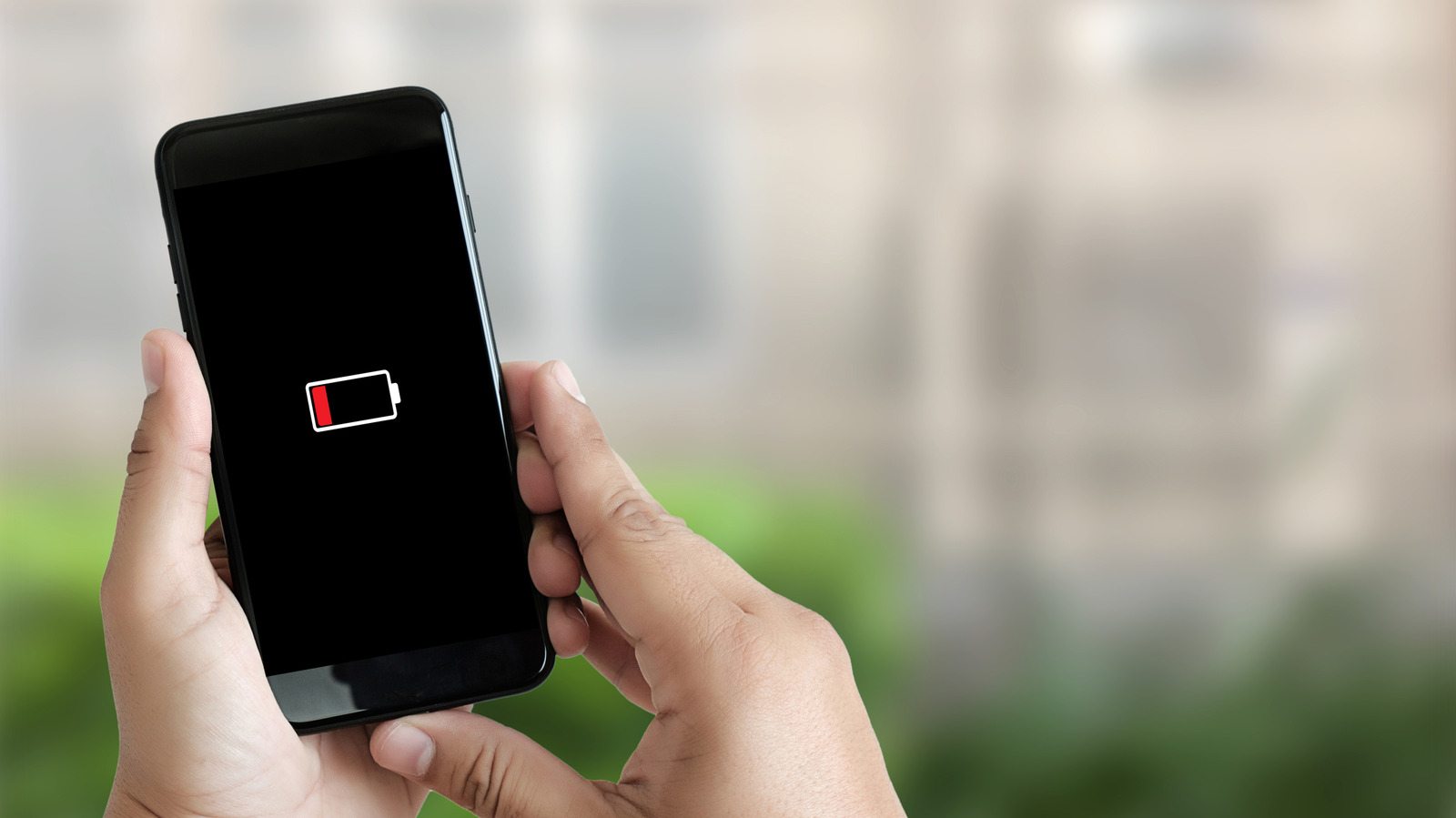
Close up of a person's hands using a smartphone with battery low warning screen Juststock/Getty Images

Airplane mode and Do Not Disturb mode are two common options found on modern mobile devices, which many of us often use in our everyday lives. Although Airplane mode is typically associated with air travel and suspending your phone’s wireless capabilities to stop any potential interference with the aircraft communication systems, it can be used anytime and anywhere. It’s even used as a trick to get a stronger signal on any phone. Although the Do Not Disturb mode has no such location-specific association, it’s pretty useful and commonly used by folks to silence notifications whenever they need. For example, the Do Not Disturb mode is often used when people go to sleep or when they are in a meeting.

These are two very different use cases, and beyond these use cases, the employment of these modes also extends a phone’s battery life. However, while the Do Not Disturb mode can help you save a bit of battery, Airplane mode has a significantly higher impact on a phone’s battery backup. The reason for this comes down to exactly what the two modes do and how that changes the behavior of your phone’s hardware when these modes are deployed.

Why is Airplane Mode better for your phone’s battery?

Close up of an iPhone showing the airplane mode status Teacher Photo/Shutterstock

Airplane mode is a bigger saver of a phone’s battery life because it’s designed to kill all connectivity radios of a device, such as the cellular modem, Wi-Fi, and Bluetooth. This effectively stops any consumption of battery by these components of your phone. Although you can typically turn Wi-Fi and Bluetooth on manually after activating Airplane mode, the cellular modem always remains turned off. This can help reduce your phone’s battery consumption, as these communication radios are big battery hogs. The battery savings can be even higher if you are in a poor cell coverage area and your phone’s cellular modem is being forced to constantly search for a network and maintain connectivity.

Unlike Airplane mode, Do Not Disturb mode doesn’t turn off your phone’s connectivity. It only limits audible, visual, or haptic cues that show the arrival of notifications. This means your phone screen doesn’t have to wake up every time there is a notification; the vibration motor doesn’t have to work; and the speaker doesn’t have to output sound. All this can also reduce the phone’s battery consumption a bit. However, as your phone’s cellular modem is still working, Wi-Fi is connected, and apps are still communicating over the internet to fetch updates periodically, the battery savings are pretty negligible. Any savings you’re getting in the Do Not Disturb mode are mostly also available in Airplane mode. So, while Do Not Disturb mode can help save some power, Airplane mode remains the champion when it comes to improving a phone’s battery life.

Source

Posted on

Why Do Some USB Cables Cost Way More Than Others?

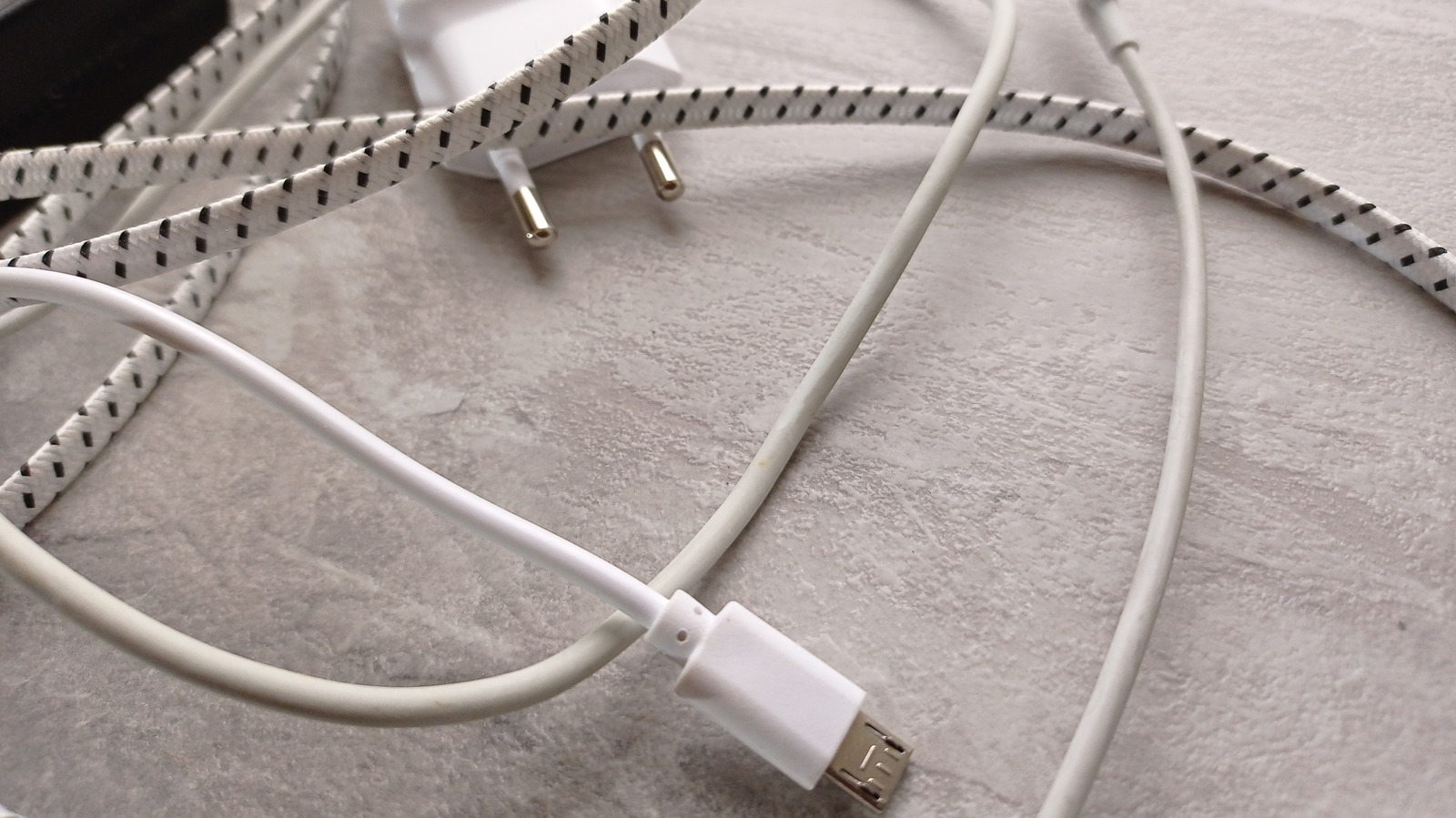
A phone charger surrounded by different USB cables with differing cord material against a light-colored backgroun Kati Maria/Shutterstock

USB cables come in all sorts of shapes and sizes. That’s not exactly a figure of speech, since they really do vary by application, brand, and configuration … which often leads to a wide range of prices, too. Cables need to be built durably and offer good charging and data transfer rates to be useful for our electronics. The price difference often stems from the manufacturing materials and their defining characteristics, which can determine data speeds and power-deliver capabilities. Low-priced USB-C cables, for example, often use cheaper PVC plastic instead of braided nylon or durable silicone. This makes them more prone to bending and warping over time, which can wear them out.

Another factor is the pins. Low-cost cables tend to have a lower pin count, which is primarily why they can’t support higher data transfer speeds. Thankfully, there are some telltale signs to distinguish the differences when you’re shopping for a USB cable, often labeled in the packaging or defined by a few other physical characteristics, like the inside colors.

Check the USB cable certifications

A batch of USB cables with attached labels at a store HelgaQ/Shutterstock

When you order online or buy in-store, there are a few checks you can make to ensure the USB cable you’re considering is worth the asking price. Among these are quality and safety certifications. If you want to ensure a premium, quality-built cable that has undergone proper testing, look for one with a USB-IF (Universal Serial Bus-Implementers Forum) certification on the packaging (laser-etched rather than printed on the connector head to show official trademarking). For safety and physical certifications, check whether it has labels like UL, cUL, CE, UKCA Mark, and FCC, which mean the cable complies with a country’s or universal safety standards. While most modern cables are designed to be safe, you still want to verify they have the proper certs and can handle overheating and related issues.

Lastly, for high-performance applications that require a more expensive cable, ensure it has an E-marker Chip so it delivers the correct power when paired with the power adapter and application (the E-marker Chip is required for cables carrying more than 60W for safe charging — cheaper cables won’t have this). This is a major reason why a decent phone charger cable can actually charge a laptop without posing a safety issue.

Check the USB generation and colors

Two USB-A type cables showing the blue inside colors for USB 3.0 generation StepanPopov/Shutterstock

The other important consideration is whether the cable is rated mainly for charging or can also capably handle data transfers, as performance has generally increased on both fronts with each new generation of cables. For instance, even though both USB 2.0 and USB 3.0 cables may have USB-A connectors, the later version supports much faster charging and data transfers — check cable labels to make sure you’re grabbing the one you want.

For USB-A, USB 3.0 and later versions have a higher pin count, can transfer up to 5 gigabits per second (Gbps), and provide 900 milliamps of current at 5 volts (2.5 watts). USB-C is a bit different. They also share similar generation labels but differ in power and transfer speeds. For example, the latest USB 3 generations for USB-C can actually support 5-20 Gbps transfer speeds, so you will want to verify what the packaging says to be extra sure. The latest, but most expensive, standard is USB4 version 2, which can deliver up to 80 Gbps and 240 watts. This level of performance may be overkill for most consumer needs today, but it’s probably a sign of what’s coming in terms of future power and transfer demands.

Color-coding can also be an indicator of which generation you are buying. If you are shopping for a USB-A cable, for example, USB 3.0 and later usually have blue, yellow, or orange plastic coloring inside their connectors (teal and red for USB 3.1 and USB 3.2, respectively). On the other hand, USB 2.0 connectors are usually black inside for USB-A  cables. Sadly, USB-C cables don’t use connector color to denote their performance capabilities, so it’s better to read their technical specs instead.

Source

Posted on

10 Tips For Setting Up A New iPad

Person using an iPad to get work done. Mr.Mikla/Shutterstock

Unboxing a new gadget is always exciting. No matter if you picked up a new iPad Air, or the top-of-the-range iPad Pro, going through Apple’s setup guide is just the beginning of the journey. Apple’s swift setup makes it easy to restore data from an old iPad, or to set up a new iPad using your iPhone. But once that’s done, you’re met with the same default home screen that Apple starts you off with. 

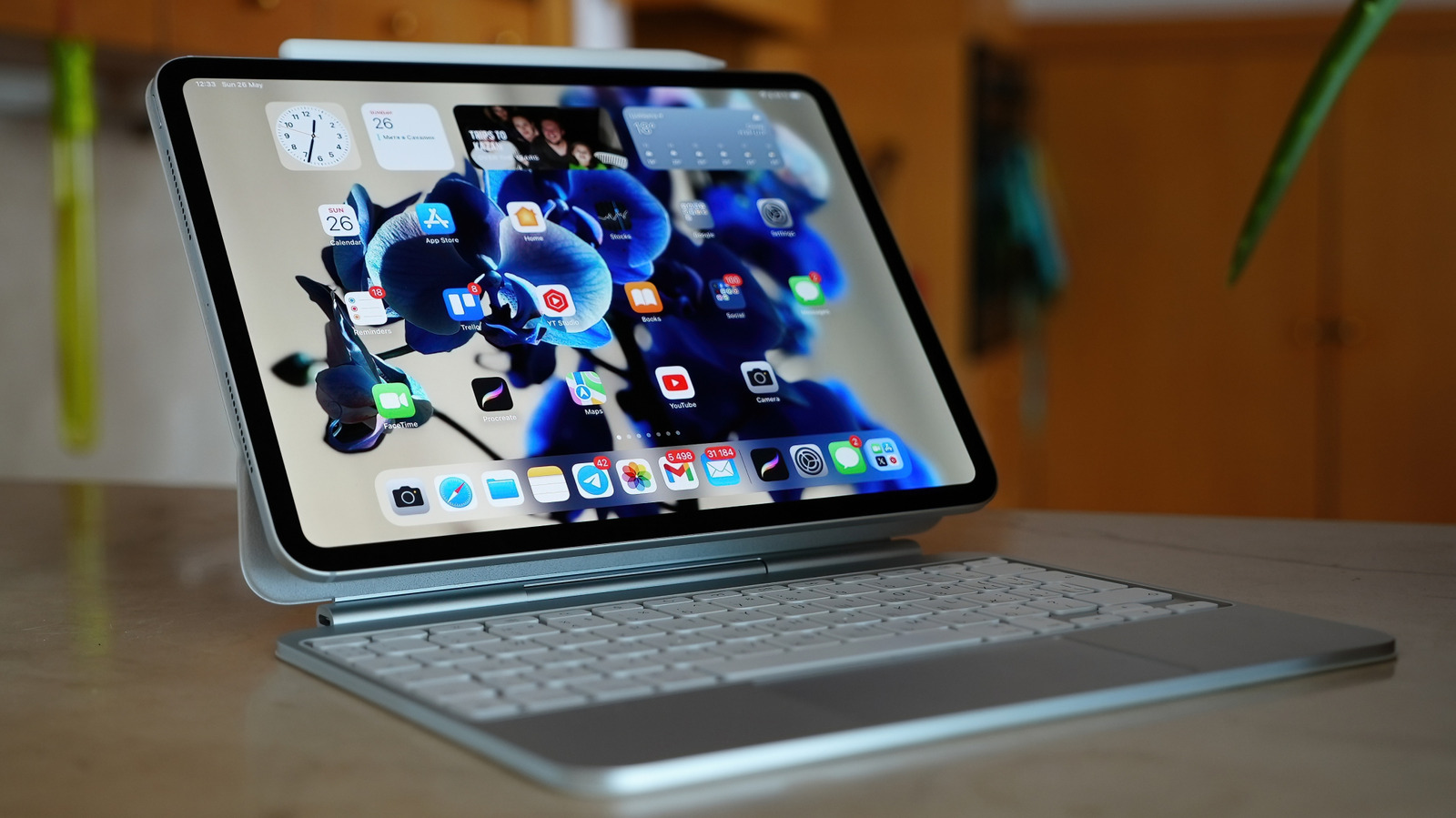
But you don’t have to stick to the default setup. While the iPad is a wonderful media consumption machine, you can customize it to make it so much more. With the latest release, you can have Mac-like free-flowing windows on the iPad’s screen. There are gestures to speed up every interaction, and if you want a more laptop-style experience, add the Magic Keyboard with the built-in trackpad. 

If you picked up an Apple Pencil to draw or sketch, there’s a whole new interaction paradigm to explore. In this comprehensive guide, we will help you get to grips with all the important aspects of using your iPad for productivity, browsing, and entertainment. 

Learn to use Windowed Apps mode like a pro

The Windowed Apps mode is one of the new iPadOS 26 features that turns your iPad into a MacBook. It brings decades-old multitasking and window management features from Mac and Windows to the touchscreen interface of the iPad. The iPad is unleashed from the shackles of a two-app Split View, and you can now use multiple floating, resizable windows on the iPad. 

You’ll first need to enable this mode either from Settings > Multitasking & Gestures > Windowed apps, or from the new Windowed Apps toggle in Control Center. After opening one full-screen app on the iPad, go to the Dock, and drag and drop another app icon to the left or the right side of the screen. The two apps will now work in a split-screen mode. You can use the Handle icon in the middle to resize the individual apps. To change one of the windows, simply drag and drop another icon on top of it. 

If you want to engage the free-flowing mode, use the handle icon in the bottom-right corner of the window to make the window smaller (you will see the background behind). Then, drag an app from the Dock to screen. If you drop it on the right, it will take up the right-hand side of the screen. You can resize any window using the Handle icon. After resizing a window, you can use the top toolbar to drag it anywhere on the iPad’s screen. To manage or arrange apps quickly, use the Window Controls menu in the top-left of every window. From here, you can minimize, close, or maximize the app. Press and hold on the Window Controls buttons to get more options for arranging the window on the screen. 

Pin floating iPhone-sized apps to the top of the screen

Slide Over is one of those nifty iPad features that’s useful if you’re a single-window person, or if you like to see multiple windows on your iPad at all times. The Slide Over feature lets you pin a single window to the top of anything that’s going on in your screen. You can pin any app window, and make it as tiny as you want (perhaps a small Apple Music player window), or expand it to take up more than half a screen (with a PDF or an AI chatbot like ChatGPT).

Tap and hold the Window Controls button (ones that look like traffic lights), and tap Enter Slide Over. If you already have an app open, you can drag an app icon from the Dock to either the left or right-hand edge of the screen, where an arrow appears. The Slide Over window can be docked to its side of the screen, and you can swipe it off the edge of the screen to hide it (and then swipe in to bring it back on screen). To resize the window, grab the little handle from the bottom-left corner of the window. 

Once the Slide Over window is open, you can drag any app icon from the Dock to switch to the app in the floating window. To get out of the Slide Over view, tap and hold the window controls button, and choose the Exit Slide Over option. 

Master advanced iPad gestures

Being a touch-first interface, the iPad is filled with hidden gestures. You might be familiar with the basic gestures that help you open and close apps, manage open app windows, and access the Dock. But there’s a whole world of advanced and hidden features that will come in handy. Here are some that you should learn to adapt in your daily iPad use:

  • Drag and drop anything: Almost anything on your iPad that you can open, can be dragged. Tap and hold on a link, file, image, or object, and pick it up with your finger. Now, keep that finger docked on the screen, and use another hand to select any other item. They will all get collected under your docked finger. Now drag them onto any app, lift your finger, and drop them to move them into place. 
  • Quickly select multiple items in a list: Simply swipe down on a list with two fingers to select multiple items. This works in Mail, Notes, and even third-party apps. 
  • Three finger gestures for text manipulation: The iPad has simple three-finger gestures to quickly copy and paste text. Pinch in with three fingers to copy, spread out with three fingers to paste the text. To undo writing, swipe left with three fingers. To redo, swipe right instead. 
  • Use the corner gesture shortcuts: The iPad has built-in corner gestures you can trigger with Apple Pencil, or your finger. Swipe in from the left corner to take a screenshot, and swipe in from the right corner to take a quick note (this only works if your iPad is set to the Full Screen Apps mode).

Use the iPad as second screen for your Mac

The iPad and the Mac already play nicely together. Using Universal Clipboard, you can copy and paste items between them easily. But the Sidecar feature takes it one step forward, letting you use the iPad’s display as an external monitor for your Mac, one with touchscreen and Apple Pencil support. If you use a monitor with your MacBook, but miss it when you’re out and about, this can be a great way to have a two-monitor setup without splurging on a portable monitor. 

First, make sure that both your iPad and your Mac are signed into the same Apple Account and are connected to the same Wi-Fi network. Now, keep your iPad active near your Mac, and then go to Control Center > Screen Mirroring. In the Mirror or Extend to section, choose your iPad. Select the Use as External Display option, and the iPad will transform into an external monitor for the Mac. You can freely move your mouse from your Mac’s screen, to your iPad, and you can drag and drop windows between the two screens in the same way. 

Sidecar also supports Apple Pencil, so you can use it to scroll through pages, write in documents, select text, and click on buttons. 

Try Stage Manager for simpler multitasking

While the new Windowed Apps mode is powerful, it can also be confusing to use for new users. If you want to group multiple windows together, you can also try the Stage Manager feature. Just like the Windowed Apps mode, you can have multiple floating windows on the screen at the same time. But here, the windows are grouped together, and Stage Manager shows a preview of all groups on the left. Visually, this makes multiple windows and app pairs easier to manage. 

Stage Manager can be turned on from Settings > Multitasking & Gestures > Stage Manager, or from the Control Center toggle. You’ll now see recently used apps show up on the left corner of the screen. You can tap on an app to switch to it. To add apps to the group, simply drag and drop the app icon to the middle of the screen. The two apps will be grouped. You can resize open windows, move them around, and move them between groups as well. Tap on a group from the left sidebar, and you’ll instantly switch between a different group of windows. 

Customize the Dock

The Dock on the iPad is essentially your command center. If you haven’t done so already, start by adding all your frequently used apps to the Dock by dragging and dropping them. You can bring up the Dock at any time by swiping up from the bottom of the screen (just for a bit). 

To add more options, go to Settings > Home Screen & App Library. From here, you can enable the Show App Library in Dock feature to add a shortcut to the App Library (that shows all installed apps). There’s also an option to “Show Suggested and Recent Apps in Dock.” This will show recently used or suggested apps based on your usage. 

If you deal with files and folders often, you can directly pin folders to the Dock (if you’re using iPadOS 26 and higher). Open the Files app, find a folder you want to add to the Dock, drag and drop it in the Dock on the right-hand side. You can repeat this process to add more folders. The folder will open in a Mac-like menu, showing you a preview of files and folders within. You can customize this view if you like. Tap and hold a folder from the Dock, and switch between “Grid” and “Fan” options in the View content as section. 

Learn to get the most out of Apple Pencil

If you’ve picked up an Apple Pencil with your iPad, you’ll be happy to know that it can be used for a lot more than just drawing and taking notes. The Apple Pencil is a powerhouse. Here are some of the Apple Pencil features you should enable. 

  • Write in any text field: Apple Pencil’s writing abilities aren’t limited to just the Notes app. If you enable the Scribble feature from Settings > Apple Pencil, you can write in any text field and convert it into typed text. This works in text boxes in Keynote, the URL bar in Safari, and the message box in apps like Slack and Gmail.
  • Use the Pencil to edit written text: Once you start taking notes with the Apple Pencil, you’ll want to edit them as well. You can drag a circle around a word, or across a sentence to select it. To delete a word, just scratch it out like you would with an eraser. 
  • Customize the double-tap gesture: The Apple Pencil 2nd-Gen and the Pro have a hidden button near the tip (on the flat side), that you can use to perform several functions using a double-tap gesture. Go to Settings > Apple Pencil > Double Tap to customize it. You can choose to either switch between the current tool and the eraser, or the last used tool. You can also assign it to always open the color palette. 

Create Text Replacement shortcuts to speed up typing

Text Replacement screen with Phrase and Shortcut Khamosh Pathak/BGR

Setting up Text Replacement shortcuts is one of the first settings you should change on your iPad. The typing experience on the iPad’s software keyboard isn’t the best. And you can make things a bit easier on yourself by setting up text shortcuts for frequently used URLs, phrases, or email templates. For example, you can type “addrs” and it can expand to your entire home address, making the online shopping experience faster. The same can apply to repeated email messages for work.

Go to Settings > General > Keyboard > Text Replacement. Tap the Plus button to create a new shortcut. In the Phrase field, type out the long text that you want to expand to (in our example, this would be your address). In the Shortcut field, enter the shortcut phrase (something like “addrs” or “mail-reply”. Then tap the Save button to add the entry. Repeat the process for adding more entries. Now, when you type the shortcut anywhere, it will expand into the phrase.  

Customize the Files app to make it more like the Finder on the Mac

With the iPadOS 26 design update, the Files app has matured quite a lot, inching closer to how the Finder app works on the Mac. You can use the Files app to see all the files and folders that are stored locally on your Mac, as well as iCloud Drive. 

To make file browsing easier, you can now create a customizable column view. Open a folder, and from the top toolbar, tap the Views icon, and switch to the List View. You’ll see some basic columns here by default for Name, Date, and Size. But you can add new columns here like Kind, Tags, and Date Modified. Tap the three-dotted menu button to add more columns. You can resize columns easily by grabbing the handlebar between the columns.

Once you’ve customized the viewing part, take some time to add your frequently used folders to the Favorites section in the sidebar. Press and hold a folder or a location, and then tap the Favorite button. It will now show up in the Favorites section in the sidebar. 

If you use your iPad when you’re out and about, you might find that your important work files from iCloud Drive aren’t always available offline. But with a simple feature, you can mark files to be available offline. Press and hold any file, and tap the Keep Downloaded button. 

Customize your display settings and Home screen

The iPad is set up to work for everyone. But you can make it work better for you. iPad’s screen content can be customized to make things easier on the eyes, or to fit in more information. If you use the iPad for work, or for browsing the internet, increasing the information density can help if you regularly use two apps side-by-side. 

Go to Settings > Display & Brightness > Display Zoom and shift to the “More Space” option. All UI elements and texts will scale down slightly. On the home screen, it’s the opposite story. The default layout leaves out a lot of empty space, with small icons. On the Home screen, tap and hold on an empty part to customize the home screen. From the toolbar, tap the Icons button (it looks like two squares, one big, one small) to switch to the large icons. You’ll now only see large app icons, without the app names. 

Now, take some time to organize the home screen itself. Press and hold on an app icon, choose “Remove App,” and tap “Remove from Home Screen.” If you don’t want newly downloaded apps to show up on your home screen, you can send them directly to the App Library. Go to Settings > Home Screen & App Library and switch to “App Library only.”

Make your iPad battery last for a long time

iPads can last for a long time. Unlike an iPhone, you don’t need to think about upgrading after two years. But the battery is a different issue. Because of the nature of lithium-ion batteries, they degrade over time. If you want to extend the battery life of your iPad in terms of the sheer years of use, or hours per battery cycle, you can start to limit battery charging. Limiting the charge to 80% can reduce the wear and tear on the battery, and can help improve the overall lifespan. 

The latest iPads (iPad (A16), iPad Mini (A17 Pro), iPad Air M2 and later, and iPad Pro M4 and later) all feature a built-in battery management feature. Go to Settings > Battery > Battery Health and enable the 80% Limit feature.  Here, you can also see the total battery cycle count, the battery health, and the maximum charging capacity for your iPad.

Source

Posted on

Mark Hamill’s 5 Best Movie Roles (Not Including Luke Skywalker),

Various roles of Mark Hamill Static Media

Mark Hamill’s breakthrough role came in 1977 in a galaxy far, far away — and honestly, he could’ve done the two sequels that followed and called it a day with his acting career there and then. And yet, ever the thespian, and determined not to be remembered only as the son of a wheezing intergalactic warlord, Hamill made sure to throw in some performances that didn’t always require him to wield a lightsaber or talk to a robot that spoke in whistles and beeps. Over the years, he’s stretched himself beyond the moon of Endor and the barren wastelands of Tatooine, and in doing so, handled some roles that have become equally synonymous with him as the legendary Jedi.

Besides some big hits and some cult classics (like the forgotten gem, “Guyver”) Hamill made some appearances before and after his time in the “Star Wars” universe, some of which didn’t hesitate to give a nod to his world-famous farmboy with special powers. Some roles required his unmistakable voice to portray characters that were as beloved as Master Skywalker, while others, in recent years, have demanded a screen presence that has become a highlight of the film. With that, here are five of Mark Hamill’s best performances, and none of them required him to use the Force to get the job done.

5. Jay and Silent Bob Strike Back – C**knocker

Before he briefly popped back to “Star Wars,” Mark Hamill had spent plenty of time poking fun at it while sharing scenes with everyone from the Simpsons to the Muppets. In 2001, though, he went for an R-rated roasting of his beloved character and himself, under the direction of the master of his own Askewniverse, Kevin Smith, in “Jay and Silent Bob Strike Back.”

Just like every other star who shows up in the stoner sequel, Mark Hamill makes a meta move in Kevin Smith’s movie, playing himself, who is also playing the role of C**knocker in “The Bluntman and Chronic Movie.” Cut from the same cloth as Luke Skywalker and his fan-favorite “The Flash” villain, The Trickster, C**knocker is an unashamedly spiky-haired loon with a comic-sized mitt and a knock-off lightsaber. From there, a slapstick fight ensues that shows Hamill having heaps of fun, and as a result, so do we for having made it this far into the movie.

Does it demand a lot from Hamill? Not really, but the same can be said of the appearances of Ben Affleck, Matt Damon, and Chris Rock in this film. Ultimately, a knock-off Darth Vader punches Jason Mewes in the crotch, and honestly, that’s more than audiences deserved from Hamill in a movie that’s aged as questionably as a Mooby milkshake.

4. The Long Walk – The Major

Mark Hamill as the Major stood in front of soldiers in The Long Walk Lionsgate

Hamill might be forever known as one of the most legendary heroes in film history, but in 2025, he took on the role of a mean piece of work in Francis Lawrence’s adaptation of Stephen King’s story, “The Long Walk.” In Lawrence’s film, he leans into the worst version of a crotchety old man in a dystopian future where young men go on a deadly race to win the prize of a lifetime. Hamill played the hard-faced Major, watching their every step, and had no issue with gunning down stragglers and pushing the buttons to push them forward.

While the film relied on the incredible performances and searing chemistry between David Jonsson and Cooper Hoffman as the story’s toughest walkers, Hamill haunted the film with his few appearances. Flitting in and out of the race for life and death like a Grim Reaper, he’s one of the few actors beyond their twenties who are part of this traumatic trek, serving as a great foil right up until the home stretch. Prior to this, Hamill had certainly given us a great go at villains (some of which are on this list), but the Major really feels like the right kind of soulless performance in one of the most underappreciated movies of 2025.

3. Batman: Mask of the Phantasm – Joker

The Joker from Batman: Mask of the Phantasm Warner Bros.

If you’ve ever read a Batman comic and heard the late Kevin Conroy’s voice when reading the Caped Crusader’s speech bubbles, chances are you’ve heard Hamill’s maniacal laugh on the same page as the Joker. Hamill might have spent some time in the Marvel universe as Arnim Zola, but his take on the Clown Prince of Crime was just as essential in “Batman: The Animated Series” as his co-star tasked with taking on the Dark Knight. It’s why it came as no surprise that he appeared in “Batman: Mask of the Phantasm” and gave us some of his best.

While the Phantasm might be the new foe facing off against Batman, directors Bruce Timm and Eric Radomski spend some time fleshing out the lore of his arch-nemesis, which naturally allows Hamill to have a ball as usual as the smiling psychopath.

Even with a small amount of screen time, spending most of it stirring the pot of Bats’ latest conflict is a treat. It’s a great reminder that just like Batman and the Joker, you really can’t have Conroy without Hamill, which makes it completely understandable that the man behind the face-painted maniac refused to reprise his role after his co-star’s passing in 2022 (via ScreenRant). Nevertheless, this film still stands as one of the best Bat-stories to go back to, especially thanks to the added jokes thrown in for good measure.

2. Batman Beyond: Return of the Joker – Joker

Joker lunging at the screen in Batman Beyond: Return of the Joker Warner Bros.

Some might see it as sacrilege that “Mask of the Phantasm” isn’t Hamill’s highest turn as the Joker appearing on this list. Well, after repeated viewings, it’s clear that while “Phantasm” might still be hailed as the best animated Batman movie to date, “Batman Beyond: Return of the Joker” is the one that unexpectedly houses Hamill’s best run at the character that he made his own, even if it’s not the original article.

The futuristic chapter, which follows Terry McGinnis as the new Batman, sees Tim Drake getting “activated” by the Joker’s DNA that had been implanted into his brain. The scientific babble allows us to be reunited with a far more wicked Mr. J. — one who is riding high on evading death itself. What truly makes this Hamill’s best bout with the legendary DC villain, though, is when he comes up against the new Bat that isn’t in on the joke.

Dishing out the usual wicked punchlines as the legendary foil of Bruce Wayne is one thing, but Hamill’s best work comes when he starts to lose his grip against his old foe’s successor. For the briefest of moments, it shows us a version of the Joker Hamill had never given us before — one who hates to be the punchline and, out of frustration and rage, becomes a far more monstrous version of the character we’d become accustomed to, proving that a serious Joker isn’t something to laugh about.

1. The Life of Chuck – Albie Krantz

Mark Hamill as Albie Krantz leaning over in The Life of Chuck Neon

In the same year Mark Hamill was yelling at desperate young men to keep moving in “The Long Walk,” he was also being an estranged grandfather in yet another Stephen King adaptation, only this time under the direction of Mike Flanagan. “The Life of Chuck” marked another effort by the director to adapt a King story to the screen, following the likes of “Doctor Sleep” and the survival horror story, “Gerald’s Game.” Hamill played Albie Krantz, the tortured and cynical “zayde” (paternal grandfather) to Chuck, who struggles to endure the immense grief that tears through his family. In a movie all about cherishing the precious moments in life, Albie is battling the tragedies that have befallen him, with only the past to dwell on and the bottle to keep him company.

And yet, even with this sorrow that haunts him and is often taken out on Chuck (played here by Benjamin Pajak and Jacob Tremblay, respectively), Albie shows glints of hope for his grandson, albeit in the wrong direction. It’s this that makes Hamill’s performance a partially painful watch. In Flanagan’s immensely overlooked movie about life, death, and everything in between, “Life of Chuck” contains multitudes. It also provides a brilliant platform for Hamill to deliver what is arguably the best performance of his career.

Source

Posted on

Are Old MP3 Players Worth Buying In 2026?

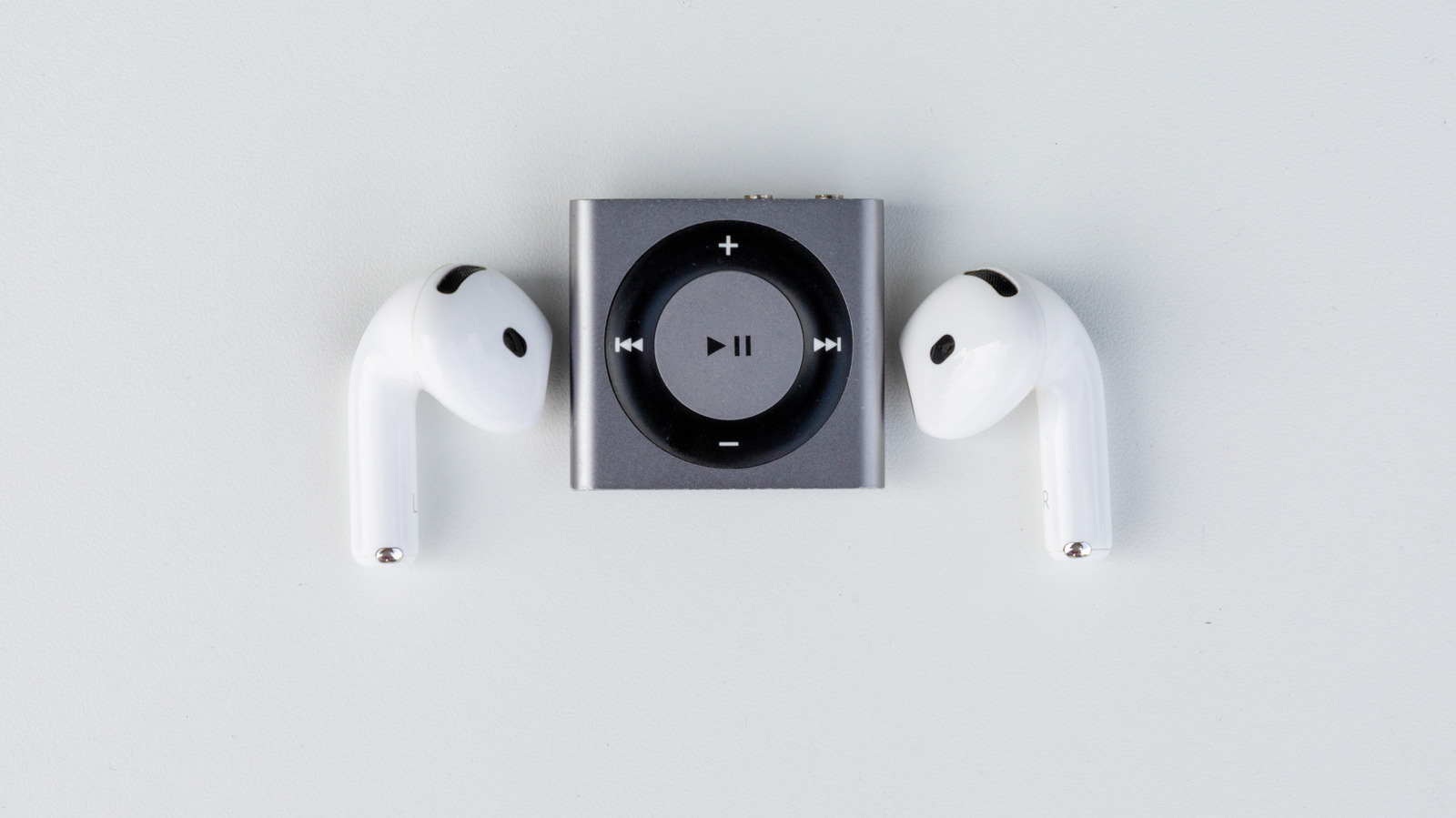
Compact MP3 player placed between two wireless earbuds on white background kamitana/Shutterstock

Although smartphones have become the main way people consume mobile content today, there are still reasons to buy an MP3 Player in 2026. Beyond the nostalgia surrounding these 2000s tech devices, they still work well for their intended purposes. In other words, even though companies no longer make them on the same scale, many devices can still deliver high-quality audio.

On the more technical side of MP3 players, they work well for anyone who wants to hear their favorite songs with better sound quality. Today, most major music streaming services compress audio in some way. Since an MP3 Player can avoid that and play music with higher fidelity, this option alone gives users a reason to have a dedicated music device.

At the same time, MP3 Players also offer a simpler appeal to many users, since they create an opportunity to disconnect. These devices have a clear purpose: listening to music. So, while using one of them, you do not need to worry about algorithms, notifications, or other distractions.

MP3 players in 2026 thrive on Gen-Z nostalgia and offline music libraries

Red iPod Shuffle clipped to shirt strap with wired earbuds connected rblfmr/Shutterstock

As happened with many other technologies that became popular again years after they faded away — like CDs making a comeback — the MP3 Player is finding new life. In 2025, they became fashion items among many Gen Z users and grew in popularity from there amid the growing anti-streaming movement.

Because of the algorithms Spotify and Apple Music use, many people started to feel tired of these services. AI usually creates suggestions based on what users like, and many people have also noticed that they only pay to “rent” music. So, even when someone pays for the service every month, the moment that payment stops, the entire library disappears.

That feeling of owning nothing fed the desire, especially mine, to have a personal library with files I own, independent from servers or internet connections. I picked up this habit again out of curiosity, especially after playing “Persona 3,” where the protagonist uses an MP3 Player. Although I think streaming services offer a certain convenience, ripping CDs and organizing my favorite songs into MP3s still has real charm.

Premium modern MP3 players offer high-res audio that old models lack

Classic iPod with wired earbuds resting on purple background yuriyt/Shutterstock

If you plan to buy an MP3 Player in 2026, you need to pay close attention to the options available on the market. Anyone willing to pay more can find modern Digital Audio Players, or DAP, online, with better DACs, stronger amplification, and support for high-resolution files. The problem is that these models can cost as much as, or more than, a smartphone, so the purchase makes more sense for listeners who prioritize sound quality.

Another option is to look for rare vintage tech like old iPods. Even though companies no longer make them, you can still find many good-quality devices online at a more interesting price. These models offer a cheaper way to organize playlists and escape streaming services, but they also come with clear limits. Most of them do not support modern lossless formats in the same way a dedicated DAP can, which matters for anyone building a high-quality offline library.

At the same time, you also need to remember that an MP3 Player is a retro device, so it won’t work the same way as your smartphone. For example, anyone used to Bluetooth headphones will find that most of these vintage devices don’t support them. So, to get the full experience, you need to embrace the nostalgia even more and use traditional wired headphones with P2 jacks, which also helps preserve the classic feeling of using one of these devices.

Source

Posted on

5 Mini Gaming PCs That Don’t Compromise On Performance

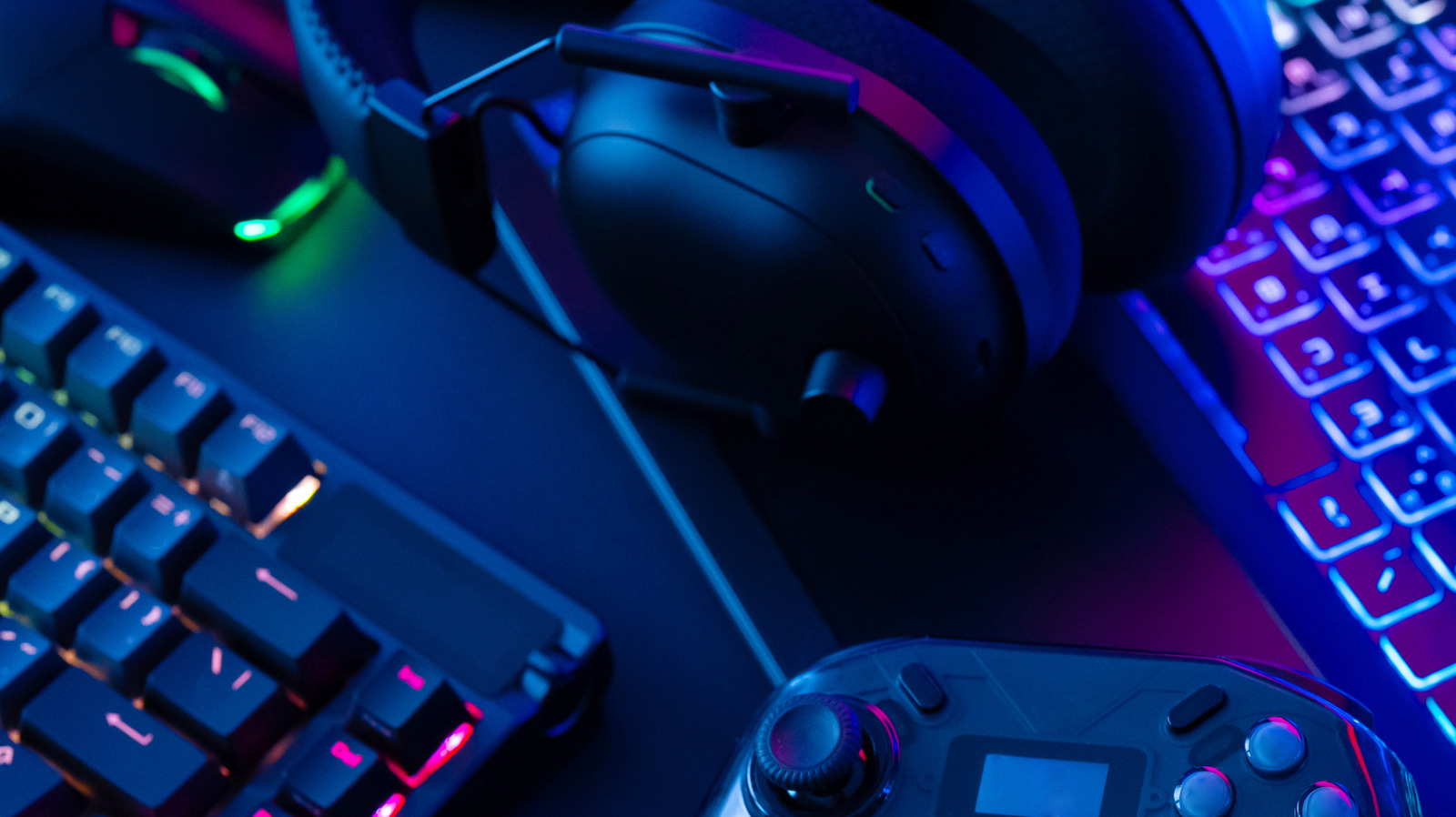
Gaming peripherals lit by RBG on a gaming PC desk Ekkaphan Chimpalee/Getty Images

If desk space is an issue when considering a solid gaming setup, a mini gaming PC isn’t the compromise in performance it used to be. Gone are the days of high latency and poor performance trying to play a AAA game, thanks to manufacturers stuffing gaming laptop silicon into a small form factor that won’t swallow your desk. The cooling solutions in mini gaming PCs today are also efficient, with actual fan-powered heat extraction backed up by complex heatsinks and vapor chambers.

Of course, a mini gaming PC is never going to replace a full-fat gaming PC rig, but they’re fantastic for 1080p high-frame-rate gaming, provided users follow some basic gaming PC beginner tips. Finding the right balance of size and speed is the key, with staying cool under load being a high priority. The choices below are the best mini gaming PCs for the money right now when it comes to performance. Looking at the specifications and build layout, these models have the port selection and raw frame-rate capacity to earn a spot on your gaming desk. There’s a mix of dedicated graphics processing unit options alongside onboard graphics choices, all built to handle anything from competitive gaming to AAA blockbusters. These choices prove that gamers don’t need bulky GPUs and liquid cooling to enjoy the best Steam has to offer.

Minisforum Atomman G7 Pro

The Minisforum Atomman G7 Pro is a prime example of what a high-performance mini PC should be. Having run this exact model since release, it’s proven more than capable at handling Fortnite at well over 100 frames per second (FPS) on high settings, reaching over 200 FPS on low- and legacy-performance modes. There’s also plenty of headroom on single-player games, thanks to the Nvidia RTX 5070 laptop GPU packed inside being capable of the latest frame generation and DLSS developments. It features an Intel Core i9 14900HX processor, made up of 24 cores and 32 threads, which is more than enough horsepower for modern gaming. It’s also capable of handling Ray Tracing with DLSS 4.5 enabled, pushing render rates past 70 frames per second in games such as Cyberpunk 2077 and Oblivion Remastered.

While some gamers will miss a DisplayPort, connectivity is otherwise fantastic. It provides HDMI 2.1 FRL and USB 4 ports that both support 8K at a 60-hertz refresh rate or 4K at 120 hertz, which is great news for higher-end gaming monitor owners who want a responsive experience. It can also support up to 96 gigabytes of DDR5 RAM while featuring dual M.2 slots, including one PCIe 5.0 for the fastest storage headroom on the market right now. This $1,699 unit measures 398 millimeters x 260 millimeters x 80 millimeters when in its stand, which is a fraction of the footprint any standard PC tower would cover.

ASUS ROG NUC (2025)

The ASUS ROG NUC (2025) is the mini gaming PC alternative to the ROG desktop line. It packs an AMD Ryzen 9 9955HX3D and Nvidia RTX 5070 mobile GPU into a tiny 3 chassis (2.22 inches by 7.39 inches x 11.11 inches), handling 1440p in its sleep. It can hit up to 73 frames per second in Cyberpunk 2077 on high settings with Ray Tracing Ultra, thanks to DLSS 4.5 and Frame Generation, which kicks a lot more mileage out of this mini gaming PC versus running just on its hardware alone.

The internal engineering on the ROG NUC keeps this $2,899 unit quiet even during the most demanding gameplay, thanks to its dual vapor chamber and extensive heat pipe cooling solution. This combination efficiently transfers heat away from its core components and is further enhanced by its three cooling fans that draw air from every vent in the chassis. This setup allows the RTX 5070 chip to float at around 80 degrees Celsius, typically. Armoury Crate app, ASUS’s centralized energy-control app, helps with fan and cooling control, as well as adjusting power limits. This mini PC comes with 32 gigabytes of DDR5 6400 RAM, which can be expanded to a massive 96 gigabytes down the line, a fantastic bonus feature. It’s also capable of Wi-Fi 7 speeds, providing some future-proofing.

Minisforum AtomMan G7 PT

Gamers looking for a full AMD Ryzen and Radeon setup, the Minisforum AtomMan G7 PT is that sweet spot, offering a Ryzen 9 7945HX processor and Radeon RX 7600M XT discrete GPU. While not being as powerful as the last two mini gaming PCs on this list, the processor still has 16 cores and can run games like Doom Eternal at over 150 frames per second using Ultra Nightmare settings at 1080p resolution. It can even push to 1440p by enabling FSR (FidelityFX Super Resolution) and frame generation.

Minisforum built this mini gaming PC with its Cold Wave cooling technology, which uses liquid metal to manage temperatures. It has a turbo button on the front panel to boost the Thermal Design Power (TDP), a measure of heat-generation limits, to 85 watts to really get the most out of high-end gaming sessions. It supports Wi-Fi 7 and has three options for display outputs with HDMI 2.1, DisplayPort 2.0, and USB-C. Users could also go for the barebones kit that doesn’t include an operating system, such as Windows 11, turning this into a building project that allows them to source their own DDR5-5200 memory and M.2 storage. Just be warned, RAM and storage prices continue to climb, thanks to those pesky AI datacenters gathering up memory chips.

Beelink SER9 Pro

The Beelink SER9 raises the bar on what can be done with integrated graphics processing. It houses the AMD Ryzen AI 9 HX 370 and the AMD Radeon 890M iGPU, which boasts a 25% performance increase when compared to its last generation. Gamers can look forward to enhanced frames per second at 1080p medium settings when enabling FSR and frame generation, reaching our 60 FPS threshold for some titles. It’s a great choice for players who want a quiet, small chassis (5.31 inches by 5.31 inches by 1.76 inches) that doesn’t require a bulky external power brick or a loud cooling array.

Even under load, the Beelink SER9 Pro is nearly silent, making it a great gaming box for a family media center, for example. It packs a generous 32GB of LPDDR5X-7500 RAM and features two M.2 PCIe 4.0 slots that can support up to 8 terabytes of storage. There’s no reason why anyone can’t hold their Steam library locally instead of downloading games every time they want to play something new. Its $929 price point makes Beelink SER9 Pro a competitive alternative when it comes to discrete GPU systems, and let’s not forget the sleek-looking all-aluminum chassis design. There are also dual USB 4 ports, which allow users to connect an external GPU down the line to push this mini gaming PC even further.

GEEKOM IT13 Max AI

The Geekom IT13 Max AI is a powerhouse designed for professional AI workloads and solid gaming performance. It runs a 16-core Intel Core Ultra 9 185H processor with a 45-watt Thermal Design Power(TDP), which can reach speeds of up to 5.1 gigahertz. It also packs in dedicated AI acceleration and Intel Arc graphics, which is impressive when considering its small footprint (5.35 inches by 5.2 inches by 1.97 inches). It features a solderless architecture, making it easy for users to upgrade its 16-gigabyte DDR5 RAM and one-terabyte Gen4 NVMe SSD up to 96 gigabytes of DDR5 RAM and 6 terabytes of M.2 storage, respectively. 

This PC also supports up to four 4K monitors or 8K visuals via dual USB4 ports, which is a rarity for mini PCs around its retail price of $1,299. Other features include Wi-Fi 7, Bluetooth 5.4, and dual 2.5G Ethernet ports for ultra-low-latency local networking and fast internet speeds. Its thermal system keeps the Core Ultra 9 cool, with the IT13 Max AI staying quiet even with heavy round-the-clock use. Its Intel Core Ultra 9 185H dedicated Arc iGPU can run most modern games at medium settings, such as Baldur’s Gate III, at around 50 FPS. Turn down your shadow settings or add a little frame generation, and you’ll be well over 60 FPS. That also means it would make for a great emulation setup, too, if you want to run retro games or run other platforms locally.

Methodology

For a mini gaming PC to qualify for this article, it must meet certain performance and physical criteria. Each PC must be capable of running modern titles at a minimum of 60 frames per second at 1080p resolution, using either a discrete mobile GPU or a high-end integrated solution like the Radeon 890M. We ignored office-grade units that rely on underpowered processors because they cannot take the thermal or computational load of modern gaming, which bottlenecks performance. This also means we won’t consider any mini gaming PC with a processor made up of fewer than eight cores or an architecture older than Intel 12th Gen or AMD Zen 3.

Every mini gaming PC on this list must be smaller than a standard Mini ITX desktop build. We prioritized mini gaming PCs with advanced cooling solutions using state-of-the-art techniques and materials such as vapor chambers and liquid metal to prevent thermal throttling. Such technology is already used in some recent smartphones. A proper modern gaming PC requires modern inputs and outputs, so we set a minimum standard of at least one high-speed video output option, such as HDMI 2.1 or DisplayPort 1.4/2.0, alongside at least one high-speed data port such as USB4 or Thunderbolt 4. Port availability is also a key consideration for expansion potential, including upgrading RAM and M.2 storage.

Source

Posted on

Is It Safe To Use A Third-Party USB-C Charger For

A MacBook, charger, and MagSafe cable on a desk. Dontree_M/Shutterstock

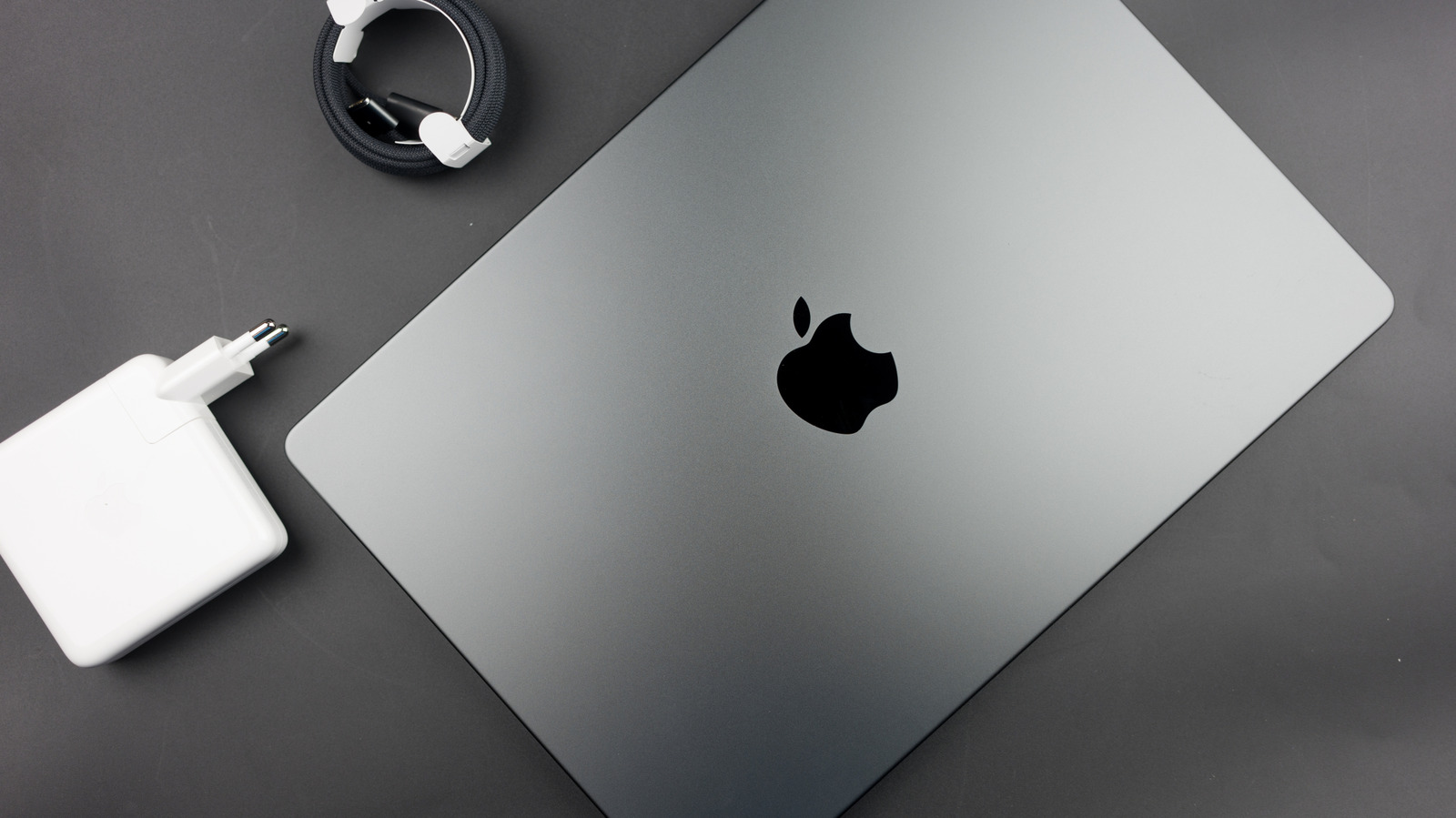
Buy a brand-new MacBook Neo, MacBook Air, or MacBook Pro, and the laptop will come with a charger in the box, except for the European Union and U.K. markets. The Apple charger can be used to charge the device via USB-C (MacBook Neo) and MagSafe 3 (MacBook Air and Pro). Regardless of market, all new laptops will ship with cables in the box. But these laptops can also be charged safely with compatible third-party USB-C chargers that are available from various retailers.

These third-party chargers can come in handy in various scenarios. Maybe you want more charging ports on the power adapter than Apple chargers provide, or maybe you need multiple chargers conveniently placed at home and at the office. You may be looking for more compact chargers to take on your travels, or you may be in search of replacements for lost and/or damaged original Apple chargers.

Whatever the reason you want to buy a third-party product over an Apple charger, you shouldn’t buy the cheapest possible USB-C power brick before ensuring that it can support your MacBook’s power requirements, and that it’s as safe as the chargers made by Apple.

The safety considerations

Various USB chargers plugged into an electrical outlet. Andrei310/Getty Images

Safety should be your primary concern when buying a power adapter for any device, whether it’s an iPhone or MacBook. You want to avoid charger malfunction that can cause injury, fires, and other damage. Apple says in a support document that “third-party power adapters or displays should be compliant with applicable international and regional regulations and safety standards.” In a separate support document, Apple says that all its USB power adapters “undergo rigorous testing for safety and reliability and are designed to meet government safety standards around the world.”

That’s why it’s important to look for certified products when buying USB-C chargers. Look for official markings on these products that indicate the product has been independently tested. Consumer Reports mentioned two key symbols customers may find on smartphone chargers: Underwriters Laboratories (UL) and Intertek or Electrical Testing Laboratories (ETL). These indicate the products are safe to use. Apple USB-C chargers may feature at least one of these markings. Consumer Reports also mentions a “CE” marking that may appear on chargers, which is short for “Conformité Européenne” (European Conformity). It indicates the product meets European regulations, including safety, which means the device can be trusted.

However, some of these logos can be faked, so buyers should also pay attention to other factors, like the price. If a charger is much cheaper than you’d expect and comes from a vendor without a proven history, you should avoid it. Apple’s official prices for USB-C power adapters (found below) should give you an idea of what prices to expect for a particular type of MacBook charger.

The power needs

An Apple 140W power adapter next to the MagSafe 3 cable. AntonSAN/Shutterstock

Consumers should also pay attention to the power needs of their MacBooks. Apple says its USB power adapters support 100 V to 240 V at 50 Hz to 60 Hz. MacBooks with USB-C ports support USB Power Delivery (USB PD), a standard that allows a cable to deliver the wattage the MacBook needs, going up to 100 W (PD 3.0) and 140 W (PD 3.1). When choosing a USB-C charger, you’ll want to pick a model that supports the minimum wattage recommended for your MacBook. Finally, MacBook Air and Pro owners should know they can fast-charge their laptop with both USB-C and MagSafe 3 cables.

The MacBook Neo needs a USB-C power adapter that can support at least 20 W, but the laptop doesn’t support fast charging. Apple’s single-port 20 W USB-C charger costs $19. MacBook Air models released since 2022 can use either 30 W or 35 W chargers. The 13.6-inch models support fast charging with 67 W chargers, while the 15-inch models will need 70 W. Apple sells 35 W (dual-port) and 70 W chargers for $59. A 40 W dynamic charger that can reach 60 W sells for $39. MacBook Pro models released since 2021 support USB-C and MagSafe 3 fast charging. The 14-inch models work with 67 W (or higher) chargers, but you’ll need 96 W or 140 W chargers for fast charging. The 16-inch models need 140 W chargers for fast charging. Apple sells 96 W and 140 W chargers for $79 and $99, respectively.

Older USB-C MacBooks not mentioned above may have different power needs. Separately, Apple explains that MacBooks can be safely charged with higher or lower power USB-C chargers than what Apple recommends. You may want to buy multi-port chargers with higher wattage to charge multiple devices simultaneously.

Source

Posted on

Sony TVs: Here’s Who Makes Them And Where They’re Built

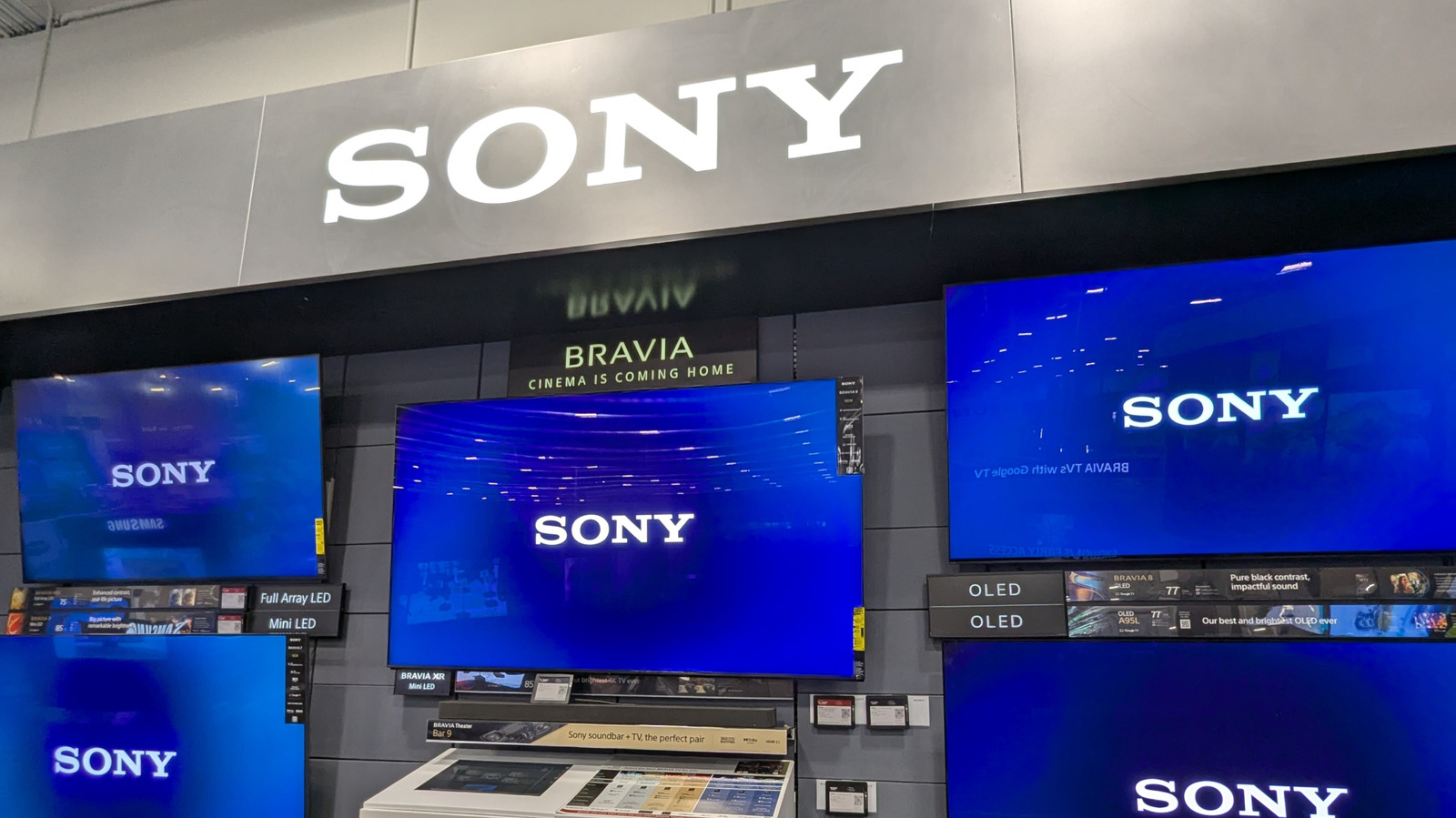
Sony Bravia TVs on display PJ McDonnell/Shutterstock

Sony Bravia, the company’s only TV brand since 2008, is manufactured worldwide. Not every part is made together: panels, for example, come from different sources depending on the TV model. Japan, Mexico, Slovakia, and China are the main locations where Bravia TVs have been manufactured over the years. That might change soon, as Sony sold Bravia to the Chinese TV company TCL, which will take over in April 2027 and may change where these products are made.

As of 2025, according to Sony’s Sustainability Report, the company has manufacturing facilities across Japan, China, South Korea, Thailand, Malaysia, and the United Kingdom. Of the 11 factories, it’s not entirely clear which specifically assemble TVs, as Sony doesn’t dive into it that far in the report. However, Bloomberg details the Malaysian plant as a manufacturer that provides “televisions and projectors,” just like the two Chinese plants. Shanghai “develops, produces, and sells” TVs, and the Wuxi plant works with “liquid crystal display panels,” though this could refer to screens on cameras.

The “who” in Sony Bravia’s manufacturing isn’t clear, and it’s obviously a worldwide joint effort with modern manufacturing requirements to lower costs and expand to more markets. If we want a historical perspective of the production of these TVs, though, we have a hefty amount of data to rely on.

Sony has reduced factories around the world

Sony factory from outside Cobalt S-Elinoi/Shutterstock

Details of where Sony’s Bravia brand is manufactured often include Brazil, Spain, Malaysia, and Ecuador — though this isn’t strictly the case as of 2026. The Spanish facility was sold in 2010. The Brazilian plant was shuttered in 2021 after its closing announcement in 2020. Malaysian operations, which had started in 1973, were also impacted in 2020. Rather than a total shutdown, this was a consolidation, with Sony moving manufacturing to Selangor. The company entered Ecuador around a decade ago; however, it’s unclear whether any of these plants still maintain operations as of 2026 and if they sell TV parts to Sony.

Sony doesn’t own its Mexico or Slovakia plants anymore because it sold them to Foxconn in 2009 and 2010, respectively. Its Japanese operations were consolidated in 2023, moving its Entertainment, Technology & Services division’s output to now mostly focus on broadcast and camera equipment. Sony’s dedicated TV assembly plant in Vietnam was shuttered in 2008. In 2015, Sony made a deal with Foxconn to manufacture TVs in India, and in 2019 celebrated “more than 95%” of TVs made for the region being made in the country itself. A 2023 report indicated this was still in action, despite it not being listed by Sony in the 2025 Sustainability report.

Sony uses a myriad of factories across China to assemble TVs. It states in a 2023 Sustainability Report that it had 12 electronics manufacturing plants, including in China. Facilities listed include “Sony Precision Devices,” which is now RS Precision Devices after being acquired. The other two are Shanghai Suoguang Visual Products and Sony Digital Products.

Who supplies Bravia

TCL logo Robert Way/Shutterstock

The panels Sony uses in its Bravia brand aren’t made by Sony. In fact, most TV brands pull from the same few companies, namely Samsung and LG, when it comes down to TV panels. Sony has mostly stopped producing its own panels, with its LCD business being bought up by Foxconn. Sony still develops OLED screens, as these have been found in the Apple Vision Pro headset, but they aren’t readily available for anyone to purchase. For its TVs, these OLED displays are instead sourced from LG. Its QD-OLED screens come from Samsung, which is the only supplier in the world.

This will be turned on its head, and already has been, as the TCL merger with the Bravia brand takes hold. The company has taken ownership of over 51% of the Bravia brand, with Sony still holding onto 49%. While TCL will handle a majority of the manufacturing, Sony will still provide its image-processing technologies. This is what will set the TCL-made Bravia TVs apart from the rest of the TCL range. If LCD screens are reintroduced, TCL will provide them.

With this in mind, Sony’s Bravia brand, now Bravia Inc., will potentially move production to China over the coming years. TCL is mainly situated inside of China, with the Shenzen factory providing TVs to America. The company has a great deal of control over the supply chain, hence why TCL TVs are so cheap.

Source

Posted on

This ’80s Icon Is Still The Best Selling Computer Of

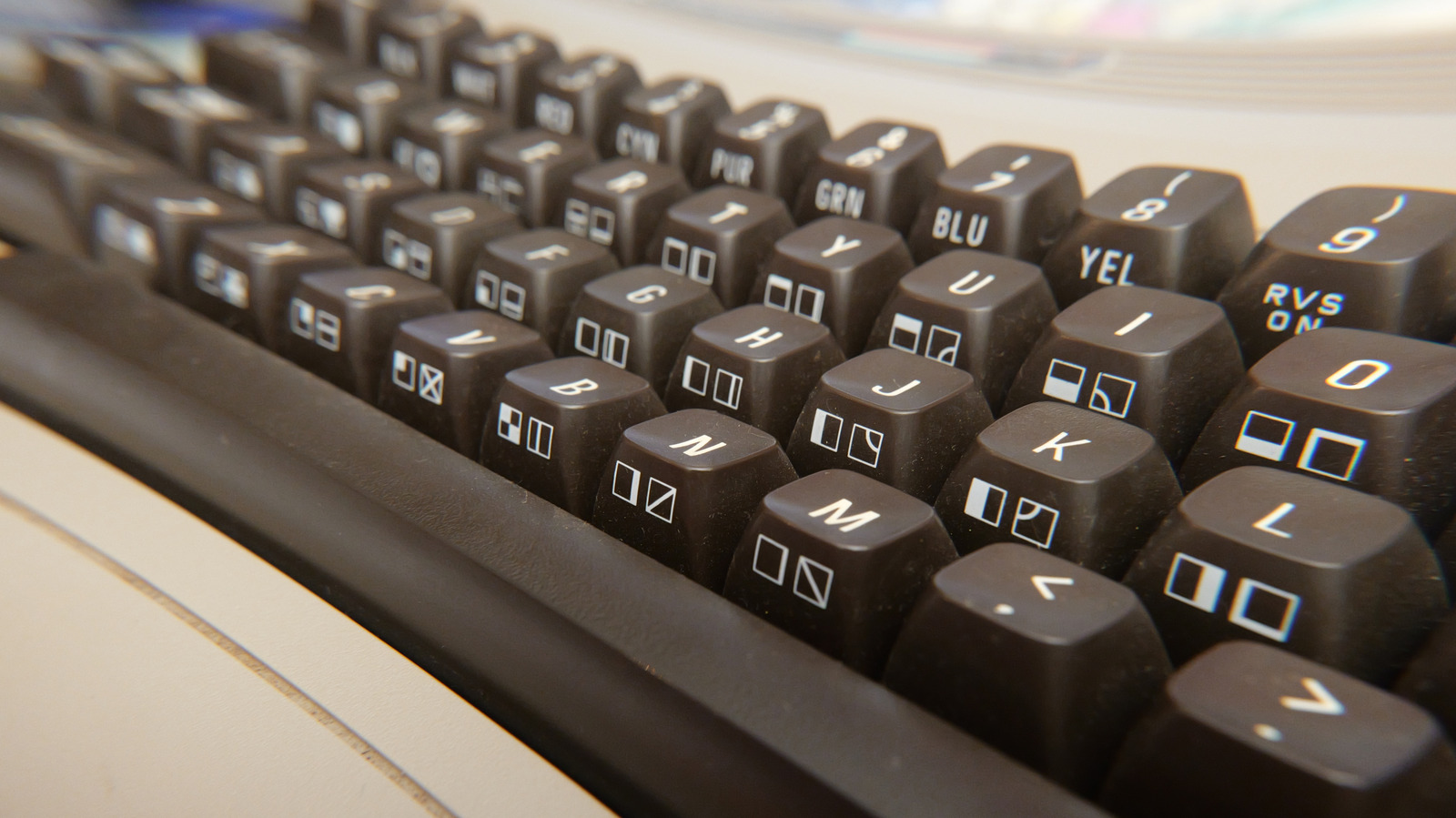
The Commodore 64 computer. IowaVideoGuy/Shutterstock

Younger generations weren’t around when the best-selling desktop computer of all time launched. Officially recognized by Guinness World Records, the Commodore 64 (C64) arrived amid much intrigue in 1982 as an affordable desktop computer for home users. After becoming something of an ’80s sensation with millions of sales, the C64 helped turn home computers into everyday appliances, normalizing the idea of having a personal computer in the living room for activities such as gaming, learning, creative experimentation, and even early online communication.

Manufactured by the U.S. firm Commodore International and launched for $595 (around $2,000 in today’s money), the C64 had a distinctive look, with its chunky, beige plastic case and red power button, giving it a simple but unmistakably ’80s home‑computer appearance. The name derived from its 64 kilobytes of RAM — powerful at the time but measly by today’s standards when you consider that, say, Apple’s current MacBook Air packs 16GB of RAM.

While it’s widely agreed that the C64 sold in the millions to become the best-selling home computer of all time, there is some confusion over exact numbers. While Commodore founder Jack Tramiel claimed the C64 sold between 22 and 30 million units before the company folded in 1994, Commodore officially listed the number at 17 million. Guinness, however, puts the number at around 12.5 million units, describing the figure as a “credible modern estimate.” While modern-day computers like the MacBook Pro have sold in greater numbers as a product line, the C64’s sales performance was astonishing for a single computer model.

What made the Commodore 64 so popular?

The Commodore 64 with accessories such as the cassette player and joystick. Jiblet/Getty Images

What was so special about the C64 that helped it to become an ’80s icon? Competitive pricing was clearly a factor, with its main rival in the U.S., the Atari 400/800 line, sold at a significantly higher price point. It was also helped by the fact that you could hook it up to your TV, eliminating the need to fork out extra for a pricey monitor. It packed a punch in its day, too, with its powerful VIC‑II graphics and SID sound chips marking it out from the competition.

Everything was in place for the C64 ecosystem to grow rapidly, and it soon offered a large selection of games, educational titles, and productivity tools to everyone from curious parents and kids to creative types and hobbyists. The cultural impact of the C64 should not be underestimated, either. For starters, the computer’s built‑in BASIC programming language, which let users write and run simple programs directly on the machine, created a generation of home‑based coders.

The C64 was also a trailblazer for PC gaming and became the catalyst for a vibrant demo scene where enthusiasts pushed the computer to its limits in public competitions. It’s certainly not an exaggeration to say that the culture surrounding the C64 directly influenced later indie‑game and creative‑coding communities.

The Commodore 64 is back … sort of

Anyone who remembers and loved the C64 is likely aware that the popular machine recently returned … sort of. After acquiring the Commodore brand in 2025, a new team built the Commodore 64 Ultimate, available in three styles — including its traditional look — for $300. More powerful than the original (thank goodness!), the revamped machine is capable of running classic software on a faithful replica of the original motherboard.

To bring it well and truly into the 21st century, the C64 Ultimate features HDMI and USB ports, Wi‑Fi connectivity, and extra memory. Buyers also receive a spiral-bound user guide and a 64GB USB “cassette” drive with more than 100 classic and new games. The C64 Ultimate has been very warmly received by tech reviewers, with TechRadar, for example, giving it a 4.5/5 rating, praising it as a “near-perfect replication of the original system.”

However, it added that the machine could be “daunting” for some who come to it for the first time. We don’t think it’s going to break the sales record of its predecessor, but the C64 Ultimate could prove a hit with nostalgic C64 fans and retro-gaming enthusiasts, as well as curious folk who just want to see what all the fuss is about.

Source