
Shop Loewe — $749
If you’ve been laptop shopping lately, ports may feel like a disappearing resource. With so many manufacturers moving towards lighter, slimmer, sleeker chassis, USB is often the first casualty. The unfortunate reality is that these ports (especially USB-A) are physically bulky. They also require chunky cutouts on a laptop that interfere with the appealing form factor that laptop manufacturers (and, at least theoretically, consumers) crave.
That’s fine if you only require a handful of USB-C ports, which have the advantage of being not only smaller, but also multifunctional, handling charging, data transfer, and video, all through a single port. But if you’re stuck with a bunch of older accessories and dongles, a dearth of USB-A accessories can be a real issue.
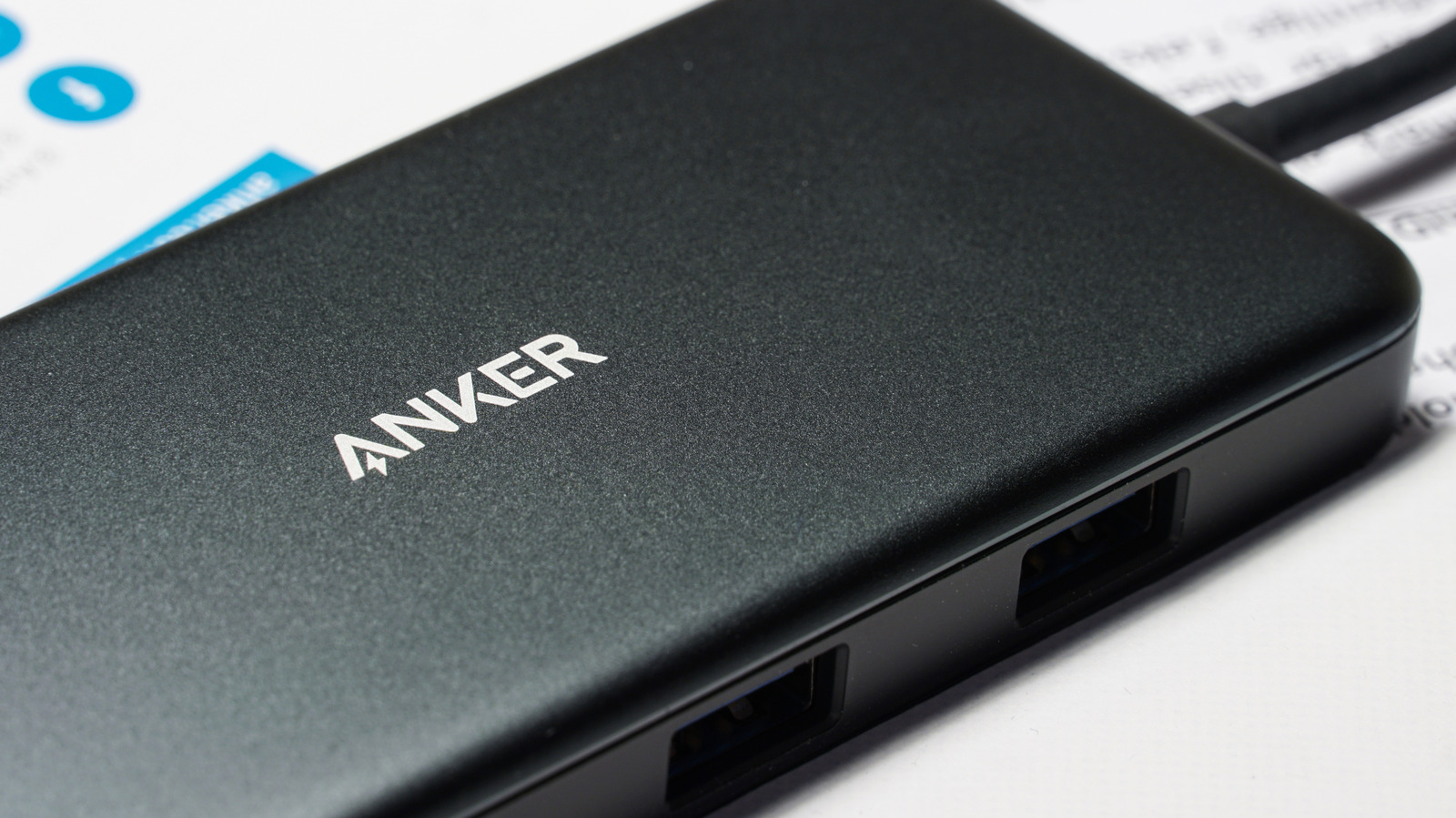
Hubs to the rescue! On the surface, they’re the perfect solution (assuming you use them properly), splitting a single port into an array of possible connections. That said, USB hubs come with their own limitations, and there are a number of devices you really don’t want to run through a hub due to power, bandwidth, speed, safety, and reliability concerns. A USB hub won’t be able to supply enough juice to fast charge a smartphone or tablet, for instance, and external drives will transfer data much more slowly than if plugged directly into a device.
High bandwidth devices (external GPUs, 4K webcams, etc.)
Any device that requires a lot of dedicated bandwidth is a poor fit for a USB hub. The issue is that a hub only has the resources allotted to a single USB port. For a USB 3.0 connection, for instance, you’re capped at 5Gbps total. That’s typically plenty for a single device, but when you have to start splitting it across a number of connections, it dries up fast.
Bandwidth hogs like eGPUs and high-resolution webcams are poor sharers. Start limiting the bandwidth available to them, and they may begin disappearing at inopportune moments or may not perform up to expectations. This can mean stuttery frame rates and visual artifacts in the case of either a GPU or a webcam, and can disrupt an important Zoom call as quickly as a late night “Fortnite” sesh. You’re better off plugging these accessories in directly, or investing in a powered Thunderbolt dock.
High power chargers (phones, tablets, etc.)
Like bandwidth, the amount of power a basic hub without a dedicated power line can deliver is limited to what’s available to the lonely port to which it’s tethered. Devices like a modern smartphone require 20W or more of power to fast charge, and if your hub can’t provide the necessary juice, you’ll be stuck waiting forever to top up and may even end up overheating your hub. This becomes especially problematic if you have a number of power-hungry devices all connected to an unpowered hub at once, sharing a scant power pool.
Even powered hubs often don’t support fast charging, so you’ll be stuck waiting far longer than if you were to just directly plug your device into one of your laptop’s USB-C ports or, better yet, use a fast charging wall charger. You may also encounter slowdowns in data transfer speed if you’re trying to move photos or other media from a phone to a laptop through a hub.
External SSDs or HDDs
This, again, primarily comes down to a bandwidth issue. External hard drives tend to be slower than internal hard drives to begin with; further slash their available bandwidth, and transfers that once took a few seconds may end up taking minutes, or longer. Since the entire point of an SSD is speedy, reliable transfers, hamstringing them by plugging them into a USB hub defeats the entire purpose (and may leave you wondering why you splurged on one in the first place).
Slower transfer speeds can be the result of mismatched USB versions; if the hub is using an older USB version, speed will be capped to that version’s ceiling. Shared bandwidth is another common culprit: If a number of high-speed devices are hooked up the same hub, they all have to share a common pool of bandwidth, slowing all of them. You may also run into an issue where a hub is bus-powered and can’t deliver enough power to an external drive, which can cause reduced speed or disconnects.
It’s not just about moving files around, either. Slower transfer speeds can affect load times in games and apps, and make your entire system feel sluggish anytime it’s forced to reach across the hub to access information stored on the external drive.
Untrusted or malicious devices
 amgun/Shutterstock
A cheap hub can also introduce security risks to your system. A hub comes with some unique vulnerabilities, like channel-to-channel crosstalk leakage, where the physical properties of a hub are targeted in an attempt to extract sensitive data passing through it. An investigation by consumer electronics manufacturer Ugreen revealed that 90% of the hubs the company tested suffered from crosstalk leakage.
Some hubs also suffer from design flaws that make them vulnerable to bad actors, like a lack of proper isolation between ports, which allows data to be intercepted from other connected devices. The takeaway is that you should only connect devices to your hub that you trust implicitly: stick to reputable brands and keep sensitive devices isolated. You’ll also want to look for hubs that include built-in encryption methods. That way, a layer of added security is added as your data passes through a hub to help prevent unauthorized access.






