Posted on

Is It Safe To Charge Your Phone During A Thunderstorm?

An electric storm in the sky belgacem hassani/Shutterstock

If you are in the middle of a storm, it may be tempting to charge your phone so you know it’s full and ready to go if the power goes out, but that’s not a good idea. Especially if you see those flashes and hear that cracking, then it means there’s a thunderstorm outside. Should your phone run low on battery power during that thunderstorm, you should by no means plug it into a wall outlet and start charging it, according to the Centers for Disease Control and Prevention (CDC). This is important — do not do it.

Charging your phone in the middle of a thunderstorm is a danger to your phone, and most importantly, to your life. The act itself will not attract lightning. In an interview with AccuWeather, John Jensenius, an expert on lightning safety, said that nothing really ever attracts lightning. Getting struck by lightning is a game of chance. It doesn’t matter whether you’re charging your phone at a power outlet or not. However, he did say that “lightning does follow wires and fences and things of that nature.”

That means, should lightning strike the nearest electric pole, it can send tens of thousands of volts surging through your home. Your phone cannot withstand that much voltage and will be fried in the process. It can also cause injury if it bursts, and you could get electrocuted. You can charge your phone during a thunderstorm using a portable charger or a laptop, as long as you don’t plug any of those into a wall outlet.

Preparing your phone for a thunderstorm is key

A phone being charged on a table Abdullah Durmaz/Getty Images

Once you learn that a thunderstorm is in the forecast, it’s best to charge your devices well in advance — keep an eye out for warnings from the National Weather Service (NWS) to gauge timing. Charge your phones and tablets well before the storm is set to arrive, and ensure you’re charging them properly. You should also charge your portable chargers, laptops, lamps, and any other devices you might need. Remember, none of your cordless devices will attract lightning, meaning they will be safe to use during a thunderstorm. There is a chance that the strong winds of a thunderstorm can cause a power outage, so avoid any habits that will drain your phone’s battery quickly. You might need it in an emergency.

When the storm hits, it’s time for action. Ensure all your electronics and appliances are unplugged, from the TV to your game console to your fridge and washing machine. Do it even if you have a whole-house surge protector. Although these do a good job of absorbing excess electricity spikes coming from the electric grid and grounding them, the volts from a direct lightning strike can still overwhelm their systems. It can be like emptying a swimming pool into a cup. A lot of it can still spill over and damage anything that is still plugged in, so don’t completely rely on surge protectors, no matter how expensive they are.

Source

Posted on

This Is Quickly Becoming The Most Popular EV Brand Worldwide

BYD electric cars lined up outside a dealership Anna Barclay/Getty Images

Once upon a time, Tesla was the most popular electric vehicle (EV) brand on the planet. That’s not surprising since it was one of the earliest, and many drivers swear by these cars, even though Consumer Reports ranked Tesla as the least reliable used car brand. Nonetheless, Tesla is quickly losing ground to the Chinese EV manufacturer BYD.

According to reports from outlets such as BBC, BYD sales now surpass Tesla vehicles by a significant margin. In 2025, Tesla sold 1.64 million vehicles worldwide, a 9% decrease from the previous year. Meanwhile, BYD saw an uptick in sales and managed to push 2.25 million EVs, a 28% increase from the prior year. However, this is only half the story. According to CNN, BYD sells more than just EVs — if you also take into account the company’s hybrid vehicles, BYD’s 2025 performance blasted past Tesla with 4.27 million sales.

Of course, sales numbers are one thing, but technology is often the true decider in EV popularity, and BYD is the (alleged) victor on that front as well. BYD utilizes an “ultra-fast charging system” that can give its cars enough energy to last 250 miles in only five minutes. Tesla’s Superchargers, meanwhile, take 15 minutes to provide 200 miles worth of energy. And some Tesla superchargers aren’t approved for use in California — the state with the most registered EVs. Lately, it seems that BYD is outperforming Tesla at every turn.

Why BYD is now speeding past Tesla

BYD Seal U electric vehicle inside a showroom TY Lim/Shutterstock

Market performance of cars, especially EVs, is determined by numerous factors. Of course, the vehicle’s actual performance is a major concern (you probably should avoid EVs that take up to 10 hours to charge), but availability is even more important. If your car doesn’t sell well in the world’s largest EV market, expect it to lag behind rivals. Also, it helps when your CEO isn’t politically contentious.

BYD can most likely attribute its success to its home-field advantage in China. The country is considered the world’s largest auto consumer, and in March 2025, BYD controlled a 32% share of China’s EV market. Meanwhile, Tesla lagged behind with a comparatively paltry 6.1% market share. But China isn’t the only battleground. Tesla sales in regions such as Europe have been dropping like a lead weight. According to CNN, the company’s European sales in early 2025 dropped by 40% compared to the previous year. Meanwhile, more and more buyers in the UK have adopted BYD cars — the hybrid version of the company’s Seal U SUV has proven especially popular.

Sites such as CNN have also linked Tesla’s slumping performance to the company’s CEO, Elon Musk. His stint with the U.S. government, namely running the Department of Government Efficiency (DOGE) — which a court has since ruled made unconstitutional cuts — convinced many investors that he wasn’t focusing enough attention on Tesla. Similarly, Musk’s DOGE foray and other political activities have made a number of people reconsider whether his companies are worth supporting.

This news isn’t all sunshine and rainbows

Exterior of BYD electric vehicle dealership Roman Nurutdinov/Getty Images

On paper, BYD sounds like a model company. After all, its market share of the EV industry must reflect the company’s culture, right? Unfortunately, some people have discovered that BYD’s sales numbers belie a potentially rotten core.

The BYD brand is no stranger to controversy. Between 2021 and 2024, 10 BYD showrooms caught fire. While BYD claimed fires such as the one on May 16, 2024, were caused by faulty or old wiring in the showroom offices, the local fire department ruled BYD car batteries as the cause. Moreover, countries such as Israel and Taiwan have restricted the import of BYD vehicles over national security and data-transfer concerns. Recently, the U.S. government banned routers produced in foreign countries on similar grounds before walking back the ban to an extent. However, one of BYD’s biggest controversies doesn’t stem from its country of origin, but rather, its attempts to secure a foothold in foreign markets.

Multiple BYD factories have come under fire for alleged worker mistreatment. In 2025, Brazilian authorities discovered that multiple people hired to build a BYD factory in Bahia were forced to sleep on beds without mattresses, and construction staff had their passports stolen and were forced to work under contracts with “illegal clauses” with next to no rest or pay. And in 2026, Hungarian officials discovered that contractors hired to build a construction plant in the country were forced to work under similar conditions: 12 hours a day, seven days a week. Whether these alleged labor exploitation incidents were the result of a few rogue agents or a broader cultural problem within BYD could determine the company’s future.

Source

Posted on

Why Almost No One Needs A Laptop Cooling Pad Anymore

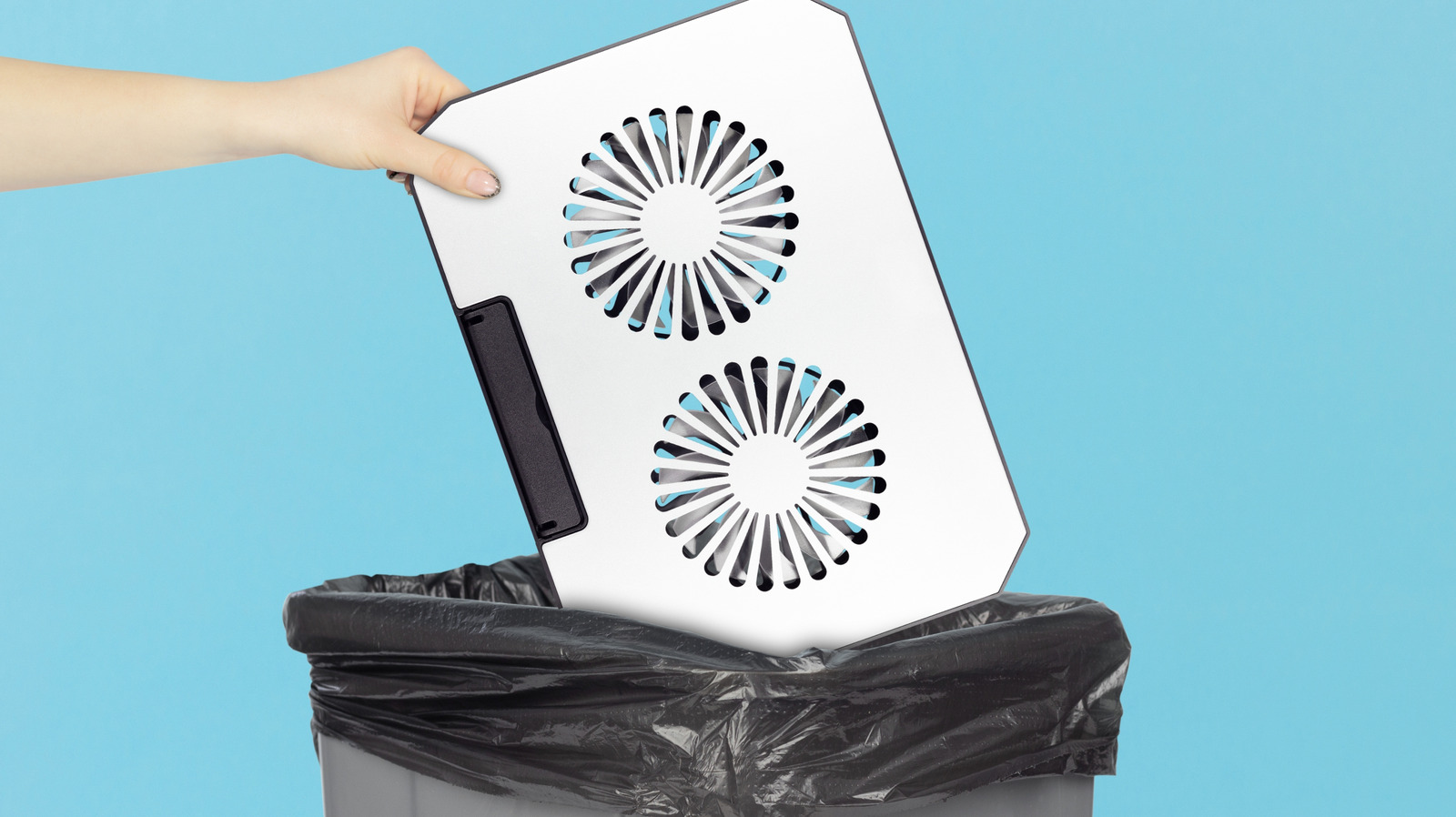
a laptop cooling pad being thrown into a trashcan Nikolay132/Shutterstock

Laptops make for a versatile and convenient way to complete tasks, play games, or get some work done. They’re portable and can be used just about anywhere, be it a desk, a coffee shop table, or even a bed or couch. However, they can run hot if used for gaming, video editing, or other high-performance tasks, or even if they’re older. There are many ways a laptop could overheat and cooling pads are often touted as a solution — but most people are probably using them wrong.

The idea behind a cooling pad is to blow cool air onto the laptop to bring down its temperature and subsequently boost performance. However, real-world tests show there’s only a marginal improvement in performance in most cases — certainly not enough to load the entire third act of “Baldur’s Gate 3” any quicker. At best, the cooling pad will cool the laptop to prevent it from overheating, but it’s not a guarantee.

That said, cooling pads can be useful in some situations. While they may not make that much of a performance difference, they can be useful for older devices and some gaming laptops.

Is a laptop cooling pad ever necessary?

a young woman gaming on her laptop Deagreez/Getty Images

One of the biggest reasons not to have a laptop cooling pad is if you just do day-to-day tasks on it. Checking email, updating documents, writing, and web-browsing aren’t going to be all that taxing for your laptop. As long as you stick to less demanding projects, you don’t need to invest in a cooling pad.

If you’re into more challenging tasks such as video editing, gaming, or work-related projects that require increased GPU and CPU power, a cooling pad may be necessary, but most high-end gaming laptops have internal software that can help. Nitro Sense is one such program that allows you to control the speed of the internal fans.

Cooling pads may provide cool air that can lower the temperature of your laptop, but they aren’t going to magically dissipate the high heat. Nor will they improve performance dramatically, leading to better graphics or frame rates. That said, if you have an old laptop with weak fans or bad airflow, a cooling pad might provide a noticeable boost in performance. If you are a casual user and even a cooling pad isn’t helping, you may try replacing your laptop with an Android tablet.

Alternatives to using a cooling pad

a laptop on a stand Only_NewPhoto/Shutterstock

A cooling pad acts like a mat that is placed between the laptop and the surface it is resting on. They work for tabletops, couches, floors, and even your lap, which can help prevent toasted skin syndrome caused by contact with a hot laptop over a long period. If your laptop gets too hot, a cooling pad can help, but there are other options available that provide similar results.

Many laptops have fans that blow air out of the rear or bottom air vents of the case. With time, a laptop can collect dust and dirt if it is near a wall, pressed against cushions, or even set on top of a table. This can clog up the air vents, leaving the fans unable to properly cool the laptop. One such alternative is using what is known as a laptop stand.

A laptop stand elevates the laptop so it is off of the surface, freeing up the air vents. This allows the interior fans to blow out air without being blocked, thus better reducing the amount of dust and dirt that could get trapped inside. Moreover, using an ergonomic laptop stand can also keep your posture correct while you work.

Source

Posted on

Google Is Killing The Chromebook Era With The Reveal Of

The Chromebook was first introduced to the world way back in 2011, with the first commercial models announced on May 11 and shipping to consumers on June 15, 2011. For the past fifteen years, they’ve been a cornerstone of the ultrabook market, though some have argued they never surpassed budget Windows or macOS laptop options.

Hinging on ChromeOS, a web-first architecture built to deliver fast booting, simplicity, and low-cost hardware, Chromebooks rose to prominence alongside the cloud itself, storing user data online instead of locally. This meant a more lightweight machine with less reliance on built-in storage.

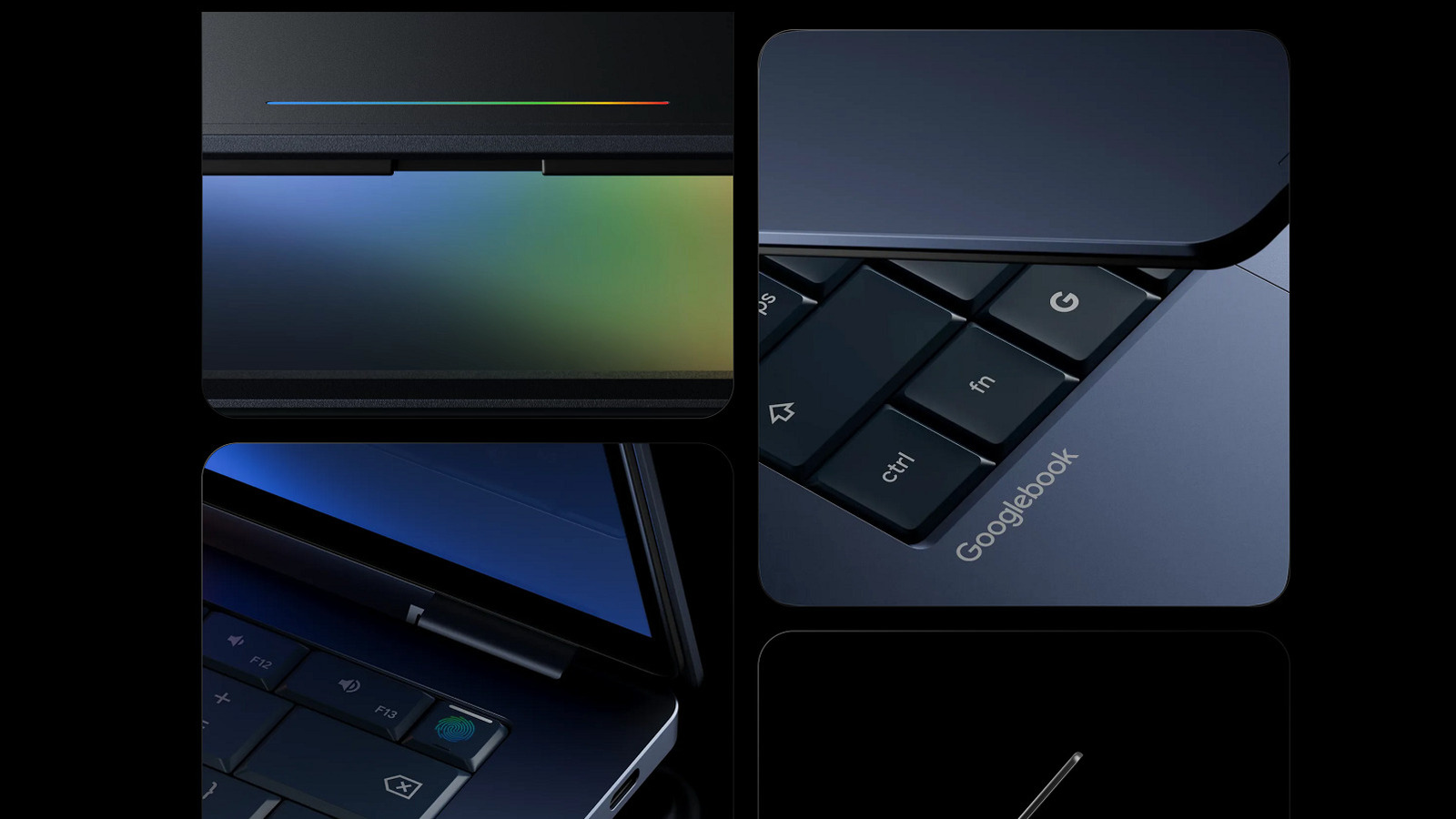
That era ended on May 12, 2026, with Google’s introduction of the Googlebook — a new lineup of machines the search giant says are built around the design philosophy that “intelligence is the new spec.” What that means in practical terms is an increased focus on AI, which appears to have been thoroughly baked into the DNA of the new hardware (timely, given the company just discovered hackers using AI to create a zero-day exploit). There’s also an increased focus on direct integration with Android devices, which translates to adding smartphone-like utility to your laptop.

Gemini is the new ChromeOS

The integration of what Google calls Gemini Intelligence into laptops appears to be the tech firm’s equivalent of Microsoft’s expansive attempts to build Copilot into every facet of consumer computing in the last few years (a strategy it has recently begun scaling back). The most prominent way AI is surfaced is through the cursor. Googlebooks will allow you to shake the cursor to call up the new “Magic Pointer,” which enables contextual Gemini integrations for virtually anything that appears on your laptop’s display. The examples the company provided in the announcement include clicking a date in an email to schedule a meeting or selecting two images to combine them. 

Google also emphasized the introduction of a feature called Create your Widget. The idea is to bring the utility of multiple programs or applications under one umbrella, accessible by clicking a single desktop widget. Google suggests building a widget for an upcoming trip, which would allow a user to quickly visualize a schedule, see airline, hotel, and restaurant reservations, and create reminders all through a single interface.

Erasing the line between your phone and laptop

Googlebooks are also all about getting your phone and laptop to snuggle up more closely, so you don’t have to interrupt your workday to access apps and features available on your phone. The Googlebook interface will allow you to quickly pull up files and apps on your phone directly from your laptop’s taskbar instead of having to access a second device.

Interestingly, the examples Google points to for this closer integration with Android are mostly things you can already do through a browser or existing app. For instance, the company suggests jumping into a Duolingo lesson, but Duolingo is already accessible via browser, no smartphone required. The announcement post also recommends ordering food without needing to grab your phone, but virtually every delivery service, and many restaurants, allow you to order via a website. There’s also mention of quickly accessing files on your phone, which you can do on any Windows PC through the built-in Phone Link program.

Whether Googlebooks are more iteration or revolution remains to be seen, but we shouldn’t have to wait long to find out. The company says it’s partnering with laptop manufacturers such as Acer, ASUS, Dell, HP, and Lenovo, and that an announcement about availability is coming this fall. If you do decide to upgrade, we have some tips for clever ways to use an outdated Chromebook. 

Source

Posted on

Which Raspberry Pi Should You Buy? Every Raspberry Pi Series

Since 2012, Raspberry Pi has been providing various low-cost single-board computers (commonly known as SBCs) for educators, tinkerers, and beyond. If you’re in the market for a Pi, however, you may be intimidated by the range of available product lines. We’ll break down what each one does to help you decide which option would best suit your needs — but right off the bat, if you’re looking for a Pi with the most up-to-date specs and support, you’ll want to look into the Raspberry Pi 5. These models vary in price significantly based on RAM capacity, however, with the 1GB model costing $45 and the 16GB model costing $305.

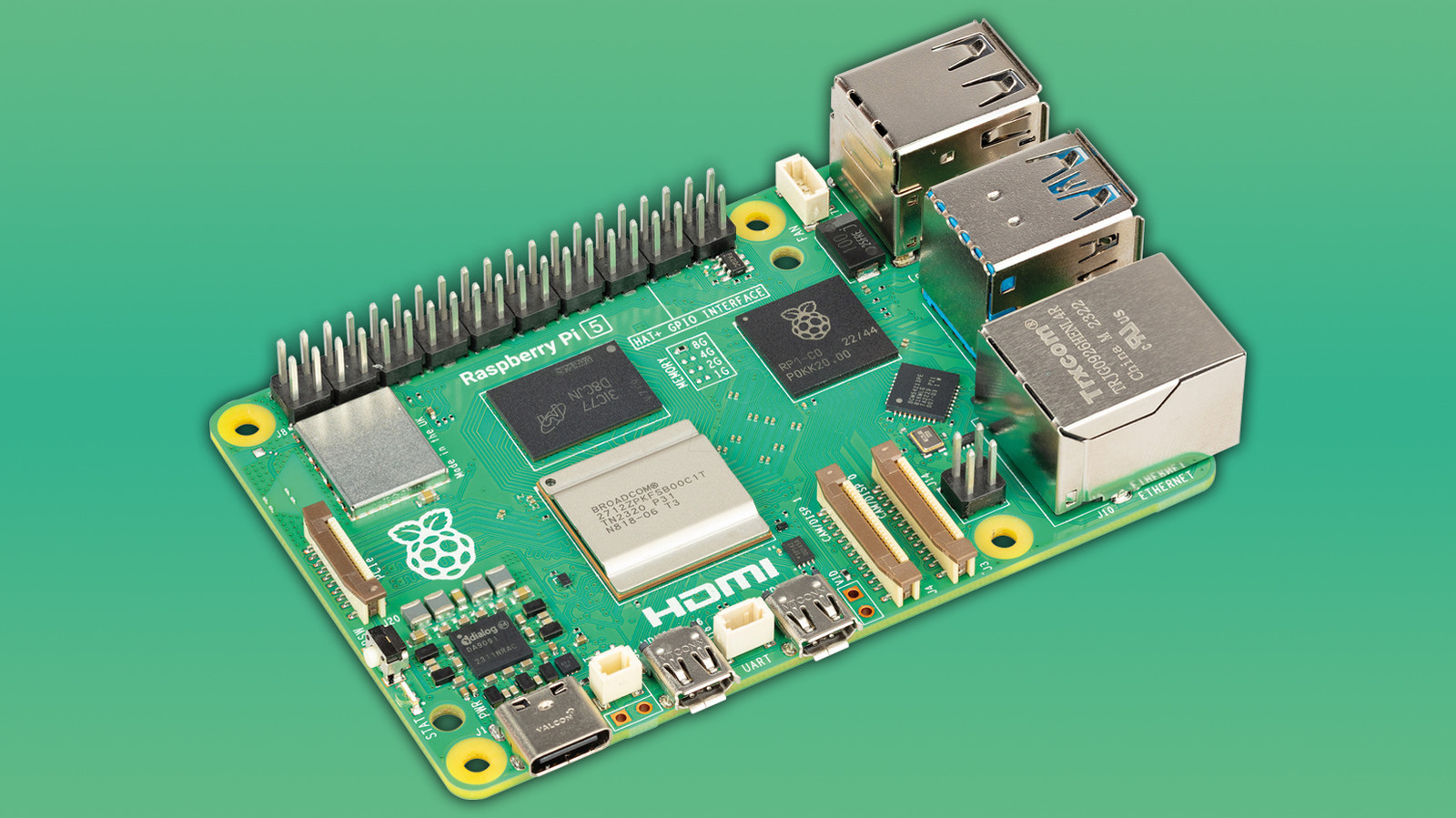
The Pi 5 is the “standard” model in the flagship series featuring the tried-and-true hardware layout of what used to be known as Model A or Model B Pis. As of the Pi 5, however, both the Model A and Model B nomenclature have been ditched. The boards in this series are the size of a credit card, yet they’re powerful enough to run local AI agents. They sport several common I/Os, as well as a 40-pin General Purpose Input and Output (GPIO) header. With GPIO, you can hook a Pi board up to countless other electronics using a breadboard or by soldering components on, making this model incredibly versatile. You can even connect HATs, which are purpose-made, rule-based boards that Raspberry Pi introduced back in 2014. Popular HAT choices include NVMe drives for quicker OS boots, as well as Pi’s AI HAT+ for running your very own AI applications.

Alongside the Pi 5, there are two current-gen models of Pi hardware: the Pi 500 and the Compute Module 5. The Pi 500 is conveniently enclosed in a keyboard chassis, and with its relatively low cost and compact form factor for a personal computer, it’s ideal for those in education or for aspiring coders. The Pi 500+, the premium model of the Pi 500, even sports an NVMe SSD and mechanical switches in place of the Pi 500’s embedded storage and membrane keys.

Is it still worth purchasing a Raspberry Pi 4?

Given it was launched in 2019, the Raspberry Pi 4 has been outpaced by the Pi 5, which is 2.5 times faster and can thus be used for more rigorous tasks. There are other limitations to the Pi 4 besides reduced processing power; for instance, it doesn’t have onboard PCIe, so you can’t add hardware like an AI HAT or an NVMe SSD daughterboard without modifying the device itself. Conversely, the Pi 5 supports this hardware out of the box and features embedded PCIe connectors. However, the Pi 4 still holds its own for many types of projects — and if you don’t care about having the latest and greatest Pi model, the Pi 4 is a great bit of kit to grab if you’re interested in undertaking quick, easy, and beginner-friendly Raspberry Pi projects at a more affordable price point. 

While the Pi 4 has been impacted by Raspberry Pi’s recent price increases, it can still be quite affordable. The 1GB model has a modest price tag of $35, although the 8GB model is significantly costlier at $165. You can use a Pi 4 device for complex applications like setting up network-attached storage servers, weather stations, and even closed-circuit television (CCTV) setups with software like Frigate. It’s also great at playing older games using emulation packages, such as RetroPie, or being the brains at the center of your smart home via Home Assistant.

What’s the Raspberry Pi Compute Module all about?

If you’re designing an embedded system or even a commercial product, the Raspberry Pi Compute Module 5 (aka the CM5) is an excellent purchase. CM5s start at $67.50, although the highest-end version with 16GB of RAM and 64GB of onboard storage costs $330. These models aren’t ideal if you’re a Raspberry Pi novice, though. Pis in the Compute Module series are typically used for industrial purposes, and they’re specifically catered to those looking to work off their own PCB.

Compute Modules feature the essentials of computer hardware: a processor, RAM, and (optional) eMMC storage. But because they have no I/Os, Compute Modules need to be placed on carrier boards, such as the Raspberry Pi Compute Module 5 IO Board, with ports to connect to things like power and PCIe interfaces. One major upside to Raspberry Pi’s official carrier boards is that they come with full-sized HDMI ports instead of micro HDMI ports. For complete control over your project, you can design your own carrier board or get one printed through a company like PCBWay. There are also custom, ready-made boards available with specific features — including touch displays and explosion-proof chassis — designed to help you meet a myriad of project goals.

Raspberry Pi first introduced the Compute Module after the Raspberry Pi 1, then followed it up three years later with the Compute Module 3. These looked like RAM sticks and could easily be housed in setups that supported clustering, where the combined power of multiple devices could be put toward executing tasks. Conversely, Compute Modules 4 and 5 are small, rectangular boards that are easier to implement into projects. As it’s technically just a Raspberry Pi 5 in a smaller, more limited form factor, the CM5 is still versatile. You could pack the tiny computer into a custom handheld gaming console, use it to power advanced robotics projects, and much more. And if you choose to design your own carrier board, you can put your CM5 to work in near-limitless ways.

What is the Raspberry Pi Zero 2 W for?

The Raspberry Pi Zero is an even smaller form factor device than the flagship Raspberry Pi models are. It outputs just a fraction of the Raspberry Pi 4’s power, but retains the Raspberry Pi essentials: a processor, onboard memory, a GPIO header, and several inputs, including an SD card slot and a mini HDMI port. These boards now come in the Raspberry Pi Zero 2 W format, which offers built-in Wi-Fi and Bluetooth 4.2 for improved connectivity. With an MSRP of just $15, they’re slightly more expensive than the original Pi Zero, but they do offer more power.

As with the Compute Modules, the Zeros aren’t designed to be used as computers themselves, but rather as embedded solutions for educational purposes and DIY projects. They provide just enough power and flexibility to be implemented into a range of projects, including DIY devices like security cameras and Bluetooth speakers. Zeros, however, run on a single-core 1GHz processor power and feature only 0.5GB of onboard RAM. Barring niche scenarios, browsing the internet or even using a graphical interface is sluggish on Zeros, so they’re best used as headless devices using protocols like SSH.

One common use case for the Pi Zero is turning it into a KVM (kernel-based virtual machine) by leveraging its ability to run Linux. Once connected, the Pi Zero can act as an intermediary controller between whatever device you’re on and other devices on your network. Other networking-centric projects supported by the Zero include Pwnagotchi, which entails experimenting with GPIO connections, e-ink, and networking. 

How about the Raspberry Pi Pico?

Raspberry Pi Pico Noah Kamel/Shutterstock

The Raspberry Pi Pico is a remarkably small microcontroller. Often used in hardware-centric projects, these devices act as a brain that can move mechanics or route power to electronics that are connected to them. Picos run off Raspberry Pi’s own RP2350 chips, which were upgraded from the 2040 chips on previous iterations to offer greater power output. Even so, the current version of the Pico remains incredibly affordable, typically costing between $5 and $7. The Pico 2 was even used to power badges at a hacker convention, Def Con 32, in 2024. Besides getting you into the event, they could also run the original Doom.

Picos are ideal for projects that only need a bit of juice to get going, although they’re surprisingly varied in what they can achieve. The latest editions, the Pico 1 W and 2 W, support both Bluetooth 5.2 and wireless LAN, which really expands the range of projects you can delve into with a Pico — like a wireless pump that waters your flowers. With the onboard GPIO, you can hook the Pico up to just about any electronics, and there are custom Python scripting languages like MicroPython and CircuitPython that can run directly on the Pico. There’s plenty of documentation for these languages, as well as online learning resources, libraries, to make them relatively easy to get into, even for beginners.

Raspberry Pi price hikes

Close-up shot of a Raspberry Pi 5 on a laptop keyboard with a fan and heat sink on it. Daniel Chetroni/Shutterstock

It’s worth mentioning that Raspberry Pi has been hit hard by AI data center-induced RAM shortages. Eben Upton, the head of Raspberry Pi, has announced several price hikes for many Pi models, although he’s also announced a 3GB variant of the Pi 4 as a more affordable alternative. The Pi 5 with 16GB of RAM now runs at $305, up $100 from its prior price, while the higher-end Pi 500+ now costs $410 following a $150 price hike.

The company is still trying to keep its prices as low as possible, but it’s never been more expensive to jump into the Raspberry Pi ecosystem. If you’re just eager to start messing with some GPIO, buying the Raspberry Pi Pico or Zero is a great way to hop on the train without breaking the bank.

It’s unclear when the current RAM crisis will subside, but with enough luck, Raspberry Pi’s prices may start going back to normal, especially if the company can build a healthy stock of RAM and other components. For now, at least the devices are still on the shelves, unlike during the COVID-19 pandemic when they were nigh impossible to find for months.

Source

Posted on

Sony Might Lower The PlayStation 6’s Price By Making It

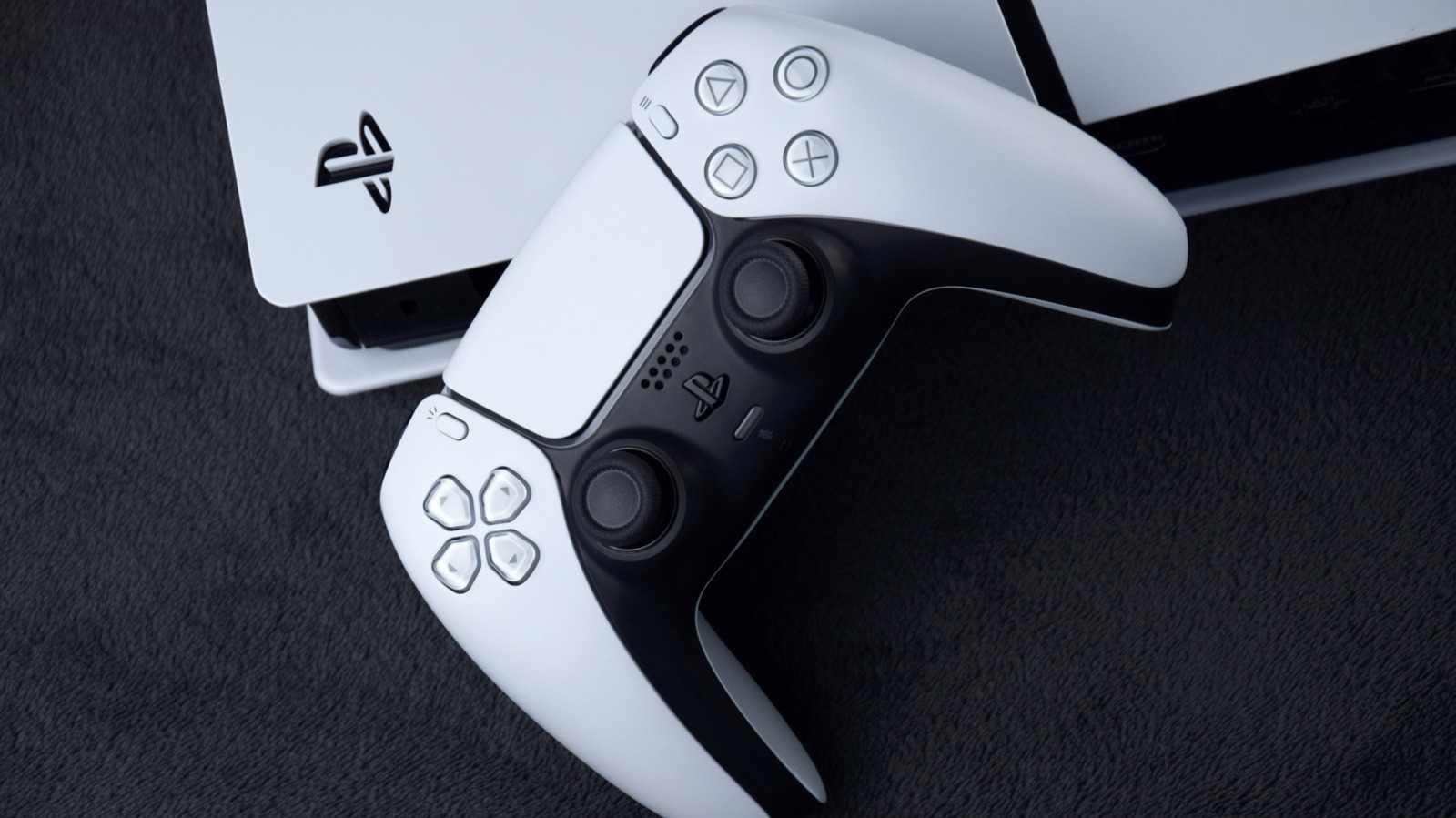
Close up of the PlayStation 5 with logo and a DualSense controller. iama_sing/Shutterstock

While Sony is raising prices for the PlayStation 5, recent leaks — you should take leaks with a grain of salt — suggest that the price hike may not carry over to the PlayStation 6. Consumers might actually see the opposite happen, where the PS6 achieves a lower or equal price by sacrificing some of its raw power. Sony executives shared on an earnings call that they haven’t chosen a definitive launch date for the next console, so nothing is set in stone.

However, it’s likely the memory shortage won’t be ironed out by the time the next-gen console launches, and the best way to cut prices would be to reduce some of the hardware, lowering the memory bus and total video ram. Before anyone gets all fired up, this information was discussed by an AMD leaker named KeplerL2 on the Neogaf forums, and no official details have been shared or discussed publicly by Sony. Where previous leaks suggested the PS6 would have a 30GB RAM configuration, the new ones suggest that it might lower to 24GB of VRAM with a memory bus of 128 bits to keep the costs more reasonable.

KeplerL2 says making these changes “would be a $60 BOM reduction,” without any significant GDDR7 memory price changes, and would provide “a yield boost for the SoC by being able to harvest MC (memory controller) defects.” Apparently, no APU changes would be necessary to achieve this; merely “disabling one memory controller” would provide the necessary results.

What does this mean for PS6 performance?

Someone holding up the PS5 DualSense controller with Grand Theft Auto 6 on screen in background. Miguel Lagoa/Shutterstock

Yes, the lower memory bus would reduce the potential performance and bandwidth ceiling of the new console, but it would ultimately make costs cheaper. The PlayStation 5 uses a 256-bit memory bus with 16GB of GDDR6 VRAM. The result of the proposed changes for the PS6 simply means it won’t deliver a huge generational leap in graphics and processing power compared to the previous generation. But it would still provide a performance boost even over the PlayStation 5 Pro, which has the same VRAM and memory bus specs, but an additional 2GB of DDR5 RAM for the OS, allowing games to use more of the main memory.

But with no official launch mentioned, albeit with lots of speculation floating around, nobody really knows when the PlayStation 6 is going to hit stores. Experts have guessed anywhere from 2027, which is not looking likely, to 2028 or as far as 2030. Anyone looking to upgrade soon will most likely end up disappointed, but there are still plenty of ways to get the most out of your PlayStation 5 before that happens. You could also boost your PS5’s performance with a few settings tweaks, if you’re playing one of the latest titles.

Source

Posted on

Is Your Phone’s Blue Light Really Ruining Your Sleep? Here’s

Woman stares at phone in bed as blue light gleams down Courtneyk/Getty Images

The word is out: Blue light is bad for you. Or is it? Experts will tell you that blue light at night can reduce your sleep quality. It’s partly why the blue-light-blocking glasses industry could reach $5 billion in the next decade. But experts also say blue light is good for you and that your phone may be keeping you up at night for reasons beyond light exposure.

The sun is a primary source of blue light. Humans are programmed to wake up when blue-rich daylight reaches their eyes. Scientists at Oxford say light entering the eye helps sync the body’s internal clock with the outside light-dark cycle of day and night. Blue light at night can confuse our systems, affecting circadian rhythms that regulate appetite, hormone release, and sleep. But it’s not the only light causing problems. Melanopsin, the eye protein that helps tell the brain whether it’s day or night, responds most strongly to blue light but reacts to other kinds of light too.

So, blaming your phone’s blue light for poor sleep is an oversimplification. A Portuguese study found blue-light exposure from common digital devices was less than what people get from natural daylight, which makes timing and bedtime habits more important than blue light exposure alone. Device brightness, time of day, usage duration, and mental stimulation all affect sleep. There are steps you can take to improve how well you sleep – even if you refuse to give up your nightly session of that iPhone word game that’s harder than Wordle.

How to reduce blue light and improve sleep quality

Woman sleeps with phone on the nightstand Monkeybusinessimages/Getty Images

Reducing blue light while in bed can help you rest, but the impact varies based on how you do so. One comparative study found both your device’s night mode and blue-light glasses reduce short-wavelength light exposure, but night mode was more effective. Yet, reducing blue light alone isn’t the only way to improve sleep quality. A Saudi Arabian medical study found that general device usage before closing your eyes can decrease sleep quality. 

In a University of Washington study, a comparison of people who avoided screens before bed with nightly screen users showed that screen users had a 33% higher rate of poor sleep quality. You already know the basics of how to get a better night’s sleep, like hiding your phone in another room and cutting yourself off from the world at night, but you should also consider putting your phone down at least a half hour before going to sleep. 

University of Southern Mississippi researchers say to get plenty of bright light during the day to regulate circadian rhythms and that morning sun can reinforce your internal clock. Meanwhile, a University of Texas study recommends a pre-bedtime shower. It’ll raise your body temperature for a short time. Afterward, your body cools back down, signaling to the brain that it’s time to sleep.

Source

Posted on

5 Tips For Reading More On Your Kindle

Woman reading on Kindle on hammock Praetorianphoto/Getty Images

We may receive a commission on purchases made from links.

So, you’ve convinced yourself that a Kindle would pull you out of your reading slump and help you read more again. But after getting your hands on one and filling it up with all the titles your heart desires, it still ended up sitting on your bedside table, collecting dust. For many users, the Kindle is actually one of the most effective tools that had them breezing through their TBR list (To Be Read list). But for others, it might need a bit of setting up. Maybe it isn’t comfortable to read on. Or the font is too small, too spaced out, or just plain uninspiring.

Lucky for you, you can make reading on the Kindle feel a lot more engaging than it is right now. There are some Kindle settings you can try changing, a few accessories you can use, and a couple of hidden features to explore. If you’re ready to finally clear your backlog, here are five clever tips to get you reading more on your Kindle.

Display the time on the reading interface

A Kindle showing time left in chapter Marinel Sigue/BGR

There are instances when while reading, you catch yourself thinking how long it might take before you can finish the book or, at very least, the chapter. Not knowing can make you lose the motivation to continue because it just feels like a never-ending task. Thankfully, the Kindle has two solutions to that: the clock and “Time left in chapter” feature. Both can be displayed on the reading interface to give you a more concrete sense of how much time you need (or want) to put into reading.

The clock sits at the top center of the screen. When a book starts to drag on and on, you can challenge yourself to read for five more minutes. Sometimes, that’s all the push you need to finish a chapter or even the entire book. If not, at least you’ve still made some progress before stopping.

The “Time left in chapter” feature, on the other hand, is located in the bottom-left corner. It’s one of the available reading progress indicators Kindle uses, along with pages and loc numbers. As you might have already guessed, Time left in chapter tells you the total minutes you need until you get to the end of the chapter. It’s based on your personal reading speed, and from user reports, it’s usually a good estimate. This can help you decide whether you can still squeeze in another chapter before bed or going out.

To turn on the clock and Time left in chapter on your Kindle interface, just open any book. Then, tap the space at the top and select the Aa menu. In the More tab, toggle on “Show clock while reading” and set Reading progress to Time left in chapter.

Pair your Kindle with accessories

AirPods Pro on top of Kindle Marinel Sigue/BGR

While the Kindle works pretty well on its own, there’s no harm in using it with a few cool Kindle accessories that could help you speed through a book in no time. For starters, you can try a page turner like the Datafy Page Turner for Kindle. Its screen sensor simply clips to the e-reader and waits for a signal from the remote to turn the page forward. This is especially handy during reading sessions in bed or on the couch, where you usually have the Kindle on a mount or stand. Instead of moving from your cozy spot and disrupting your reading momentum, all you have to do is press the remote. Before you know it, you’re already hours deep into your book.

Any tablet stand works with the Kindle. But when reading in bed or on the couch, it’s more convenient to go with a tablet floor stand or a gooseneck mount that clamps to a nearby desk or your bed frame. If you prefer to set the Kindle closer to you, though, a pillow stand like the Lamicall Tablet Pillow Stand could work better. For handheld use — like when you’re on the bus home or waiting in line at a diner — you’d want a grip or a case with a hand strap for your Kindle. This makes the e-reader more comfortable to hold.

A pair of headphones with a long-lasting battery is also a must-have for the Kindle. After all, the last thing you want is for your audio device to die right when you’re in the midst of a thrilling audiobook.

Turn on Word Wise

A Kindle book with Word Wise turned on Marinel Sigue/BGR

Reading is one of the best ways to expand your vocabulary, and the Kindle helps with exactly that. It includes a built-in Dictionary feature, which allows you to simply long-press on a word to check what it means — no picking up your phone and looking up the term on Google. Unfortunately, doing so every once in a while can quickly slow you down and discourage you from reading more.

Instead of using the Dictionary, you can switch to another Kindle feature called Word Wise. Word Wise is like a dictionary, but it doesn’t wait for your input before showing you the meaning of the word. It automatically displays a short definition just above the term, making reading so much faster as your flow won’t be distracted. To turn on Word Wise, follow these steps:

  1. Connect to the internet if you haven’t already. Word Wise needs an internet connection to download resources.
  2. Open a book on your Kindle device.
  3. Hit the top of the screen.
  4. Go to the Aa menu.
  5. Tap on More.
  6. Choose Word Wise at the very bottom of the menu.
  7. Enable it.

Now, you can go back to your book. A “Downloading Word Wise” indicator should appear in the bottom-right corner of the screen. Once it’s done downloading, tap Word Wise and adjust how many hints you want to see. Less hints mean Word Wise will only display the definition for the hardest words in the book, while More hints mean it will define more words, some of which you might already be familiar with.

Join reading challenges

A Kindle next to phone showing Kindle reading challenge Marinel Sigue/BGR

Setting a reading goal is great, but if you’re having trouble following through, you might need a little external motivation. That’s where the Kindle reading challenges come into the picture. There are usually two types of Kindle reading challenges available. First is the Reading Challenge, which runs all year round. Second are the seasonal challenges, which change every few months. Beyond these two, Kindle Unlimited subscribers also get a special Kindle Unlimited Welcome Challenge for a limited time.

How these Kindle challenges work is simple. They’re active for a set period, and during that time, you’ll have to complete different types of tasks. For instance, you have to finish one qualifying book before the challenge ends or read every day for an entire month. For every completed task, you earn the corresponding bookmark reward for your collection. For the Reading Challenge, though, your only task is to finish a book.

These Kindle challenges are, unfortunately, only accessible from your Kindle app. To view all the challenges, launch the Kindle app and tap on More. Then, head over to Reading Challenges. To start the year-long Reading Challenge, simply go to Reading Challenges and press Set a goal. Input the number of books you plan on reading within the year and hit Save. To join a seasonal challenge, tap on Challenge details to see all the tasks for that specific challenge. Just accomplish the tasks as instructed to earn the bookmark reward.

Remind yourself not to break your reading streak

A Kindle placed under a phone showing Kindle streaks Marinel Sigue/BGR

If you’ve ever used Duolingo, Snapchat, or Strava before, then you might already be familiar with streaks. It counts the number of consecutive days or weeks you’ve committed to doing something, gamifying the system to urge you to keep doing what you started. Kindle’s reading streaks work the same way. Yes, if you don’t already know, your Kindle actually monitors whether or not you’ve read something that day. It then provides you with two reading streaks, a weekly streak and a daily streak. The weekly streak just needs at least one reading activity in a week, while the daily streak requires you to read every day — otherwise, it resets.

This hidden feature can help you read more by passively encouraging you not to break the streak. You wouldn’t want to lose your progress and start back at zero. To view your Kindle streaks, you need to hop on your Kindle app. In the app, tap More and go to Reading Challenges. If you already have an ongoing streak, a blue banner with your current streak will appear at the very top. Press it to open your Reading Insights. If there’s no blue banner on your end, scroll down to the very bottom of the page and hit “View classic Reading Insights.”

If you don’t have a Kindle streak yet, there’s no better time to start than today. Keep reading until tomorrow, and you’ll already have a daily streak going. From here, it’s only a matter of consistency. A daily reminder to pick up your Kindle can help with that, but at the moment, the Kindle app is yet to offer such a feature. You’d have to create one on your phone instead.

Source

Posted on

You Can Control Your Apple TV With Your Apple Watch

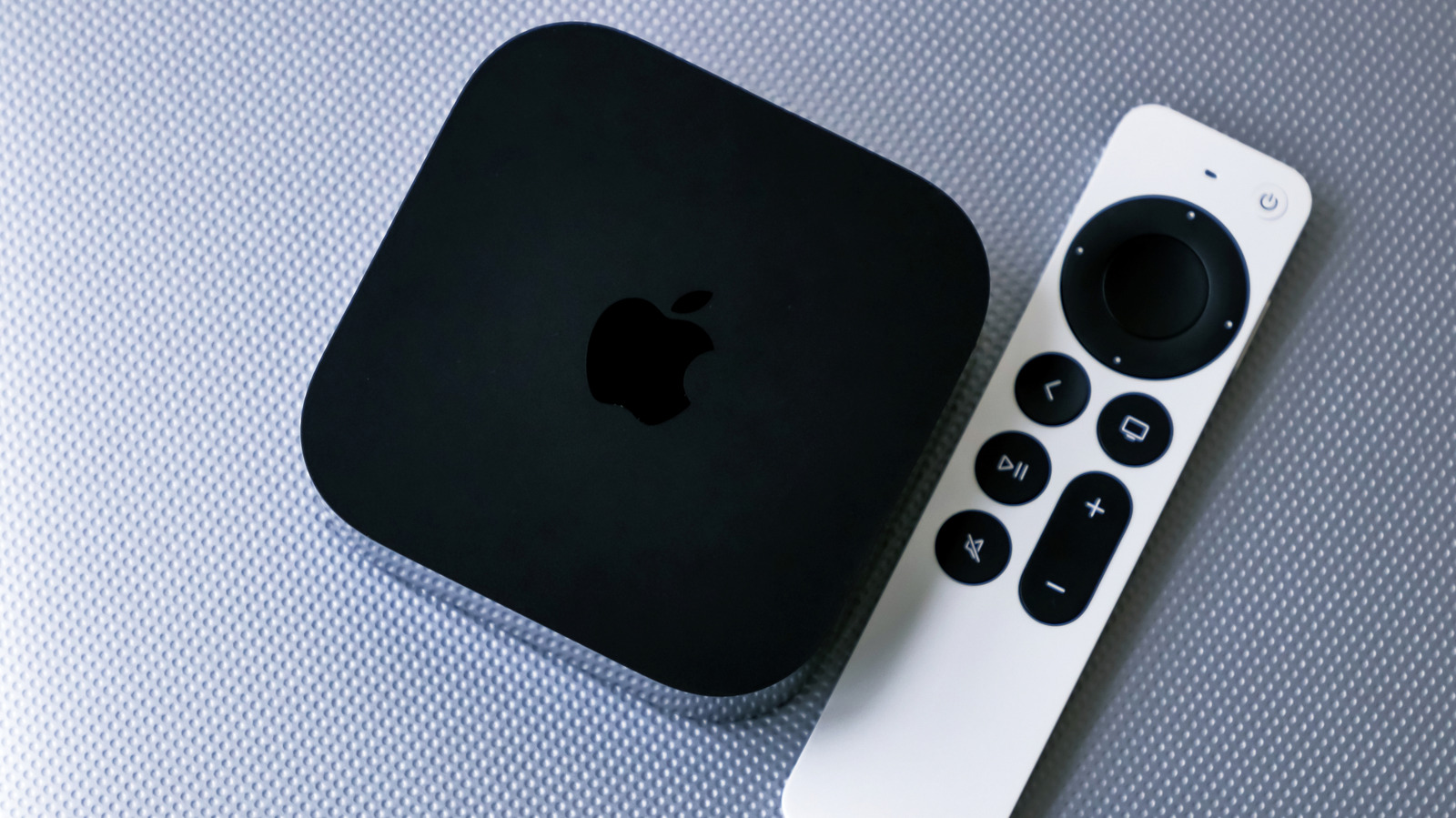
The Apple TV 4K next to the Siri Remote. agencies/Shutterstock

The Apple TV’s Siri Remote is the easiest way to control the multimedia player, but that’s not the only option available to users when the remote control isn’t anywhere in sight. The Apple Watch on your wrist is a good alternative, since many people may already wear the smartwatch while watching TV. The wearable supports the key controls that most users want, including changing apps, playing shows, and managing the volume. The downside is that the Apple Watch has a smaller screen than an iPhone, so it’s not as convenient to use as a remote control for prolonged periods.

The Apple Watch isn’t the only Apple device that can control the Apple TV. The iPhone and iPad also offer remote control support for the Apple TV, assuming they’re close by and not charging in a separate room. The Apple TV also supports third-party remotes, which can be useful if you routinely lose the official remote control or it’s broken. But none of these alternatives can beat the convenience of having remote-control capabilities built into the Apple Watch on your wrist. Also, the Apple Watch Remote app only requires watchOS 6.0, an operating system that was introduced in September 2019. This means you don’t need a brand new Apple Watch to control the Apple TV. Older models that run watchOS 6.0 or higher should still work.

Note that Apple refers to the Apple TV device as “Apple TV 4K” in the support document describing the Apple Watch remote control feature. Apple currently sells only Apple TV 4K models (and they’re the only ones supported by Apple Watch). That may be why Apple lists the full product name rather than referring to the broader product name, Apple TV, which includes the streaming service that can be accessed without an Apple device.

How to control the Apple TV with the Apple Watch

The Apple TV 4K next to the Siri Remote. gece333/Shutterstock

To control Apple TV with a compatible Apple Watch, you’ll first have to ensure the two devices are on the same Wi-Fi network. If you’re doing this at home, it’s likely that both the Apple TV and the Apple Watch (and the iPhone the wearable is connected to) are on the same network. To start the pairing process, you’ll have to look for the Remote app on the Apple Watch and tap the Apple TV model in the list. A “+” sign will let you find the media player if it’s not already listed. Then enter the passcode that appears on your Apple Watch. An icon will appear on the wearable once it’s paired with the Apple TV.

Once the Apple Watch is paired with the Apple TV, you can control the media player using two apps on the watch: the Remote app and the Now Playing app (Tech IRL shows them in action). You can turn on the Apple TV if it’s off, directly from these apps. Also, you can turn off the media player if needed. Both apps will also let you navigate the Apple TV menu and select the movies and TV shows you want to play. The Apple Watch can be used to pause playback when you need to take breaks and adjust the volume.

Interestingly, you can also rotate the Digital Crown to increase or decrease the volume, a useful Apple Watch trick that works when streaming music on your iPhone and controlling the playback with the wearable. The Digital Crown on the Apple Watch can also be used to invoke Siri on the Apple TV. Press and hold the button to talk to Siri.

Source

Posted on

4 New Features Google Just Revealed For Android In 2026

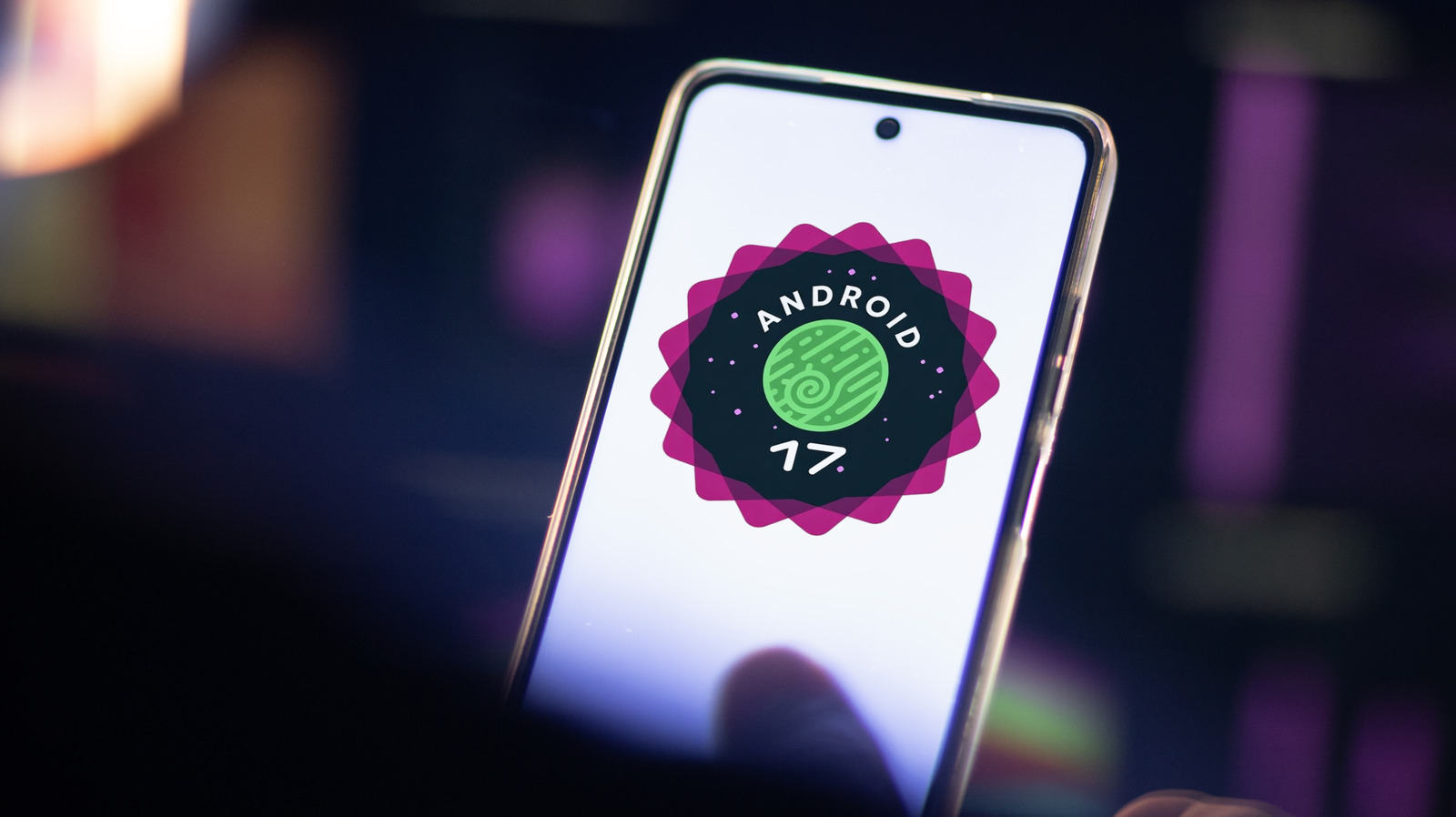
Android 17 preview logo on a smartphone Norbert Maurice/Shutterstock

Each year, Google showcases new features coming to Android at its Google I/O developer conference. While AI is once again playing a major role in many of Google’s 2026 I/O announcements, the company also revealed several practical Android upgrades aimed at improving everyday usage across Android devices. Many of the new additions build off changes Google has steadily been working toward, like deeper Gemini integration across the platform and improved privacy and security functionality to help combat the growing cybersecurity concerns facing online users.

A slew of changes are slated to arrive on Android devices throughout the coming year, but Google has given us a taste of some of the bigger features and functionality coming in Android 17 and beyond. New wellbeing features, new ways to express yourself creatively, and even big upgrades to Android Auto were announced during The Android Show: I/O Edition 2026.

Gemini Intelligence

Gemini Intelligence is a new suite of features arriving on Android in 2026. It builds off Android’s Gemini integration by expanding the AI’s ability to accomplish a variety of tasks on your device. Once Gemini Intelligence arrives on Android devices this year, users can take advantage of multi-step automation across a variety of applications. Take screenshots or capture photos of items such as menus, make a request to Gemini, and then let it do the heavy lifting. Google says it will work for finding tours, planning vacations, or even building a shopping cart for your weekly grocery list.

The features will arrive in waves for Samsung and Pixel users first, bringing new functionality such as Chrome auto browse, Google Chrome’s built-in browser agent, and the ability to fill out forms in a single tap using Gemini Personal Intelligence — which can pull information from Calendar, Gmail, and other Google services.

Gemini Intelligence will also power a new functionality for Gboard on Android, allowing users to convert speech into polished text using Gemini’s AI capabilities. And one addition that is likely going to excite Android fans, especially power users who chose Android over iOS for its level of freedom, is the ability to create custom widgets. With Create My Widget, Android users will have more control than ever over their home screens.

3D emoji

Emoji have become a staple of our online lives, and they can often be the difference between a one word response coming across cold or welcoming. Reports estimate at least 10 billion emoji are sent every day and now Google wants to improve how Android users send emoji.

In 2026, Google will launch a new set of 3D emoji. The big difference between these and the current emoji found on most Android phones is the 3D-like texture that helps add depth and substance to the figure. This isn’t a major overhaul by any means, but Google notes that the new collection will help Android users express themselves with an additional “touch of physicality.”

The collection is officially called Noto 3D. Google didn’t share a release date, but the company says it will launch the collection across all Google services starting with Pixel phones in 2026.

Pause Point

There are plenty of great apps to help cut down your screen time. However, 2026 will bring a new option directly to Android with the launch of Pause Point. This feature bakes an app timer directly into the phone, but instead of locking you out of an app for a certain amount of time, it will instead pause your device for 10 seconds when you go to open an app known for being distracting. You can customize the functionality to ask you to perform a breathing exercise instead, set a timer for that app, or even push you to focus on more productive applications instead.

Finding ways to cut down screen time has become an important part of Google’s push for digital wellbeing across the Android ecosystem. It is especially important now that many of us spend much of our days working on computers and smartphones. Pause Point gives users an opportunity to stop, remember why they picked up their phones in the first place, and avoid another doomscrolling session on social media. It can work hand in hand with other efforts, like YouTube’s Shorts timer, though you can disable Pause Point if you don’t want to deal with it.

Screen Reactions

2026 will also bring new tools for creators to Android. These are part of Google’s move to build deeper social media integrations into the platform, and will include functionality like Screen Reactions. This new mode will allow you to create reaction videos that utilize your face without forcing you to switch between applications. All you need to do is start recording yourself and your screen. From there, AI will do all the heavy lifting to overlay your reaction over whatever clips, images, or webpages you’re talking about.

The feature will arrive on Google devices like the Pixel 10 first, and will be available alongside direct upgrades to Instagram that include support for Ultra HDR capture and playback, built-in stabilization for video recordings, and new night sight features to help capture the best night shots directly in the Instagram app. The Instagram Edits app will also get new additions, including the AI-powered smart enhance feature, which instantly upscales photos and videos, and new sound separation functionality — allowing for greater control over your video’s audio levels. These upgrades will only be available on Android.

Source