Posted on

4 Things You Should Avoid Plugging Into A USB Hub

If you’ve been laptop shopping lately, ports may feel like a disappearing resource. With so many manufacturers moving towards lighter, slimmer, sleeker chassis, USB is often the first casualty. The unfortunate reality is that these ports (especially USB-A) are physically bulky. They also require chunky cutouts on a laptop that interfere with the appealing form factor that laptop manufacturers (and, at least theoretically, consumers) crave.

That’s fine if you only require a handful of USB-C ports, which have the advantage of being not only smaller, but also multifunctional, handling charging, data transfer, and video, all through a single port. But if you’re stuck with a bunch of older accessories and dongles, a dearth of USB-A accessories can be a real issue.

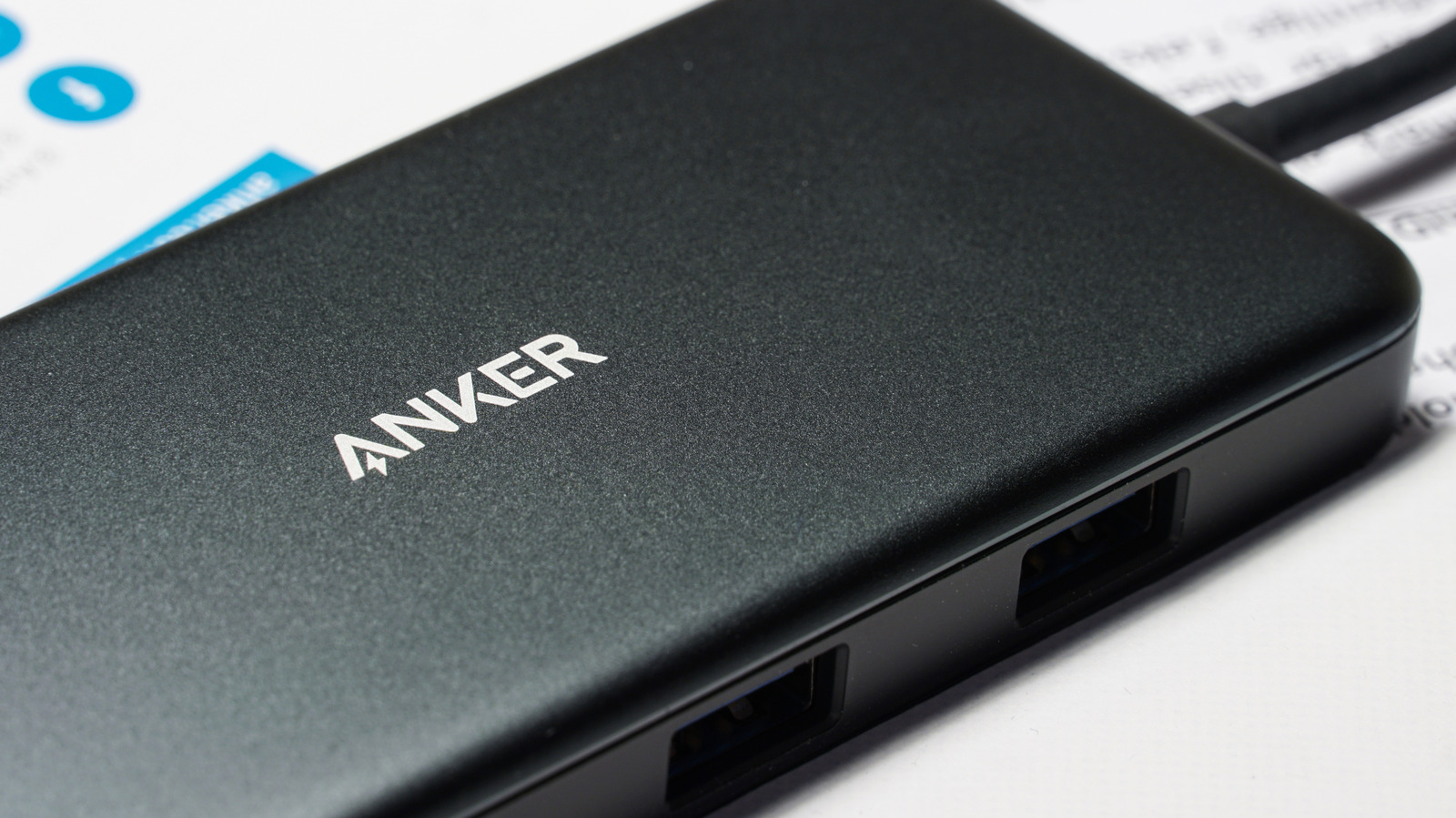
Hubs to the rescue! On the surface, they’re the perfect solution (assuming you use them properly), splitting a single port into an array of possible connections. That said, USB hubs come with their own limitations, and there are a number of devices you really don’t want to run through a hub due to power, bandwidth, speed, safety, and reliability concerns. A USB hub won’t be able to supply enough juice to fast charge a smartphone or tablet, for instance, and external drives will transfer data much more slowly than if plugged directly into a device.

High bandwidth devices (external GPUs, 4K webcams, etc.)

Any device that requires a lot of dedicated bandwidth is a poor fit for a USB hub. The issue is that a hub only has the resources allotted to a single USB port. For a USB 3.0 connection, for instance, you’re capped at 5Gbps total. That’s typically plenty for a single device, but when you have to start splitting it across a number of connections, it dries up fast.

Bandwidth hogs like eGPUs and high-resolution webcams are poor sharers. Start limiting the bandwidth available to them, and they may begin disappearing at inopportune moments or may not perform up to expectations. This can mean stuttery frame rates and visual artifacts in the case of either a GPU or a webcam, and can disrupt an important Zoom call as quickly as a late night “Fortnite” sesh. You’re better off plugging these accessories in directly, or investing in a powered Thunderbolt dock.

High power chargers (phones, tablets, etc.)

Like bandwidth, the amount of power a basic hub without a dedicated power line can deliver is limited to what’s available to the lonely port to which it’s tethered. Devices like a modern smartphone require 20W or more of power to fast charge, and if your hub can’t provide the necessary juice, you’ll be stuck waiting forever to top up and may even end up overheating your hub. This becomes especially problematic if you have a number of power-hungry devices all connected to an unpowered hub at once, sharing a scant power pool.

Even powered hubs often don’t support fast charging, so you’ll be stuck waiting far longer than if you were to just directly plug your device into one of your laptop’s USB-C ports or, better yet, use a fast charging wall charger. You may also encounter slowdowns in data transfer speed if you’re trying to move photos or other media from a phone to a laptop through a hub. 

External SSDs or HDDs

This, again, primarily comes down to a bandwidth issue. External hard drives tend to be slower than internal hard drives to begin with; further slash their available bandwidth, and transfers that once took a few seconds may end up taking minutes, or longer. Since the entire point of an SSD is speedy, reliable transfers, hamstringing them by plugging them into a USB hub defeats the entire purpose (and may leave you wondering why you splurged on one in the first place).

Slower transfer speeds can be the result of mismatched USB versions; if the hub is using an older USB version, speed will be capped to that version’s ceiling. Shared bandwidth is another common culprit: If a number of high-speed devices are hooked up the same hub, they all have to share a common pool of bandwidth, slowing all of them. You may also run into an issue where a hub is bus-powered and can’t deliver enough power to an external drive, which can cause reduced speed or disconnects. 

It’s not just about moving files around, either. Slower transfer speeds can affect load times in games and apps, and make your entire system feel sluggish anytime it’s forced to reach across the hub to access information stored on the external drive.

Untrusted or malicious devices

An image of a screen showcasing a malware attack amgun/Shutterstock

A cheap hub can also introduce security risks to your system. A hub comes with some unique vulnerabilities, like channel-to-channel crosstalk leakage, where the physical properties of a hub are targeted in an attempt to extract sensitive data passing through it. An investigation by consumer electronics manufacturer Ugreen revealed that 90% of the hubs the company tested suffered from crosstalk leakage.

Some hubs also suffer from design flaws that make them vulnerable to bad actors, like a lack of proper isolation between ports, which allows data to be intercepted from other connected devices. The takeaway is that you should only connect devices to your hub that you trust implicitly: stick to reputable brands and keep sensitive devices isolated. You’ll also want to look for hubs that include built-in encryption methods. That way, a layer of added security is added as your data passes through a hub to help prevent unauthorized access. 

Source

Posted on

10 Essential Gadgets For Aging In Place

A senior citizen couple looking at a tablet while in their home. Prostock-studio/Shutterstock

We may receive a commission on purchases made from links.

Aging in place, or the decision to stay at home rather than move to a dedicated facility, is preferred by 60% of senior citizens, according to a survey by the Pew Research Center. This allows senior citizens to remain in a familiar environment while keeping finances more manageable. However, there are also certain downsides, such as the necessity to maintain self-dependence and the risk of feeling isolated. Fortunately, there are gadgets that will make things easier for them and their loved ones.

This list of devices for senior citizens and gadgets that will make a retiree’s life easier includes a voice assistant-powered smart display with a huge screen, a security system that arms the entire home, and an exercise machine that’s recommended for older people. These products aim to address various challenges people may encounter in their golden years.

All of the devices in this roundup are available on Amazon, and they’ve all secured average ratings of higher than 4.3 stars. For confidence in these scores, we only considered products with at least 1,000 reviews on the retailer’s website. We showcased their key features, shoppers’ comments, and insights from professional reviews to support our case for why we think these are essential gadgets for aging in place.

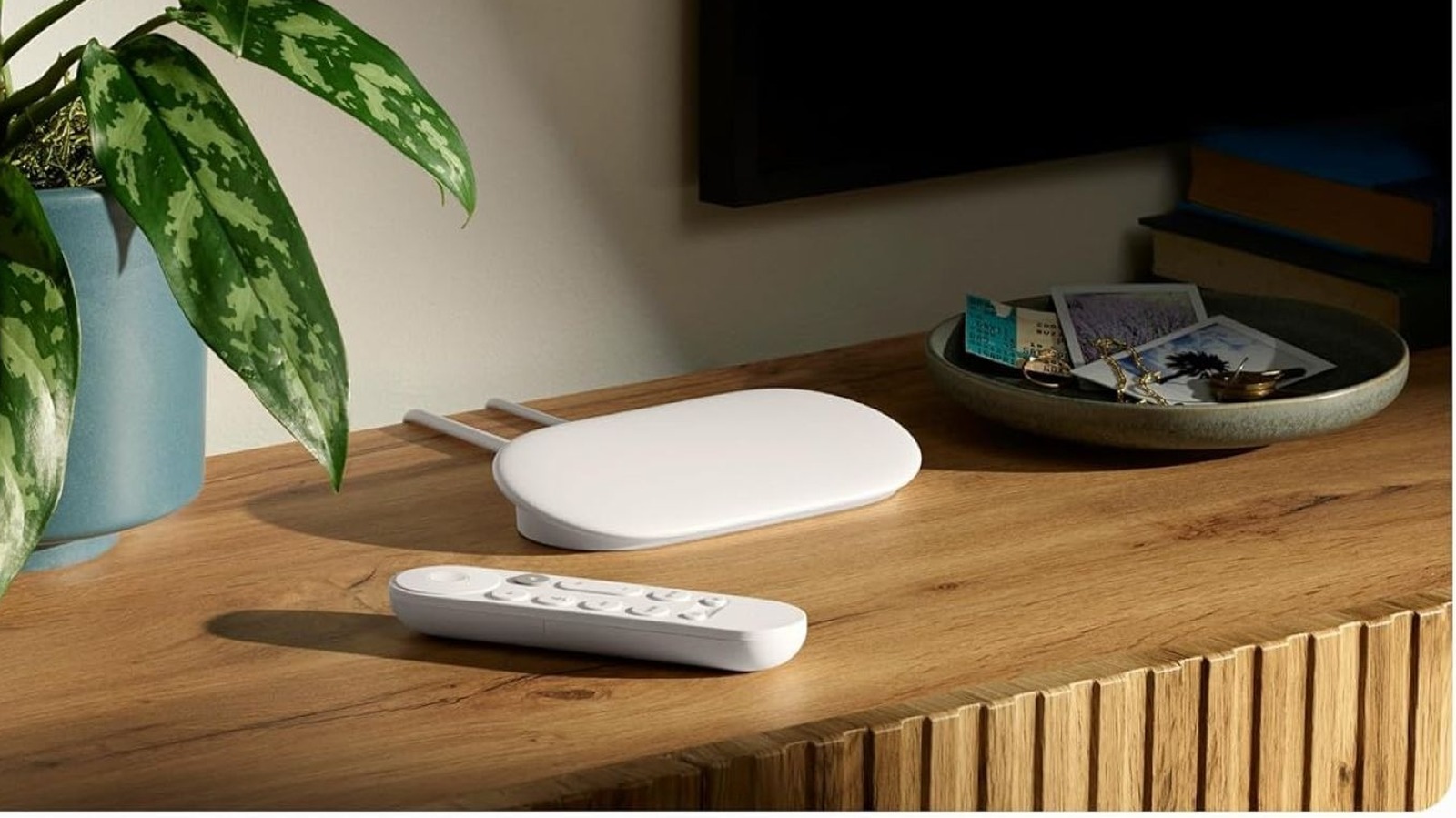
Google TV Streamer 4K

There’s a risk of boredom when aging in place, especially as going out becomes less desirable or more difficult. Streaming devices can help with this problem by providing access to popular streaming services and their endless libraries of shows and movies. The Google TV Streamer 4K, which you can buy from Amazon for $99.99, is a great option for senior citizens, thanks to the Google TV interface’s simple design, as mentioned by the retailer’s customers, and the operating system’s text scaling feature that increases font size. The device has a 4.4-star rating on the platform, based on more than 3,100 reviews.

In our review, we said that the Google TV Streamer 4K supercharges Google TV software, and Google Home integration means you can control smart home devices through the TV instead of smartphone apps. The user interface of this streaming device is responsive, according to Lifehacker,  and Amazon customers love the personalized recommendations and hands-free controls via the voice remote. The streaming device comes with 32GB of storage, so there’s plenty of space for essential Google TV Streamer apps.

Amazon Echo Show 21 smart display

The Amazon Echo Show 21, with an average rating of 4.4 stars based on more than 5,300 customer reviews, is the brand’s largest smart display, featuring a 21-inch full HD screen. Its primary purpose is to access Amazon’s Alexa through voice commands. However, the addition of a screen to the usual smart speakers adds more functionality.

Amazon shoppers said they love the versatility of the Amazon Echo Show 21, as well as its good video and audio quality. For senior citizens, it can stream content via its built-in Fire TV, add widgets that deliver various information about the outside world, and even display memories as a digital photo frame. It’s also great for video calls with family members and friends, as it has a 13MP camera with a wide field of vision and auto-framing technology. Tom’s Guide said it’s a worthy investment at its price of $349.99 as it’s two devices in one — a smart display and a TV — and because of its fast performance and stable connection via Wi-Fi 6E. 

Wyze Cam Pan v3 security camera

Internet-connected security cameras are usually installed so that people can monitor their homes while they’re away, but they can also be used for a quick glimpse to check on loved ones who have made the decision to age in place. The Wyze Cam Pan v3 comes with several features that help with this purpose, and it’s also a budget-friendly option on Amazon at just $39.97 each. It has panning and tilting capabilities. This means it can replace multiple static security cameras in covering a certain area, which further increases its value, as mentioned by TechGearLab. 

Panning and tilting this Wyze camera is done through the Wyze app, where loved ones can look through its lens in real time and activate two-way audio for instant communication. This feature is surprisingly effective considering the device’s price, according to Amazon customers, who added that it’s easy to install and set up in both indoor and outdoor settings. It’s also among security cameras that don’t require a subscription, as it supports local storage for the videos that it takes through a microSD card of up to 512GB. Shoppers appear to be pretty impressed with the Wyze Cam Pan v3, which holds an average rating of 4.3 stars based on more than 31,800 reviews.

Ring Alarm Security Kit

For senior citizens living alone, a comprehensive security system not only provides peace of mind for them but also for their loved ones. The Ring Alarm 14-Piece Security Kit delivers complete protection with eight door/window contact sensors and two motion detectors that send real-time alerts to your phone when triggered. The package also includes a base station equipped with an audible alarm and a built-in backup battery, a range extender to expand the base station’s signal, and two keypads for easy arming and disarming of the system.

With an average rating of 4.7 stars based on over 6,200 reviews on Amazon, shoppers think the Ring Alarm 14-Piece Security Kit for $329.99 is worth it for its ease of installation and reliability. However, for smaller homes, there are also options with the same components but in smaller quantities, namely the Ring Alarm 5-Piece Security Kit for $199.99 and the Ring Alarm 8-Piece Security Kit for $249.99. No matter which package you choose, you’ll be getting a security system that’s easy to use and adjust through the Ring app, according to PCMag’s review.

Samsung Galaxy Tab S10 Plus

Tablets can provide an enriching experience with a multitude of apps, including games that can stimulate the brain, streaming services for limitless content, and social networks that maintain connections. This applies to both the young and the old, and for senior citizens, devices like the Samsung Galaxy Tab S10 Plus fit the bill. It has a large 12.4-inch AMOLED touchscreen that’s bright and sharp, and Amazon shoppers said that it’s comfortable to hold as it’s just 0.22 of an inch thick and weighs only 1.3 pounds.

In addition to a beautiful screen, Android Authority said this Android-powered tablet has incredible speakers and is quick and responsive thanks to its MediaTek Dimensity 9300 Plus processor and 12GB of RAM. The device comes with the S Pen, a stylus that’s proven valuable for both students and teachers among Amazon customers, and it should be especially helpful for senior citizens who prefer writing to typing on a digital keyboard. The 256GB version of the tablet is available for $999.99, its regular price, on Amazon, where it has an average score of 4.7 stars based on more than 1,500 reviews.

Apple Watch Series 11

Just because you’re aging in place doesn’t mean you should no longer be focusing on your health. A fitness-focused smartwatch will help motivate retirees to keep working on their wellness. The Apple Watch Series 11, which is highly rated on Amazon at 4.8 stars after over 4,300 reviews, can do this with its activity rings that represent daily goals. It also offers critical features, such as 24/7 heart rate monitoring to detect signs of hypertension and fall detection that notifies emergency contacts when triggered. The smartwatch is also comfortable to wear, and its display is easy to read, according to the retailer’s customers, where its 42mm model is available for $399.

We highlighted the excellent health-tracking features of the Apple Watch Series 11 in our review of the device, but MedGrade goes a step further, describing it as “the most significant shift toward medical-grade utility in a consumer wearable.” It recommends the smartwatch as a health and safety tool for active seniors, and for those who need to keep an eye out for heart-related issues.

Coway Airmega Mighty air purifier

A clean environment is extremely important for senior citizens who are aging in place, and air purifiers are one type of gadget that can help with this. The Coway Airmega Mighty is a well-reviewed option on Amazon with an average score of 4.6 stars based on over 28,500 reviews, with buyers  saying that it’s capable of cleaning the air in an area in a matter of minutes. The $229.99 device is designed to work in rooms of up to 247 square feet, with its four-stage filtration system that captures particles, pollen, pollutants, and other allergens.

This Coway air purifier delivered outstanding results in the performance tests of Air Purifier First, further confirming that it’s a reliable method of keeping surroundings fresh. It was also tagged as a very quiet device, unlike models from other major air purifier brands, so it won’t be a disturbance, especially at night. It’s built-in pollution sensor detects and displays real-time air quality, and if Auto Mode is activated, it will automatically increase fan speed if the air needs to be cleaned.

MCombo Power Lift Recliner

The chair that you’re sitting on can make or break the home theater experience. For the older crowd, the MCombo Power Lift Recliner may be considered a necessary benefit, starting with its ability to help them stand up. With the press of a button on its remote control, a motor pushes the chair upwards at an angle, allowing a person to get up with less pressure on their back or knees. Amazon shoppers said that this feature works well, not just for senior citizens but also for those with chronic back issues and injuries. They added that assembly is quick and that the recliner is made of durable, easy-to-clean material.

This MCombo recliner, priced at $549.90, is also a massage chair with eight vibrating points and a heating point in the lumbar area. These provide extra comfort, as stated by Recliner Reviews, with additional features such as its side pockets, cup holders, and USB charging ports, making it an even more convenient chair, as testified by its 4.4-star average rating across over 6,700 reviews. 

Eufy C10 robot vacuum

Senior citizens may soon find that they’re no linger limber enough to pick things up from the floor, so a robot vacuum will be necessary to help keep their home spotless. With an average score of 4.4 stars following more than 6,500 reviews, and being made by one of the best robot vacuum cleaner brands, according to Consumer Reports, the Eufy C10 should be up for consideration. At a price of $479.99, it offers a rare combination of an auto-empty docking station, powerful carpet suction, low clearance of below 3 inches that lets it slip under furniture, and solid app control, Vacuum Wars said in its review of the device.

One of the most appreciated features of this Eufy robot vacuum by Amazon shoppers is its Corner Rover Arm, which extends to make sure that the device picks up dirt and debris in the corners and edges. There was also significant positive feedback on its quick and accurate mapping capabilities, which enable precise cleaning for the robot vacuum. You can plot schedules and adjust settings through the Eufy app, and it also works with voice commands if you integrate it into a smart home ecosystem.

Merach S08 recumbent exercise bike

A dedication to staying fit is a requirement for aging in place, as muscle tone and an active lifestyle become ever more important as we age. For exercise equipment, a recumbent exercise bike is great for senior citizens, and the Merach S08 received a glowing recommendation from Total Therapy Solution. Its review of the device highlighted its stability and ample legroom compared to other exercise bikes, as well as its 15.6-inch full HD screen that displays information such as the session duration, burned calories, and the resistance level you’ve chosen from the eight options. The equipment can also be used with the Merach app, which offers classes with live instructors; with display mirroring your phone for other exercise apps; or even streaming shows.

After more than 2,200 reviews, this exercise bike has received an average rating of 4.5 stars from Amazon shoppers, who are impressed by its sturdiness and the comfortable but highly adjustable seat. There are senior citizens among the customers who left feedback for the device, confirming that it’s excellent for older people, but it also received positive comments from those who use it while recovering from injury or from a stroke. 

How we chose these essential gadgets for aging in place

A senior citizen couple looking at a laptop while sitting on a couch. false/Shutterstock

For this list, we focused on gadgets that will support senior citizens who choose to age in place. These products not only provide solutions to various challenges that they may encounter in their chosen lifestyle, but they also enhance their overall well-being.

All of these devices are available on Amazon with a rating of at least 4.3 stars, with a minimum of 1,000 reviews. In addition to highlighting the features that make them essential gadgets for aging in place, we gathered positive feedback from shoppers and reputable websites to explain why we think they deserve a spot in this list.

Source

Posted on

Why Did Apple Get Rid Of The Butterfly Keyboard?

Apple's butterfly keyboard on a MacBook photo.jpeg/Shutterstock

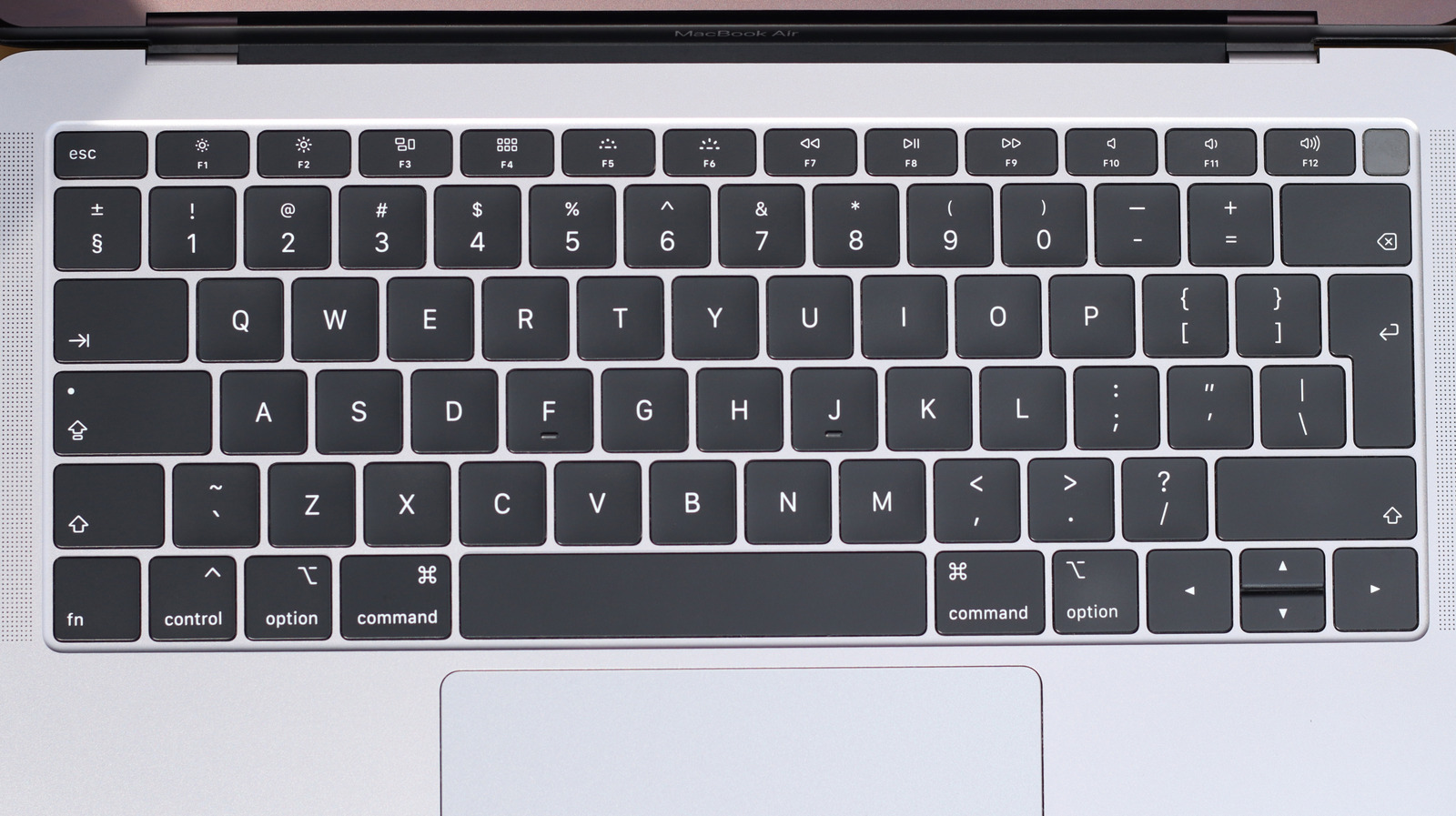
Apple’s butterfly keyboard was one of the company’s biggest blunders. It cost them $50 million in a class-action lawsuit because the design was prone to breaking from even specks of dust or bits of fluff. It really was a rare moment of failure for the company after its 2000s revival. There were plenty of issues with the company’s hardware, particularly when, now the former chief design officer for Apple, Jony Ive, had gained more authority over designs. The Magic Mouse has its charging port on the bottom, and between 2016 and 2021, the company seemed deathly afraid of anything not USB-C. All of these persisted, but the butterfly keyboard was completely phased out sooner than later, as Apple effectively admitted defeat on it.

Fitted to MacBooks between 2015 and 2019, the butterfly keyboard was also given the boot in 2020, when Apple ditched Intel for its in-house processors. Why is that? Well, not only did it cost them a lot of money thanks to a class-action lawsuit, but it was also really bad on a survivability level. Errant pieces of dust or debris could break the key, with no real way for someone at home to repair it. Towards the end, Apple began outfitting the butterfly design with more protection, including membranes and domes, to ensure it remained in working order.

On paper, it’s a fairly mundane update to Apple’s keyboard fare. A new design for how the keys are activated when pressed. It featured a hinge system that would press down when the key was pressed to hit the unprotected steel dome underneath. Typically, laptop keyboards use a membrane keyboard of some description, where the key pushes on the membrane, which then contacts with another layer of membrane, which then hits the conductive material to activate the key. However, keyboards have a little thickness to them to ensure protection of the contacts, but the butterfly design was 40% thinner than previous ones, and on top of the dust issue, users could press too hard and break their keyboard.

The Apple butterfly keyboard was phased out for good reasons

Macbook close up Dontree_M/Shutterstock

As pointed out by The Verge, no information is available on how widely the issue spread, but it must have been enough to warrant a class-action lawsuit. In 2023, Apple paid out $50 million to users impacted by their purchase, with some getting up to $395. Since 2020, the company has switched to the more stable Magic Keyboard.

Apple rarely phases out an entire piece of hardware due to customer complaints — look at the Magic Mouse. That said, the butterfly keyboard was clearly too much of a headache to keep around, and it was ultimately easier for the Cupertino company to ditch it.

Aside from the butterfly keyboard, you have to dig into Apple’s past for some comparable product disasters. Devices like the Pippin, a failed games console, and the many different computers that tried to compete with the exploding PC market spring to mind. It’s not like the butterfly keyboard has been the company’s only failure in the 21st century, as those who wound up with an iPhone 4, with claims of its poor signal, that Apple even issued a letter over the potential PR disaster.

Source

Posted on

Good Luck Trying To Get Your Hands On Valve’s New

The much-anticipated Steam Controller became available to order on May 4 for $99, and everyone rushed to do so — for all of thirty minutes. It sold out that quickly and the frenzy took the Steam store down with it. There was a sliver of hope shortly after, as the “Buy” button returned and it seemed that the controller would be available, but that was only until the all-too-familiar “Out of stock” message returned. 

Originally announced alongside a new Steam Machine, the Steam Controller features innovative hardware and a price tag that puts it in competition with premium controllers like the Xbox Elite and DualSense Edge. Notably, Valve confirmed our worst fears about the Steam Machine, explaining that its launch would be delayed due to hardware shortages.

As you can expect with any limited release, eBay listings for the Steam Controller have appeared with inordinate costs attached — upwards of $750 for some eye-gouging offers. It goes without saying, but you shouldn’t purchase your controller through those listings, because if you do, you’re supporting scalpers, and you don’t really know if their listings are legit. The unfortunate exception is if Steam doesn’t sell hardware in the country where you live.

Valve issued a statement on X, explaining that the controller ran out of stock faster than anticipated. “We hate that not everyone who wanted one was able to get it.” That’s understandable, and many will agree. But the company notes that it’s “working on getting more in stock” and will have further updates to share “soon.”

Why the excitement over a controller?

First, congratulations to those select few who were able to secure their orders. But for anyone not in the know who might be looking at this as a standard controller, the hubbub surrounding it likely seems a bit over the top. So what’s with all the hype?

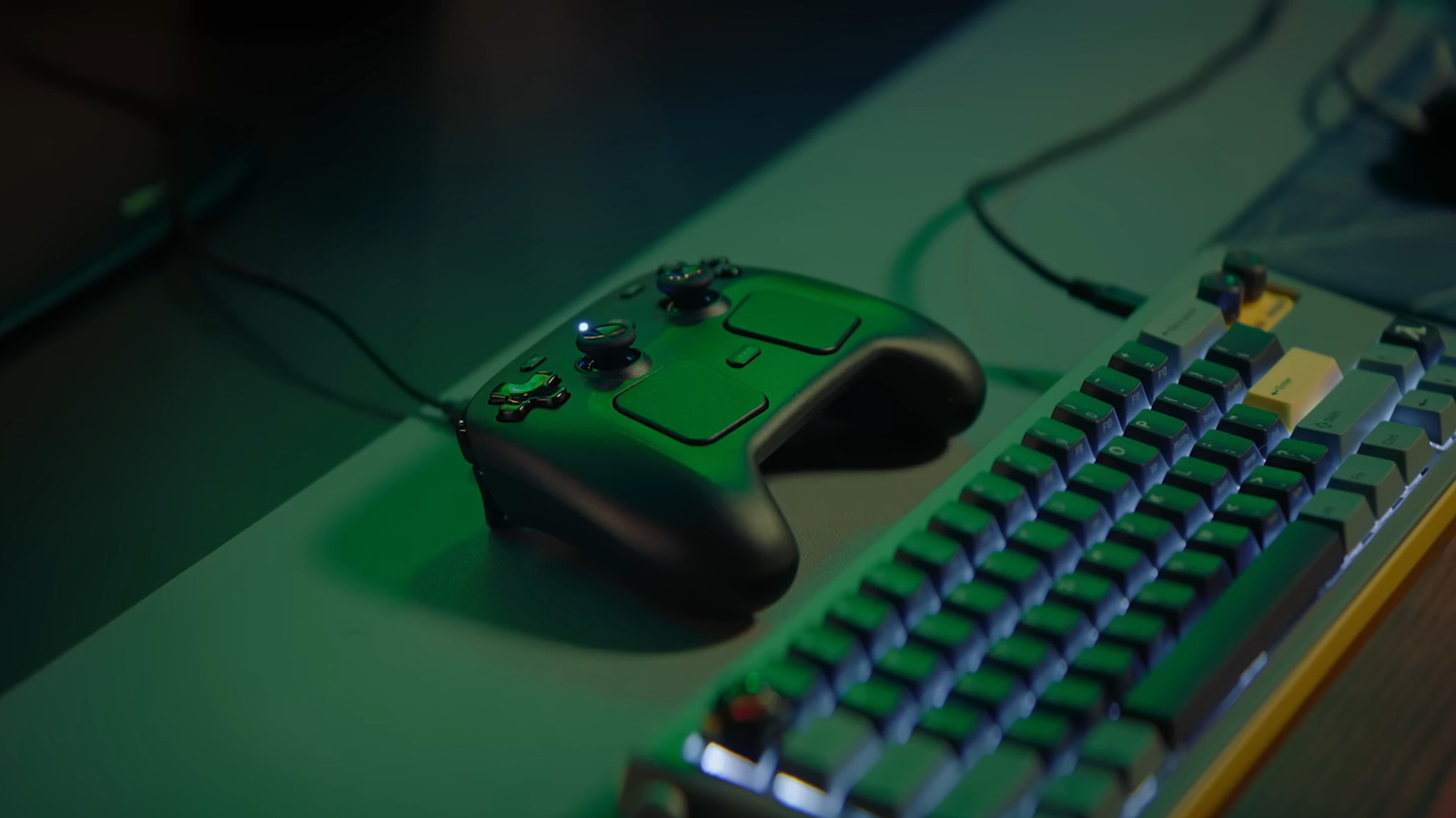
Much of the anticipation around this new device stems from how it improves on the original Steam Controller. Valve’s first iteration made the controversial design decision to replace the D-pad and the right thumbstick with trackpads, whereas the new Steam Controller sports all the same buttons and joysticks you’d expect from a standard console controller while simply adding trackpads to the mix. These trackpads are key to the unique design — they allow PC players to use the pads like a mouse or touch-sensitive controls. But also, Steam Controllers have a high degree of personalization and some fantastic user support. You can create, download, and apply dozens of control schemes and layouts easily through Steam.

Moreover, the new model comes with the Steam Controller Puck for charging, battery life of up to 35 hours, and TMR magnetic thumbsticks to help eliminate potential stick drift even after numerous periods of play. It’s difficult to say if the controller will deliver on the hype until it’s in everyone’s hands, but early reviews are starting to come out and tech pundits are sharing their experiences, so we should know soon enough. At the very least, while some of the best controller options for your Steam Deck were previously from third parties, now you have the option to use one from Valve directly. If you can get your hands on one, anyway.

Source

Posted on

7 Reasons Why Mobile Hotspots Might Not Be As Reliable

Person turning on a smartphone hotspot feature while another device nearby shows a Wi-Fi connection prompt. fadfebrian/Shutterstock

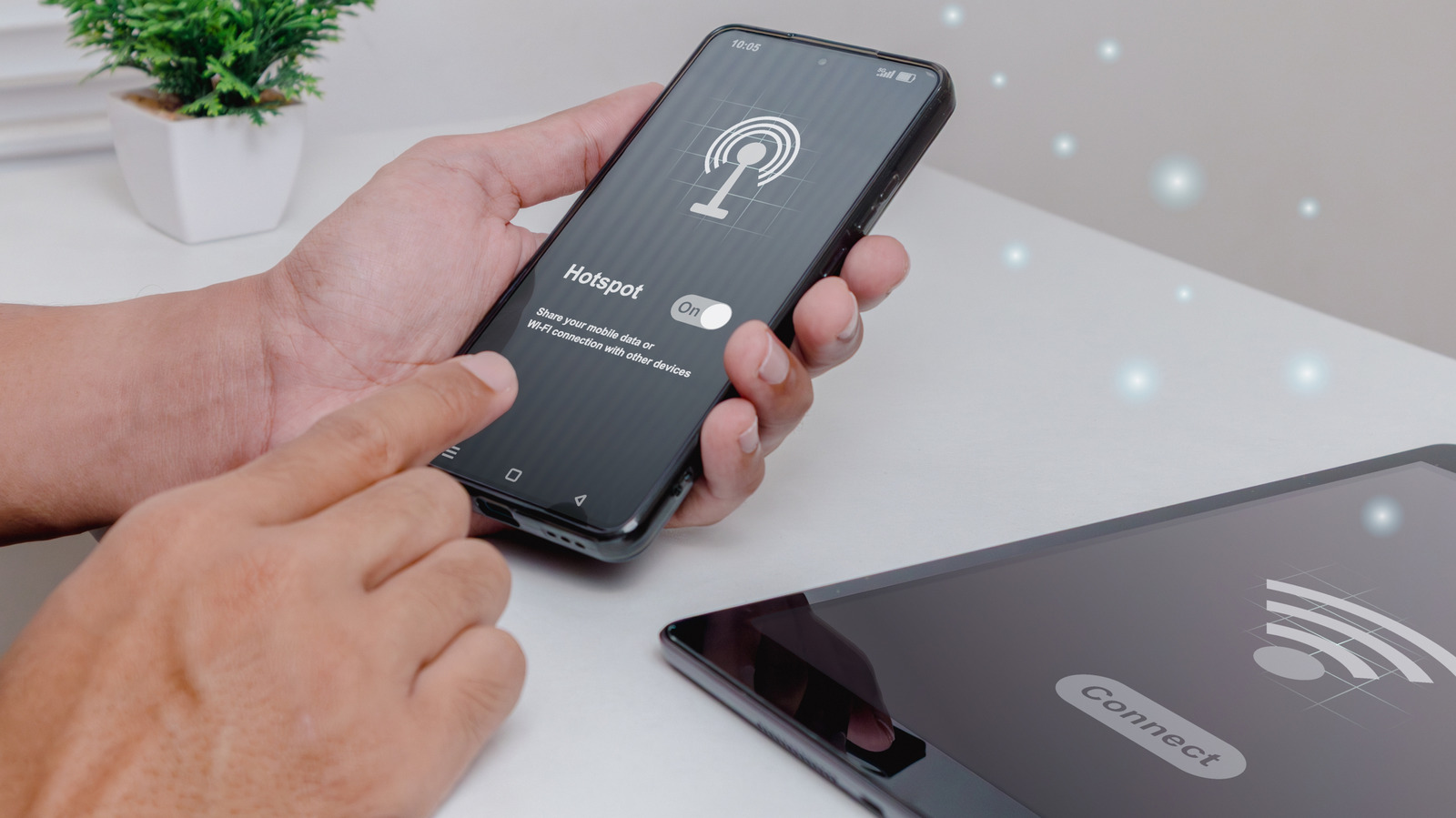
Every smartphone (or at least every model we know of) has the ability to share its mobile internet connection with other devices over Wi-Fi. It’s usually called a mobile hotspot, also referred to as tethering, and it can be accomplished using a cable or a Bluetooth connection. This is, to say the least, incredibly convenient. If you’ve ever had to put up with terrible hotel Wi-Fi or struggled to get a connection at a coffee shop, having access to your own private mobile broadband is a revelation. It also neatly solves the privacy and security issues of public Wi-Fi. In fact, we’d go as far as saying you should never use hotel Wi-Fi. Complimentary or not!

Since mobile internet works so well, you might be tempted to wonder why you need to pay for home broadband. Why not just use your mobile hotspot for your home internet? You’re not the first person to come up with this idea, but there are a few very good reasons why mobile internet might not be reliable enough to use as your primary internet service.

Congestion on mobile networks is devastating and unpredictable

Cellular tower with multiple antennas and dishes against a clear blue sky with a small cloud nearby. Luca love photo/Shutterstock

With a wired home broadband connection, the number of subscribers and physical network connections are known. This is a relatively stable number, which ensures everyone gets their fair share of the bandwidth. Not easy, but much simpler than the knotty problem of managing everyone’s experience on mobile data.

The reason for this is that a mobile network consists of cells (that’s why it’s called a cellular network), which are manage by a mobile network communications tower. As people with cellular devices move from one cell to the next, the towers seamlessly hand the device off, but each tower only has so much bandwidth available and a limited amount of radio spectrum. If too many devices are within the same cell, or they’re asking for too much data, it leads to network congestion.

This is why phone reception is poor at large events; When tens of thousands of people are trying to connect at the same time, there’s just too much traffic for the network to handle at that moment. The same is true when trying to use your mobile hotspot as a primary means of internet as the quality of service can drop dramatically when the network gets congested. That’s not a characteristic you want in a backbone internet connection.

Data caps and throttling spoil the fun

Illustration of two hands reaching toward a SIM card positioned above a bear trap, with warning symbols and exclamation marks indicating danger. Nuniverse/Getty Images

Mobile data providers have several tools in their arsenal to deal with network congestion. Two of these are data caps and throttling, which are related. A data cap is a limit on the total number of data you can use within a billing cycle. When you reach that cap, one of two things can happen.  Either your connection is cut off (a hard cap) or you keep your connection, but it gets throttled down to much slower speed. Something that’s often called a soft cap.

A more sophisticated type of throttling is known as traffic shaping. Here the service provider selectively limits the speeds of certain types of traffic. So, for example, regular browsing might be fast, but data-hungry traffic like streaming video is limited to a lower speed than your connection is actually capable of. When we looked at the phone carriers with the best cheap plans it was obvious that one major way they could get the pricing down was by using caps, throttling, and shaping. Incidentally, using one of the major VPN services can bypass shaping by hiding the type of traffic you’re using.

That said, if you’re willing to pay for it, some mobile providers are offer truly unlimited plans these days. Improvements in technology and lower costs of provision mean it is becoming feasible to give subscribers as much data as they want. However, it’s not universal yet and not available everywhere.

Mobile hotspots can destroy your battery life, and eventually your battery

Hand holding a swollen lithium battery pack with a partially exposed connector, showing visible bulging and damage. Wanz.st/Shutterstock

The radio transmitters in your phone are some of the most power-hungry components. When you are constantly sending and receiving data, especially high-volume data, your phone’s battery will drain more quickly. The weaker the signal to the nearest tower, the more power the phone needs to transmit. You might not think this is an issue, since you can just plug your phone into a power source and keep it topped off. 

The problem is that most smartphones don’t have “bypass charging” where power stops flowing to the battery once its full as it does in a laptop computer. Plugged in or not, power flows through the battery, and this means you’re increasing the wear on the battery and shortening its life. Eventually, you’ll start seeing the signs your battery needs to be replaced. If you do have bypass charging, you may want to activate it if you intend to use your phone as a hotspot. It’s generally not on by default and phone makers treat it like a secret charging mode. If you have no way of mitigating battery wear while using your phone as a hotspot, you should use the hotspot sparingly or accept that you’ll have to deal with a worn-out battery sooner rather than later.

Latency and stability are weak points

Hand holding a smartphone with an overlaid speed test interface showing high download speed, low ping, and fast network performance. Tanit Boonruen/Getty Images

If you had to choose between the fastest internet speed possible but risk inconsistent service or a slower speed with more stable connection, which way would you go? While speed is nice, the sensible option is to have a connection that doesn’t fluctuate wildly. Unfortunately, the very nature of wireless networking works against that goal. Unlike a wired connection, there are many factors that can change from one minute to the next.

We’ve already talked about congestion happening as people enter and leave the same region as you, but radio interference, solar flares, and even bad weather can wreak havoc on your connection. That’s not to say that wired systems are immune to adverse events, but cables can be shielded in ways that the radio signals from towers can’t.

A much more common issue with mobile internet connections is latency. This is the time it takes from a packet of data leaving your device to where the answer returns. Wireless signals usually have more latency than their wired equivalents, and this is true for cellular networks. You can run an internet speed test using your phone’s connection to check its “ping,” and if it’s in the hundreds of milliseconds, you’ll notice issues with latency-sensitive applications like video calling or online multiplayer games.

Your ISP might treat hotspots differently

Hand holding a charging cable and about to plug it into a smartphone lying on a blue surface. Touchr/Shutterstock

If someone handed you a phone and said it had unlimited data, wouldn’t you immediately come up with the idea to tether it other things and enjoy that sweet, sweet bandwidth? That’s exactly what many people do, and it’s led to some mobile service providers putting special policies in place when it comes to tethering. These rules apply whether you’re using a cable, Bluetooth, or Wi-Fi to share your phone’s connection.

On some mobile plans, tethering might simply be excluded. In others, there might be a crackdown on subscribers who seem to be abusing their data plans. You may also find that your tethered connection has a separate data cap, even if your phone’s untethered connection is unlimited. In a worst-case scenario, you might be charged extra fees when tethering, so it’s important to read all the fine print when you tether for the first time — if for no other reason than knowing how much you can rely on your tethered connection.

Hostpots can be a security risk

Person in a dark hoodie and face covering holding a smartphone to their ear, with their face mostly obscured in shadow. Eza_Nanda/Shutterstock

You’re probably aware that there are security risks if you use public Wi-Fi, as we mentioned earlier, but what about your own, private mobile hotspot? While it’s not common, in some cases hackers can intercept the communication between your phone and connected devices or gain access to your phone. It’s worth noting that while your phone can act as a limited Wi-Fi router while in hotspot mode, it doesn’t have the security features and robustness of a true dedicated router. 

Mobile hotspots were never meant to be used long-term. If you use your hotspot in the same spot every day for extended periods of time, it makes it more likely that someone will crack it. They don’t even have to take this technical route. It can be as simple as someone spotting your hotspot password as you type it in or look it up on your phone. From there they can run up your data bill, or worse. If you only need to connect a laptop or computer, consider using USB tethering instead of Wi-Fi as a way to mitigate this.

Weak hardware isn’t up to the task

Hand holding a small portable 4G mobile hotspot device connected by USB, with a smartphone blurred in the background. M-Production/Shutterstock

The router you use for home internet has multiple antennas. Even if you can’t see them, they’re still there hidden inside the casing of some router designs. Now, consider your phone. It’s thin enough to fit in your pocket, and there’s certainly no way it can have the number of antennas or transmission power of a proper router.

Older phones, or cheaper models in particular might have a hard time connecting multiple devices to the hotspot and offering good performance to all of them at the same time. Even if you have a newer phone, there’s still only so much you can do within the laws of physics.

If you must use a mobile connection to serve multiple devices and want it to work reliably and with good performance, a dedicated hotspot device like the one pictured above is a good start. The best solution, however, is a dedicated travel router, which is one of the gadgets we think every digital nomad should check out.

Source

Posted on

Two Iconic ’80s PCs Are Making A Huge Comeback (But

Retro is in. Well, okay, it’s been popular for a while with retro gaming, handhelds that prioritize emulation, new PCs that look old, like Maingear’s Retro98, and so on. In that same vein, two old PC designs are making a huge comeback, traveling all the way from the iconic ’80s. You might remember a little old console called the Commodore 64 or, in the UK, the ZX Spectrum? They’re just two of a handful of gaming consoles that defined the ’80s for many gamers back in the day. Yes, both the C64 and Spectrum are coming back, but not in their original forms.

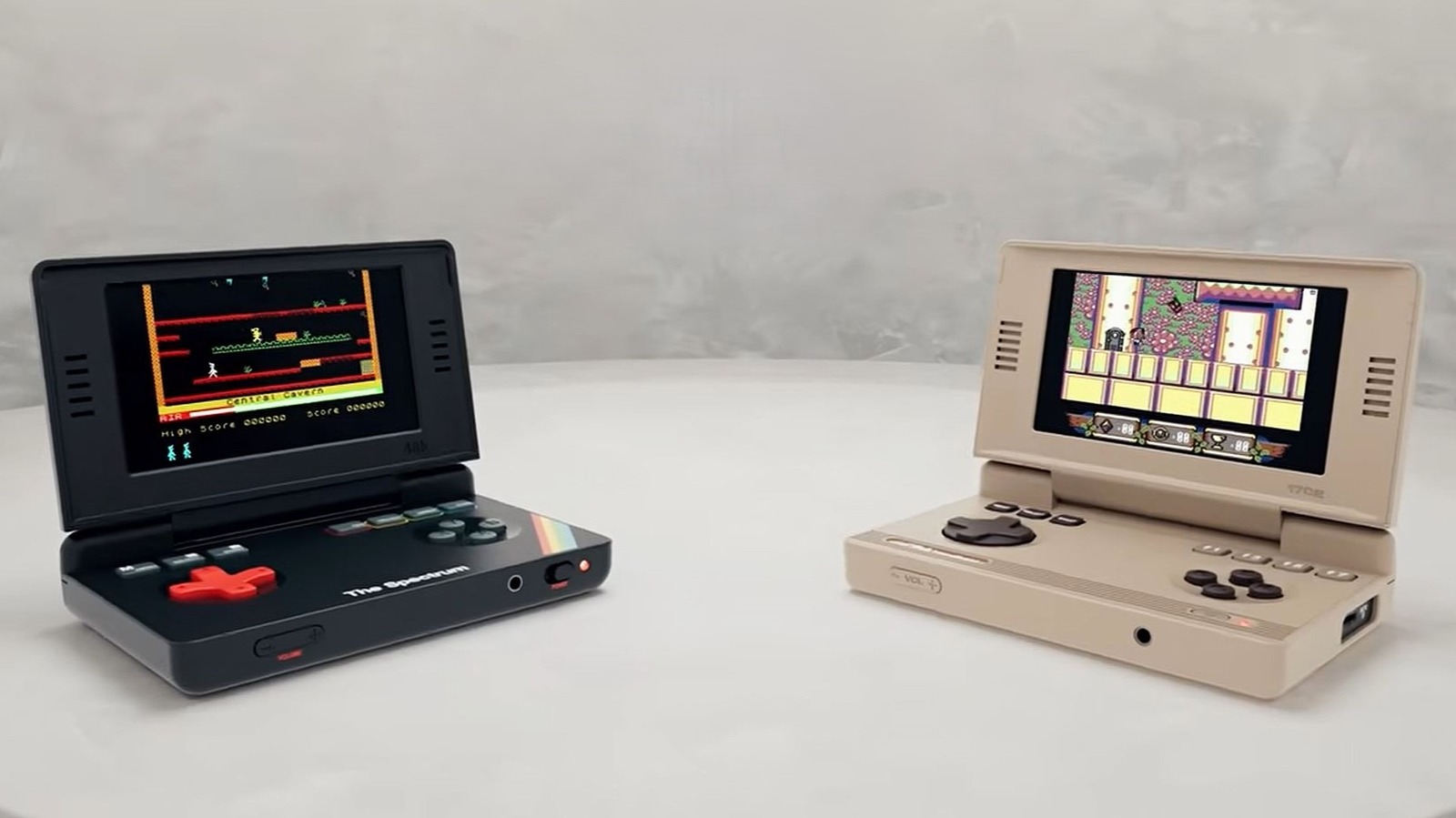
Blaze via HyperMegaTech, the maker of Evercade, has unveiled two clamshell-style handheld consoles in a partnership with Retro Games Ltd. The two new models are inspired by the ZX Spectrum and Commodore 64, and come complete with pre-installed games and simplified controls — no keyboards are onboard. If you want, you can connect an external USB keyboard through an included USB-A port.

On the outside, and when shut, they look like their original counterparts. But open them up, a la Nintendo DS, and you’re treated to the 4.3-inch IPS display, the physical controls and the various I/O ports. The games are different for each system, but there are some decent ones. Both will cost $130 at launch for just the console, and should be available to those who pre-order in October 2026. If you order a Collector’s Edition for $150, you also get a carrying case and exclusive magazine, but only 2,000 of each limited release are available.

What are the specifications of each handheld?

Ultimately, they’re designed to be the same experience, albeit with the varying designs and games installed. To put it simply, they feature the same internals and hardware for the most part. The 4.3-inch IPS high-resolution display supports a maximum of 840 by 480, and they’re powered by a quad core 1.2GHz processor (unspecified). With only 256MB of DDR RAM, that’s not a lot of memory for modern titles, obviously, but plenty for these specific systems. If you’re looking for any handheld consoles more powerful than the Steam Deck, or equal to it, these are not it.

They also have a 2,000mAh battery that should last for over three hours on a single charge, USB-C charging with a cable included, and a 3.5mm headphone jack for audio out. A microSD port allows you to do some “additional game loading,” presumably with roms from each system. Physical controls and buttons include a d-pad, face buttons, and mappable function keys. You also have the standard menu, start, and select keys for use in-game. You can read the full list of games for each system at HyperMegaTech’s website. Some notables are “Manic Miner,” “Tiny Dungeons,” “Nightmare Rally” and “The Great Escape” on the Spectrum handheld. On the C64 handheld, you’ll find “A Pig Quest,” “Sam’s Journey,” “Super Boulder Dash,” “Knight N’ Grail,” and more.

These are better compared to handheld and retro gaming consoles than PCs, especially considering the limited button layout. If you like these and want more options, you might consider some other cheap handheld gaming consoles worth the price.

Source

Posted on

Does Your Nintendo Switch Really Need A Screen Protector?

A Nintendo Switch 2 console in tabletop mode José Adorno/BGR

We may receive a commission on purchases made from links.

If you want to keep your Nintendo Switch as good as new for years to come, you should really consider getting a screen protector. The device’s hybrid handheld and home console design introduced by Nintendo almost a decade ago is what makes Nintendo Switch so unique compared to other gaming consoles — and it’s proven to be really popular. However, the one downside is that our display might scratch from placing and removing the device from the dock. Users in multiple Reddit threads and discussion forums reported such an issue when constantly switching between both modes.

One Reddit user claims Nintendo doesn’t use a very good scratch-resistant display. “It uses a low grade plastic ‘protector’ that can scratch from just dust. I have two giant scratches on the bottom of my screen, and it could only be from it slightly going against the dock.” JerryRigEverything’s channel on YouTube shows how the screens of every Nintendo Switch model, including the Switch 2, can be scratched by anything made of metal. They’re all more prone to scratches than a smartphone screen.

I never wanted to take a risk. That’s why when I bought the original Switch way back in 2017, I immediately put a screen protector on it. A few years later, when I upgraded to the OLED model, I did the same. With the Nintendo Switch 2, released in mid-2025, guess what? I also applied a screen protector — a fancy one — from Belkin’s new Nintendo Switch 2 lineup of accessories. 

The main reason your Nintendo Switch needs a screen protector, and when to avoid it

An up-close shot of a Nintendo Switch 2 with a screen protector on it José Adorno/BGR

While I wouldn’t recommend you to skip using a screen protector on the Switch — and my opinion is shared by several owners as well — I think there’s one acceptable reason not to invest on this accessory: if you never remove the console from its dock. However, if you play your Nintendo Switch as a handheld, carry it around in countless trips with a carrying case, or just keep switching between modes, then a screen protector is fundamental.

The Nintendo Switch consoles have been available for almost a decade, and it still scares me that Nintendo never fixed the Switch dock issue that may cause it to scratch the console’s display. In a very old Reddit thread, one user points out how easily they scratched their Nintendo Switch: “I only took it off the dock twice. I think the scratch came from when I missed the charger port and had to move the Switch around so it could dock properly.”

Combining this with known drift issues for the Joy-Cons and the buttons getting dirty after months of usage, it feels like the Nintendo Switch is a lot more fragile than many are willing to admit. If you want your console to look as good as new even after years of usage, you should always have a screen protector.

The screen protector does more than protecting your screen

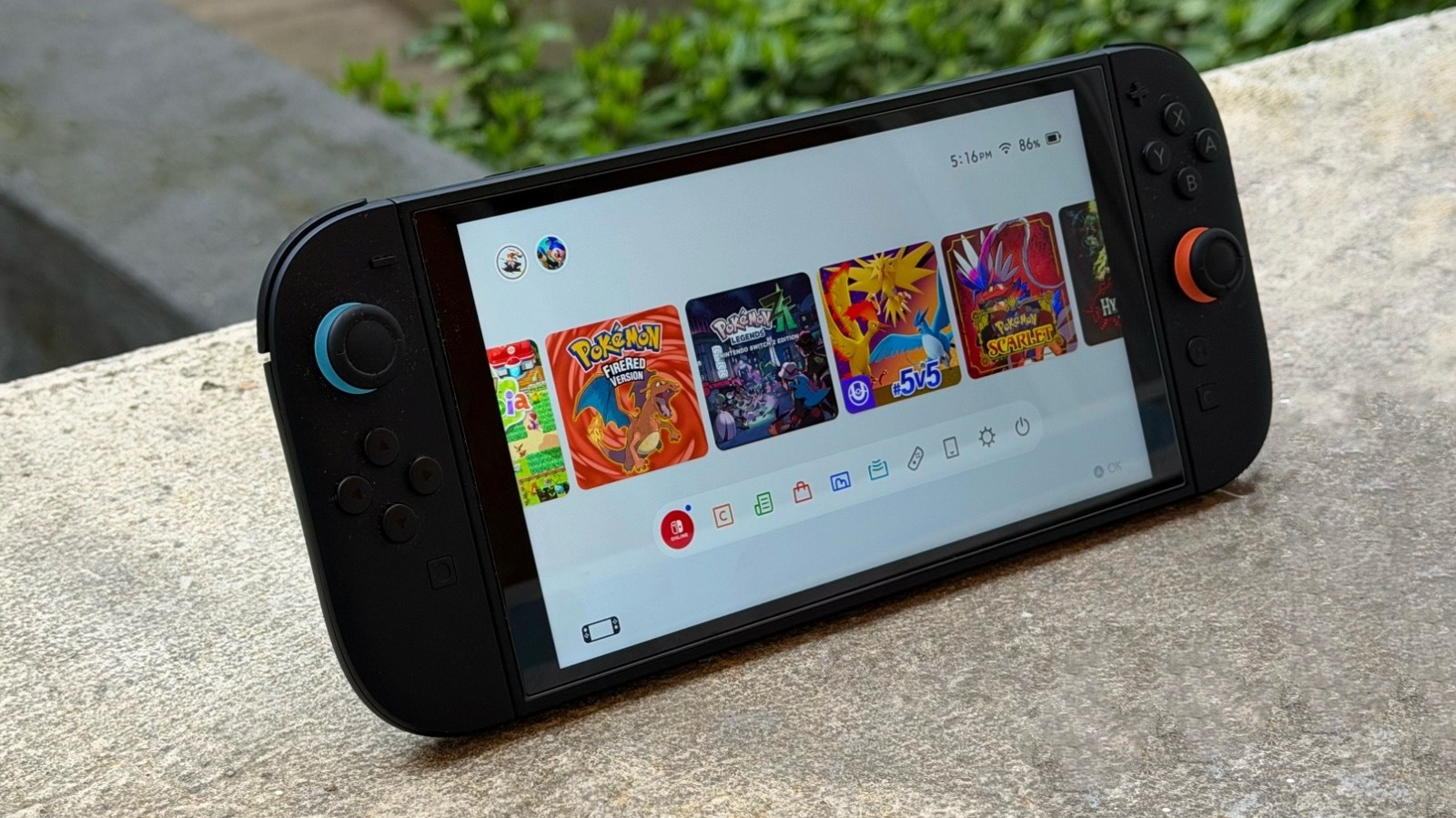
A Nintendo Switch 2 in tabletop mode with Pokémon Legends: Z-A on the display José Adorno/BGR

Belkin’s TemperedGlass anti-reflective screen protector I’ve been using on my Nintendo Switch 2 for almost a year is usually available for $24.99. This protector ensures I’m not missing any detail from the Switch’s display, but its tempered glass is also great to protect my console against scratches and smudges. It features 9H pencil hardness rating, which means it features the highest protection level of this standard. And what makes it really special is the anti-reflective coat that makes using the Nintendo Switch 2 both inside or outdoors a lot better, as it removes a lot of the display’s glare.

The company also offers a blue light filter screen protector that costs $29.99. This screen protector is especially useful for those playing long sessions in handheld mode, as it can reduce 60% of blue light, which improves eye comfort in the long term. It comes with a microfiber cloth to keep the screen clean. The protector is very thin and offers the same scratch and smudge resistance from the other model.

Obviously, besides Belkin, several other players make Nintendo Switch and Nintendo Switch 2 screen protectors. Amazon’s top-selling screen protectors include an amFilm option for the original Switch, Orzly for the Nintendo Switch Lite, and Ivoler for the Nintendo Switch 2. All of them feature thousands of positive reviews from customers.

Source

Posted on

Apple Can’t Keep Up With Mac Mini Demand – So

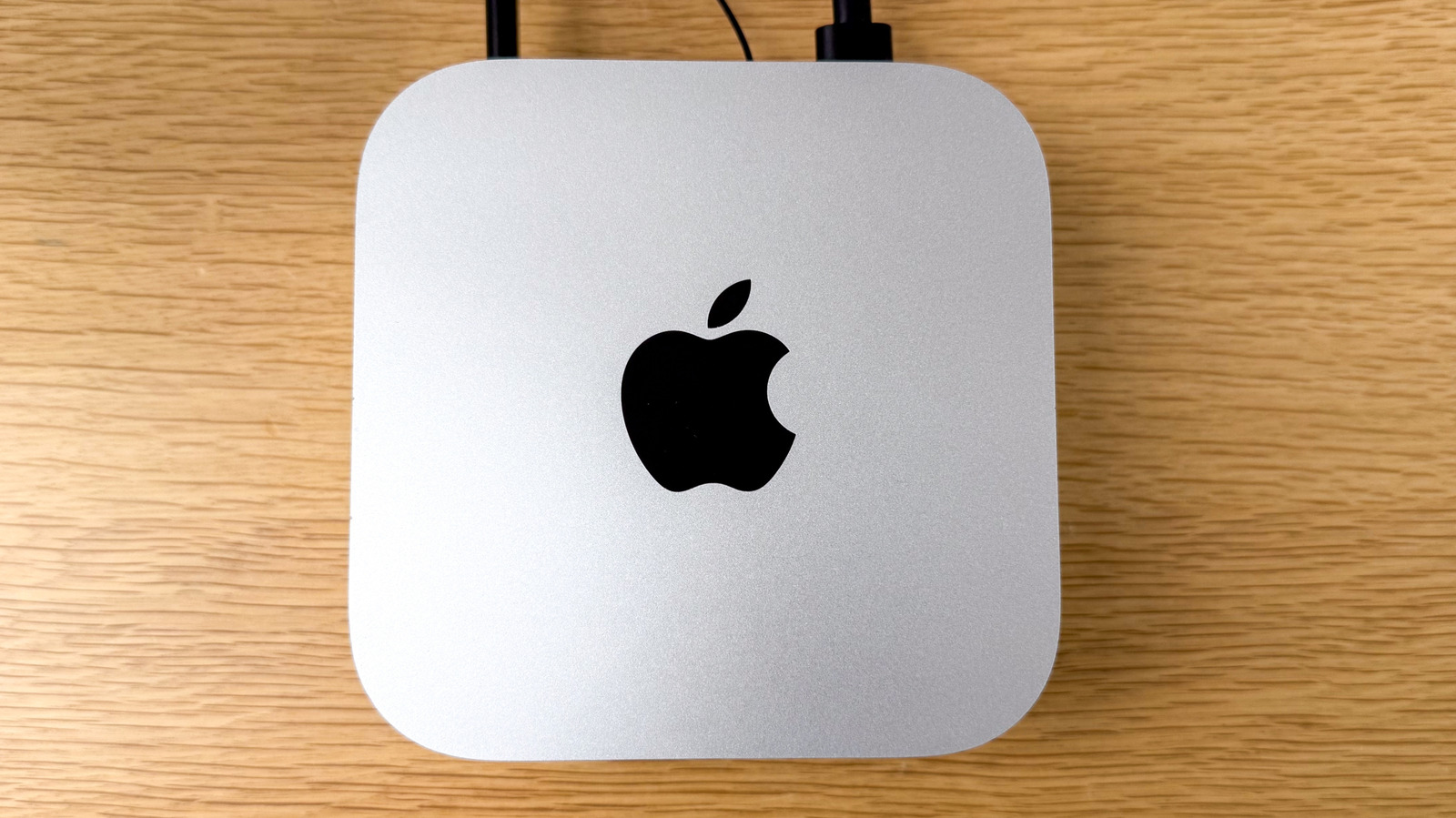
A silver M4 Mac mini sitting on a light-brown table Kamerafreun.de/Shutterstock

Those looking for a Mac mini must shell out more for a new one now as Apple is technically raising the prices of the device by eliminating the cheapest model. According to a report on MacRumors, Apple is no longer selling the 256GB Mac mini, and this is confirmed by the removal of the entry-level model from the online Apple Store. This means that anyone looking for a Mac mini will now be paying at least $799 for the 512GB model, which is an increase from the previous $599 256GB model.

Considering it’s been rather difficult to get ahold of a Mac mini and a Mac Studio since the start of April, this news may not surprise some Apple fans. However, the complete elimination of the 256GB Mac mini from the Apple Store, along with delays for other models, may make finding one of these devices a more frustrating experience for consumers. Of course, those looking for a cheaper entry into the world of Macs can still consider the MacBook Neo, which starts at $499 and has some fairly reasonable compromises, in our opinion. Though this device also has delays of about two to four weeks, it may be available through Apple sooner than some Mac mini models, and it certainly has a lower price. If you were considering a Mac mini and happen to find one in stock, it may just be worth it to snag it while you can.

Apple no longers sells 256GB Mac mini, other devices experience delays

A silver Mac mini sitting on what appears to be a marble countertop M21Perfect/Shutterstock

The removal of the 256GB Mac mini from the online Apple Store comes just a week after this base model was showing “currently unavailable” through the shop. Even though the prices are going up, the higher-end models do still contain the M4 chip with a 10-core CPU, 10-core GPU, and 16-core Neural Engine, along with 16GB of memory that can be upgraded all the way up to 64GB. Unfortunately, those expecting even the 512GB Mac mini anytime soon will have to wait: 16GB models are on backorder until late May, the 24GB model is on a 10-week backorder, and the M4 models with 32GB of RAM are “currently unavailable.”

As reported by 9to5Mac, Apple CEO Tim Cook stated during the Q2 earnings call that the shortage for the Mac mini and even the Mac Studio can likely be attributed to higher demand and that it may take several months for supply to catch up to demand. At a time when components are continuing to rise in costs due to demand for AI infrastructure, the ballooning in price for a Mac desktop only exacerbates the problem of consumers getting their hands on new tech.

Source

Posted on

3 Companies You Might Not Realize Are Owned By Foxconn

Exterior of a Foxconn building with the company's logo on the side Robert Way/Getty Images

You may not have heard of them, but odds are, you have at least one Foxconn-produced electronic device in your home. The Taiwanese manufacturer makes numerous consumer electronics, including iPhones, Google Pixel devices, Kindles, and gaming consoles for Nintendo, Sony, and Microsoft.

Foxconn, notorious for its secretive factories and tough working conditions, has benefited greatly from the rise of artificial intelligence. Once reliant on Apple, AI has allowed Foxconn to diversify. In 2024, Foxconn claimed to make around half of all servers used for AI, and in March 2026, it reported a 46% sales increase compared to the previous March. The company has also partnered with NVIDIA to build data centers, including supercomputer infrastructure to support AI for use by Taiwanese researchers and businesses.

Just as Foxconn’s partners and their products include household names, so too do its subsidiaries. The massive manufacturer has acquired some well-known companies in the electronics world whose products range from TVs to educational tools.

Sharp

Sharp is a big name in consumer electronics, with over 100 years of history. After starting out making belt buckles and pencils, the company is now known for making TVs, home appliances, and more. Since 2016, Foxconn has owned a 66% share of Sharp, giving it a majority stake and controlling ownership of the Japanese electronics company. Foxconn hoped to combine its manufacturing and distribution capabilities with Sharp’s brand name, making a deal they said was worth 389 billion yen, or around $3.5 billion (U.S.).

At the time, Foxconn executives Terry Gou and J.W. Tai said they were committed to turning around Sharp’s financial struggles by investing in research and product development. Their goal was to return the company to its former status as a leader in the consumer electronics field while addressing profitability in the near term. But while early post-acquisition profits were promising, competition from Chinese manufacturers has pushed Sharp out of the TV display production market. In February 2026, Foxconn backed out of a deal to buy a Sharp LCD display plant in Japan, though Sharp president and CEO Masahiro Okitsu has said the companies’ relationship is still as strong as ever.

Belkin

A Belkin display in a store focused on two wireless charging pads Tetyana_Pidkaluyk/Shutterstock

Another big name in consumer electronics, Belkin is known for its computer and mobile phone accessories like chargers, USB hubs, and cases. The company was founded in 1983 by Chet Pipkin, who remained CEO until 2021. Pipkin stayed on through the 2018 Foxconn acquisition, which saw the Taiwanese corporation purchase Belkin for $866 million. At the time, Foxconn hoped the deal would help it branch out into the market for smart home devices, leveraging the inroads Belkin had already made with its consumer devices.

In acquiring Belkin, Foxconn also purchased its subsidiaries. Those include Linksys, acquired by Belkin from Cisco in 2013 for an undisclosed amount. The networking hardware company makes products like mesh Wi-Fi systems that some say are better than regular routers. 

Foxconn’s ownership of Linksys has opened up the American-founded company (now headquartered in the U.K.) to scrutiny from the U.S. government. In March 2026, the Federal Trade Commission (FCC) banned the sale of new routers made in foreign countries, impacting major players in the industry. While the government has granted an exception to Netgear, an American company, it seems unlikely the same will happen for Linksys, given who its parent company is and where they’re based.

SMART Technologies

Canadian company SMART Technologies is best known for making interactive whiteboards that are used in schools, businesses, and even government agencies. It was founded in 1987 by David Martin and Nancy Knowlton, a married couple who ran the company until 2012 and left the board in 2014. In 2016, SMART Technologies was acquired by Foxconn for $200 million, which executives hoped at the time would pave the way for new growth and make the company more stable in the long run.

Following the acquisition, SMART Technologies has remained headquartered in Calgary and employs over 600 people in 27 countries. The company continues to make new interactive whiteboards and other educational products, including a cloud-based platform for teachers and students called Lumio. Last year, Lumio added AI tools that allow teachers to quickly generate quizzes, including game-based ones, and lesson plans, implementing new features based on educator feedback. While they do seem a natural fit for a company that’s always been focused on applying technological advances to the classroom, SMART Technology’s recent focus on AI aligns with Foxconn’s extensive work in that field.

Source

Posted on

You Should Stop Believing This Common PC Myth About Your

A digital render of multiple PC folders over a blue background. Flowerfield/Getty Images

The idea that desktop clutter can affect your PC’s performance has been floating around for a long time, and like some of the most common hard drive myths you might have heard, it seems logical. Surely, having tons of icons, folders, and other junk on your desktop should slow your PC down, right? After all, your PC has to use its precious resources to render all that nonsense each time you bring the home page up.

This idea isn’t wholly incorrect, though. Having a ton of content on your desktop does in fact impact how long it takes your system to redraw the desktop when refreshing it to fix visual glitches, but that impact is so small that most probably won’t notice. It doesn’t impact the overall performance and speed of the rest of your system.

However, that hasn’t stopped this claim from appearing on various forums and online social media sites over the years. And while the claim might sound simple, the truth isn’t nearly as simple as you might think. That’s because while the amount of clutter on your desktop itself doesn’t affect your PC’s performance directly, it can be a larger sign of a problem that could ultimately lead to a slower system.

The real problem with a cluttered desktop

laptop screen showing almost full storage drive on windows Javas95/Shutterstock

Most of the time, the reason we end up with tons of icons on our desktops is because apps have a nasty habit of creating shortcuts when we install them. If you have a lot of desktop icons, you’ve likely installed countless apps that might be running in the background, taking up RAM and processing power that will affect your other tasks. So, while the icons themselves won’t slow down your PC’s overall performance, the software they are tied to very well can by silently draining your PC’s resources.

Not every app you install is going to be one that you use every single day. That’s why it’s always a good idea to take stock of what is installed on your computer at any time and uninstall applications and programs you don’t need anymore — especially if they are large ones like video games. The more content you have stored on your hard drive or solid state drive, the slower it might perform. This is especially true with SSDs, which tend to slow down when they become too full, as the drive then has even more stuff to sort through. And that’s why doing digital maintenance on your PC is just as critical as physically cleaning and maintaining its parts — especially since cleaning up unneeded files and programs can stop you from killing your PC’s storage.

Source