At some point in your life, you’ve probably watched a rocket launch straight up into the sky. You may have even watched Artemis II’s Orion spacecraft quickly reach space, kicking off NASA’s most important mission in decades. However, you may have also noticed that, after lift off, the rocket doesn’t stay vertical. As the spacecraft gets higher, it begins to curve, even appearing to fly horizontally, parallel to the Earth. That may seem counterproductive for something headed out of the atmosphere and into outer space, but it’s actually an essential part of a rocket’s journey. And it involves fuel.
Rockets, like other flying machines, are working against gravity. It needs as much thrust as possible for its initial liftoff, which is why they start out vertical. However, that also consumes a massive amount of fuel. Staying that way for too long would burn through its supply and send it plunging back down to Earth. That would be disastrous for both the crew and anyone unfortunate enough to be at the crash site, so rockets need to curve to save fuel, resist gravity, and reach orbit.
Rockets use a gravity turn to reach orbit
Rawpixel.com/Shutterstock
Once they get through the thickest layers of the atmosphere where gravity is at its strongest, rockets curve so they can use it in their favor. This is known as a gravity turn. It’s important to remember that the Earth’s gravity pulls objects towards its center, not just down. By rotating until the heavier side is facing the ground, rockets are able to increase their acceleration using gravity instead of fuel to reach orbit.
Technically, orbit is when the spacecraft’s horizontal acceleration and the pull of gravity balance out, essentially falling without reaching the ground. For many missions, that’s the goal. But in the case of Artemis II, which took astronauts to the moon for the first time in over 50 years, Orion needed another maneuver called the translunar injection burn to leave Earth’s gravity and reach deep space. From there, the spacecraft later used the moon’s gravity to shift its trajectory back towards Earth, allowing the four Artemis II crew members to safely return home with colorful new discoveries.
Sony is a massive corporation, and easily one of the most recognizable in the world. While it started as a small company in the mid-1940s, over the years, Sony has become almost synonymous with the entertainment industry thanks to the company’s various brands such as PlayStation, Sony Music Entertainment, and the variety of media studios that it has brought under its far-reaching umbrella. On top of being active in the content creation side of the industry, Sony has gone on to offer an assortment of entertainment-related items, including televisions and even the Sony Walkman, which revolutionized how we listen to music on-the-go.
But like many big conglomerates, Sony has its hands in a lot of places, and that means that there are inevitably going to be some brands and apps you might not realize fall under the company’s extensive list of ownings. Here, we’re going to bypass some of the more notable acquisitions — like Sony’s purchase of Bungie, the original developers of “Halo” — and take a look at some brands and apps that slipped in under the radar.
Audeze
One of the first brands you might not realize belongs to Sony is Audeze, a popular audio technology company known for its high-end gaming headphones. The company originally began out of a garage back in 2008, with a goal to bring NASA technology to high-end audio products. Since then, the company has grown and expanded its offerings, all while focusing on providing U.S.-built headphones to its customers.
The company was purchased by Sony Interactive Entertainment LLC in 2023, with it set to continue operating independently of Sony despite being under its umbrella. Audeze has continued to offer high-end music products in the form of premium gaming and professional-grade headsets. The brand is rated highly among audiophiles who still miss some of its discontinued headphones like the Audeze Sine.
While Audeze doesn’t hide its connection to Sony as a whole, it continues to operate as its own entity, so it’s easy to miss the connection, even if you own a pair of these headphones yourself. Following the acquisition in 2023, Sony released a pair of its own branded headphones using Audeze’s magnetic planar driver technology, the PlayStation Pulse Elite.
Gaikai
This next brand is probably one you’re not going to recognize right off the bat, especially since it has mostly been in the background since Sony purchased the service back in 2012. However, Gaikai was one of the original big contenders for cloud gaming back in the late 2000s to early 2010s. Gaikai tried its best to convince gamers that playing video games over the internet without owning them physically was the future.
Gaikai served as the developer for the tech behind PlayStation’s Remote Play functionality, which allowed users to stream their games from the PlayStation 4 to the PlayStation Vita. When it was acquired by Sony in 2012, a lot of people had high hopes for what Sony and PlayStation might be able to accomplish with Gaikai onboard, especially since it had proven to be a fairly successful cloud-based gaming service on its own. However, several years later, many argue that the potential was wasted and that Sony squandered the opportunity that owning Gaikai gave it in the early 2010s by not utilizing the technology enough. That said, Gaikai continues to be a company that Sony relies on even now, over 10 years later, as Sony now offers cloud gaming on its PlayStation Portal remote console. Sony also purchased OnLive in 2015, scooping up the biggest competitor that Gaikai had when it was a standalone company.
Audiokinetic and Wwise
If you’ve spent any amount of time in video games within the last several years, then you may have noticed the Wwise logo appearing on the splash screens that pop up as you load into the game. Wwise is an audio mixing technology that is developed by a company called Audiokinetic. The name stands for Wave Works Interactive Sound Engine, and it appears in thousands of games that ship each year. As for the company that owns Audiokinetic, it is none other than Sony itself.
That’s right. Even if a game you’re playing isn’t a PlayStation title, it might have some part of Sony’s technology in it if it utilizes Wwise. The technology is essentially an audio mixing system that allows for more dynamic soundscapes. Some recent titles that have utilized the system include Pearl Abyss’s latest title, “Crimson Desert”, Bungie’s extraction shooter, “Marathon”, and Capcom’s survival horror game, “Resident Evil Requiem.”
Crunchyroll
Funstock/Shutterstock
Streaming services are a dime a dozen these days, with some of the best streaming options like Netflix, Hulu, and Disney+ often headlining some of the biggest shows on television. But for at least 15 million subscribed anime fans around the world, Crunchyroll remains one of the best options for catching up on some of your favorite anime shows. What you might not know about Crunchyroll, though, is that it’s actually owned by Sony, and has been since 2021, when Funimation Global Group (another company that Sony had purchased) completed its acquisition of the service from AT&T’s WarnerMedia for $1.175 billion.
Crunchyroll was originally founded in 2006, as a hub for anime fans to share and watch clips. In 2008, it moved from allowing the sharing of unauthorized content and began picking up licenses to distribute some of the top anime around the world. Now, Crunchyroll offers over 1,000 titles across its streaming service and has become a household name for anime fans. While the service offered a free tier until recently, Crunchyroll has now ended its free plan and moved to paid subscriptions only.
While technically under the Sony umbrella, the company says it still works independently as a joint venture between Sony Pictures Entertainment and Aniplex to unite creators and fans all around the world.
Cloud storage is a reliable way to backup important files. Yes, you can always use an external hard drive or SSD, but as long as you’re regularly backing up your data, the cloud is an excellent redundancy against failures. If your drive dies, there’s a corrupted sector, or you lose access to it, you still have the cloud backup. You won’t lose your entire work-in-progress novel or your spreadsheet database with all your budget and finance details, they’re recoverable. But with most of that data, especially when it’s sensitive in nature, there’s one more step you should take before uploading. You should encrypt your files for a separate layer of protection.
Encryption makes it so even if files are hijacked, stolen, or accessed by an unauthorized party the data itself is unreadable without the encryption key. Since cloud service providers also normally use encryption, personal encryption creates a double layer of protection. You can add end-to-end encryption for your iCloud backups, for example. But before even uploading the related files, you should encrypt them yourself locally using a security tool.
Think of it this way. You might have a deadbolt on the front door to your house, but installing a chain or a latch at the top boosts security even more. That extra lock is akin to the personal encryption you’d use before uploading data. If someone tries to kick open the door with just a deadbolt in place it might fail and give way, but with extra locks enforcing protection, that brute force attack is less likely to work.
Which files should you encrypt for an extra layer of protection?
Ilkercelik/Getty Images
Realistically, you should encrypt or use encryption tools on anything that’s sensitive. That includes personal documents, unique documents you want preserved long-term, photos and videos, archives — like zip or RAR folders — medical records, financial documents, legal documents or rulings, business documents, anything to do with intellectual property, login credentials and, if you store them in files or documents, passwords. Hopefully, you’re using one of the best password managers people swear by or a similar tool to store your account details instead of keeping local files. You could also ditch your passwords altogether and use passkeys instead. But if you‘re storing account names and passwords, encrypt them as soon as possible.
The takeaway is that anything you want protected from prying eyes and people you cannot trust should be encrypted. There are both free and paid tools you can use to encrypt data locally. A great premium example is Evernote. Alternatively, VeraCrypt and TrueCrypt are free, open-source options, with many more available and easily discoverable with a simple web search.
As a quick walkthrough, here’s how encrypting your cloud data beforehand might look. It’s not necessary, but you could first archive the file or folder using something like 7-Zip. This not only compresses the file, so it takes less storage space, but adds an extra step on top of everything else — you first have to unpack the archive before accessing content stored within it. Then, use your preferred form of encryption. Finally, upload the content to the cloud service of your choice. To decrypt and access the content you just do it all in reverse. Download > decrypt > unpack.
Some smartwatches only last a day before they need to be recharged. But there are many smartwatches that last for days, even weeks per charge. Some can last virtually an infinite amount of time, at least months, with constant exposure to sunlight or a strong light source via solar power. But with any smartwatch, even the ones that last longer than others with typical use, there’s one feature that drains battery life very quickly: built-in GPS. Using this feature will drastically impact battery life, as stated in the specs for any model that has it. The more you use it for a walk, run, cycle, hike, or even to navigate to a destination, the faster the battery will drain.
You can manage your expectations, of course, being mindful that if you go for a run every morning, you’ll likely have to recharge your smartwatch more often than the specs suggest. If you’re using it to navigate a trail while on a biking trip, you should note the same. Some models do better than others at conserving battery life, even when you use this feature.
How GPS works in a smartwatch
Maksim Safaniuk/Shutterstock
Smartwatches work with either built-in or connected/assisted GPS. With the latter, the watch uses your phone’s GPS, so you need to have your phone with you. This can also drain the phone’s battery more quickly, along with the watch. Smartwatches with built-in GPS handle this separately, which means you can leave your phone at home. They accomplish location tracking through tiny GPS receivers built into the wearable’s components, which pick up signals from the global positioning system (GPS), satellites orbiting the Earth. The more satellite bands that are supported, the more precise the position it can track. This is important for runners, hikers, and other outdoor enthusiasts who want to track their routes, especially when navigating unfamiliar terrain.
Built-in GPS allows tracking not only your route but also provides data on distance traveled and pace, valuable information if you’re training for a marathon or just want to log routes, have comparative data, and track performance and improvement. It’s also essential for safety reasons, so first responders and/or loved ones can find you if there’s an issue. But because built-in GPS relies on constant communication between the watch and satellites as you move, it drains a lot of battery life. This is even more so than other continuous tracking features like heart rate, because these typically only kick in every few minutes, whereas GPS is constant as long as you’re using it.
How GPS impacts battery life
zhukovvvlad/Shutterstock
GPS has a significant impact on your smartwatch’s battery life. If you have one rated to last up to three days per charge, for example, using GPS can cut this down to 12 hours. An advanced GPS running smartwatch like the Garmin Forerunner 970 lasts up to 15 days in smartwatch mode, but only up to 21 hours in the most advanced GPS mode, reduced to 12 hours if you listen to music, too. The Apple Watch Ultra 3 boasts the longest battery life of any Apple Watch, with up to 42 hours and 72 hours in Low Power Mode. But with GPS and heart rate, that drops to 14 hours. You can limit GPS and heart rate readings to conserve battery life, which can get it back up to 35 hours. Some smartwatch makers do better: the OnePlus Watch 3 lasts up to 16 days in Power Saver Mode, up to five days in Smart Mode. Even with heavy use, including moderate GPS use, it should still last up to three days.
The best way to avoid quick battery drain is to limit GPS use unless you really need it. If you’re tracking a walk on a familiar trail, disable GPS. Using power-saving mode means GPS tracking won’t be as frequent or as accurate, but it won’t drain the battery as quickly either. Consider a GPS watch that uses a hybrid GPS system, tracking only when the sensors detect it’s necessary.
The PlayStation 5, especially in its Pro iteration, can deliver a lot of mind-blowing performance. In fact, at launch, even PC gamers found that the dollar-to-performance value was very comparable to similarly-priced PCs. Plus, with the PlayStation catalog featuring some of the best titles and franchises out there, it’s really a worthwhile console to have in your collection.
However, one of the better ways to play a modern console in 2026 is actually to not play on your console directly at all. As is the case with Xbox, that allows streaming games in pretty crazy places, including car screens. Similarly, PlayStation games can also be played on multiple devices. PS Remote Play is one of the best ways to use your PS5 as a dedicated, remote-play machine. This lets you play across a ton of devices, including your handheld PC, your smartphone or tablet, or even the dedicated PlayStation Portal.
The best part is that Remote Play not only works on high-end PCs or modern smartphones, but also underpowered devices like smart TVs or budget tablets. You only need to have a stable, high-speed internet connection. Let’s explore the best devices that can stream your PlayStation games.
Your PC or PC handheld
Erman Gunes/Shutterstock
It may seem like overkill to use a high-end gaming PC to remote into your PS5, but this is one of the most reliable ways to get access to your PlayStation. Windows and Mac are both supported platforms for the service, though PlayStation does require you to use a DualShock 4 or later first-party controller to officially play games. That said, there is third-party software called PXPlay that will allow you to “trick” your PC into thinking that a different controller is an official PlayStation controller, but it’s important to note that this isn’t officially sanctioned by PlayStation.
Where this use-case really starts to come in handy is when you consider a handheld PC. With so many people loving their Steam Deck, ROG Ally, or Lenovo Legion Go, it’s natural to want to use it in conjunction with the PS5. While the DualShock or DualSense controller restrictions still apply here, using that PXPlay app we mentioned will allow the PC to consider the attached controllers compatible. This means you can get access to your PS5 just like you would on an officially compatible system. It’s truly a refreshing merger between the PC and console gaming worlds.
Your mobile phone or tablet
miss.cabul/Shutterstock
If you’re looking for an even more travel-friendly setup than the PC handheld, consider the device you already have in your pocket or in your backpack. That’s right, your mobile phone is perfectly capable of streaming games from the PlayStation 5 anywhere with a solid internet connection. As we’ve mentioned before, you need a sanctioned PlayStation controller to get this to work. Thankfully, there are officially licensed grip controllers such as the PlayStation-supported Backbone that will work just fine, turning your phone into a powerful little gaming machine.
A tablet is another great place to stream games from your console. PlayStation officially supports iPads running iOS 14.5 or later and Android devices running 10 or higher, provided (you guessed it) that you can connect a PlayStation controller. But once you get this setup, you have a truly impressive mobile gaming setup. iPad screens in particular are frequently considered some of the best displays around, and the PS5 gameplay looks particularly excellent in this format.
The PlayStation Portal
ZikG/Shutterstock
Since we’re on the topic of portable gameplay for the PlayStation, we really shouldn’t forget to mention the PS Portal. While it only recently got support to stream cloud games from the PlayStation network, it’s always been a truly excellent way to “portal” into the PlayStation 5 already sitting in your entertainment center. Its display delivers a crisp, vibrant experience that’s tuned well for the PS5 visuals. The included controller also features all the goodies you’ll find in a first-party DualSense controller, such as good haptics and adaptive triggers.
The simple software and the philosophy at play here is probably one of the most interesting aspects of this device. When it was launched, many people scoffed at its value proposition. You can’t play games locally, and you can’t even really store anything on it. It is just a game-streaming device. While this seems limited, it actually means in practice that the device really just focuses on getting you access to your PlayStation. No other apps to distract you, no bloatware to slow things down. It’s a single-use-case device that isn’t for everyone, but if you really want a top-tier remote-play experience, you could give this a try.
Some Android TVs and streaming devices
Girts Ragelis/Getty Images
Remote play for any console might be most naturally accomplished in a mobile format, because it gives you the ability to play your PS5 on the go. That said, there’s actually a strong case to be made for opening up remote play to another couch-based device. Let’s say your PlayStation 5 is down in your basement gaming room, because you don’t want this massive device sitting in your main living space. If you have a TV somewhere else in the house that either features an Android OS 12 or later operating system, then you can turn it into a PS5 streaming device.
The latest smart TVs from most major brands should be able to run remote play, as long as your operating system is Android TV OS 12 or later. Moreover, streaming devices, including the Google Chromecast with Google TV can also stream games. It’s also important to make sure that the TV features Bluetooth connectivity and compatibility with your DualSense or DualShock 4 controller, because as with the rest of the devices on this list, that’s the key to unlocking compatibility.
Amazon Kindle devices have been available for almost 20 years now. However, if you’re planning to get one of Amazon’s e-readers for the first time, or you just got a brand new one, you might be asking yourself how to get back to the Home Screen on your Kindle. Fortunately, you’re not alone in this journey. When I first got my Kindle Paperwhite, it took me a few good minutes to figure out how to go back to the Home Screen after I started reading a book. To do that on an open-book page, tap near the clock in your Kindle, and then press “Home” on the upper left corner.
Unlike smartphones and tablets, which have more familiar interfaces, Kindles don’t use a swipe up to go back to the Home Screen, nor do they feature a physical Home Button. While you could say that once you start reading a book, you won’t leave it until you finish, it still feels weird that the most straightforward way to return to the Home Screen on a Kindle requires users to tap twice. Still, if you’re browsing in the Kindle Store, then you could reach for the “X” button on the top right corner, which also leads you straight to the Home Screen, so you can browse titles from your library, Amazon’s suggestions, and more.
Gestures and other tips and tricks to use your Kindle
José Adorno/BGR
If finding the Home Screen can be tricky on a Kindle, there are a few other tips and tricks that can help you get the most out of this product. For example, the Kindle features a single button, located near the USB-C charging port at the bottom. To turn your Kindle completely off, press and hold it for a few seconds; the same applies if it’s off and you want to turn it on. One single tap can wake up your Kindle or put it to sleep.
Usually, when you wake up your Kindle, it should return to the screen it was on before, so you can easily get back into your book. If you long-press a word in the book and slide your finger, you can highlight an important part, add a citation, or even Look Up that information online. If you tap the right top corner, you can add a bookmark to the page you’re currently on, while if you press the top part or the left top corner, you get a menu with the ability to adjust the font size, move between sections, check your highlights and annotations, search inside the book, or go through more advanced settings in the three dots. Obviously, you can also go back to the Home Screen.
Apple’s iPad 10, released in 2022, introduced an all-new design for the entry-level Apple tablet, with a bigger display and a more unified look in line with the iPad mini, iPad Air, and iPad Pro. While this tablet is slightly more expensive than its predecessor, it still includes the A14 Bionic chip, 5G capabilities, proper support for attaching the USB-C Apple Pencil magnetically, and more. Nonetheless, it’s hard to justify buying an iPad 10 in 2026, considering Apple is now on the iPad 11, with rumors suggesting a new model is expected to be released in 2026.
There are two ways to think about Apple’s iPad 10 tablet: It’s offered at a very reasonable price, and it can be a very good choice for browsing the web, accessing social media apps, reading, and playing basic games. It’s also going to continue receiving updates for at least a few more years; Apple’s oldest supported iPad is the iPad 8, released in 2020. The iPad 10 is great for less techie-savvy users who just want to upgrade an older tablet or give the iPad a first chance now.
Buying an iPad 10 in 2026 can be a good option, but hear me out
The iPad 10 has been on the market for almost four years now. Unlike the iPhone 16 or even the Apple Watch Series 10, this device isn’t expected to receive many software updates in the coming years, since the other two are brand-new. Besides that, sitting at the end of Apple’s tablet lineup, its processor is nowhere near as good as the more recent versions. The A14 Bionic was available on the iPhone 12, and Apple currently offers the A19 as its most basic chip for the A series.
In addition, the iPad 10 starts at 64GB of storage, which is not even enough to update the iPad software. A common issue among iPad users, Apple’s most recent tablets have at least 128GB of storage, making it easier to get the latest software updates whenever they’re available.
Spending over $350 on a tablet that will be hard to update with a processor that’s already a bit old, and might lose the ability to get new software versions in the near future, doesn’t seem the smartest choice, even if the tablet itself is still reliable and will work as expected.
iPad 12 will be a big update for customers
ridho try syahpitra/Shutterstock
While the iPad 12 is expected to have the same design as the current iPad, MacWorld says the biggest upgrade with this tablet will be its processor, as the company is expected to add the A19 chip, the same processor available on the iPhone 17 and iPhone 17e. According to the publication, the A19 chip is 50% faster than the processor available on the iPad 11, and Apple would also boost this tablet with 8GB of RAM, which is almost 30% more than the previous model. These two changes would make this tablet compatible with Apple Intelligence, which is expected to get a major revamp starting this WWDC, once Apple introduces the all-new Siri powered by a Google Gemini model.
Besides that, not much is rumored to change about the iPad. It’s unclear whether Apple is improving the display, battery, or even the cameras, but from a longevity standpoint, the newer the iPad, the longer it will last, making your investment a ton more valuable. That said, this new tablet is expected to launch in the upcoming months, and it might be the best option for those looking for a new iPad to call their own.
Is your Wi-Fi router not delivering the strong connection you need throughout your home? There are various potential solutions to consider if your router still leaves dead zones where the connection is weak. One is to invest in a Wi-Fi range extender. Although a Wi-Fi mesh network may offer more thorough coverage and a faster overall connection, it’s a more expensive option than a range extender, which is often sufficient when only one or two rooms lack a reliable Wi-Fi connection. Of course, first you need to identify the signs that you actually need a Wi-Fi range extender.
As the name implies, a Wi-Fi extender works by picking up the signal from your router and extending it into a dead zone. Technically, rather than extending the actual home network, the extender leverages the connection from the router to create its own network that reaches spots the router can’t reach. Most extenders are small devices that can be plugged into electrical outlets somewhere between a router and a room where coverage is spotty. This simple and affordable solution may serve your needs if you notice any of the following warning signs.
Your Wi-Fi connection is inconsistent throughout the home
ParinPix/Shutterstock
A weak or inconsistent Wi-Fi connection throughout your whole property indicates the need for a solution that ensures more thorough coverage. Again, depending on factors like the size of your property, a Wi-Fi mesh network may be ideal in these circumstances. However, a Wi-Fi range extender could be more appropriate if the connection problems only seem to affect specific rooms.
Be aware that the results an extender delivers can depend heavily on its placement. The strength of the wireless signal an extender receives from the router will determine the strength of the signal it provides. By conducting Wi-Fi speed tests throughout your home, you can identify the room or space closest to the dead zone where the signal is nevertheless still strong. This is usually the right spot in which to install a Wi-Fi range extender.
Luckily, these devices tend to be relatively easy to install and even to move around. If you find that an extender isn’t delivering the results you need, you could install it in a new spot. You might have to experiment with a few different locations before finding the perfect one.
Your home is large or contains certain building materials
New Africa/Shutterstock
Even a strong Wi-Fi router may struggle to provide full coverage when a home is fairly large. If you live in a big space, and you don’t want to spend money on a full Wi-Fi mesh network, installing a strategically-placed extender or two could help close the gaps your Wi-Fi router can’t close on its own. Similarly, you might benefit from a Wi-Fi extender if you want to have consistent coverage even in outdoor sections of your property, like a shed or the backyard.
You might also account for the materials your home was built with when determining if a Wi-Fi range extender is a necessary purchase. For example, a Wi-Fi router can have trouble pushing its signal through concrete surfaces. If you have these types of surfaces throughout your home, a Wi-Fi range extender could help. Even if you technically get a signal in every room, a large home combined with the presence of building materials like concrete or bricks could limit the strength of the signal in particular areas. For instance, in some rooms, you might notice that buffering is more of a problem than in other spaces. An extender may fix this.
Moving your router doesn’t yield better results
SOLDATOOFF/Shutterstock
Even though a range extender is an affordable alternative to a Wi-Fi mesh network, in some cases, you might not have to spend any money at all to address your connectivity issues. You could first experiment with placing the router in a different spot or fiddling with the antennas to find out if that delivers the results you’re looking for. If you’re still not getting reliable coverage throughout the home, you can add an extender to your setup to see if that fixes the problem. It might be worth buying a full Wi-Fi mesh network if you’re still experiencing issues even after adding extenders to the mix.
That said, not all Wi-Fi extenders are created equal. Make sure you do your research to confirm you’re spending money on a unit that will deliver results. Most importantly, if you’re noticing inconsistent Wi-Fi connections in certain spots in your home, just know this isn’t necessarily something you have to live with. Whether you need an extender or a mesh network, odds are there’s a solution that will keep you connected regardless of where you are on your property.
We may receive a commission on purchases made from links.
Investing in a home security product that doesn’t make the grade may cost more than just a bout of disappointment. The very reason you purchased a security camera, floodlight, or sensor in the first place was to safeguard your home, business, and valuables, which is why it’s important to be thorough in your research. Fortunately, industry experts like Consumer Reports are more than willing to lend a hand. There are plenty of surveillance devices that Consumer Reports tested and approves of, but there’s also one video doorbell they highlighted that you should completely avoid: the Eufy Video Doorbell S220.
This came as a bit of a shock to us, because Eufy isn’t usually a brand that makes it onto “don’t buy” lists. But it seems as though this battery-powered doorbell cam is lackluster in more ways than one. One of the most pressing concerns was Consumer Reports’ comment that the S220 system does a poor job at keeping footage “secure and private.” That’s a major red flag, especially when you consider that the included HomeBase (which stores footage) uses end-to-end AES-128 encryption.
Consumer Reports also noted that the S220 was “slow to send alerts and show live video feeds.” We found even more complaints over at AVForums. One user had issues with motion detection: the S220 would only record a courier walking away from the door, not up to it. The user also experienced issues when attempting to share doorbell access with friends and family, and couldn’t get the Eufy app on his iPhone to show event recordings (a problem he didn’t have on his iPad).
Video doorbell alternatives that are actually worth your money
Iamzhem/Getty Images
It’s a shame that the Eufy S220 is so flawed, as the Anker-owned manufacturer usually puts out reliable and affordable products. Luckily, there are a handful of competitive models to choose from. One comparable camera that Consumer Reports called out is the Arlo Video Doorbell 2K, which comes with the Chime 2 accessory. The camera can be installed wirelessly (battery required) or integrated into existing doorbell power.
Other noteworthy features include a 180-degree field of view, head-to-toe coverage, and two-way audio. Unlike the S220, though, you’ll need to sign up for an Arlo Plus Plan ($8 per month for one camera) to store event recordings and to access premium features like smart recognition and fire detection. When we were looking for Ring camera alternatives, we included the Blink Video Doorbell (2nd Gen) among our entries.
If you don’t want to spend more than $100 on a video doorbell, the latest Blink bell retails for $70 and comes with the Sync Module Core, which is required to use the Blink app. Unfortunately, this is another case of “pay a monthly subscription” for access to event recordings, and plans start at $4 per month for one device. For a video doorbell alternative with local storage, consider the Aqara G4 or the Tapo D210.
As far back as the 90s, collecting Pokémon Trading Cards has been both a fun pastime for fans of all ages and, in recent years, a surprisingly lucrative side hustle, both reasons why the cards are still one of Nintendo’s most prominent products. While the Pokémon TCG Pocket app has introduced digital trading, there’s still plenty of demand for the physical cards. Whether you’re collecting them to sell or just to appreciate, it would definitely be to your benefit to have a safe place to store them. Rather than a three-ring binder and a flimsy vinyl sleeve, why not use a 3D printer to create something that’s not only much sturdier and more secure but also looks much, much cooler?
Thangs user AF_inventions designed an exceptionally stylish 3D-printed compact binder for their rarest Pokémon cards. It consists of a hard-printed shell with inserts for solid plastic card protectors, mounted via a combination sliding mechanism and magnetic closure that allows all of your cards to slide out with a flick of your wrist. It’s available in several styles inspired by classic Pokémon iconography, as well as in two sizes to store different numbers of cards. If you’re a fan of Pokémon cards, own a 3D printer, and have been looking for a cool, useful gadget you can use regularly that plays into your interests, this binder is an excellent choice.
The binder comes in two sizes and four styles
AF_Inventions’ trading card binder can be printed on most models of 3D printer, though they do caution that using a low-end printer could result in a less satisfactory print. The binder is specifically sized for the rigid plastic 3″x4″ Regular Toploader card protectors sold by Ultra Pro. The project download includes two sizes: one big enough to store six card protectors, and one big enough to store twelve card protectors. The card protectors are stored in individual holders, each with slots for magnets measuring 6mm x 2mm. With the binder fully assembled and the magnets installed, not only does it have a nice, firm snap when you close it, but the holders slide out in a clacky sequence, allowing you to whip out your favorite cards like photos in a wallet.
The project includes four customizable covers: a blank cover that you can decorate as you like, a Poké cover with the signature red and white Poké Ball pattern, a Master cover with the purple and white coloration of the Master Ball, and a Rocket cover, which is colored all black and emblazoned with the red Team Rocket logo. The download includes 24 variations, so you can print whichever one best meets your needs.


 Rawpixel.com/Shutterstock
 Sundry Photography/Getty Images
  Funstock/Shutterstock
 tadamichi/Shutterstock
  Ilkercelik/Getty Images
 Whitebalance.space/Getty Images
  Maksim Safaniuk/Shutterstock
  zhukovvvlad/Shutterstock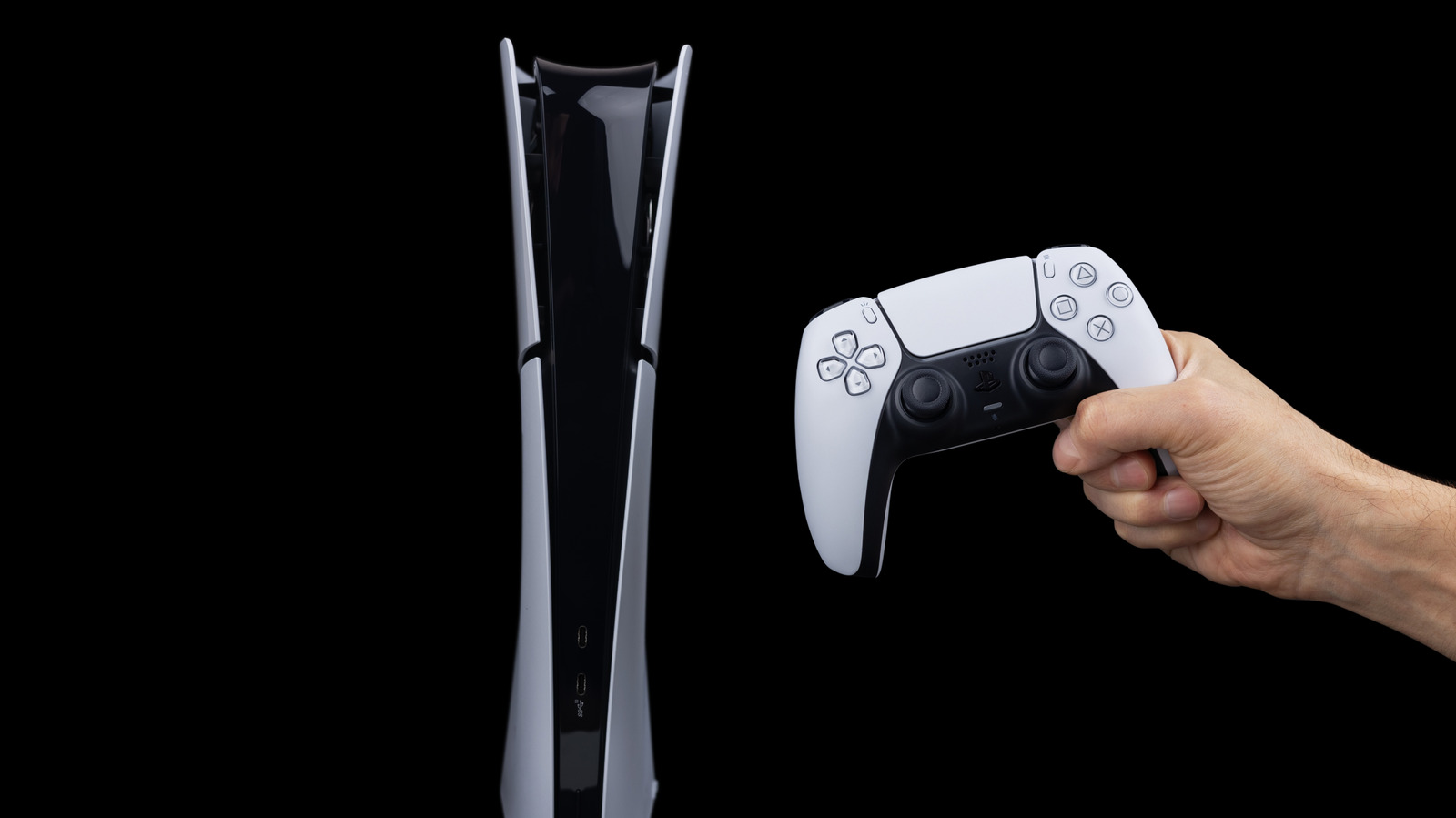
 Skrypnykov Dmytro/Shutterstock
  Erman Gunes/Shutterstock
  miss.cabul/Shutterstock
  ZikG/Shutterstock
  Girts Ragelis/Getty Images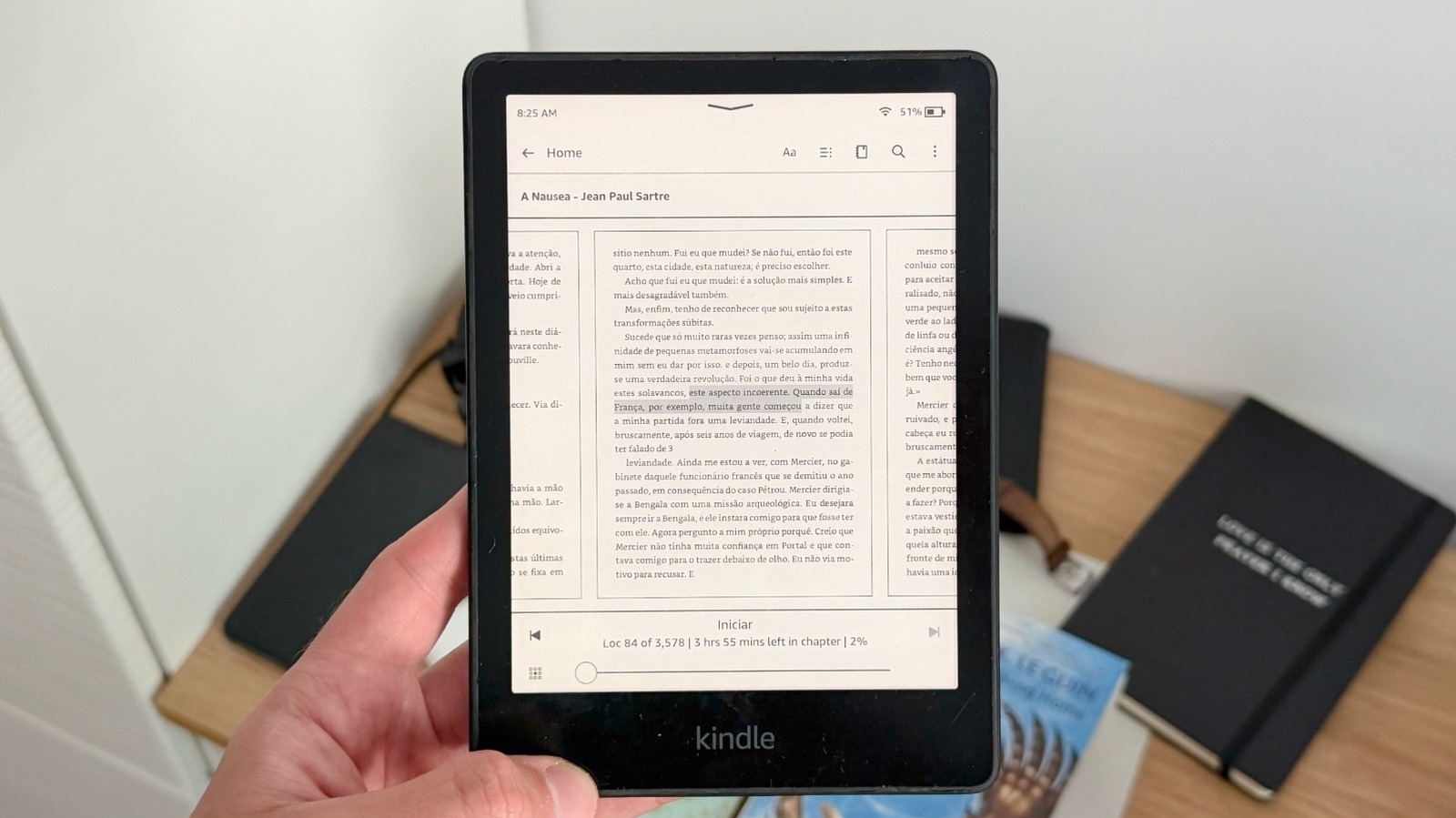
 José Adorno/BGR
  José Adorno/BGR
 ridho try syahpitra/Shutterstock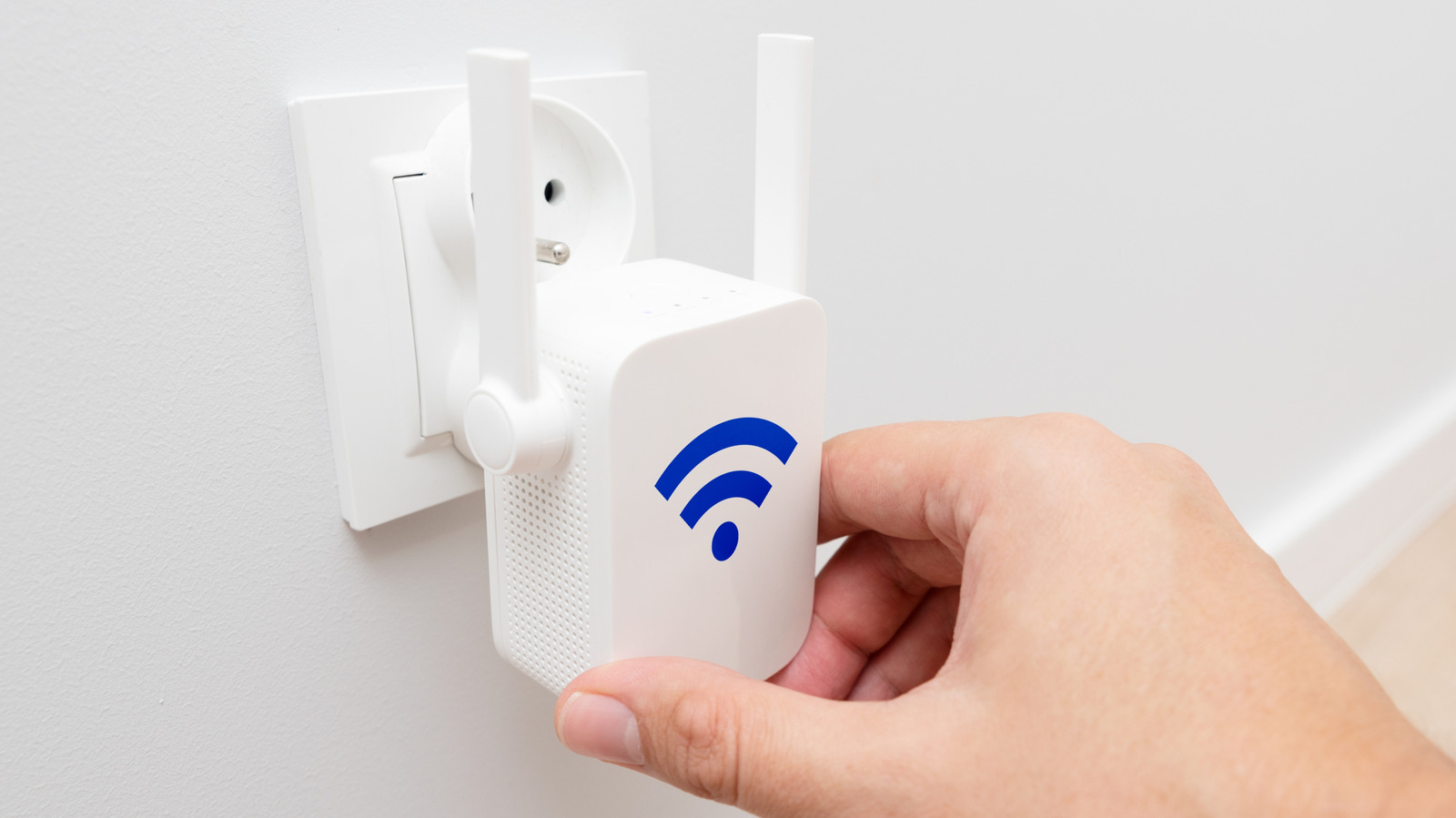
 Proxima Studio/Shutterstock
  ParinPix/Shutterstock
  New Africa/Shutterstock
  SOLDATOOFF/Shutterstock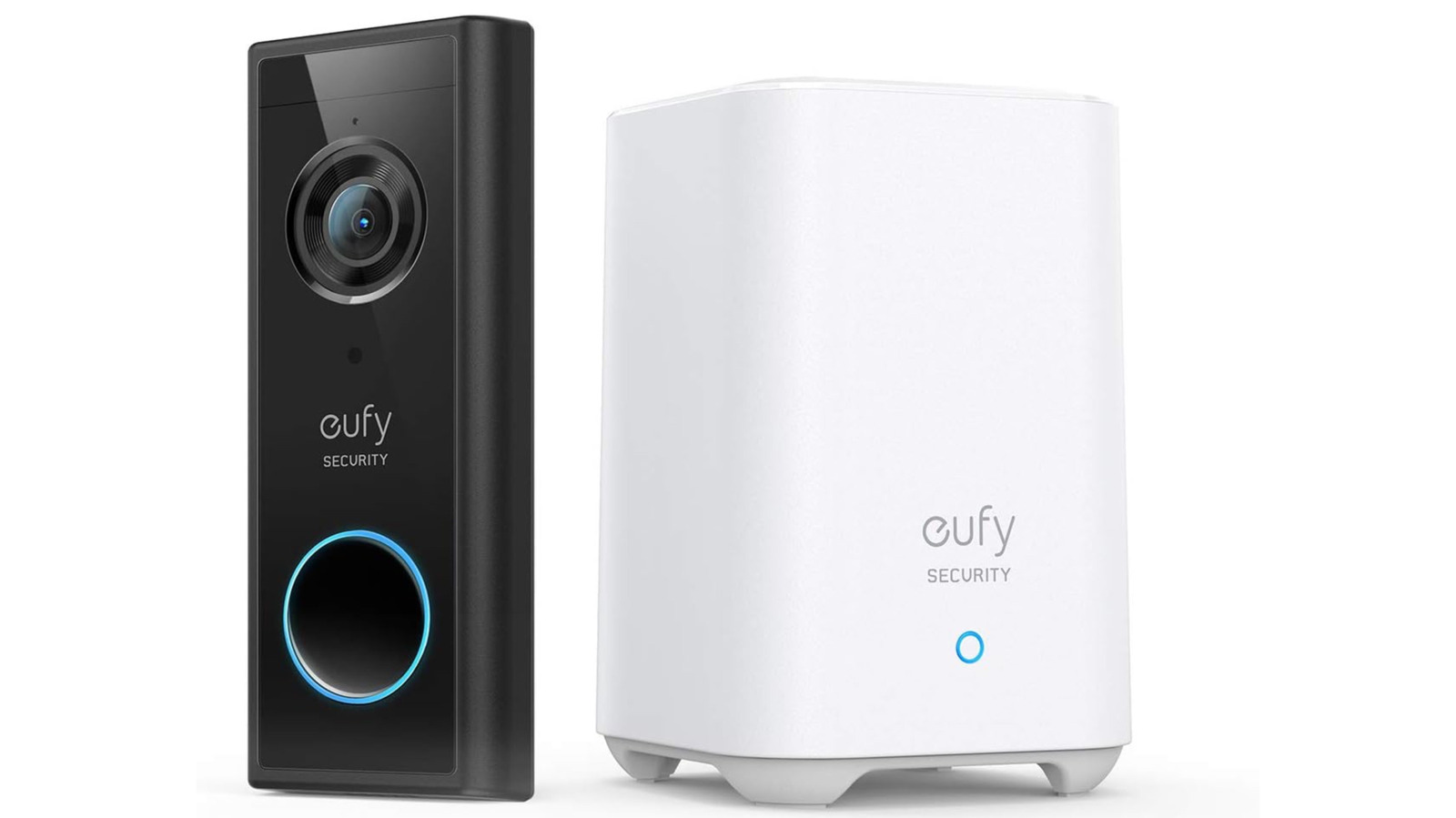
 Iamzhem/Getty Images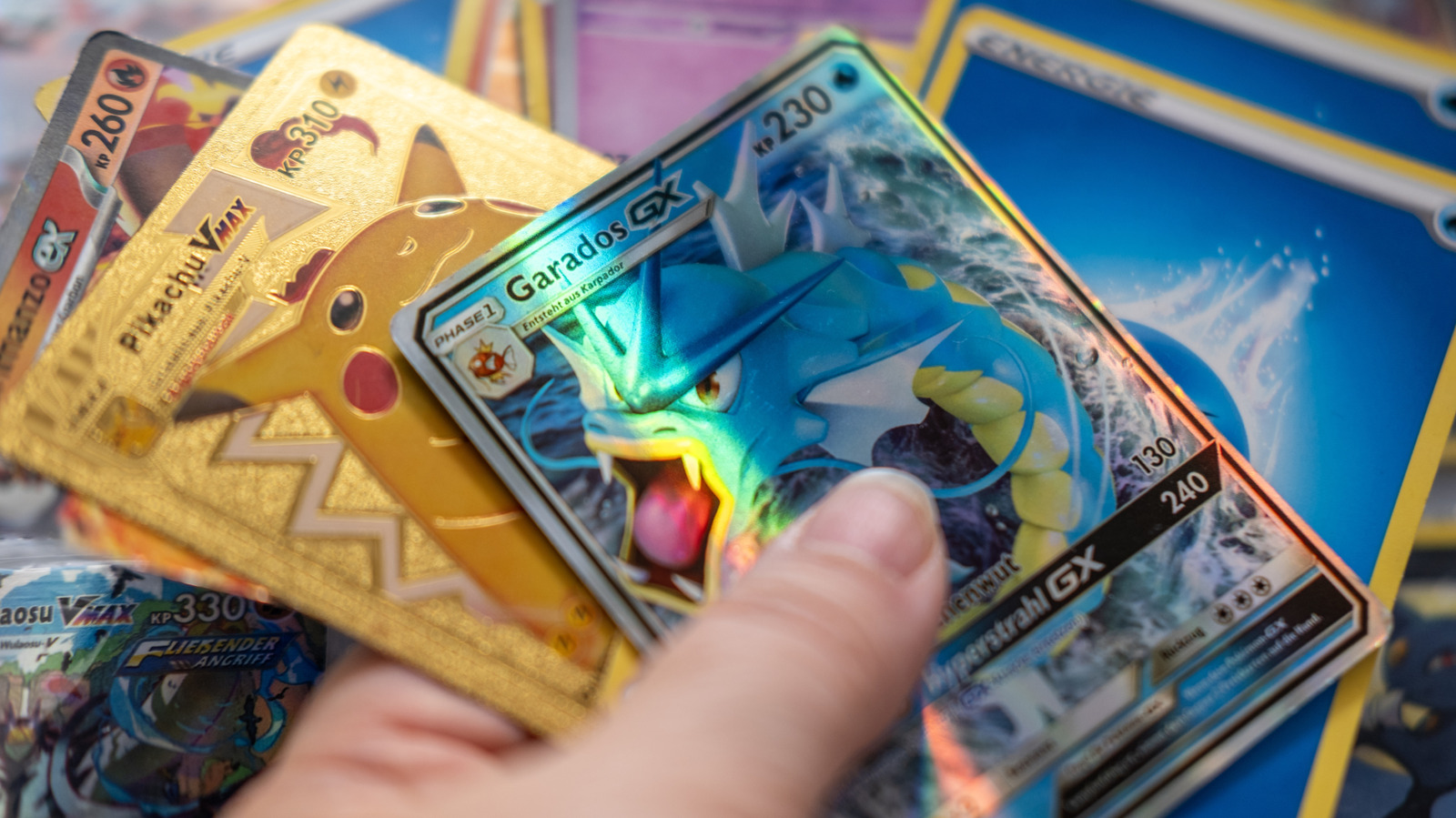
 Kittyfly/Shutterstock





