Posted on

5 Things To Know Before Buying A Laptop Docking Station

Multi-port laptop docking station being connected to a laptop's USB ports. vshtun/Shutterstock

We may receive a commission on purchases made from links.

Laptops only contain so many ports, which means you’re limited by what you can plug in, be it extra storage, peripherals, monitors, and beyond. That’s where laptop docking stations come into play. They enable you to connect a myriad of gadgets to your otherwise limited laptop, but in a way that allows you to set up a more static workstation. At the end of the day, you can simply unplug your laptop and leave everything connected to the dock, so when it’s time to come back, you plug it all in through a single, simple interface: the docking station.

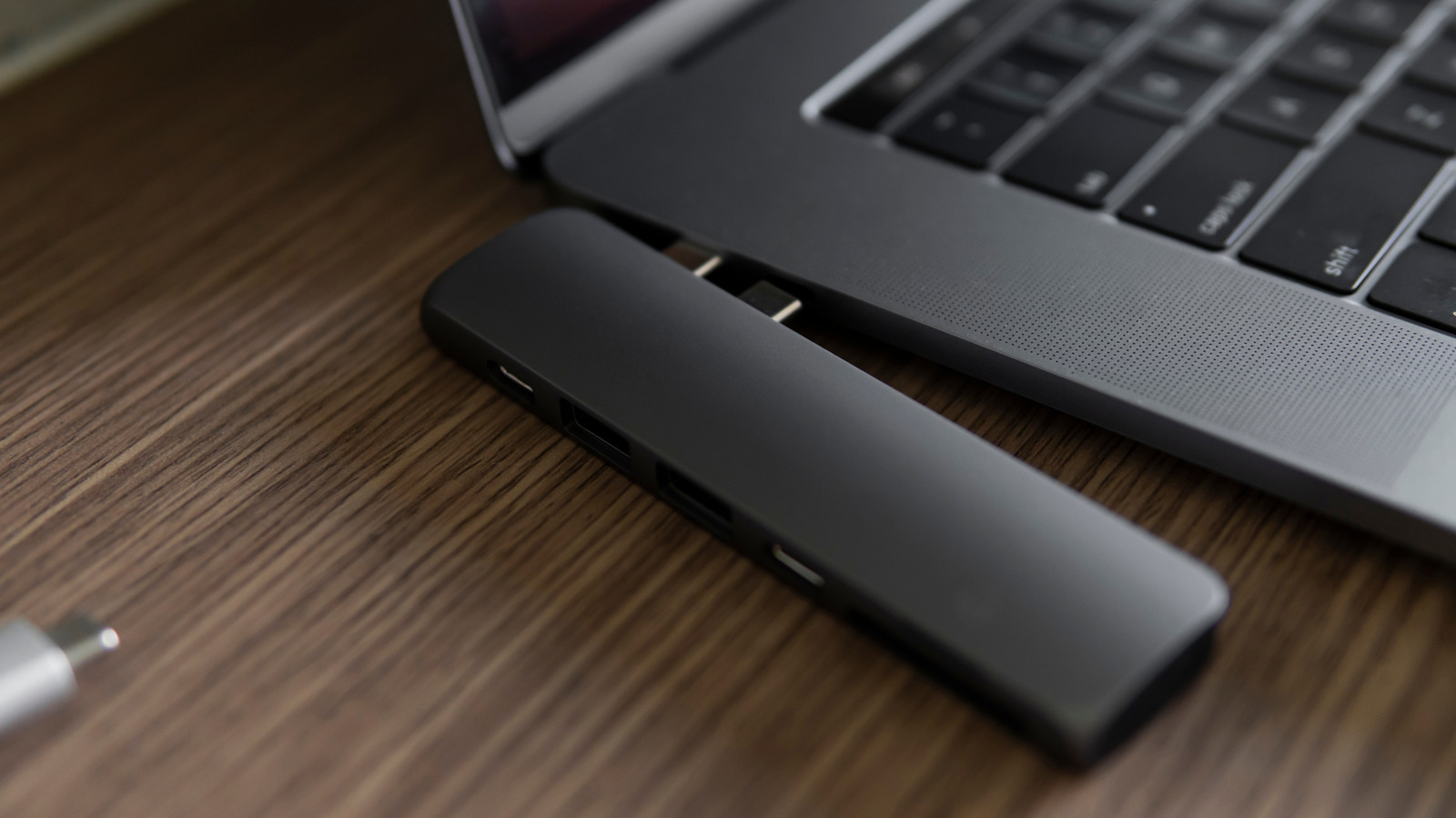
Modern docking stations are less like the Nintendo Switch’s TV and charging dock and more like USB hubs or desktop power stations. For example, the Anker Nano laptop docking station stands upright like a small tower and has 13 total connections to significantly expand your laptop’s functionality. Meanwhile, Anker’s 8-in-1 dual-monitor laptop docking station is more of a USB hub with a lightweight design, so you can easily stow it when you travel. But in both cases, these devices do the same thing: they expand what’s available to your laptop or system.

As you might expect, laptop docking stations come in many forms and with a plethora of functions to choose from. There are a few great docking stations for gaming laptops, specifically MacBook docking stations on Amazon and more. It’s enough that when you’re on the hunt for one, there are some things you need to know first. I’ve outlined those considerations here.

1. Know how many ports you need

Docking stations come with a wide variety of additional ports to expand your laptop’s functionality. Common options you’ll find include standard USB Type-A, USB Type-C, HDMI or DisplayPort for monitors, Ethernet for wired internet, audio jacks like a 3.5mm audio input, SD card readers, and high-wattage USB ports with PD (power delivery) for fast-charging.

Some hubs may include support for multiple displays, meaning two or more HDMI or DisplayPort connections, while others may include more USB and so on. Step one is to figure out which ports you’ll need and which you use most, and go from there. If you’d like to dock your laptop with dual displays, a mouse, a keyboard, external storage, and other devices like a microphone or headset, you need to choose a dock that accommodates all of them. If you want to achieve something like triple external displays so your laptop can plug into a pseudo-battle station, you’ll need to seek out a dock that supports that functionality. It seems straightforward, and sure, it can be, but incompatibility is not something you want to have to figure out after you’ve purchased and installed a dock.

2. How static do you want the station to be?

Next, you need to decide how you’ll install the station and what setup you want for your desk or workstation. Are you okay with something bulkier and more functional that will stay on your desk at all times after you plug it in, or do you want something lightweight you can bring back and forth between home and the office? The comparison between the Anker Nano 13-in-1 docking station and the Anker 8-in-1 docking station in the intro is the perfect example. One is much larger and bulkier, designed to be placed upright on a desk and left there. The other is smaller, more portable, and easy to set up and pack away when needed.

In addition, there are stations that let you actually dock your laptop, like Acer’s docking station for 3 monitors. The laptop essentially rests on top of the dock, which doubles as a stand. That, too, is meant to remain on a desk, so you’re not likely to bring it anywhere. The point is that docking stations are relatively inexpensive, so you could install one at home and another at the office, and even have two separate versions to match your different experiences. You might have a three-monitor docking station at work and a single-monitor docking station at home, for instance.

3. Understand and identify the power requirements

USB-C docking station plugged into a laptop on a desk. Nickbeer/Getty Images

Some portable docking stations work more like a USB hub, siphoning power from the laptop, the primary device they’re plugged into. Most static docking stations, especially those with substantial power requirements, have a separate power supply and must be plugged into a nearby outlet. In most cases, a dock that supports multiple displays, high-bandwidth internet connections, high-speed USB ports, and other features will require a dedicated power supply. That, combined with the information about your laptop’s power requirements, can help you determine if the station will charge your laptop and power the extra gear appropriately. The best Steam Deck USB-C hubs and docks are a solid example of this. They provide enough power to charge the Steam Deck while docked, and that works as you’re actively using and gaming on it, too. Otherwise, the battery would drain too fast.

As a general rule, if you’re plugging many devices into the docking station, you want to make sure it has enough power, so it’s best to choose a static station with its own supply. If you’re hoping to charge your laptop while it’s docked, you’ll need to match the power between devices, such as choosing a 100-watt-capable dock for a 100-watt laptop. Another thing to consider: the laptop and dock must have either Thunderbolt 3 or 4 ports, USB4, or USB Type-C with PD to enable fast-charging.

4. Consider cable placement for better organization and management

Something else you might not consider until you have everything plugged in is where the cables and individual connections are located. With a hub-style dock that has ports on both or all sides, you’ll have cables coming from all angles. That will end up making your desk look quite messy and might even make things difficult to work around, depending on how much space you have available. Other docking stations are designed with the ports on a single side, neatly in a row. The latter would make it easier to organize cables coming from underneath the desk or in a single direction and also keep things a little tidier. Ultimately, it depends on your desk or workspace layout, and one configuration may work better than others.

As with deciding how many ports you want, consider how many devices you’ll be plugging in, including monitors, hard drives, peripherals, your laptop, and so on. Try to imagine or map out where those cables will come from, how it will all look on your desk, and how much extra space it will need. You may be better off with an upright dock, one that lies flat or a unique design that moves the ports and cables out of your way.

5. Make sure you understand platform compatibility

USB Type-C cable plugged into the side of a laptop as a close up. Diy13/Getty Images

While there are a ton of laptop docks that support cross-platform use, like Windows and Mac, some still only support specific platforms. Before choosing a dock, double-check that the station will work with your particular laptop. If you have a MacBook, for example, you’ll want to explicitly make sure the dock supports Mac connections, and you’ll also need to make sure it has Thunderbolt, USB4, or USB-C with PD ports. If you’re looking for a dock for your smartphone or tablet (and yes, they exist), you’ll want to make sure you’re choosing one with the right compatibility. There’s an $80 dock designed for the iPad that turns it into a more productive work setup, and even works with some Android tablets.

If you don’t plan to use some of the extra features of a dock, like the ability to connect to multiple displays, and you’re just looking for extra ports, it may be better to go with a cheaper, just as reliable USB-C hub. Although most people use USB hubs incorrectly by overloading them with too many devices, they’d benefit more from the individual power draw of the docking station.
Source

Posted on

Here’s When You Should Clear Your Browser Cache

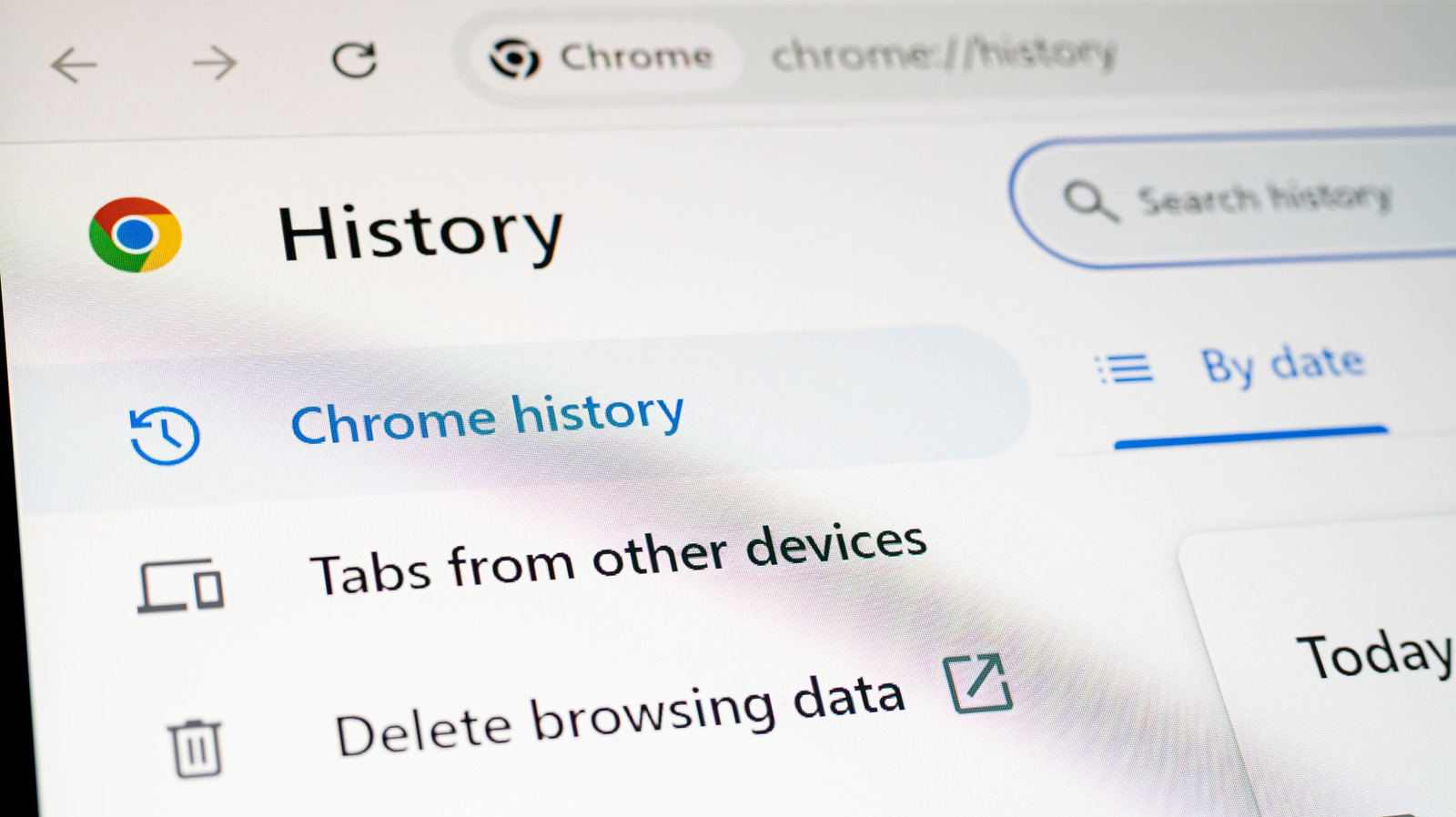
A picture taken of Google Chrome settings showing Chrome History R.Narong/Shutterstock

If you visit a website multiple times a day, loading it each time is inefficient. Instead, your browser downloads all the data once and then displays it whenever you reopen it. This cache fills up your storage, though, which means you’ll eventually have to delete it.

How often you should clear your browser cache depends on your specific use. You should usually clear it whenever there’s an active issue that you need to deal with, though there’s no harm in clearing it more often. If your Google Chrome is suddenly slow or websites are refusing to load properly, these are signs that your browser needs a reset. Another case where you’d want to clear your browser cache is when you’re running out of storage. For those who watch videos in a browser on YouTube, Netflix, or similar websites, the cache can quickly add up to multiple gigabytes. This can be an issue for those using phones with limited storage.

How often these issues occur depends on what you do in your browser, the platform you’re on, and the total storage you have access to. For example, someone who browses shopping pages and is bombarded with product images will end up with a large cache that needs to be cleared. On the other hand, someone who only uses their browser to search Google queries and rarely visits sites that create a lot of cache can spend months without clearing it.

Should you clear your browser cache even if there are no issues?

A person holding a phone with the YouTube logo in front of a monitor displaying various YouTube video thumbnails Juan Alejandro Bernal/Shutterstock

If you’re not facing any of the issues we’ve mentioned so far, there’s still a reason to clear your Google Chrome or Firefox browser cache at least once every few months. Doing so leads to a faster and smoother browsing experience. It’s important to note that clearing the browser cache will impact how quickly websites load on the first visit, as the browser must load each new site from scratch. This depends on how fast your internet connection is, but if you’re not suffering from any Wi-Fi issues, it won’t be a huge change in loading times and will improve after each website initially loads. 

Another reason to clear your browser cache every so often is to remove obsolete or corrupted data. Cache can become corrupted over time, and as websites change, it may no longer be required. In such cases, the outdated cache provides no value at best, and actively worsens loading times at worst. Even if you’re not facing any issues currently, having cache constantly build up can result in problems later, and frequent cleaning helps prevent these before they manifest.

This is especially true for people using old HDDs for storage, given their slower read speeds. If there’s a ton of cached data on the drive, an HDD would take a long time to find it. This can result in slower loading while the HDD retrieves cached data.

How to automatically delete cache from your browser

A magnifying glass zooming in on the words chrome with the Google chrome symbol beside it

If you don’t even want to manually clear your cache, there is a way to make it automatic. This depends on your browser, but if you primarily use Mozilla Firefox or Microsoft Edge, you can make it so that all cached images and files get deleted each time you close the window. Do note that this will make websites load more slowly, and you’ll also have to enter any passwords or billing details each time you load the website. 

In Firefox, click the three horizontal lines to open the application menu and go to your settings. Click on Privacy & Security on the left and scroll down until you find History. Here, you can choose the “Never remember history” option to completely stop Firefox from caching and storing your history, or you can choose “Customize history” if you want to select what to delete whenever you close Firefox.

The process is similar if you want to stop Microsoft Edge from storing cached data. Click the three dots beside your profile to open a dropdown, then go to settings and click the three horizontal bars in the top left to see various options. Here, click on “Privacy, search, and services,” and you’ll find an option to clear browsing data. Once you click this, you can either delete the cached data and history directly or choose what gets deleted each time you close the browser. If you want to do this on either Google Chrome or Safari, you can do so by downloading a free browser extension that does the job, such as the aptly named Clear Cache.

Source

Posted on

4 Bluetooth Myths You Should Stop Falling For

The Bluetooth icon in the Control Center of an Android Eza_Nanda/Shutterstock

We are well past the days of needing an AUX cable to connect headphones or earbuds to our smartphones and computers. Controllers no longer need to be physically connected to our consoles, forcing us to sit close to the screen. Even though wired connections are usually superior, these examples show how Bluetooth has made our devices more connected than ever. Bluetooth may have its share of problems, but with it you don’t need to worry if you have the right cable or if the device you’re trying to connect to has the correct port.

Like all technology, there are common Bluetooth misconceptions that can make you use it incorrectly or want to avoid it. For instance, people believe that Bluetooth causes cancer or significantly drains your phone’s battery. Some suggest it can only be used at short distances or that it cannot travel through walls. These myths sound plausible at face value, but they quickly fall apart once you look at the facts.

Bluetooth earbuds cause brain cancer

An close-up shot of an earbud in someone's ear. Body Stock/Shutterstock

Bluetooth devices emit a type of radiation, which is why some are concerned about earbuds causing cancer. Some types of radiation have cumulative effects on the body, meaning once you’ve been exposed to them enough times, they can start to damage your cells. Luckily, earbuds emit a weak type of radiation called non-ionizing radiation, which is non-cumulative and doesn’t cause any damage to your brain cells.

Ionizing radiation is the cumulative type. It has enough energy to ionize the atoms and molecules in human cells. This means it can disrupt cells and strip atoms of their electrons. Prolonged exposure to ionizing radiation can eventually start damaging your tissue and DNA, which can lead to cancer. You’ve probably been exposed to small amounts of ionizing radiation before if you’ve ever had an X-ray or CT scan. This is why doctors don’t order these tests without careful consideration. 

Non-ionizing radiation, on the other hand, is too weak to have ionizing effects. While it does disrupt atoms, it doesn’t strip them of their electrons. Non-ionizing radiation is emitted by radio waves, Wi-Fi, and, yes, Bluetooth. However, there’s no evidence that it can cause adverse effects on your health.

Leaving Bluetooth enabled will kill your phone’s battery

Someone adjusting the brightness in a iPhone's Control Center Thaspol Sangsee/Shutterstock

If you believe that Bluetooth drains your device’s battery significantly, even when idle, it can be concerning to always have it on. The truth, however, is that the amount of battery it drains when it’s not performing any tasks is negligible. According to tests done by Android Authority, leaving Bluetooth enabled for 26 hours only drained the battery by 1.8%. These tests were carried out with classic Bluetooth rather than Bluetooth Low Energy (LE).

With the advent of Bluetooth 4.0 came the Bluetooth LE protocol. It was designed to consume less power when carrying out tasks, such as transferring data or audio, on devices with smaller batteries. This comes with trade-offs, with the biggest being lower data transfer speeds — up to 1 Mbps versus 2.1 Mbps on classic Bluetooth. Smartphones switch between the two depending on the tasks, but when idle, they normally use Bluetooth LE to update things in the background, like smartwatches and fitness trackers.

There are minor security risks to always keeping Bluetooth on. For instance, there’s bluejacking, where hackers send you unsolicited messages via your Bluetooth connection. It can be annoying at best, but dangerous if it’s a phishing attack. Bluesnarfing is when they hack your phone using Bluetooth and steal your personal information (thankfully, it’s rare). Both are easily avoidable by making your phone undiscoverable in Bluetooth settings and ensuring your phone is updated with the latest security patch available.

Bluetooth is only for short-range applications

The Bluetooth icon in the Control Center of an Android Ilham Firdaus Yusuf/Shutterstock

Smartphones, headphones, and wearables use Bluetooth Class 2. It’s the standard type of Bluetooth with an effective range of up to 33 feet. The range is short to reduce power consumption, meaning it’s more of a trade-off that makes it ideal for smaller devices than a technical limitation of the Bluetooth technology as a whole. There’s also Bluetooth Class 1, which is more powerful and can reach up to 333 feet. It can be found in high-end headphones, industrial laptops, robotics systems, heavy machinery, and ECG monitors.

There are also Bluetooth Class 3 devices, and these have an even lower range of up to 3.28 feet. Consumer devices in this class include wireless mice and keyboards, smartwatches, fitness trackers, and wearables.

Bluetooth 5.0 and higher can theoretically reach distances greater than 0.62 miles (1 kilometer). This is known as Long Range BLE, and it achieves this through Coded PHY. This feature increases its distance for long-range applications, resilience against other radio frequencies, and obstacle penetration power — all without drastically increasing its power consumption. However, data transmission rates are about 125 Kbps or 500 Kbps, making them very low. You’re unlikely to find Long Range BLE in consumer products, but it does have applications in fields like advertising, asset tracking, and environmental monitoring.

Bluetooth cannot travel through walls

A picture of the Amazon Echo Dot Bluetooth speaker on a table, with a man sitting on the couch while on his phone Blackcat/Getty Images

It happens all the time: You’re listening to music using a pair of the best Bluetooth earbuds and then decide to switch rooms. You leave your phone or computer in the first room, but when you enter the other room, the audio cuts. Situations like this are what have perpetuated the myth that Bluetooth cannot pass through walls. But it can. Radio signals, including such as Bluetooth and Wi-Fi, can pass through walls. How effectively it can do so depends on factors like the material they’re made of and their thickness. For instance, Bluetooth will have an easier time penetrating sheetrock or glass windows than it would concrete.

When a Bluetooth signal is traveling from the transmitter to the receiver, it will naturally lose strength the further it travels. This phenomenon is called path loss. As a Bluetooth signal passes through barriers (e.g., walls, windows, and even humans), the signal becomes even weaker instead of being blocked. Other things that can interfere with a Bluetooth signal are other signal-emitting devices, especially those that operate on the same 2.4 GHz band. These include routers, microwave ovens, baby monitors, and wireless cameras.

Source

Posted on

Is The Original Nintendo Switch Still Worth Buying In 2026?

a Nintendo Switch Wachiwit/Getty Images

The Switch is Nintendo’s best-selling console, and it’s clear why. Its versatility, library of games, and appealing prices are what make it well worth buying today. The ongoing support from Nintendo makes the console a safe purchase in 2026, and you can expect new updates, extra features, and some occasional new games for the Switch. Nintendo and third-party developers are preparing to dedicate themselves to the Switch 2 only, but that full shift hasn’t happened yet. 

Since its launch in 2017, the Nintendo Switch has sold a whopping 155 million units. It continues to receive new games, updates, and content even after the arrival of the Switch 2. The original console’s library now spans more than 13,000 titles (via MobyGames), from blockbuster franchises like “The Legend of Zelda: Breath of the Wild” and “Super Mario Odyssey” to a huge catalog of indie hits. Add in NES, SNES, and GameCube titles through Nintendo Switch Online, and you’re getting access to decades of gaming history in one device.

Nintendo Switch’s gaming library and pricing

a woman playing The Legend of Zelda: Breath of the Wild on the Nintendo Switch Chesnot/Getty Images

When the Switch released on March 3, 2017, it launched alongside “The Legend of Zelda: Breath of the Wild”. The console released at $299 with the then-standard price of $59.99 for new first-party games. Compared to Nintendo’s higher prices of $69.99 today, shopping for a new or even used Nintendo Switch is better value for the money you spend on games.

There are several Switch versions you can get your hands on today: the Nintendo Switch OLED ($399.99), the original Switch ($339.99), and the Switch Lite ($229.99). For graphics, the OLED is the best, making “The Witcher 3, a 2015 game, look incredible — and we’re excited about the new “The Witcher” game that CD Projekt Red announced. The Switch Lite is handheld-only and good for travels, while the standard model is the one to buy if you want to keep things simple. While the prices for each console have gone up, all models are cheaper than the Switch 2’s $449.99 price tag, making the OG Switch an excellent choice for budget-conscious buyers.

The Switch library is vast, but there are standout titles you need to check out. “Hades” and newer titles like “Hades 2,” which I play every day on my Switch, are amazing indie choices that run smoothly on any model. “Stardew Valley,” “Hollow Knight: Silksong,” and “Metroid Dread” are other great picks.

Nintendo Switch hardware comparisons

Nintendo Switch and Nintendo Switch 2 Miguel Lagoa/Shutterstock

All Nintendo Switch models, except for the Lite, are playable on TV or as a handheld. While the Switch 2 is also capable of that, it may as well just take the title and stick a two on it, as there aren’t huge differences between the two consoles. The Switch offers a resolution of 1920 pixels by 1080 pixels at 60 frames per second, whereas the Switch 2 can run up to 4K resolution on TVs and show 120 frames per second.

Let’s face it: Nintendo games aren’t graphically heavy. The console isn’t pushing out titles like “Baldur’s Gate 3.” For that, you’ll want to invest in a Steam Deck OLED with exclusive features — but its steep price of $549.00 makes the Switch a bargain. Even the ROG Xbox Ally can run high-performance games, but dropping $599 on it over a Switch is not a great idea if you value your money. Plus, connecting both portable PCs to a TV requires a dock sold separately. As for battery life, Nintendo states the standard Switch and the Switch OLED can run from four and a half to nine hours on a full charge, depending on the game. The Steam Deck offers three to 12 hours of charge.

Our family has multiple Switch consoles: two Lite models for Animal Crossing” and an OLED model for “Breath of the Wild.” As someone whose first console was the Nintendo 64, I’ve been a fan since “The
Legend of Zelda: Ocarina of Time.” Plus, being able to play as Link in “Super Smash Bros.” in 1999 and again in “Super Smash Bros. Ultimate” for the Switch is awesome. We may not have to wait much longer for a follow-up, as the Super Smash Bros. director has been working on a secret new game for years. If you’re in the market for a fun handheld with a library of hundreds of games that are great for the whole family, a Nintendo Switch offers all of that at an affordable price.

Source

Posted on

Project Hail Mary Author Andy Weir’s Predictions About AI-Generated Art

Author Andy Weir at the Project Hail Mary premiere standing in front of a picture of Ryan Gosling as Ryland Grace. Theo Wargo/Getty Images

The acclaimed sci-fi author responsible for “Project Hail Mary,” one of the most inspiring and heartwarming movies of 2026 so far, has an unsettling prediction about artificial intelligence and its use in art. In an interview with Julien Crockett of the Los Angeles Review of Books, author Andy Weir (who also wrote “The Martian”) was asked about AI’s “potential” in the writing world. Weir revealed that he experimented with AI early on out of curiosity and found “it was really bad at writing.” However, he expects “it will be good later on” and makes the chilling prediction that he “might be among the last generation of human authors.”

In Weir’s mind, AI will eventually be capable of writing “more entertaining, compelling, and exciting stories than any human,” drawing from the vast catalog of literature and piecing together the parts people enjoy most. Beyond that, he predicts art will “shift away from collective entertainment to a personal form.” In other words, Weir thinks AI will be widely used to create stories tailored to an individual’s known preferences, and it’ll happen “probably within our lifespans.”

When asked about the communal experience of art and of getting to know the people who create it, Weir dismisses the idea that people will miss human artists. As he points out, “nobody wants to talk to [Photoshop] … People accept that there are tools that do this.” He believes there will always be some room for humans in all art forms, though he thinks they’ll play a smaller role. He gives the examples of live performances and portrait painting, which still exist despite TV, movies, and photography being far more convenient and popular, saying, “What was once routine becomes niche.”

Why Weir is still optimistic about humanity’s future

That all sounds pretty bleak for those concerned about the role of AI in entertainment, but Weir doesn’t sound particularly upset about being put out of a job. In fact, he calls himself “an optimistic guy” and seems more excited by AI’s future as a vital scientific tool for biological research and simulation than worried about how it’ll impact art.

Additionally, Weir points to the COVID-19 pandemic as evidence that “Project Hail Mary”-style global collective action is possible. Though he acknowledges the confusion and mismanagement, Weir sees it as “a good example of the world working together” to confront a crisis. As he explains, “If it were not for the pandemic, it would probably be 20 or 30 years of slow, methodical research before [mRNA vaccines] were being used. But within one year, we got it working.”

If you’ve read or seen “Project Hail Mary” or “The Martian,” Weir’s overall positive view of humanity shouldn’t come as a surprise. His stories are all about what humans are willing to sacrifice in a crisis and the importance of science in solving big problems, while centering around heroic protagonists like Ryland Grace (Ryan Gosling). They don’t present anything with rose-tinted glasses, but “Project Hail Mary” and sci-fi movies like it remind us that, while the problems may seem insurmountable, there’s always reason to stay hopeful.

Source

Posted on

This $10 Gadget On Amazon Adds 4 More USB Ports

We may receive a commission on purchases made from links.

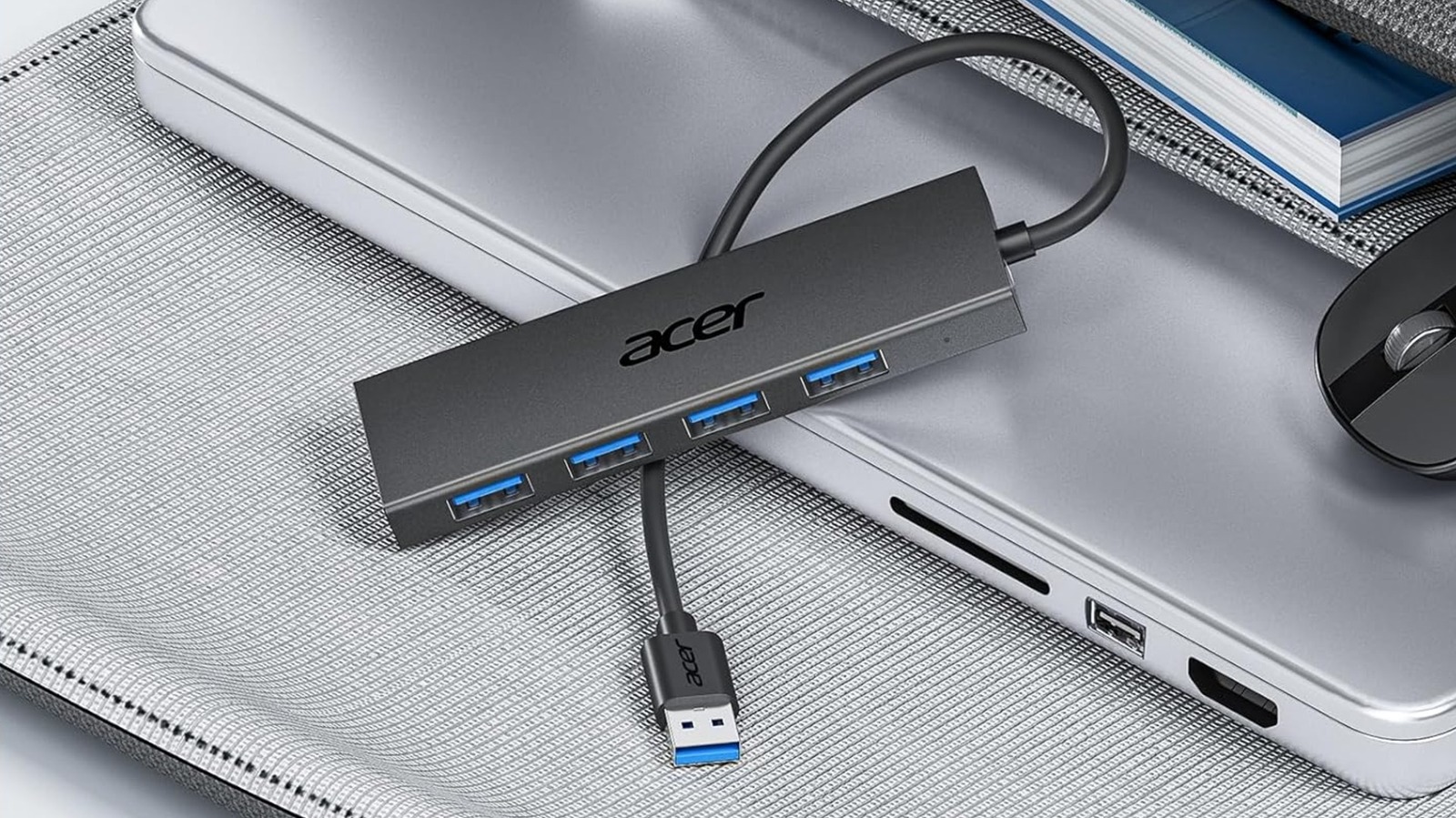
Laptops are the unsung workhorses of modern society. You can use them to finish important business proposals while commuting, and gaming laptops let you take your games on the go. However, even the best laptops can only support so many USB gadgets — even fewer if you’re using a notebook. Unless you purchase a device like the Acer USB Hub.

The Acer USB Hub lets you wire multiple USB devices through a single slot in your PC. This hub supports up to four gadgets, so you can plug in a keyboard, mouse, Bluetooth adapters, and even flash drives and hard drives, so long as their cables end in a USB Type-A port. And since the USB hub’s slots and central cord all utilize USB 3.0 technology, they support data transfers of up to 5 Gbps.

Normally, the Acer USB Hub retails for $15, but you can currently buy it for $10 through Amazon. Just make sure you’re purchasing the model with a 2-foot connection cable that ends in a USB Type-A port; the 0.7-foot version is priced at $15.99, whereas the hub with a 4-foot cable sells for $23.99. Acer also sells versions with a USB Type-C cable, which retail for $17.99, $15.99, and $21.99, respectively.

The Acer USB Hub is powerful, but it ain’t magic

When you get a USB hub, you feel the temptation to use it like your computer’s standard USB slots. After all, they’re universal ports that accept almost any device that uses a USB cable. However, USB hubs can only provide so much power use and bandwidth, and the Acer USB Hub is no different.

While the Acer USB Hub can accept most USB devices, if any require additional power, you need to plug the hub into an outlet. The device includes a 5v USB Type-C cable for just such an occasion. And before you ask, no, you cannot treat the Type-C slot as an additional USB port; this slot only functions as a power supply. Furthermore, even though the Acer USB Hub can support external hard drives, it can’t support multiple external hard drives. Even when plugged in, the hub can’t deliver enough power to both. If you need to plug multiple external hard drives into your laptop, use its built-in USB slots instead of a hub, or have the powered drives connected to an independent power outlet.

Not all of the Acer USB Hub’s limitations are a product of the device’s design; some are a result of USB technology. Earlier we mentioned that the hub can support data transfer of up to 5 Gbps. This is only true if the associated ports and cables all utilize USB 3.0 technology. If any use the less advanced USB 2.0 tech — especially the port that connects to the hub’s central cable — transfer rates will drop to a measly 480 Mbps. Depending on your laptop’s USB slot layout, you might need to reorganize some cables, but the resulting increase in data transfer speed will be worth it.

Source

Posted on

Windows Vs macOS: Which Is Better For You?

Two coworkers sitting in front of a laptop while talking with smiles on their faces insta_photos/Shutterstock

There are some major differences between the approach taken by Microsoft and Apple for their computer operating systems. Both brands also include just as many small OS-exclusive features that can be important for users. If you’re asking yourself if you should get a MacBook or if you’re an Apple enthusiast wondering if you should switch to Windows, it’s all about preference. 

Generally, Windows is better if you play lots of games, want better prices, and prioritize a larger ecosystem of third-party programs. However, if you want an OS that gives better battery life on laptops and a smoother experience when doing daily home and office work, a Mac might be the better option. But it’s not that black and white while choosing between the two. Whether Windows 11 or macOS Tahoe is better for you depends on a number of major and minor factors — and if you’re thinking about switching, there are some things you should know.

For example, Windows laptops more aggressively push in-house services like Copilot than a MacBook. On the flipside, you can view storage info and have multiple tabs open in the Windows File Manager, but macOS’ Quick Look feature lets you preview and edit files without opening them. If you are confused about choosing between them, here is a detailed guide to find out what platform makes sense for your use case.

1. Gaming

A woman gaming on her laptop, having a multiplayer game open on the screen and talking into a headphone mic Deagreez/Getty Images

There’s a reason MacBooks are marketed as a productivity powerhouse and not gaming laptops, and it isn’t all about the hardware. Sure, a Windows laptop in a MacBook’s price range will generally come with better specs, a dedicated GPU, and significantly more storage. It might also perform better under sustained load due to bigger fans and not being bound to a certain weight. However, even if neither of those were true, Windows would still be the better choice for gaming purely due to the difference in operating systems.

Put simply, macOS just doesn’t have access to the same library of games as Windows does. Since there’s always been a significantly larger number of people playing games on Windows when compared to those using macOS, game developers prioritize Microsoft. Making a macOS port requires a lot of effort, and oftentimes it just isn’t worth it, especially for indie studios.

This doesn’t mean that gaming on a Mac is impossible, though. You can theoretically run pretty much any game on Apple’s M-series chips that support better graphics, which means the issue is just the availability. This can be solved with CrossOver, which translates Windows commands to macOS in real time. The software, however, isn’t free, and also doesn’t work on games with kernel-level anti-cheat, such as Valorant. Alternatively, you can use GeForce Now to borrow an external computer over the cloud and stream it to your Mac. This method too requires you to pay and also needs a fast internet connection.

2. Battery life, portability, and unplugged performance

A person standing up holding a MacBook encierro/Shutterstock

While Windows computers pose as versatile machines, Apple’s MacBooks are most people’s preferred choice when it comes to lightweight portable machines. There are many reasons for this that go beyond the physical hardware, and macOS plays a role in this. 

Like the physical architecture that Apple uses in its M-chips, the OS is heavily optimized. This is because Apple only has to account for its home-grown devices and so has to account for fewer variables, compared to Windows which is the go-to OS for a large variety of laptops by different brands. This combination of an efficient processor with efficient software is how a MacBook Air can function without fans and why it’s not unusual for a MacBook Pro to be significantly quieter than a Windows laptop when exporting large, high-fidelity video files.

While there are certainly laptops with longer-lasting batteries than even a MacBook Pro, Apple’s computers generally offer a more well-balanced experience. Certain exceptions aside, most MacBooks will almost always outlast a Windows laptop with similar specs in terms of battery life. Additionally, while Windows laptops often throttle performance when low on battery or when not plugged into a charger, this isn’t the case for MacBooks. Whether your MacBook is plugged into a wall or is running on battery, there’s little to no difference in performance.

3. Windows File Manager vs. macOS’s Finder

An illustration of a folder with various papers inside to show how a file manager works Filo/Getty Images

You need a way to sort your files regardless of whether you choose Windows or macOS. This includes images, videos, text documents, and even your programs. Fortunately, both platforms offer great ways for you to do this. Windows has its File Explorer, whereas macOS comes with the Finder app.

While both are amazing in their own right, there are certain things one does better than the other. The Windows File Explorer gives you more information right out of the box, such as how much storage is in a specific partition you have open. You can also see full file paths in Windows File Explorer, which makes it easy to figure out where any file is located. macOS also has these options, but you have to enable them in the settings, as they’re not turned on by default.

Apple’s Finder also has a number of other features that Windows users miss out on. For example, right-clicking a file inside your macOS Finder gives you the option to merge different files into a single PDF. Similarly, right-clicking an image lets you delete the background immediately — something that requires a dedicated app to do on Windows. Additionally, macOS’s Spotlight search feature is usually quicker and gives you more options, such as not having to search for direct file names. If you can’t remember the exact file name of an image, you can describe it and the system will attempt to find it for you. To sum it up, while Finder misses out on some geekier features from Windows Explorer, it offers more intuitive features that benefit the tech novice too.

4. Window management

Various different tabs open on Windows Asad Kashif/BGR

Multitasking has become a part of daily life. A single tab simply isn’t enough today, and unless you have a second monitor to make clever use of, you’ll have to manage a ton of different app windows simultaneously. With Windows being named the way it is, you’d expect it to have a clear advantage when it comes to managing different app windows. This was true for most of history, but Apple has continuously released new updates. The present-day macOS Tahoe is just as good at managing different tabs as Windows is, if not better in certain circumstances.

Whether you prefer the tab management on Windows or macOS is entirely subjective. Apple offers more ways and different modes to manipulate your open apps, whereas Windows gives you complete control over how to move and reshape each tab by default. Windows has an advantage in that you have your entire screen to work with, whereas an app can block the App Menu on Apple computers. 

The Stage Manager mode on macOS lets you have a main app window open in the center of your screen and all other currently open apps showing previews on the side. From here, you can quickly switch to any other app by clicking on it. Windows too lets you do a similar thing with the Tab Snap feature, and it boils down to which one you like more.

5. Ease of use and quality of life features

A person opening Google on their laptop in a cafe

While both MacOS and Windows are great platforms that more or less let you do anything you’d expect from a computer, there are a few subtle differences that might make you lean towards one. This refers to how smooth of a user experience it can give you, how easy it makes daily tasks, and what features it provides to make your life just a bit more convenient.

For Windows and macOS, this starts before you ever log into your computer. Both platforms offer ways to quickly start working through fingerprint unlock, but Windows has the advantage here by also featuring face unlock. On the other hand, macOS users don’t deal with the frustration of downloading drivers manually. In Windows, you might have to manually download and update the drivers that you need for certain tasks. While it may seem easy enough, it can be quite a chore, especially for those not used to managing drivers. macOS downloads and updates all your drivers automatically, completely getting rid of this common annoyance on Windows.

When it comes to installing third-party programs, Windows is a clear winner here. You just download a .exe file from your preferred browser and then go through installation. On a Mac, you have to download a disk image, drag it to copy the file onto your applications folder, and then delete the disk file by dragging it into the trash.

Source

Posted on

Google Photos Just Solved The ‘I Have Nothing To Wear’

The Google Photos logo on a smartphone. Stockinq/Shutterstock

Choosing an outfit for the day can be an annoying chore, prompting some people to conclude they have nothing to wear in the morning, before eventually settling on a good-enough outfit. That’s the thing about the nothing-to-wear crowd. Unless something catastrophic has happened to your wardrobe, or all your clothes are in the hamper, you probably have something to wear. It’s the mixing and matching of options that’s annoying you, particularly if you don’t have the patience to go through your closet, or don’t have a bird’s-eye view of the available options.

However, that’s about to change thanks to a new AI-powered feature coming to Google Photos this summer. Google and Motorola announced the new wardrobe feature, indicating that some Motorola devices may get it before other Android phones, like the new Motorola Razr models. Wardrobe lets Google Photos extract all the clothes and accessories that appear in your photos, so you can view the available options in your closet and mix-and-match items directly from your phone.

It’s unlikely that Google Photos will contain photos of all your clothes, jewelry, and other accessories, but people who use the wardrobe feature will likely start taking photos of more outfits so the AI can categorize the items in Google Photos. Once the new feature is available to users, they’ll be able to look at clothing items by category, which will come in handy for searching for a specific piece of clothing. This feature will also let users combine various items into an outfit, save them to moodboards, and share them with friends. A Try It On feature will also be available in Google Photos, allowing users to visualize the outfit before trying it out.

Some details are still unclear

If the Try It On feature sounds familiar, that’s because Google has already used this AI-powered feature in other places. Google Shopping offers a Try It On feature that lets users try clothes virtually when shopping online. All you have to do is upload a photo to try the clothes virtually. Try It On is also available in Circle to Search on the Samsung Galaxy S26 and Pixel 10. Separately, Google launched an experimental app called Doppl in 2025 (now discontinued) that offered a similar feature to Try It On.

In other words, the wardrobe feature is a natural evolution of these clothing-related AI innovations. Setting up one’s outfit for the day can be done from an app like Google Photos, much like virtually trying on clothes before buying them. But it’s unclear whether the new feature will be available for free or require a subscription. Neither Google nor Motorola mention any fees. It’s also unclear how many outfits a user would be able to try per day.

Motorola lists some limitations, but they’re not related to AI processing. Users will need to be at least 16 years old to use it, and the face grouping setting will need to be enabled in the app. Another important issue Google doesn’t address is user privacy. It’s unclear whether the AI will process wardrobe data on the phone or in the cloud. Also, it’s unclear if the feature will be used to train Google AI models. On that note, Google doesn’t mention the AI models used to categorize clothing items and generate Try It On looks.

Google Photos Wardrobe coming to Android and iPhone

Google said in the press release that the new wardrobe feature will start rolling out to Google Photos this summer, starting with Android. iPhone users will get the feature some time after that. Motorola went one step further, providing a more specific release schedule, saying that the initial rollout starts in June for Android. The company noted that wardrobe will be available on various Android handsets, including unnamed Motorola devices, but it might not roll out globally, as Motorola said that only Google Photos users in select regions will be able to access it.

Separately, Motorola explained that Google Photos is the main gallery app on its handsets, and that the Google Photos Memories feature will be included in a new software feature called Daily Drops. This is a personalized feed that will feature personalized content based on Google Calendar and Google Photos content. While Google Photos Memories isn’t tied to the wardrobe feature, seeing Google Photos content in the Daily Drops feed can also help pick outfits, as those Memories will inevitably show you clothing combinations you’ve worn in the recent past.

Source

Posted on

Old-School iPods Are Making A Comeback Thanks To A Gen

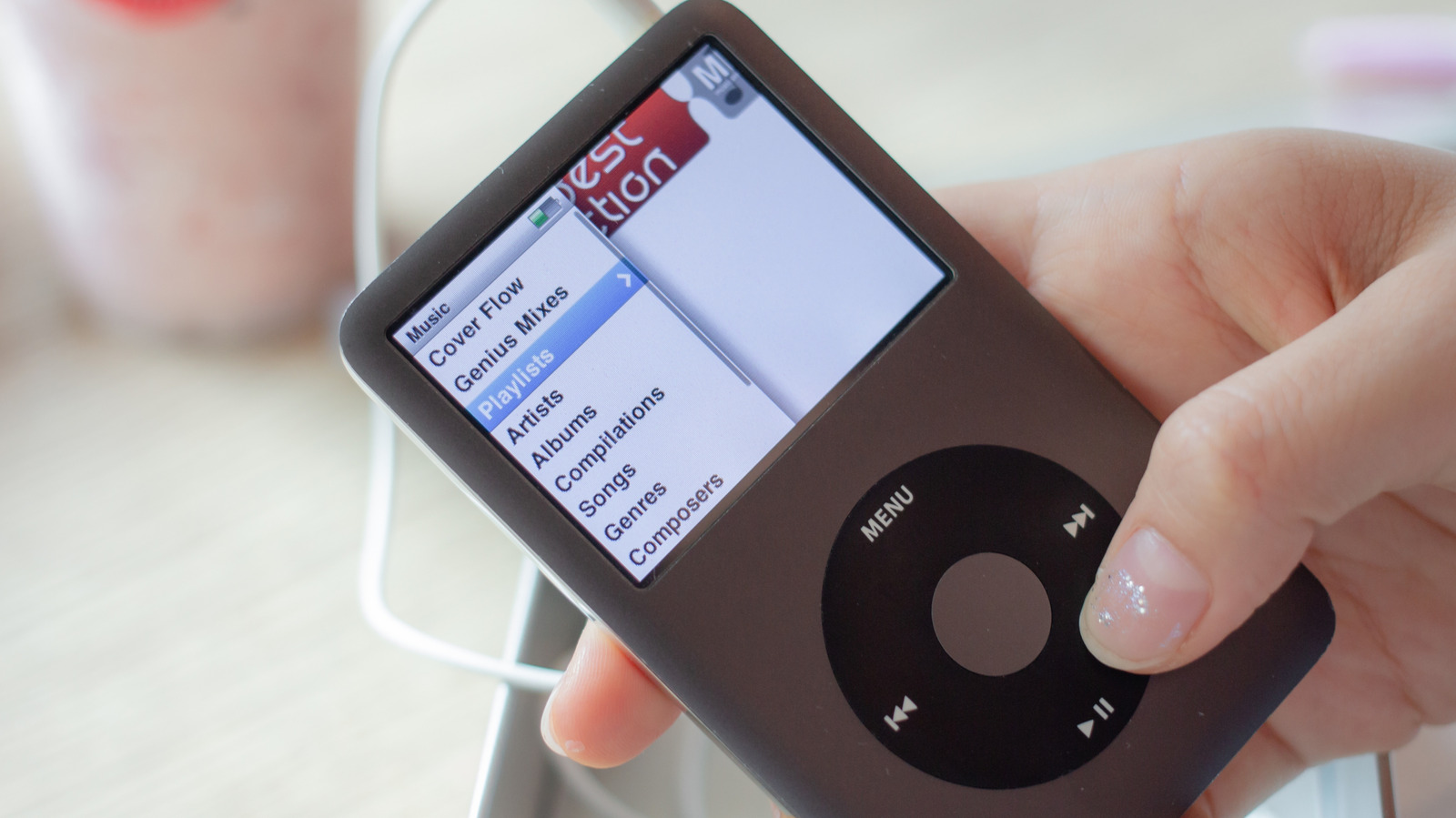
A hand holding an iPod Classic. Amp.pan/Shutterstock

Apple discontinued the iPod in 2022, 21 years after introducing the first-generation iPod model, a device that revolutionized the music industry. Now, Gen Z users are flocking to the old gadgets partly because of their big limitation – they can’t go online. But that also means they’re allowed to be used in places the iPhone is not. The iPhone, of course, inherited the iPod’s music-playing features and also supports Apple Music (as do iPads and Macs), a streaming service that generates recurring revenue for Apple. But Gen Z users are now discovering the appeal of a device that can only play music downloaded to it. Apple may no longer be selling iPods, but sales of secondhand devices are surging online, according to reports from Axios, The New York Times, and Associated Press.

Many Gen Z users were not born when Apple unveiled the first-generation iPod model, or the various versions that followed, including the iPod Classic, iPod Mini, iPod Shuffle, iPod Nano, and iPod Touch. The latter looked a lot like the iPhone, offering support for apps, but lacking phone call capabilities. Young users discovered the old iPods nonetheless, coming to appreciate them. For example, AP’s Kelvin Chan notes that his 16-year-old daughter found an iPod Nano that belonged to her grandma. Other young users are either receiving used iPods as gifts or actively searching on third-party marketplaces for secondhand iPods for themselves.

Using an iPod for listening to music isn’t just about interacting with a retro product that the younger generations may think is cool. Some users are finding that the iPod offers distraction-free music playback. One young iPod user, for example, told The Times that music playback on a phone can be interrupted by notifications and app use. The iPod can only play music.

Evidence of an iPod resurgence is everywhere

iPod nano models on display. Andrei Antipov/Shutterstock

iPods also allow the user to control what music they want to listen to, reducing the reliance on algorithms that are built into music streaming services. Also, iPods don’t play ads, which streaming services like Spotify may feature between songs. There’s another advantage for the iPod over smartphones, too: Some schools may ban iPhone and Android handsets. However, iPods are sometimes allowed, considering that they can only play music. Young students can’t go online with an iPod. They can’t use social media or AI tools like ChatGPT. The iPod Touch may be an exception, but that device would only run an older version of iOS.

With Apple selling about 450 million iPod units over 21 years, the chances are that buyers looking for a used model can find one with ease on eBay, Back Market, Facebook Marketplace, and other places. Axios reports that eBay searches for iPod Classic increased by 25% during the January-October 2025 period compared to the same period in 2024. Similarly, searches for iPod Nano increased by 20% during the same period. Separately, The New York Times said that eBay searches for iPod grew by 8% in 2025 compared to 2024 and that the number of listings grew by 30% during the same period, indicating that iPod owners are aware of the renewed interest in these music players. Both Axios and The New York Times said the data came directly from eBay.

The downside of this renewed interest in iPods is that prices will go up. The Times notes that iPod prices have gone up by 60% compared to 2023, and some models may cost up to $600. For the same price, a buyer could purchase the new iPhone 17e, which comes with an Apple Music app preloaded.

Will Apple bring back the iPod?

Steve Jobs holding an iPod shuffle in his hand in 2005. Justin Sullivan/Getty Images

Just as the iPod is making an impression with Gen Z buyers, Apple is going through a big year. The company celebrated its 50th anniversary in 2026 and then announced CEO transition plans. John Ternus will replace Tim Cook at the helm of Apple on September 1, with Cook set to become chairman of the board. As the company’s new leader, Ternus will announce several new products this year, likely starting with the iPhone 18 models that should be unveiled in mid-September, including the first-generation foldable iPhone model. A new iPod isn’t in the cards for Apple, though. Or, if Apple wants to bring back the music player, those plans have yet to leak.

However, Apple’s former employee Tony Fadell, who oversaw the development of the iPod, thinks the device has a future, according to comments made to The Times in March. Fadell acknowledged the iPod’s secondhand comeback, noting that people appreciate digital products that aren’t connected to the web so they can avoid distractions. Fadell said that Apple should bring back the iPod but create a modern version. The iPod creator said he would have supported modernized versions, revealing he even designed iPod versions that would work in 2026. Users would not have an internet connection unless they wanted to activate it, according to him. Fadell did not show off any of these designs, though.

Source

Posted on

Plastic Or Metal Laptop Body: Which Handles Heat Better?

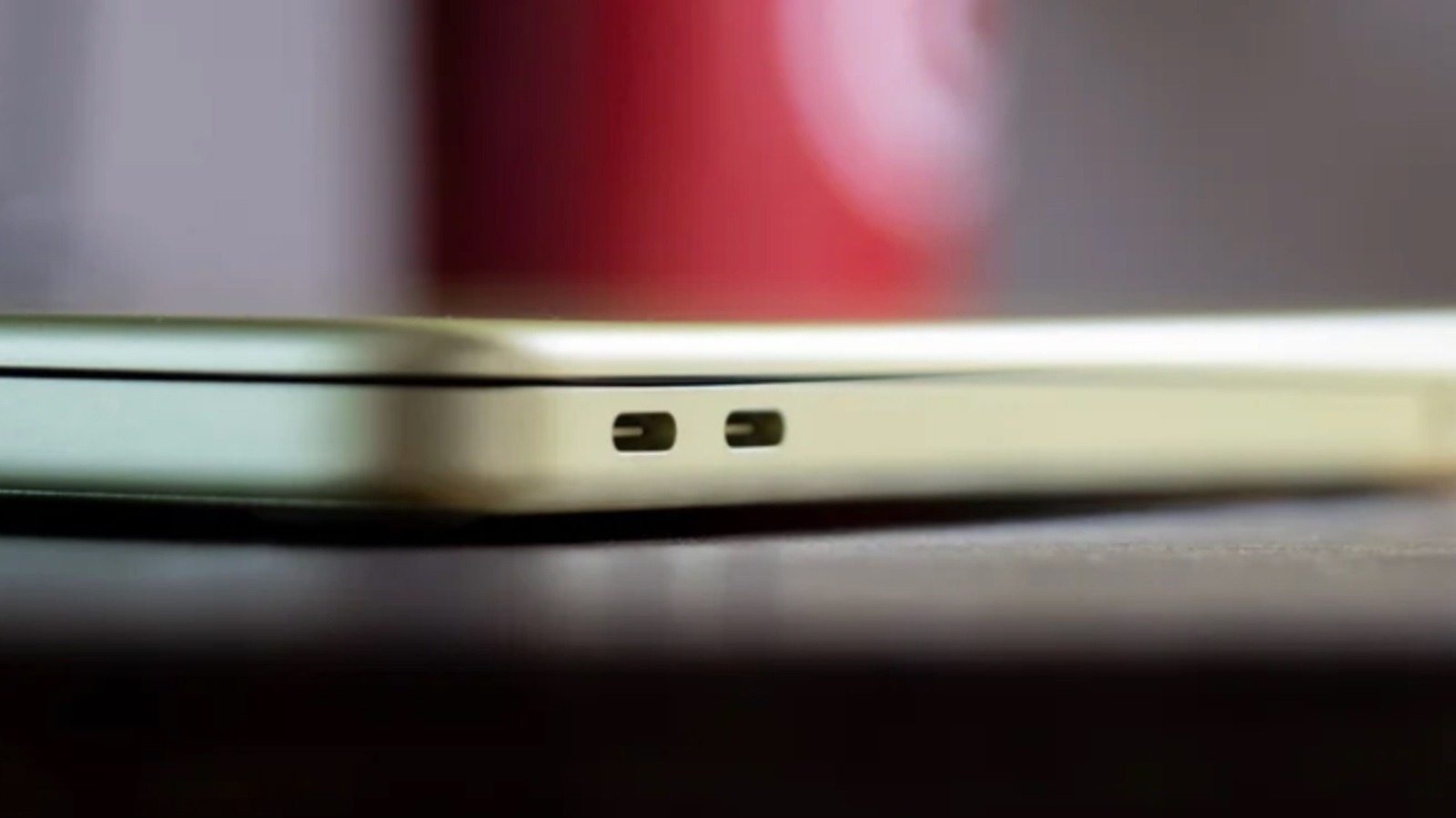
Up close shot of the USB-C ports of the MacBook Neo Christian de Looper/BGR

If you’re in the market for a new laptop because your current one overheats all the time, a model that handles heat properly should be your priority. Part of that comes down to the material in the computer’s chassis: metal or plastic. When comparing both, metal is the right pick for cooling, as it dissipates heat from internal components across the entire laptop surface, which is why laptops like the MacBook Air don’t even have a fan. 

On the other hand, if you have or had an Intel MacBook, you probably remember how the chassis would get extremely warm because of its inefficient processor. In cases like this, a plastic laptop body is better, as it won’t burn your lap, for example. Even though plastic is a thermal insulator that traps heat inside the chassis, the temperature is concentrated on the processor. Internal fans work hard and spin fast to push that hot air through the vents to lower the temperature. Still, there are benefits and downsides for each one of the finishes, and choosing one ultimately depends on what you’re looking for on your next laptop.

Metal laptops look premium, but the processor plays a big part

Close-up shot of the aluminum chassis of the MacBook Pro José Adorno/BGR

Apple is the best example of a manufacturer of premium laptops with an aluminum finish. All of its computers have metal chassis, and models like the MacBook Air don’t have fans due to their efficient heat management. Its silicon is power-efficient, which means that even when the M chip is taken to its processing limits, it won’t make the laptop overheat. Besides that, the metal finish takes an important role as it acts like a passive cooldown system, spreading heat away from the processor.

But Apple still added a fan in more powerful models like the MacBook with Pro and Ultra chips, which helps spread and dissipate heat more quickly. This efficient temperature management keeps the internal system cool, which in turn prevents the metal chassis from becoming uncomfortably hot.

The addition of a fan still wasn’t enough for more demanding tasks, as Apple’s MacBooks with the part still suffered from overheating, bad performance, and poor battery in such situations. That said, if you’re in the market for a laptop with a metal chassis, learn more about its processor so you can avoid buying a computer that turns into a frying pan when you need it to work a bit harder.

Plastic laptops got better, believe it or not

MSI GF65 Thin gaming laptop, msi laptop concept Nara_money/Shutterstock

Plastic laptops aren’t the ideal choice for maintaining internal hardware in good health, as heat doesn’t dissipate as efficiently as on metal. Still, if you take a look at high-power laptops, like gaming ones, they all use plastic.

The reasons are that a plastic chassis is cheaper to produce, makes the laptop lighter, and ensures the computer is more resistant to drops, as plastic is more flexible and less vulnerable to denting than metal. So, if you’re into really heavy tasks that include getting the most out of the processor and GPU, like online gaming, 3D rendering projects, and so on, then a plastic laptop can be a good deal.

Plastic laptops are usually easier to upgrade, as metal computers usually feature a unibody construction making them nearly impossible to open. With a plastic bottom, it’s easier to open the laptop and upgrade its internals, like RAM, storage, and more. On a MacBook, for example, everything is so strictly controlled by Apple that trying to open it likely means you’ll damage your pricey computer.

Source